

How to Set Up an Ergonomic Workspace: A Practical Canadian Guide
A practical, step-by-step guide to adjusting your chair, desk, monitor, keyboard and daily movement habits for a more comfortable workspace.

In this article
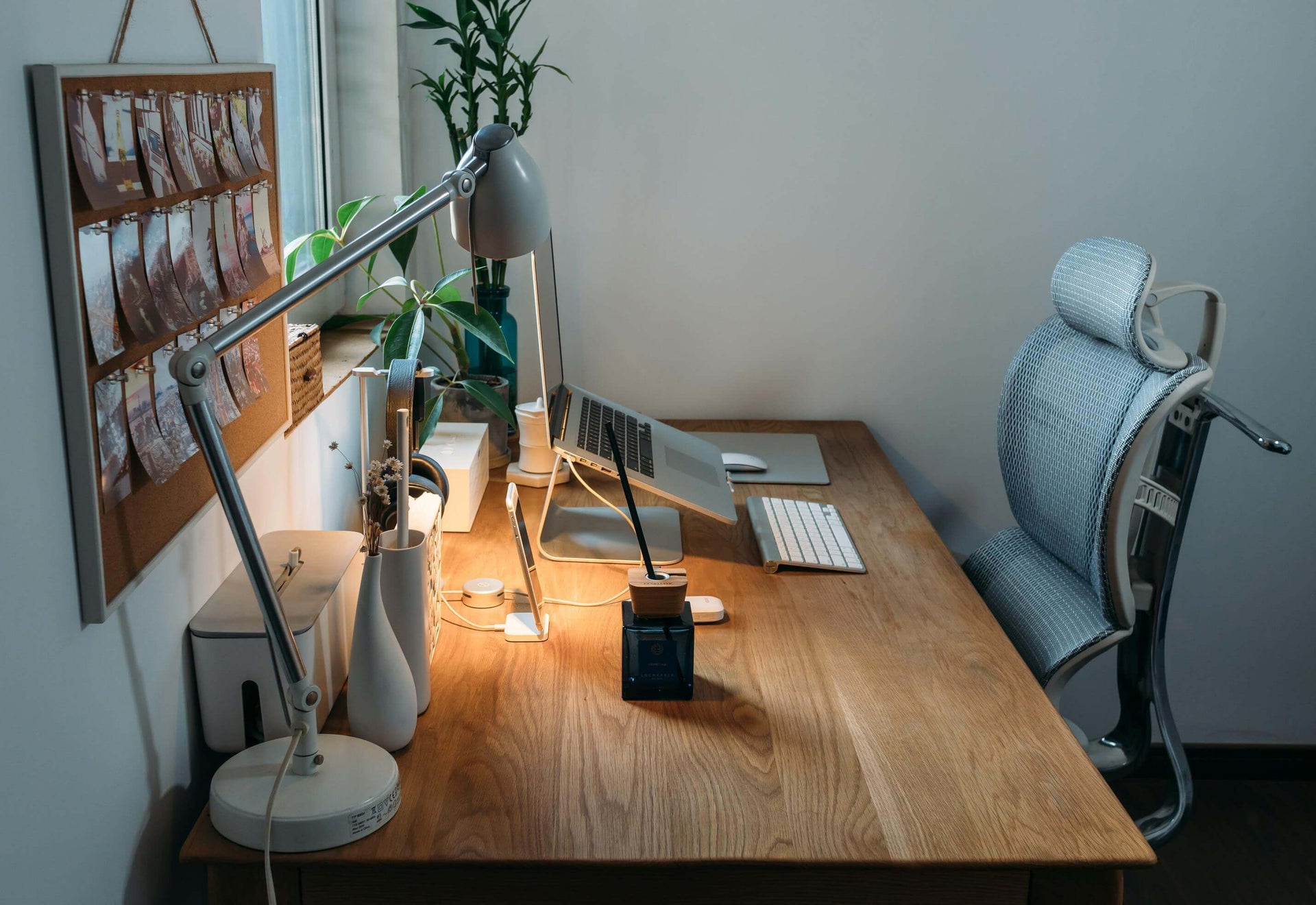
An ergonomic workspace is not defined by one expensive product. It is a system in which your chair, work surface, screen, keyboard and daily habits support the tasks you perform. Small adjustments can reduce awkward reaches and help you work more comfortably, whether you are at home or in a shared office.
This guide follows practical principles from the Canadian Centre for Occupational Health and Safety. It offers general information, not medical advice. If discomfort persists or limits your activities, consult a qualified health professional.
Start with the way you actually work
Before moving furniture, note what you do most often. A laptop-only setup, a dual-monitor workstation and a drawing surface create different demands. Identify the devices you use, the items you reach for repeatedly and the amount of uninterrupted computer time in a typical day. Your most frequent tasks should determine the primary setup.
Adjust the chair before the desk
Sit fully back in the chair and use the backrest rather than perching on the front edge. Adjust the seat so your feet rest firmly on the floor. If they do not, use a stable footrest. Your thighs should feel supported without pressure behind the knees, and your shoulders should stay relaxed.
Support the lower back
Position the lumbar support so it follows the inward curve of your lower back. A chair with adjustable seat height, back support and armrests makes this easier for different body sizes. Burotic’s Peak Ergonomic Chair and Loop Ergonomic Chair provide two options to compare according to your adjustment needs and preferred seating feel.
Set the armrests for relaxed shoulders
Armrests should lightly support the forearms without pushing the shoulders upward. If they prevent you from moving close to the desk, lower or reposition them. The goal is to keep your elbows near your sides while typing.
Match the desk height to your elbows
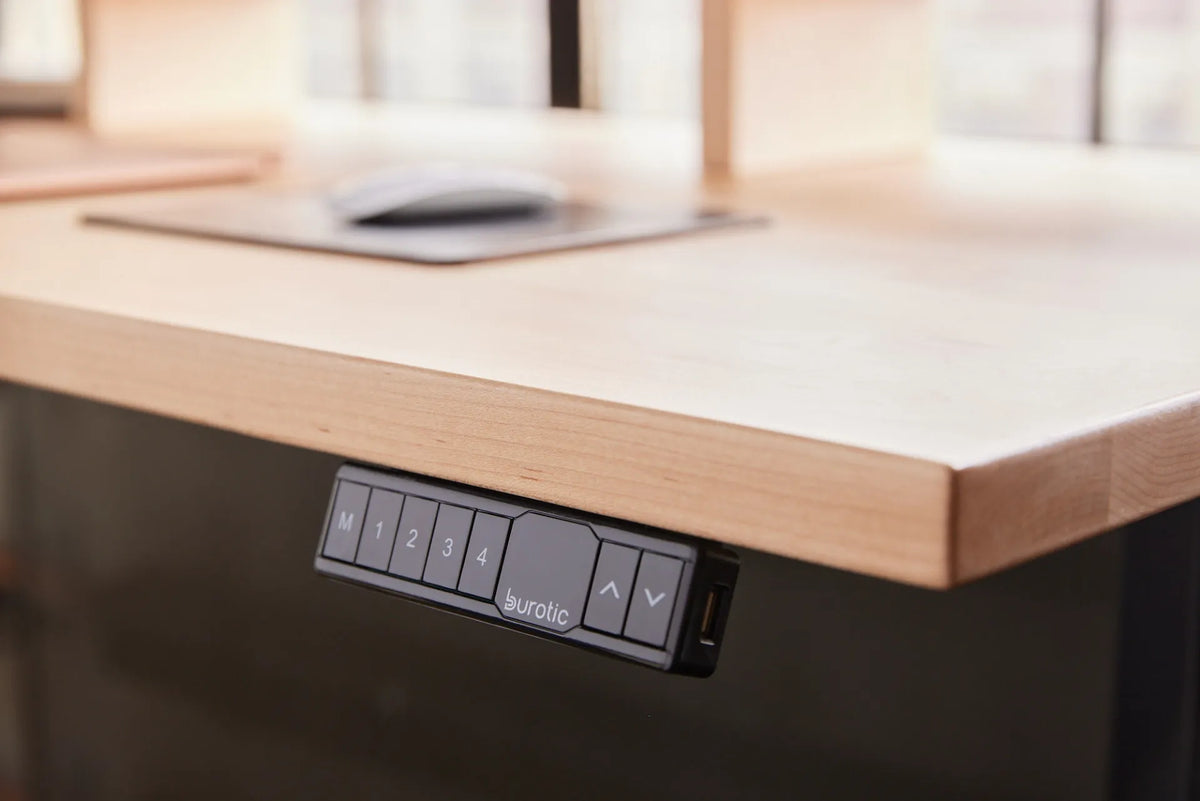
For keyboard work, place the work surface near seated elbow height. Keep wrists straight and avoid bending them upward to reach the keys. A fixed-height desk can work when it matches the user, but a height-adjustable desk makes it easier to fine-tune the surface and change posture during the day.
An Aspire Laminate Standing Desk is a practical starting point for a complete workstation. If you already own a suitable top, the Aspire Frame lets you build around it. Always confirm the dimensions of your room, equipment and desktop before choosing.
Position the monitor to reduce neck movement
Place the main monitor directly in front of you. As a general starting point, the top of the visible screen should be around eye level or slightly below, and the screen should be about an arm’s length away. Your vision, screen size and eyewear may require a different distance. The CCOHS guide to monitor positioning explains why individual adjustment matters.
For two monitors used equally, centre the pair and keep them close together. If one is primary, place it directly ahead and angle the secondary screen beside it. A monitor arm can free desktop space and simplify height and depth adjustments when it is compatible with the monitor.
Keep the keyboard, mouse and accessories close
Place the keyboard and mouse on the same level and close enough that your elbows stay near your body. Avoid reaching past paperwork or decorative items. Frequently used objects belong in the primary reach zone; occasional items can sit farther away.
- Keep the mouse beside the keyboard, not far to the side.
- Use a document holder when you frequently refer to printed material.
- Route cables away from leg space and moving desk components.
- Leave enough clear surface to support the actual task.
Use standing as a change of posture
A standing desk is most useful when it supports movement, not when it replaces all sitting. The CCOHS recommends alternating positions and avoiding prolonged static postures. Begin with short standing periods, adjust the desk so your shoulders remain relaxed and change position before fatigue builds.
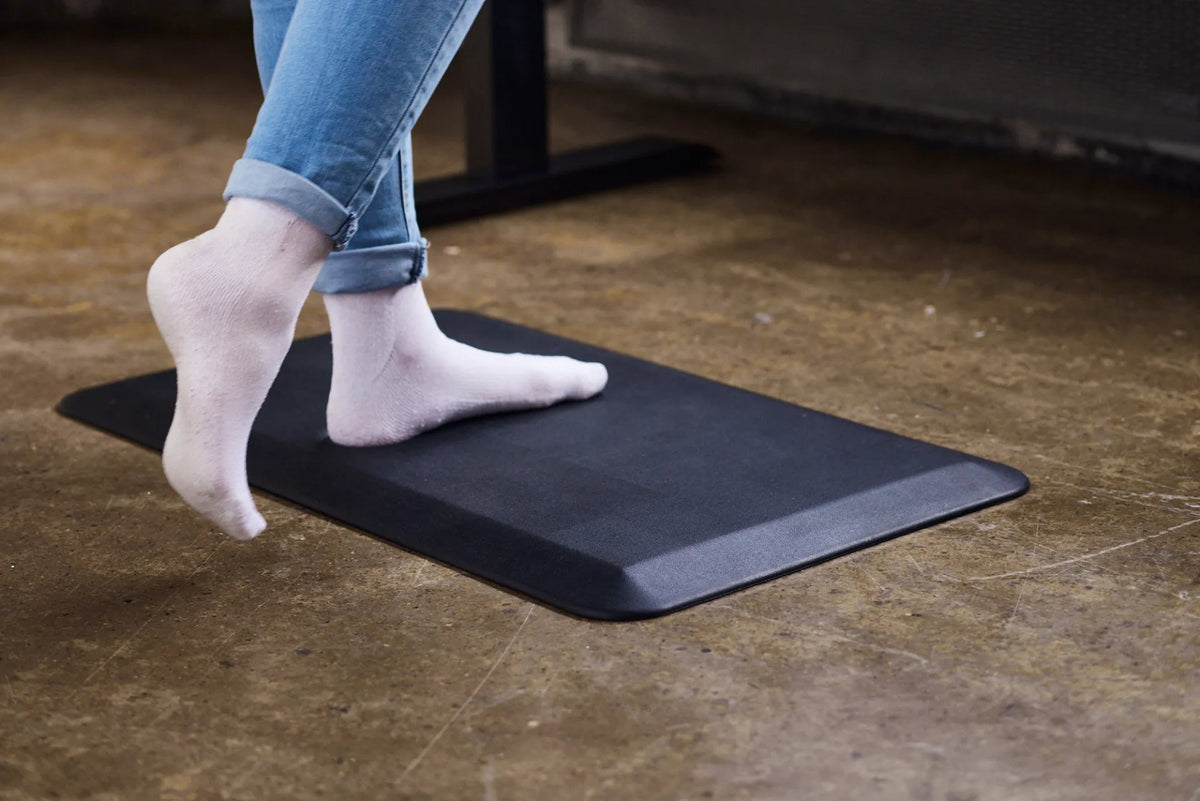
Comfortable footwear and an anti-fatigue mat can make standing periods more pleasant, but neither replaces regular movement. Brief walks, task changes and natural posture shifts remain important.
Run a five-minute fit check
- Feet are supported and thighs feel comfortable.
- Lower back is supported.
- Shoulders are relaxed and elbows stay near the body.
- Wrists remain neutral while typing and mousing.
- The main screen is centred and readable without leaning forward.
- Frequently used items are within easy reach.
- You can alternate sitting, standing and moving.
Build the setup gradually
Start with the adjustment that removes the clearest source of strain, then observe the result for several work sessions. A good workspace evolves with your tasks, equipment and body. If you are planning a new setup, compare Burotic’s active desk and seating options, measure carefully and choose the components that solve a real need rather than adding accessories by default.
Next article
Standing Desk Benefits: How to Use an Adjustable Desk Well