





Should a Power Bar Be Mounted Above or Below Your Desk?

In this article
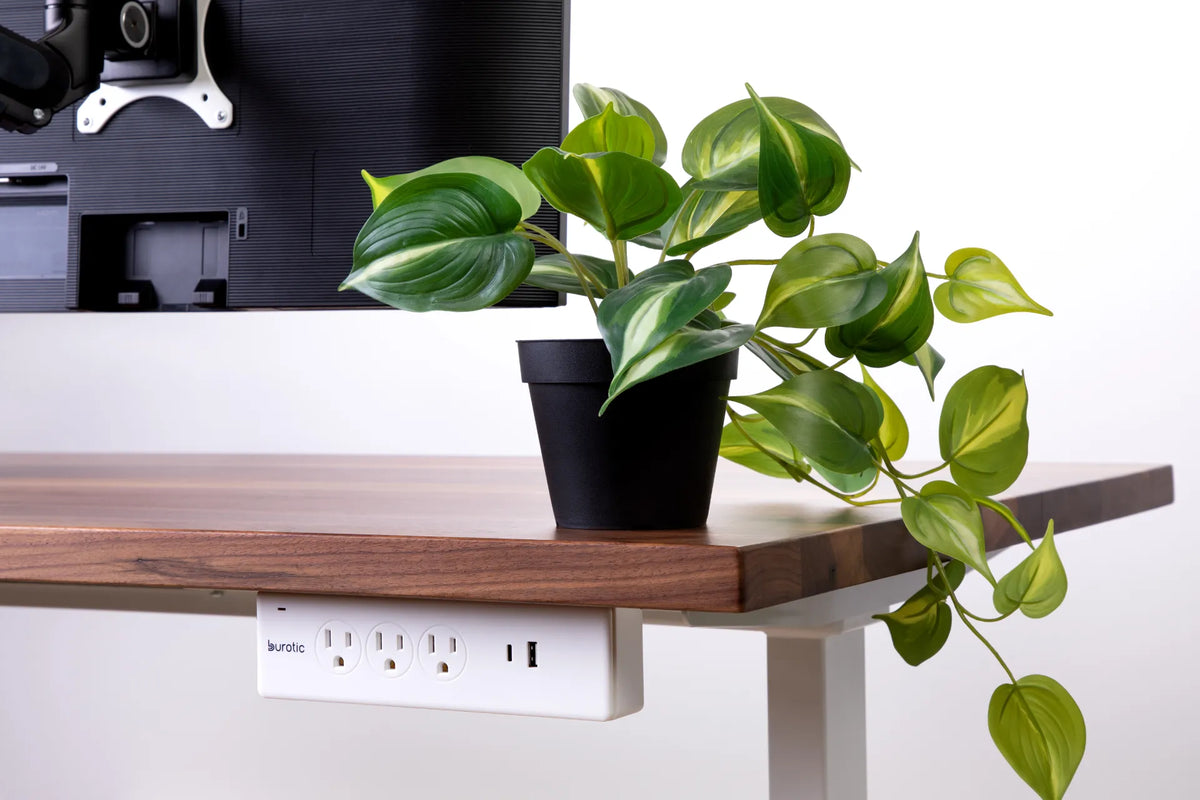
A power bar can be mounted above or below a desk, but the better location depends on what you plug in and how often you reach it. Above-desk placement is convenient for temporary devices and charging. Under-desk placement keeps the work surface clear and lets cords from monitors, computers and accessories move with a height-adjustable desk.
Neither position is automatically safe. The bar must be certified for use in Canada, properly rated for the connected equipment, kept away from water and heat, mounted according to its instructions and connected without overloading or daisy-chaining.
Quick answer
Mount the power bar above the desk when you regularly plug and unplug laptops, phones, cameras or other temporary equipment. Choose below the desk for equipment that stays connected and for cleaner standing desk cable management. A rear-edge clamp position can offer a useful middle ground: outlets remain accessible while most wiring stays off the main work surface.
On an adjustable desk, it is usually easier to attach the bar to the moving desk than to leave it on the floor. Device cords can then travel with the desktop, while one supply cord is given enough managed slack to reach the wall throughout the full height range.
Above-desk placement: strengths and limits
A bar on the desktop or clamped near an edge is easy to see and reach. That helps when you connect a work laptop in the morning, charge a phone, use a camera briefly or unplug equipment at the end of the day. You are less likely to crawl under the desk or pull on a cord instead of the plug.
The cost is surface space and exposure. A bar near drinks, plants or an open window needs careful placement. Cords can also cross the mouse area or hang over the front edge. Keep the outlets outside the main spill zone, do not cover the bar with papers and route cables toward the back rather than across the keyboard area.
Under-desk placement: strengths and limits
An under-desk bar is well suited to monitors, desktop computers, docking stations and other devices that remain connected. It reduces visible wiring and can keep adapters from collecting around the feet. When the bar is attached to a standing desk, the short device cords rise and lower with the top.
Access is the main compromise. Place the outlets where you can see and reach them without putting your head near sharp edges or twisting under the desk. Do not mount the bar where knees, drawers, chair arms or the frame will hit it. Keep ventilation openings clear and follow the permitted orientation in the product instructions.
A rear-edge clamp as the middle option
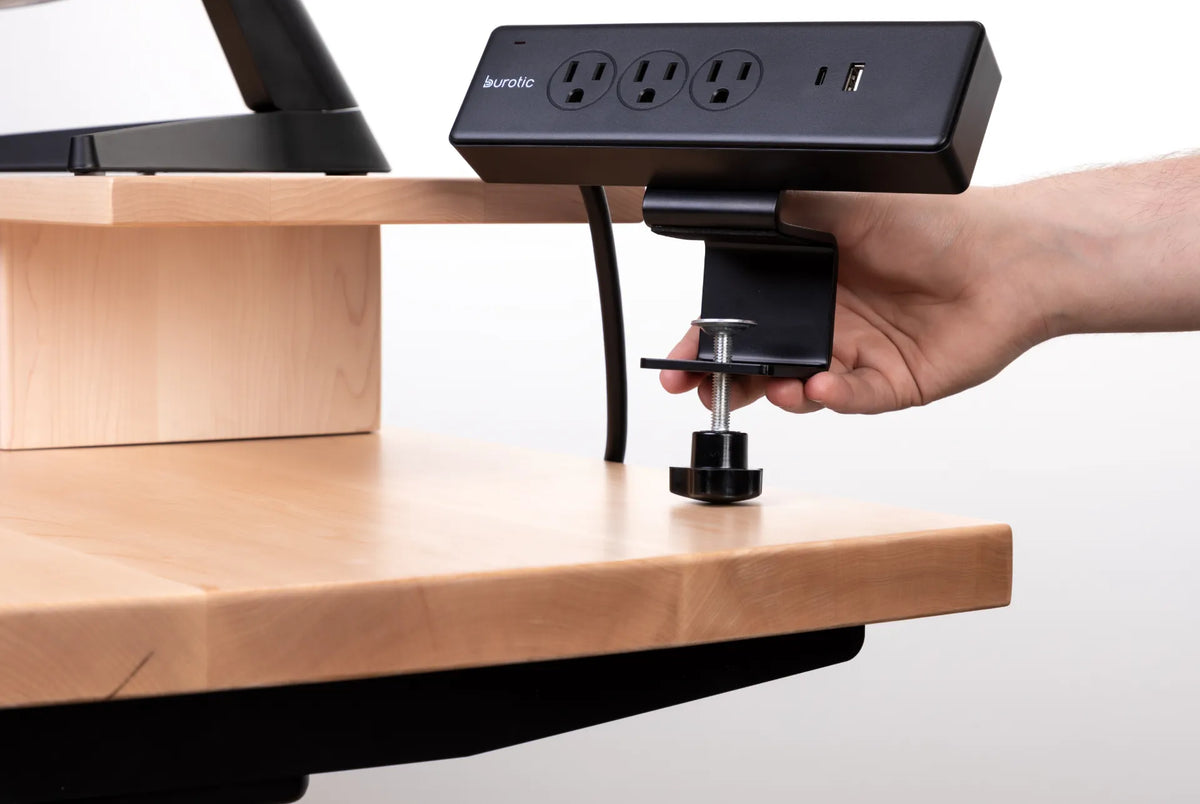
A clamp-mounted bar at the rear edge can keep outlets visible without occupying the centre of the desk. This works well for charging and temporary accessories. It also avoids permanent holes when the clamp is compatible with the desktop.
Confirm the clamp fits the actual edge thickness and profile. A bevel, live edge, apron or reinforcement may prevent full contact. Use the supplied protective pads and tighten only as directed. Our guide to installing a clamp-on power bar without damaging the desk covers the fit check.
Safety requirements matter more than location
Health Canada states that power bars and extension cords sold for use in Canada must be certified to the applicable Canadian national safety standard and carry a recognized certification mark. Before buying or using a bar, verify certification and the electrical rating. Read the instructions for every connected device to confirm power bar use is allowed.
Health Canada also advises keeping cords away from heat and water, unrolling cords completely and disconnecting by pulling the plug rather than the cord. Placement should make those behaviours easy. If you cannot inspect the plug or reach it safely, the neatest-looking location may not be the best one.
Plan for standing desk movement
Set the desk to its lowest position and route every device cord to the bar. Then raise the desk slowly to its highest position while watching the supply cord and all connections. Nothing should become taut, scrape the frame or catch a drawer. Lower the desk again and check that extra length does not form a loop around a foot or chair caster.
Secure excess cable in a cable management solution that moves with the desk. Keep a deliberate drop from the desk to the wall. Our troubleshooting guide explains why standing desk cables pull during movement and how to isolate the tight segment.
Match the location to the devices
Permanent equipment
Monitors, speakers, docks and computers usually benefit from an under-desk bar because their cords rarely need attention. Label the plugs before bundling them so the correct device can be disconnected without trial and error.
Temporary equipment
Laptops, cameras, test devices and chargers are easier to manage above the desk or at the rear edge. Leave enough room around bulky adapters so they do not block adjacent outlets.
High-demand or heat-producing equipment
Do not assume a power bar is appropriate. Check the equipment manual and the bar rating. Some appliances should connect directly to a wall outlet. If the product instructions are unclear, contact the manufacturer or a qualified electrician rather than guessing.
Keep drinks, plants and cleaning away
Above-desk bars should not sit beside an open mug, humidifier or container that can tip. Under-desk bars should not be placed below a plant that drains through its pot. The same caution applies when cleaning: disconnect power as directed and do not spray liquid toward outlets or connectors.
A plant can appear harmless while water travels along the desk edge or cable. Use a stable pot with a watertight saucer and move it away before watering. Let the surface dry fully before reconnecting equipment.
Mounting without creating a new hazard
Use only the mounting method supplied or approved for the bar. Screws must not penetrate the desktop surface or electrical components. Adhesive strips need a clean compatible surface and enough load capacity, but they may not be appropriate for every finish. A cable tray can hold some adapters and bars only when its manufacturer permits that use.
Keep the on-off switch reachable if the bar has one. Do not position it where the chair or knee turns power off accidentally. Leave plugs fully seated and avoid sharp cable bends at the connector.
Five-minute placement test
- List every device and separate permanent from temporary connections.
- Verify certification, rating and product instructions.
- Mock up the above-desk and under-desk positions with removable tape.
- Check reach, knee clearance, drawer travel and spill exposure.
- Connect the equipment without bundling cables tightly.
- Run the standing desk through its full range.
- Secure excess length and recheck every plug.
This test shows whether convenience or cable control deserves priority in your setup.
Common mistakes
- Choosing the hidden position without checking access.
- Mounting the bar where knees or drawers hit it.
- Letting the wall cord become taut at standing height.
- Placing outlets beside drinks or below a watering plant.
- Daisy-chaining one bar into another.
- Using an uncertified or damaged product.
- Assuming every device is suitable for a power bar.
The practical answer
Mount the power bar above the desk for frequent access and below it for permanent equipment and cleaner cable movement. On a standing desk, attaching the bar to the moving top often simplifies the system, provided the supply cord has a controlled route and enough slack.
The Burotic Power Bar provides three grounded outlets plus USB-A and USB-C connections according to its current Shopify product page. Confirm that its clamp and electrical specifications suit your selected desktop and equipment, then use the broader desk power bar setup guide to complete the cable plan.

Previous article
Why Is My Wireless Charging Desk Pad Not Charging?
Next article
Should Your Monitor Face a Window? How to Reduce Glare