





Home Office in a Living Room: Layout and Setup Guide

In this article
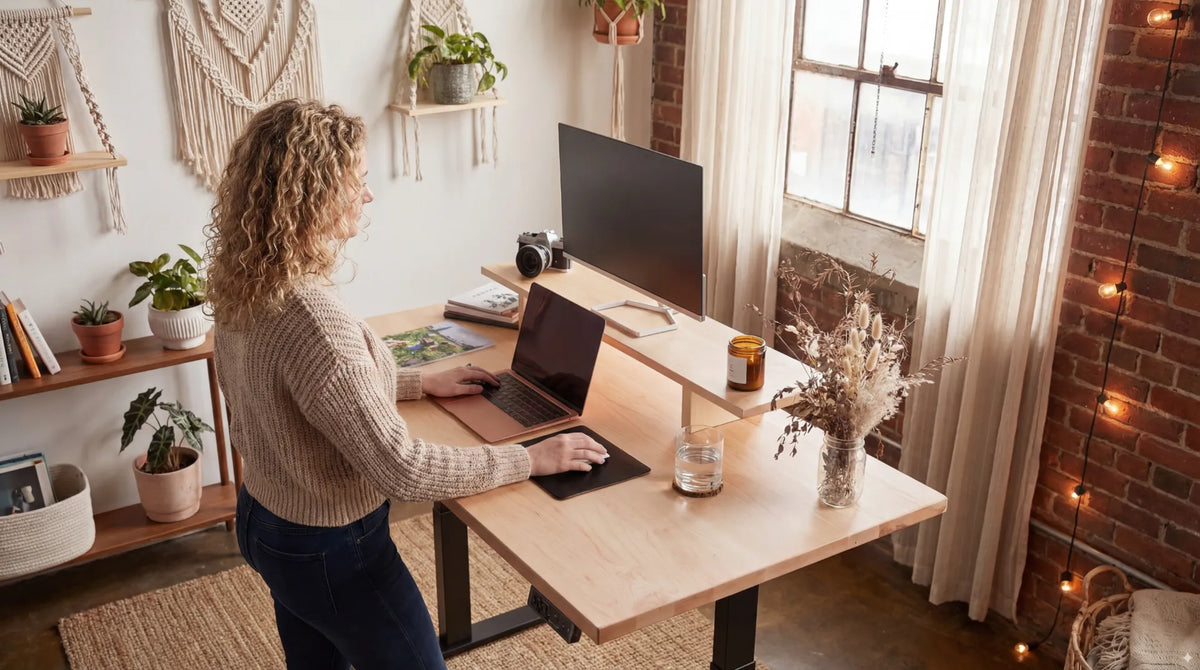
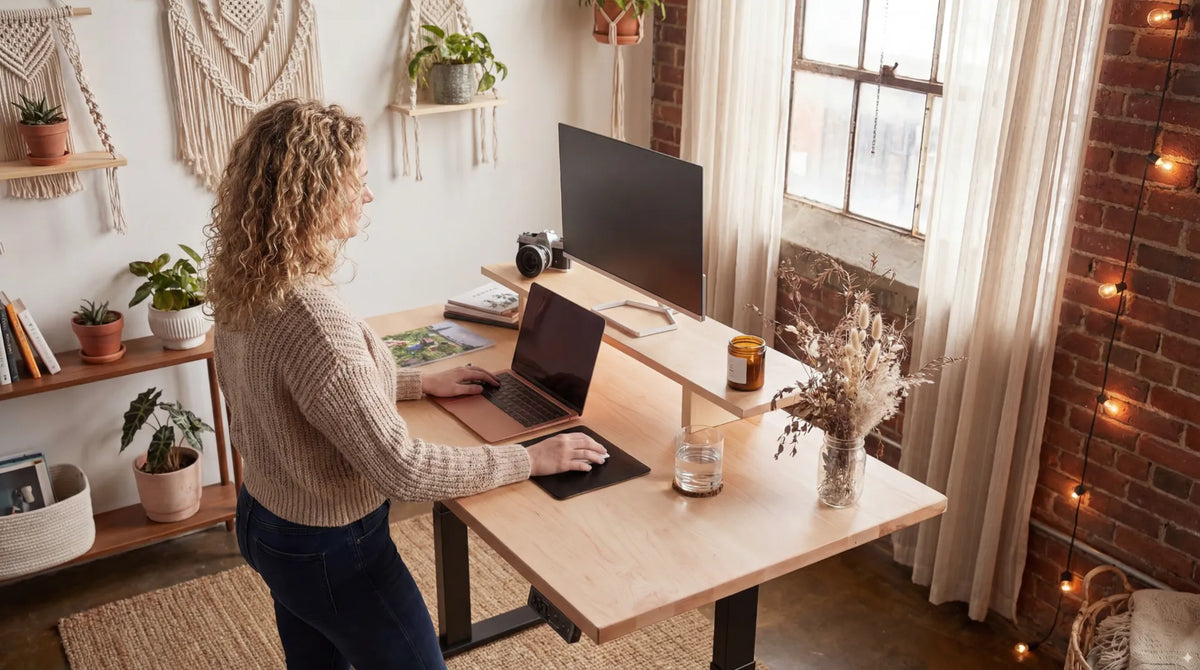
A home office in a living room has to do two jobs without making either one feel temporary. The workspace needs enough structure for focused work, while the room still needs circulation, comfort and a clear identity after business hours. The solution is not always a folding desk hidden in a corner. A well-placed adjustable desk can become a deliberate part of the room when its footprint, view, cables, light and storage are planned together.
This guide helps Canadian households create a practical living room office. It offers general ergonomic and planning information, not medical or electrical advice. Follow product instructions, building rules, lease conditions and qualified guidance for electrical work, accessibility or health concerns.
Choose the work zone before choosing furniture
Start by mapping the room at the times it is actually used. Mark doors, windows, heating vents, television sightlines, sofa movement, children's routes, pet areas and the path to adjoining rooms. The desk should not force other occupants to squeeze behind a working chair or walk under raised cables.
Measure the occupied footprint, not just the desktop. Include the chair when pulled back, the user's standing position, storage doors, a monitor arm behind the surface and the full moving envelope of an adjustable desk. The standing desk clearance guide explains how to test that envelope before committing to a location.
Decide what the desk should face
Facing a wall
A wall-facing desk can reduce visual distraction and keep the work zone compact. It can also simplify cable routing. Leave enough depth for the monitor and enough space for an arm to move without striking the wall. A blank wall may feel restrictive, so use balanced lighting and one or two purposeful objects rather than filling every available surface.
Facing the room
Facing the room can provide a more open view and a better video-call background. It also exposes the back of the monitor and cables. Use a finished cable path and keep circulation away from the chair. The guide to facing a wall or the room compares these options in more detail.
Near a window
Daylight can be pleasant, but direct light in front of or behind the screen may cause glare or strong contrast. A desk perpendicular to the window often gives more control. Use blinds or curtains and test the screen at different times of day. Do not block required exits, heaters or ventilation.
Create a visible boundary without building a wall
A rug, console, open bookcase, change in wall colour or aligned lighting can signal the work zone. Keep the boundary low enough to preserve daylight and sightlines. In a small room, the desk itself can define the edge when its long side aligns with another architectural line.
Repeat one material or colour from the living area in the office zone. A wood surface, black metal detail or plant pot can make the workstation feel intentional. Avoid matching every item. The goal is visual continuity, not a showroom set.
Right-size the desk
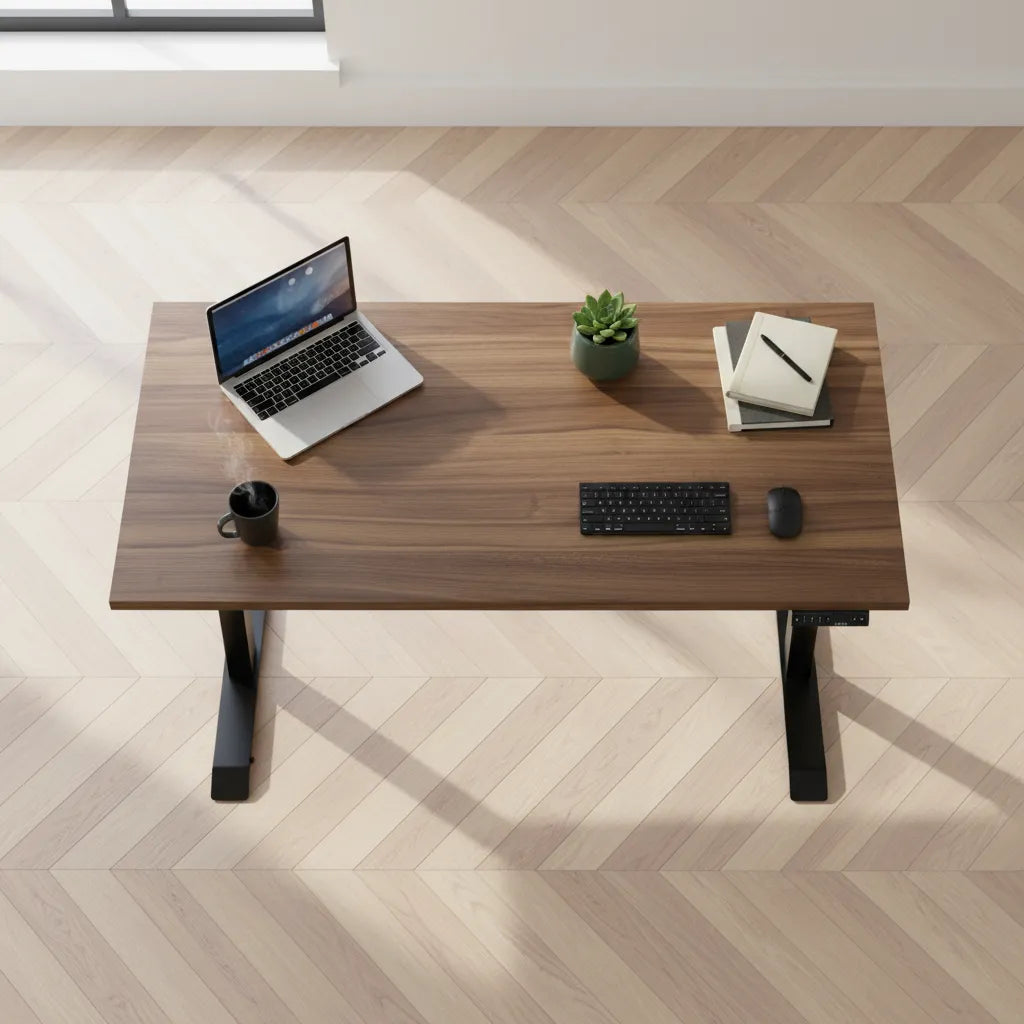
List what must stay on the surface every day: screen, laptop, keyboard, mouse, notebook and perhaps a small lamp. Then add only the width and depth required to use those items comfortably. Oversizing the desk can remove walking space, while an undersized surface pushes the mouse, documents or drink into unstable positions.
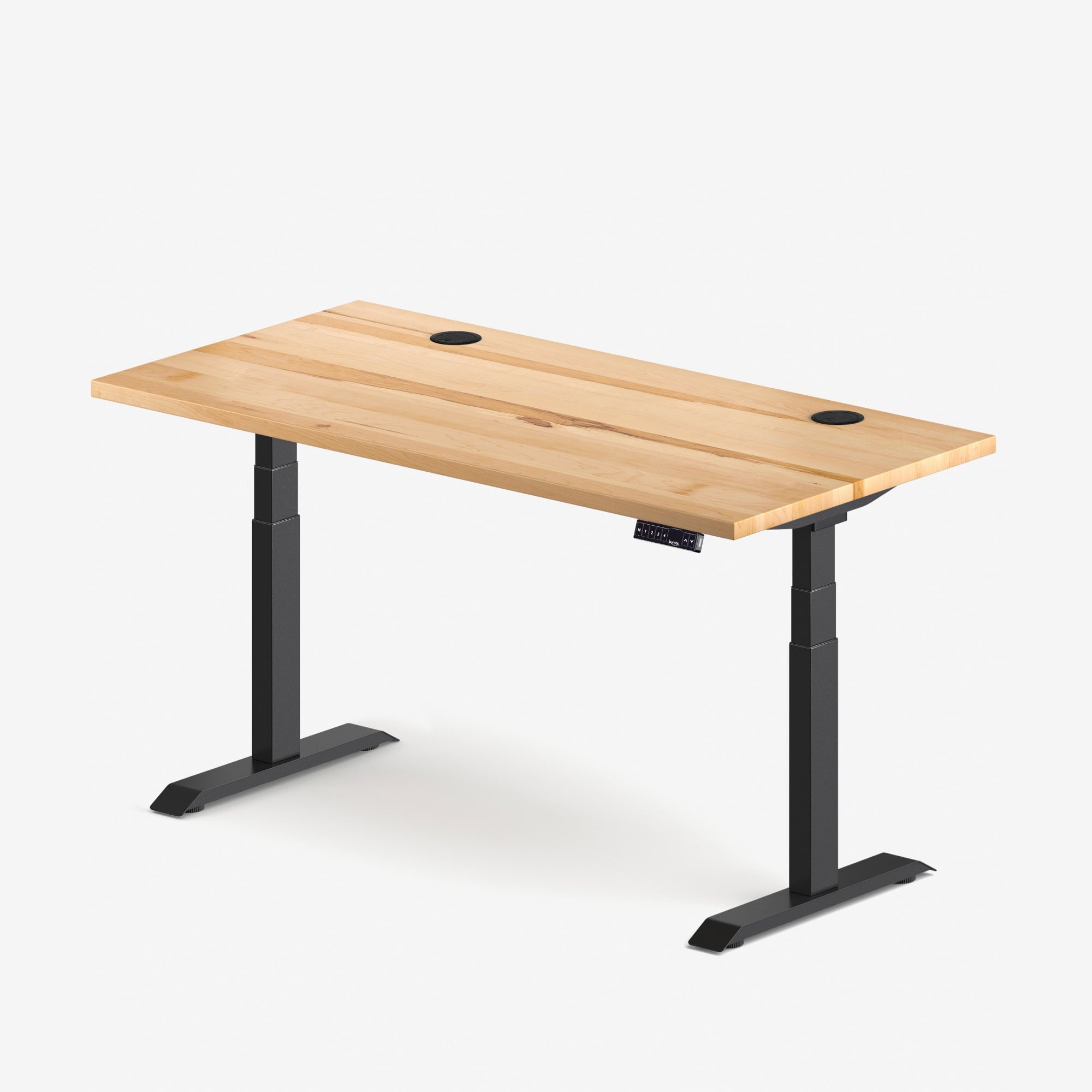
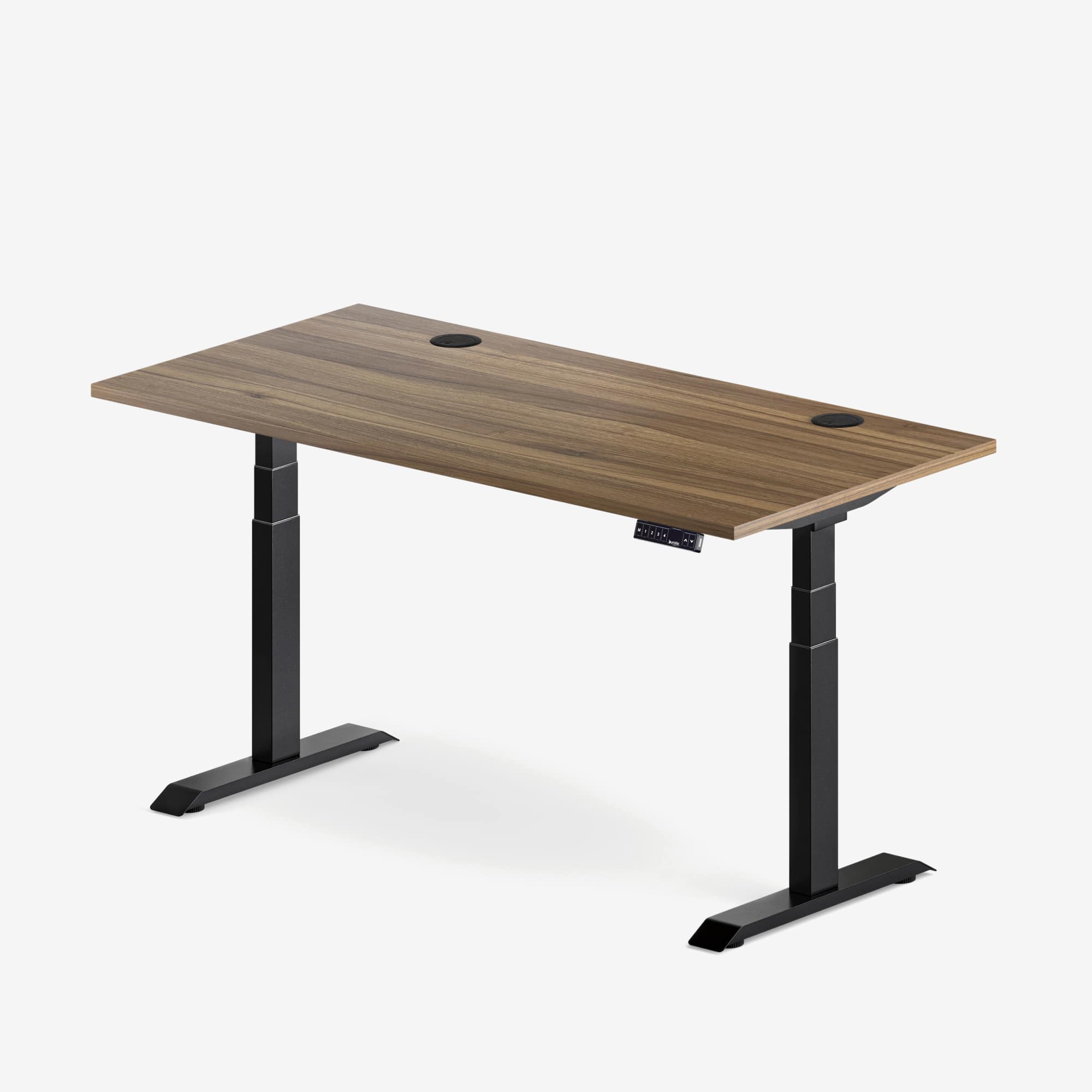
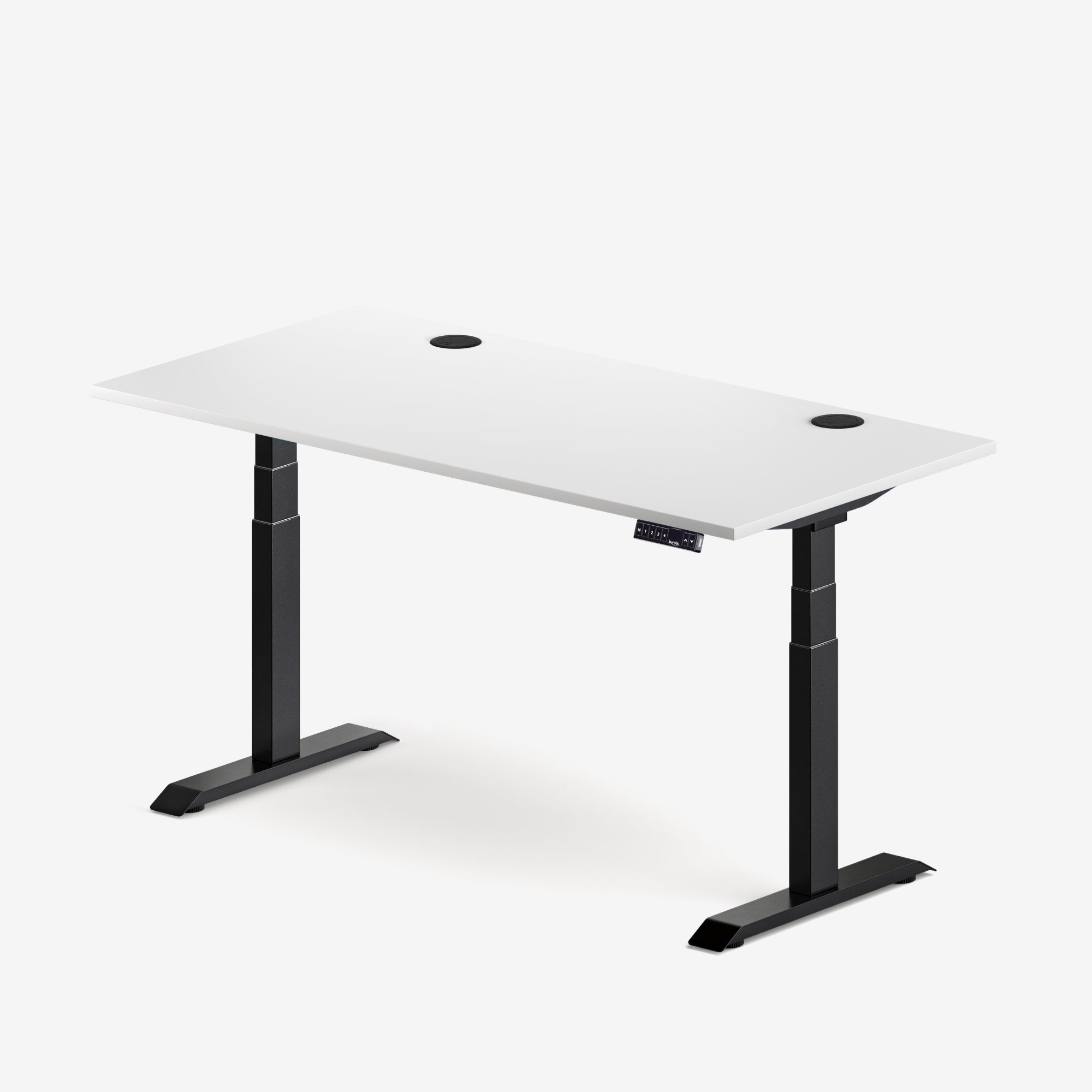
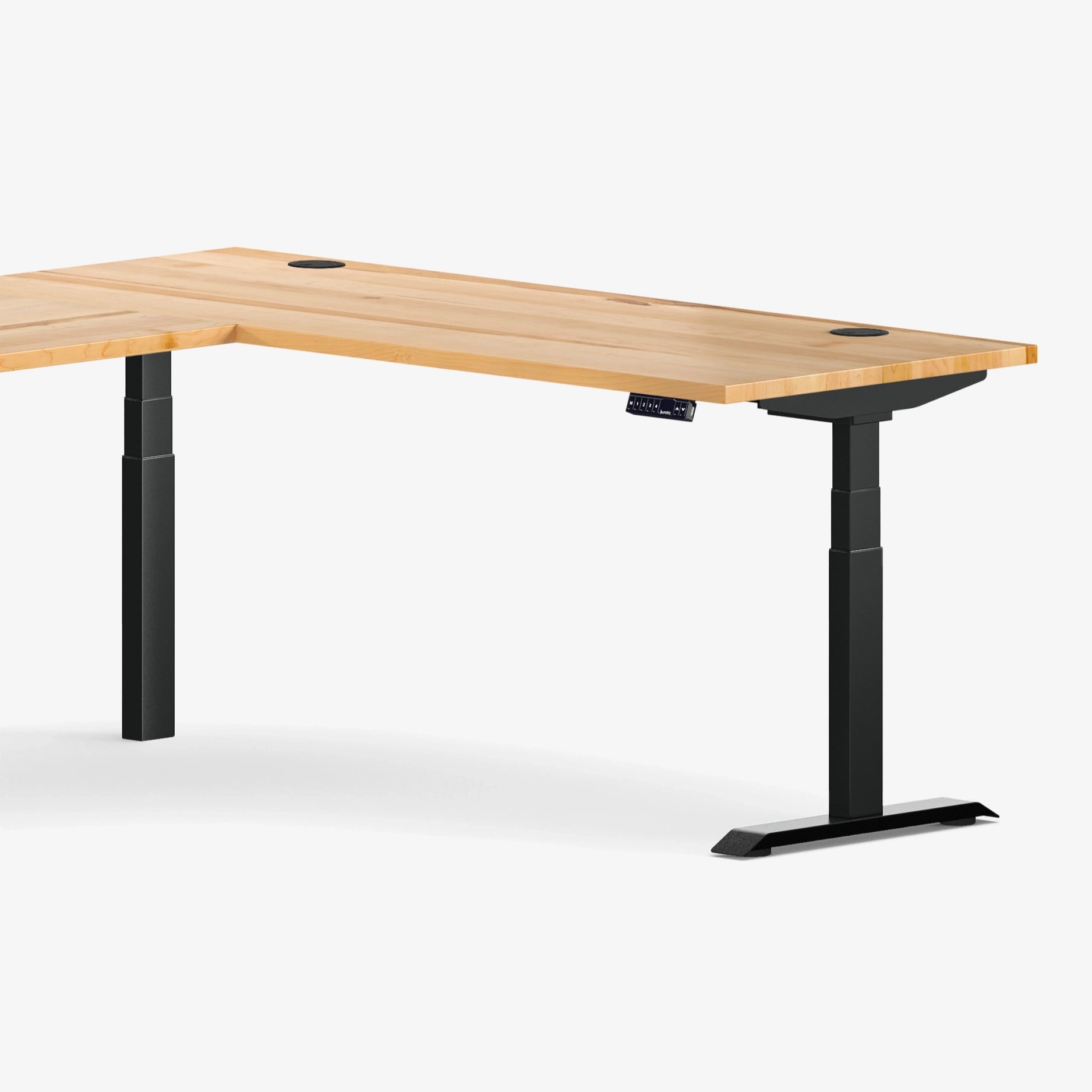
An adjustable desk can let the room serve different postures without a second workstation. Confirm the full height range, desktop depth and clearance before buying. The active Burotic Aspire Custom Solid Wood Standing Desk is one current option when a wood surface and adjustable base suit the room. Verify exact dimensions and configuration for the planned space.
Plan the screen, laptop and camera
Place the primary screen directly in front of the normal chair position. CCOHS suggests a comfortable viewing distance and the top of the screen around eye level or slightly below as a starting point. Adjust for screen size, vision and eyewear. A laptop used for extended periods usually benefits from a separate keyboard and mouse so the display and hands can be positioned independently.
For video calls, test the camera view before finalizing the layout. Look for doors, mirrors, highly personal items and bright windows in the background. A modest, stable background is easier than rebuilding the room for every meeting. Keep the camera close to eye level and check that raising the desk does not reveal private areas or place a light directly behind the head.
Control light in layers
Use daylight, room lighting and task lighting together. A task light should illuminate notes without reflecting strongly in the screen. Avoid placing a bright bare bulb in the direct field of view. If the living room becomes a social space at night, a dimmable lamp can support both work and relaxation.
Check reflections with the screen turned off, then again with typical content. Move the screen or light before buying filters. The desk and window placement guide offers additional strategies for glare, view and heat.
Make cables safe in a shared room
A living room has more foot traffic than a dedicated office. Do not run loose power or data cables across a walkway or under a moving chair. Keep the power source on the desk side of the circulation route. If a cable must cross a path, use an approved solution suitable for the floor and have electrical requirements reviewed appropriately.
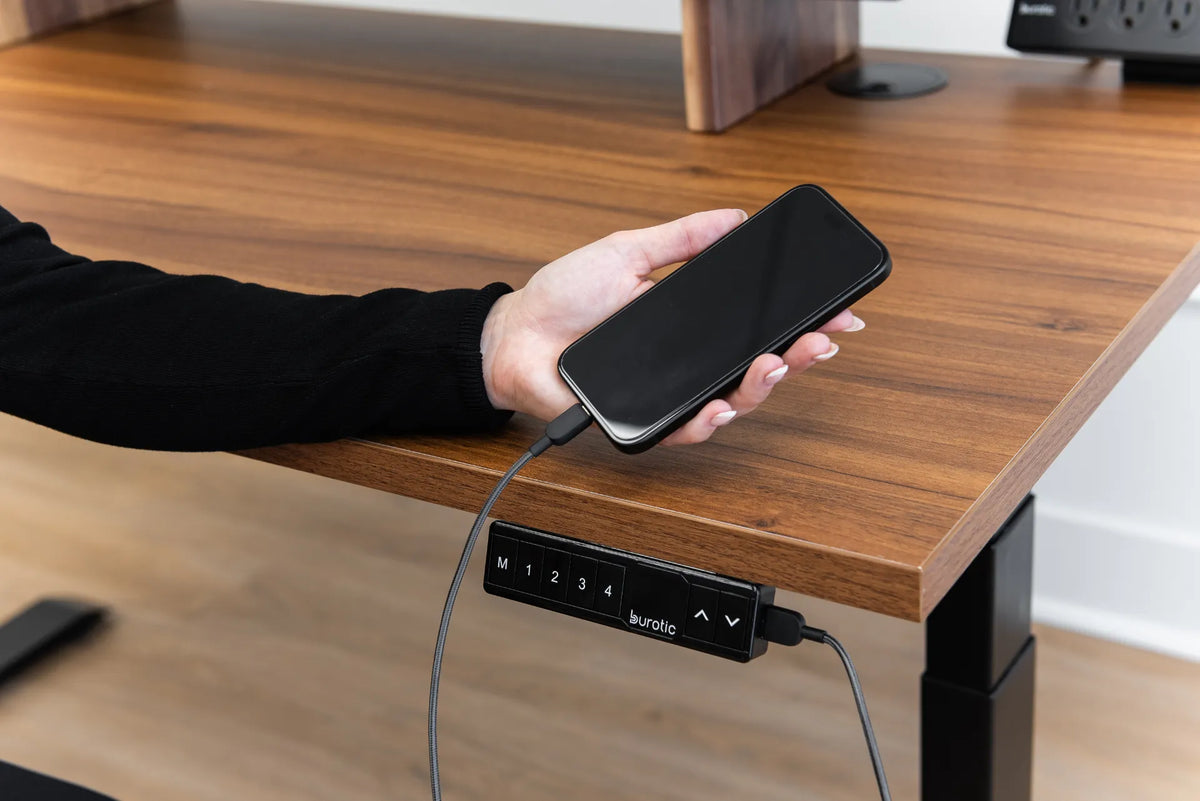
On an adjustable desk, secure device cables beneath the surface and leave a controlled service loop to the wall connection. Test the full height range while watching every cable. Keep plugs, adapters and power accessories ventilated and accessible. The standing desk cable management guide describes the moving and fixed portions of the route.
Store work so the room can reset
The best living room office has an end-of-day destination for each work item. Use a drawer, closed cabinet, rolling cart or attractive box for documents, headset, chargers and small accessories. Store sensitive records out of sight and according to workplace policy. Do not let permanent piles migrate onto sofas or dining surfaces.
Choose storage based on frequency. Daily items should be reachable without bending under the desk. Weekly supplies can live farther away. Rarely used equipment does not need to occupy the living room at all. A short inventory makes shutdown faster and reveals what can be removed.
Protect circulation and household use
Leave a clear route around the chair in both seated and standing positions. Consider how the room works when someone watches television, opens balcony doors, hosts visitors or carries laundry. A desk that works only when nobody else is home will create conflict.
Keep drinks away from electronics and moving edges. Secure tall or trailing plants so they do not enter the desk's travel path. If children or pets use the room, prevent access to dangling cords, controls and unstable accessories. Product safety instructions take priority over decorative goals.
Manage sound and privacy
Soft furnishings, curtains and a rug can reduce harsh reflections, but they do not provide confidentiality. Use headphones for concentration when appropriate, and move sensitive calls to a private room. Inform household members about meeting times instead of expecting a decorative divider to block sound.
Position speakers and notifications so they do not dominate the room. A headset hook and one dedicated charging location make it easier to put audio equipment away. For frequent calls, prioritize a reliable microphone over visually prominent studio gear.
Build a five-minute opening routine
- Open blinds or set lighting for the current time of day.
- Place the chair and adjust the desk to the chosen working posture.
- Connect the laptop and position the primary screen.
- Set the keyboard and mouse close enough for relaxed shoulders.
- Check the camera background and mute notifications not needed for work.
- Confirm that no cable or household object enters the desk's movement path.
A predictable opening sequence reduces setup friction and helps the household recognize that the zone is in work mode. It should remain short enough to repeat every day.
Close the workday deliberately
Shutting down is as important as starting. Save and close work, disconnect the laptop safely, clear confidential papers, return dishes, place accessories in storage, lower the desk to its neutral position and turn off task lighting. If the chair blocks the room, park it in a defined location without covering an exit or heater.
A visual change helps the living room recover its purpose. Close the cabinet, remove the laptop, switch from task light to ambient light or place a simple cover over work materials. The boundary is behavioural as much as architectural.
Test the layout for one week
Use temporary tape to mark the desk and chair footprint before drilling or ordering custom storage. Work through morning, afternoon and evening conditions. Note glare, background noise, tight circulation, cable pull and where items accumulate. Adjust the layout before adding decor.
A successful living room office does not disappear. It belongs in the room without taking it over. Define the zone, protect circulation, manage light and cables, and give every work item a place to go. Those decisions create a workspace that supports focused work and a living room that still feels available afterward.
Sources: CCOHS, Monitor Positioning; CCOHS, Lighting Ergonomics; CCOHS, Working Space; Health Canada, Electrical Product Safety.
Previous article
How to Stop Monitor Wobble on a Standing Desk
Next article
How to Stop Monitor Wobble on a Standing Desk