





Why Won't My Standing Desk Move? What to Check Before a Reset

In this article
If a standing desk will not move, do not keep pressing the controls or try to force the top. Start with the simplest causes: loss of power, a loose cable, an obstruction, too much load or a controller that needs the model's documented reset procedure. The safest order is to inspect first and reset only after you know which desk and control system you have.
This guide explains general checks. Reset steps and error codes are not universal. Follow the manual for your exact frame and controller, and contact the manufacturer when the instructions do not match what you see.
Quick troubleshooting order
- Stop pressing the buttons and remove hazards around the desk.
- Check the wall outlet and power connection.
- Inspect controller, control-box and leg cables.
- Look above and below for obstructions.
- Reduce the load and centre what remains.
- Allow the system to cool if it has moved repeatedly.
- Read the display or indicator lights.
- Use only the documented reset for the model.
- Stop and contact support if the desk is damaged, uneven or still unresponsive.
1. Make the area safe
Move people, pets, chair arms, drawers, storage boxes and loose cables away from the travel path. Check both above and below the surface. A shelf, windowsill or low cabinet can block upward movement, while a chair, filing cabinet or cable bundle can interfere below.
CCOHS recommends keeping items and obstructions clear of a sit-stand workstation's movement. Do not place hands near lifting columns, hinges or pinch points while another person operates the control.
2. Confirm the desk has power
Check that the power cord is fully seated at the wall and at the control box if it is detachable. Test the wall outlet with a known working low-load device, or check whether a switched outlet has been turned off. Do not bypass a damaged receptacle or use an improvised adapter.
Look for cuts, crushing, exposed conductors, discolouration, a loose plug or unusual heat. Stop using damaged electrical parts. Unplug the desk before reconnecting internal cables, unless the manual explicitly requires another sequence.
3. Inspect every low-voltage connection
An adjustable desk usually has a controller cable, motor or leg cables, a power connection and a control box. A connector can look attached while sitting slightly out of its socket. With power removed, compare the wiring to the installation manual and press each approved connector firmly into the correct port.
Do not force a keyed plug, swap motor ports randomly or connect parts from another desk. Similar-looking controllers and control boxes are not necessarily compatible. Check for a cable pulled tight by desk movement or pinched by a frame bracket.
4. Check for an obstruction or collision response
Many adjustable desks stop or reverse when resistance is detected. A cable caught between the top and wall, a drawer contacting the frame or an object beneath one side can trigger that response. Remove the obstruction rather than increasing force or disabling a safety feature.
Run your eyes along the full perimeter. Check monitor cables, power cords, under-desk accessories, clamp hardware and anything attached after installation. Our guide to cables that pull when a desk moves can help prevent a repeat.
5. Reduce and rebalance the load
A desk may stop, move only downward or display an error when the load exceeds the frame's rating or is badly concentrated. Remove heavy items that are safe to lift, especially equipment added recently. Keep the remaining monitor and accessories reasonably centred.
Do not use a generic weight limit from another model. The desktop itself may count toward the rated moving load. Check the current manual and product page for your frame. A stuck desk is not a reason to stand on the surface, lift one side manually or ask another person to push while the motors run.
6. Consider duty cycle and heat protection
Electric lifting systems are designed for intermittent movement rather than continuous cycling. Repeated demonstrations, assembly tests or attempts to clear an error can activate thermal protection. If the desk became unresponsive after many up-and-down cycles, stop and allow the system to cool for the time stated in its manual.
Do not keep cycling the controls to test whether it has recovered. That can extend the interruption and make the original cause harder to identify.
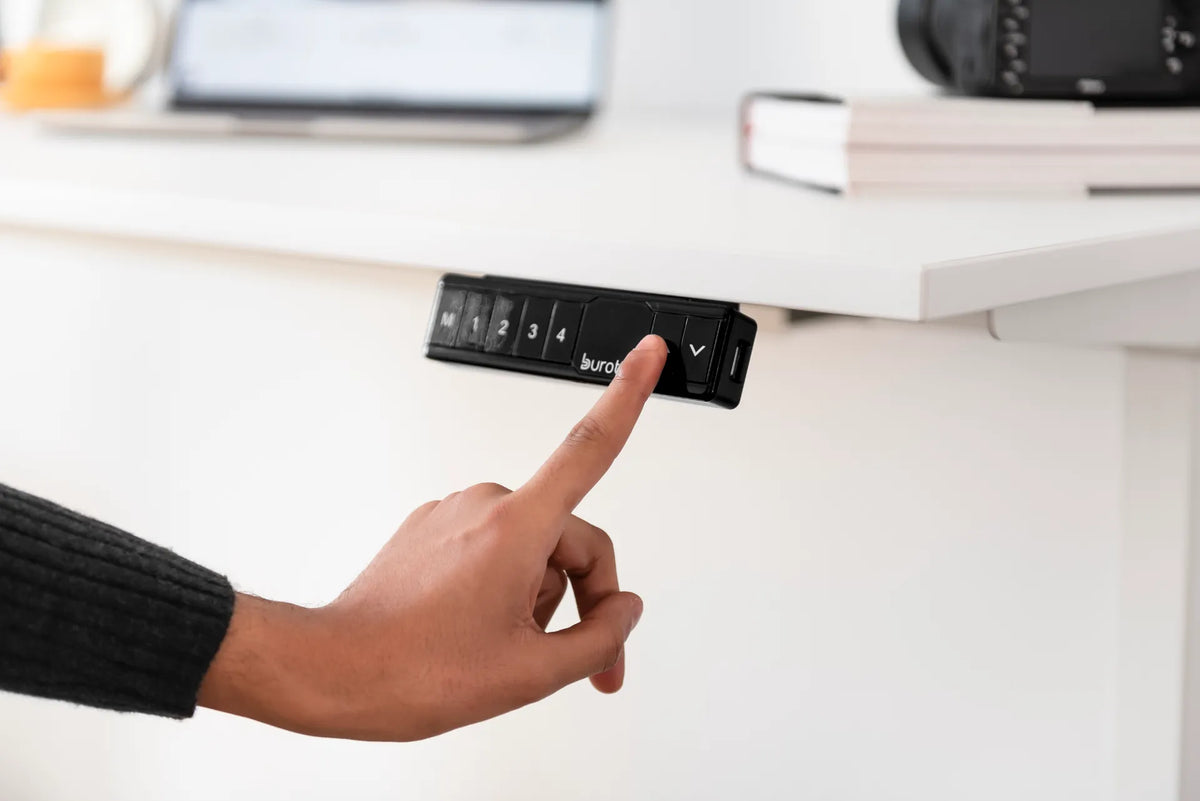
7. Read the controller before resetting
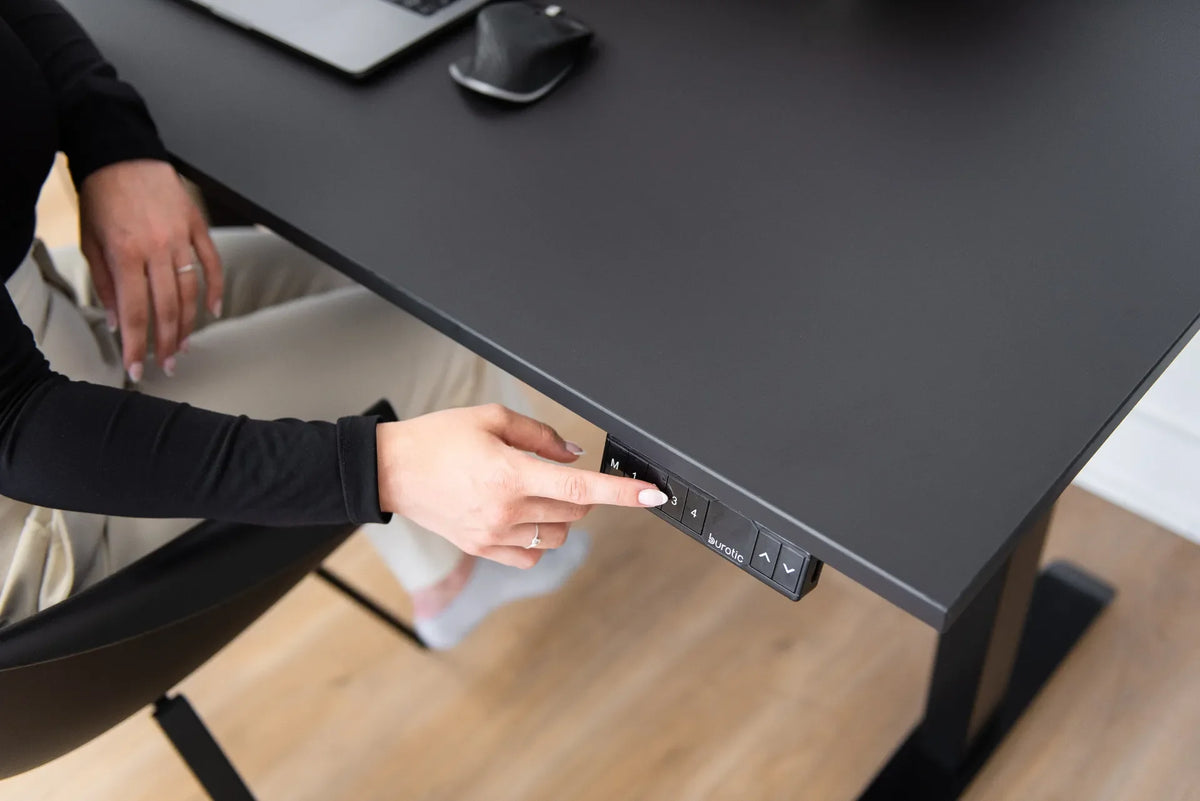
Record any error code, flashing symbol, blank screen or unusual sound. Take a photo before disconnecting power. That information can help support distinguish a power issue, connection problem, synchronization error or failed component.
A blank display may point to power or controller communication. A code can indicate a model-specific condition. One side higher than the other needs special caution because continued operation may twist the frame or top. Review our guide to an uneven standing desk before trying repeated movement.
8. Reset only with the correct procedure
Many desks use a lower-to-minimum reset, but the required button sequence, timing and display message vary. TiMOTION, a manufacturer of height-adjustable desk components, advises checking power and cable connections, consulting the manual and using the model's reset process. It also notes that persistent errors or motor problems may require service.
Do not copy a random sequence simply because the controller looks similar. For an Aspire base, use Burotic's Aspire standing desk reset and error-code guide and confirm the controller version. If the controller itself does not respond, see the separate guide to a standing desk controller that is not responding.
What if the desk moves down but not up?
Down-only movement can occur when a system is waiting for initialization, when the load is too high or when a protection mode is active. Remove excess weight and follow the manual. Do not assume that downward movement proves every motor and connection is healthy.
If the desk reaches its lowest point but does not complete the documented reset motion, stop and record what happened. Repeatedly holding buttons without the proper sequence can obscure the symptom.
What if one leg moves and the other does not?
Release the button immediately. Disconnect power and inspect the leg cables and control-box ports according to the manual. Do not run the moving leg farther or manually lift the stationary side. An out-of-level top can strain the frame, fasteners and desktop.
Contact support with photos of the controller, control box, connections and frame labels. Include what happened before the fault and whether the desk was recently assembled, moved or loaded differently.
When to stop troubleshooting
- A cord, plug, controller or control box is damaged or unusually hot.
- You smell burning or hear grinding, clicking or electrical arcing.
- One leg is visibly higher and the difference is increasing.
- The desk or frame is bent, loose or unstable.
- A reset fails more than once or the same error returns.
- The manual does not match the controller or wiring.
- You would need to open a sealed electrical component.
At that point, unplug the desk if it is safe to do so and contact the seller or manufacturer. Do not open a motor or control box unless you are qualified and the service procedure authorizes it.
Information to collect for support
- Desk or frame model and purchase information
- Controller and control-box labels
- Error code or display behaviour
- Whether neither leg, one leg or both legs respond
- Approximate load and any equipment added recently
- Photos of cable routing and connectors
- A short video showing the button press and response, if safe
- Steps already attempted
If you own an Aspire Standing Desk Frame, use the current product documentation and Burotic support information for that model. Do not assume another frame's reset sequence applies.
How to prevent another no-movement problem
Secure cables with enough slack for the full travel range, keep storage outside the moving path and avoid routing cords where chair wheels can crush them. Recheck connectors after moving the desk. Keep the rated load in mind when adding large monitors, drawers or computer equipment.
Test the desk through its full safe range after installing any accessory. Stop at the first sign of pulling, impact or imbalance. A short check during setup is easier than diagnosing a cable that disconnects later.
The practical answer
When a standing desk will not move, inspect power, connections, obstructions, load and recent use before attempting a reset. Record any code and follow only the instructions for the exact frame and controller. Never force the top or continue moving one leg by itself.
Most simple issues become clearer when troubleshooting follows a safe order. If the desk remains unresponsive, becomes uneven or shows electrical damage, stop and involve qualified support.

Previous article
How Far Should Your Keyboard Be From the Edge of Your Desk?
Next article
How Wide Should a Monitor Riser Be? A Practical Sizing Guide