





Desk Pad vs. Mouse Pad: Which One Should You Use?

In this article
A mouse pad creates a dedicated tracking area. A desk pad covers a wider zone under the keyboard, mouse and sometimes a laptop or notebook. Neither is automatically more ergonomic. The better choice depends on available depth, pointing-device movement, surface protection, writing habits and the material under your equipment.
This guide compares desk pads and mouse pads for a Canadian home office or business workstation. It also explains sizing, placement, care and how to avoid letting a tidy accessory push the keyboard or mouse into an awkward position.
Desk pad and mouse pad: the practical difference
A conventional mouse pad is a relatively small surface designed mainly for a mouse. It is easy to reposition, replace and match to a limited desk. A desk pad is wider and may extend beneath the keyboard and mouse. Some models add layers, document storage or charging components.
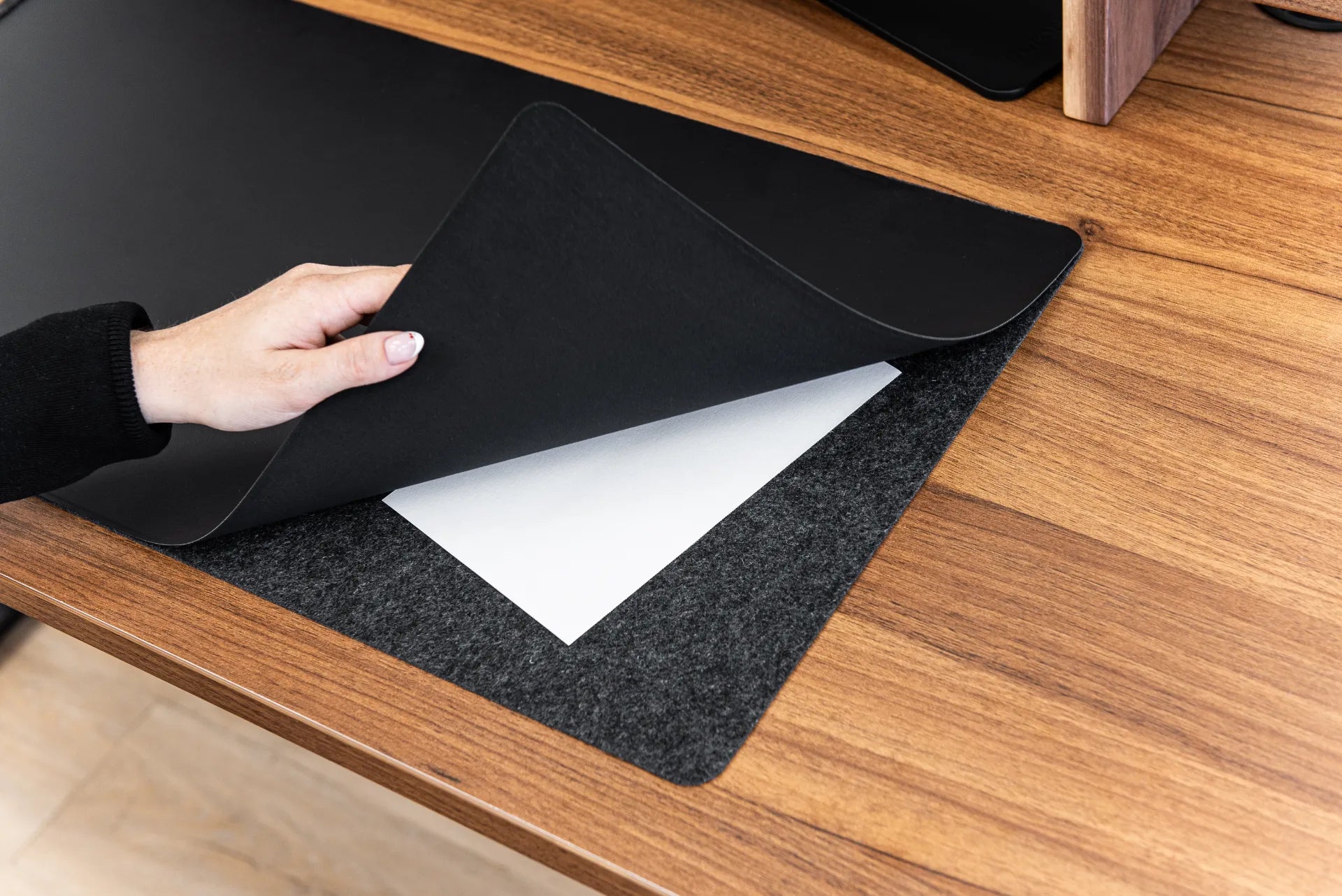
The original Burotic photo for this article shows a hand lifting the black top layer of a wide desk pad to reveal felt backing and papers stored beneath it on a walnut desktop. The image clearly shows a layered pad and document space. Product materials and added functions should still be confirmed on the current product page.
Choose by function, not by appearance alone
A large black rectangle can make a workstation look unified, but visual simplicity does not guarantee good placement. The keyboard should stay centred on the user, and the mouse should remain close enough that the upper arm can relax. The Canadian Centre for Occupational Health and Safety notes that a mouse placed too far to the side or back can create an awkward reach.
When a mouse pad is the better choice
A mouse pad works well when desk space is limited or when the keyboard already has a suitable surface. It preserves more of the desktop for documents and can be moved between right- and left-handed users. It is also easier to replace if the tracking surface wears out.
- You use a compact desk or keyboard tray.
- You need only a controlled area for the mouse.
- You frequently change the position of papers or creative tools.
- You want a specialized surface for precise pointer work or gaming.
- You prefer to keep the keyboard directly on the desktop.
The main risk is choosing a pad so small that the mouse repeatedly reaches its edge. That can lead to frequent lifting and resetting, or it may encourage placing the pad farther away. Measure your normal mouse movement during work rather than choosing only by package dimensions.
When a desk pad is the better choice
A desk pad can define one continuous keyboard-and-mouse zone and protect a larger area from ordinary contact, writing pressure and small objects. It may reduce the visual fragmentation created by separate accessories. A soft backing can also help keep the pad in place, provided it is compatible with the desktop finish.
- You want the keyboard and mouse on one consistent surface.
- You use a broad desk and have enough depth for a large pad.
- You write beside the keyboard and prefer a continuous surface.
- You want partial protection for a wood or laminate top.
- You value integrated storage or verified charging features.
A desk pad can become counterproductive if it is too deep. It may push the monitor stand backward, crowd a controller at the front edge or cover a cable grommet. It can also make crumbs and moisture less visible beneath the pad. Lift and clean it regularly rather than treating it as permanent upholstery.
How to choose the right size
Measure the usable input zone
Place the keyboard in front of the chair, then position the mouse beside it with a comfortable gap. Measure the width from the far edge of the keyboard to the farthest mouse position used during normal work. Add a modest margin, not an entire unused panel.
For depth, measure from the front of the keyboard to the back edge of the mouse area. Preserve enough room at the front for your hands without forcing the keyboard too far away. A deeper pad should not become an excuse to push input devices toward the monitor.
Check every object the pad will meet
Map monitor bases, laptop feet, charging docks, controllers, grommets and the desktop edge. A pad that overlaps a thick monitor base may buckle. A front-mounted standing desk controller must remain fully visible and reachable. If the pad includes a detachable section, verify that the seams do not sit under the mouse sensor or keyboard feet.
The active Burotic Wireless Charging Desk Pad currently lists premium vegan leather and felt, a modular section and specific dimensions on its technical page. Confirm current device compatibility, included components and charging requirements before purchase. Burotic's earlier wireless charging desk pad guide focuses on that product's integrated function, while this article focuses on choosing between pad formats.
Material and tracking considerations
Mouse sensors perform differently on reflective, transparent, rough or patterned surfaces. A dedicated mouse pad can offer a predictable texture. A desk pad should be tested across the actual mouse area. If pointer movement skips, clean the sensor and surface, then compare with a known-good mouse pad.
Hard pads offer low resistance and easy wiping but may show wear and create more contact noise. Fabric surfaces feel softer and provide control, but they absorb more moisture and need deeper cleaning. Leather, vegan leather and similar smooth materials can create a refined writing surface, while felt backing may protect the desktop from direct contact. Follow the pad and desktop manufacturers' care instructions because cleaners that suit one layer may damage another.
Ergonomic placement matters more than pad category
CCOHS recommends arranging the workstation so frequently used equipment is easy to reach. Keep the keyboard directly in front of the primary work position. Place the mouse beside it at the same level, without reaching around a wide keyboard or number pad.
If the mouse sits too far away, a narrower keyboard can sometimes recover space. Keyboard shortcuts can also reduce repeated mouse movement. A desk pad should support this layout, not dictate it. If its decorative edge encourages you to centre the pad rather than centre the keyboard, prioritize the body position.
Keep wrists neutral rather than pressing them into a sharp desktop edge. A pad can soften contact, but it should not be used as a thick wrist rest while typing. Let the hands move and use arm support appropriately. General ergonomic guidance does not diagnose or treat pain; persistent symptoms deserve advice from a qualified health professional.
Desk surface protection and hidden risks
A desk pad can reduce ordinary abrasion from a keyboard, mouse and notebook, but it does not make the surface immune to damage. Grit trapped underneath can scratch a finish. Moisture can remain hidden. Heat from a laptop or hot drink can affect both the pad and desktop.
Remove the pad on a regular schedule. Wipe loose particles with a clean, soft material recommended for the desk finish. Allow both surfaces to dry fully before replacement. Use a coaster or heat-resistant barrier for drinks rather than relying on the desk pad. For solid wood, follow the finish-specific instructions in Burotic's solid wood desk care guide.
Cleaning and maintenance
- Disconnect any charging module before cleaning.
- Remove the keyboard, mouse and papers.
- Lift the pad instead of dragging it across grit.
- Clean the desktop according to its finish.
- Clean the pad according to its labelled material.
- Dry both sides completely.
- Inspect edges, backing and charging cables before replacing it.
Do not saturate layered pads. Avoid harsh solvents unless the manufacturer specifically approves them. If a pad curls, swells, delaminates or transfers colour, stop using it until you know it is safe for the surface.
Desk pad vs. mouse pad by scenario
- Small desk: mouse pad, unless a carefully measured compact desk pad fits without crowding.
- Wide home office desk: desk pad for one continuous input zone.
- Precision pointer work: specialized mouse pad with a known tracking surface.
- Frequent handwriting: desk pad if its texture supports writing and paper stability.
- Shared workstation: mouse pad for easy repositioning, or a desk pad sized for both users.
- Surface protection priority: desk pad, combined with regular cleaning underneath.
A simple buying checklist
- Measure keyboard width, mouse travel and available desk depth.
- Confirm monitor bases, grommets and controls will remain clear.
- Check material compatibility with the desktop finish.
- Verify mouse tracking on the intended surface.
- Review cleaning instructions for every layer.
- Confirm electrical specifications for any charging module.
- Choose the smallest format that comfortably supports the task.
Choose the surface that preserves your setup
A mouse pad is the focused, flexible option. A desk pad is the broader organizing and protection option. The right answer is the one that keeps the keyboard centred, the mouse close, the monitor at a sensible distance and the desk easy to clean.
If you are refining a low-clutter workstation, Burotic's minimalist desk setup guide can help you decide which accessories earn space. Measure first, then select a pad that serves the work instead of simply filling the desktop.


Previous article
What Desk Shape Is Best for Your Workspace?
Next article
Monitor Stand vs. Monitor Arm: Which Is Better for Your Desk?