

Do Dual Monitors Need to Be the Same Size?

In this article
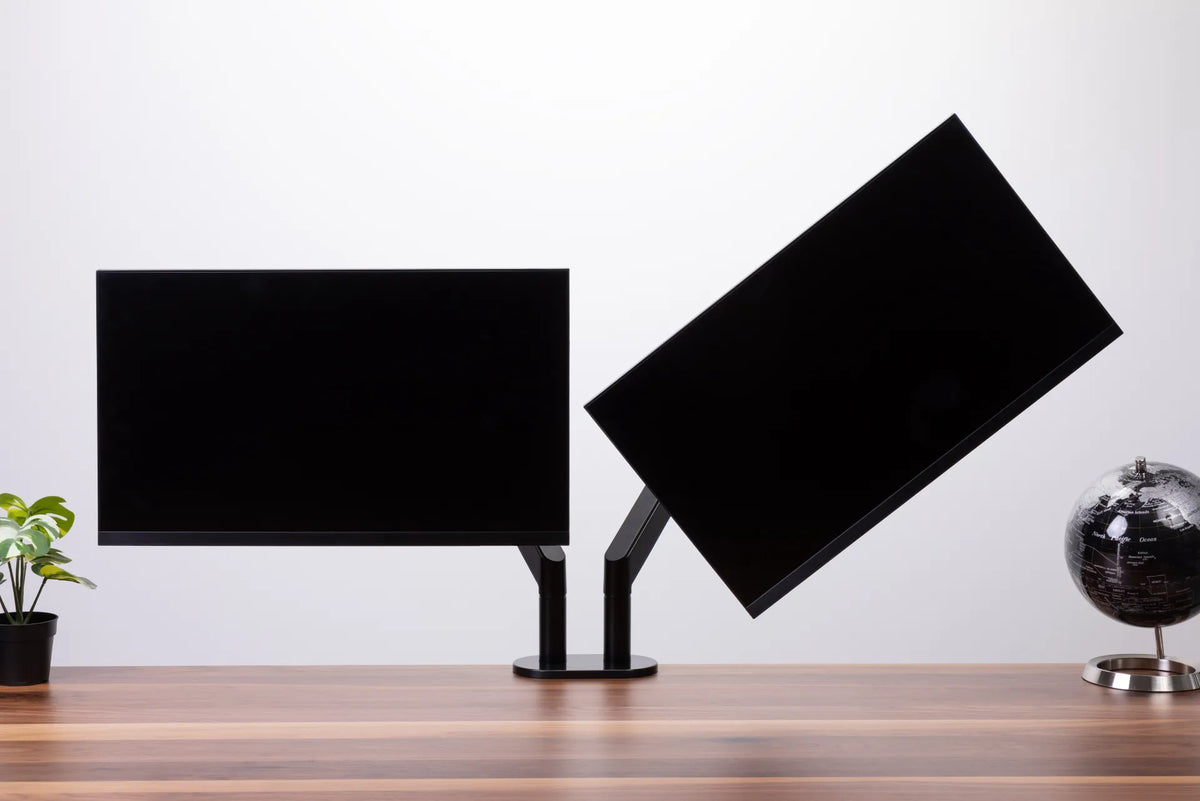
No. Dual monitors do not need to be the same size, brand or resolution. A mixed pair can work very well when each screen has a clear job and both are positioned around the way you actually work. Matching monitors mainly make alignment, scaling and colour consistency easier. They are a convenience, not an ergonomic requirement.
The better question is whether the two displays let you read comfortably without repeatedly lifting, lowering or twisting your head. The Canadian Centre for Occupational Health and Safety (CCOHS) recommends placing the most-used content directly in front of you and considering how a wide viewing area can increase neck rotation. That principle matters more than the logo on either bezel.
When matching monitors are the easiest choice
Two identical monitors create a predictable workspace. Their bezels, stands, screen heights, pixel density and factory colour profiles are usually similar. Windows move from one screen to the other with fewer changes in apparent size, and the top edges are easier to align.
A matched pair is especially useful when you divide attention evenly between screens. Examples include comparing documents side by side, working across two spreadsheets, monitoring two dashboards or editing content that spans both displays. If both screens are primary, visual symmetry reduces small interruptions.
Matching size is not the same as matching experience
Two displays can share a diagonal measurement but still feel different. A 27-inch 4K monitor has a much higher pixel density than a 27-inch 1080p monitor. Operating-system scaling may make text appear similar, but some applications move less smoothly between different scale factors. Panel type, brightness, colour temperature, refresh rate and bezel thickness also affect the transition.
If you are buying two screens at once and expect to use them equally, identical models are the simplest option. If you already own a good monitor, however, replacing it only to create a matched pair is rarely necessary.
When different monitor sizes make sense
A mixed setup works best when the displays have different roles. A larger main monitor can hold focused work while a smaller secondary screen carries email, chat, a calendar, reference material or a preview window. The difference in size can reinforce that hierarchy.
Mixed screens can also solve space constraints. A 27-inch primary display beside a smaller 22- or 24-inch monitor may fit a desk that cannot comfortably hold two large screens. Turning the secondary monitor to portrait orientation can save horizontal room for code, long documents or messaging, although portrait mode should still be positioned to limit neck rotation.
Common combinations that work
- Large main screen plus smaller reference screen: centre the large display and place the smaller one close beside it.
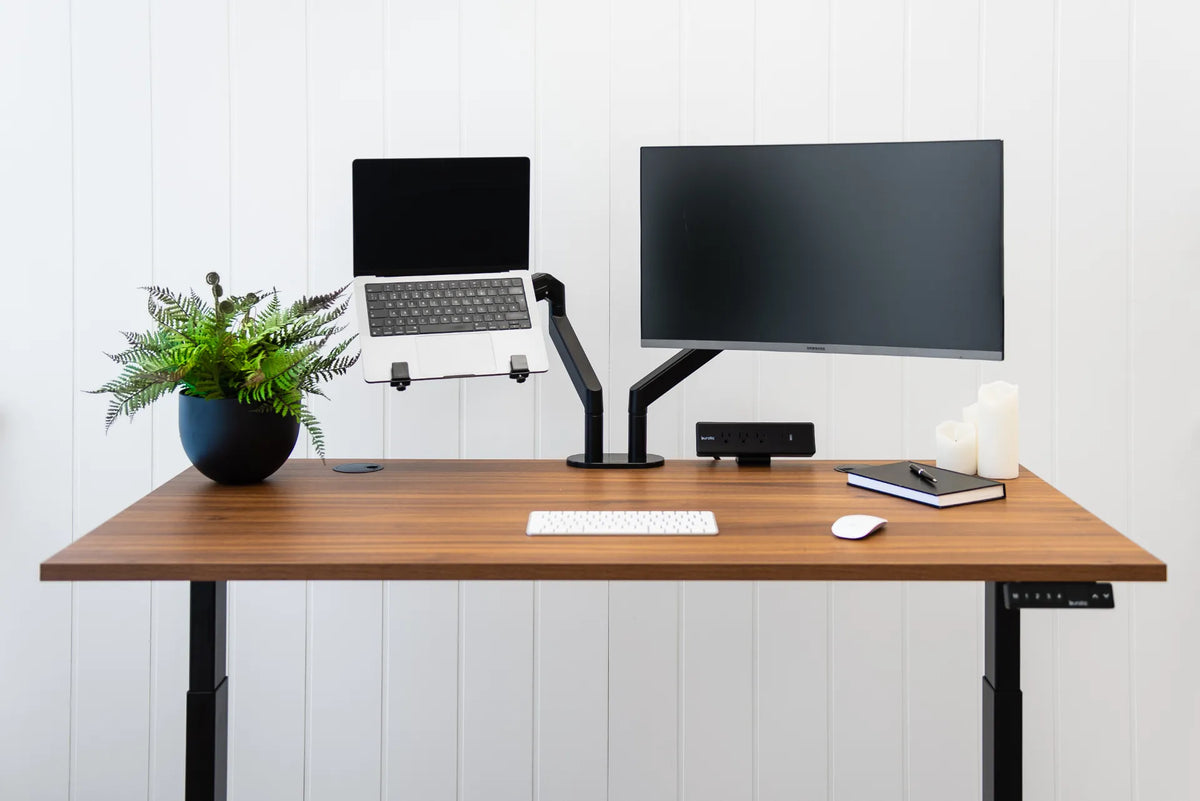
- Laptop plus external monitor: treat the external display as primary for sustained work and use the laptop for secondary information.
- Landscape plus portrait: useful when the portrait screen serves documents, code or communication rather than constant visual work.
- High-resolution primary plus basic secondary: practical when colour or detail matters on only one screen.
The tradeoff is that different pixel densities and scaling settings can make text or interface elements change size as you move a window. Test the intended scaling before deciding that the physical size difference is the problem.
How to align monitors of different sizes
Start from your work pattern, not from the desk's centre line. Sit in your normal position with your chair and keyboard aligned. Place the screen you use most directly in front of your body. The secondary screen should sit immediately beside it and angle inward so that its useful area faces you.
OSHA's computer workstation guidance advises positioning displays so you can look ahead without tilting your head forward or backward, while adjustable supports should allow changes to height, distance, tilt and rotation. CCOHS similarly emphasizes a screen position slightly below horizontal eye level and a viewing distance that remains comfortable for the individual.
Choose one alignment reference
Different-sized monitors cannot have every edge and centre aligned at once. Choose the reference that best matches how you look at them:
- Align the top edges when both screens are viewed frequently and your main content sits near the top.
- Align the visual centres when the secondary monitor is much smaller and you use content across its full height.
- Align the active content zones when toolbars or windows occupy specific areas on each display.
Do not force perfect furniture-store symmetry if it makes the main screen too high or the secondary screen too far away. Our guide to aligning dual monitors explains height, inward angle and primary-screen placement in more detail.
Keep the gap small
Bring the inner bezels close together. A large gap turns every glance into a longer eye and head movement. If the displays are on separate stands, their bases can prevent close placement. A properly compatible monitor arm can free surface space and make independent alignment easier.
Resolution and scaling matter more than many buyers expect
Physical size tells you how large the panel is. Resolution tells you how many pixels it displays. Pixel density combines those two factors and strongly affects how large text appears before scaling.
On Windows or macOS, choose scaling that makes text comfortable on each display. Then move a typical application between screens. Check menu size, cursor behaviour, window sharpness and whether the application resizes unexpectedly. Older software can handle mixed scaling less cleanly than modern applications.
For colour-sensitive work, calibrate both displays and use the better panel as the reference. Even two identical models may not look perfectly matched without adjustment. For ordinary office work, a close brightness and colour-temperature match is usually more useful than chasing exact colour.
Desk space and mounting compatibility
Before buying a second display, measure width, depth and the space behind the desk. Two screens that technically fit can still push the primary monitor off-centre or too close to your eyes. If width is limited, review our guide on fitting two monitors on a small desk.
A monitor arm must support each display's weight and mounting pattern. Check the manufacturer's limits for both arms individually. Screen size alone does not determine weight, and a large ultralight panel may weigh less than an older smaller model. Confirm that the desk edge and mounting area are appropriate as well.
How to decide: matched or mixed?
Choose matching monitors when you are buying both at once, use both equally, move windows between them constantly or need similar colour and brightness. Choose different sizes when you already own a good display, have a clear primary and secondary workflow, need a portrait reference screen or must work within a narrow desk.
If you are unsure, map your workflow first. Our comparison of one monitor versus two monitors can help determine whether the second display will improve the work you actually do.
Quick setup checklist
- Centre the most-used display on your seated position.
- Place the second screen close beside it and angle it toward you.
- Set both screens at a comfortable height without lifting the chin.
- Match text size with operating-system scaling, not by moving one display much closer.
- Reduce the bezel gap and keep frequently viewed content near the shared inner edges.
- Reassess after a full workday and adjust based on neck movement, not appearance alone.
The practical answer
Dual monitors do not need to be the same size. Matching displays are simpler, while mixed displays can be just as effective when one is clearly primary. Prioritize comfortable viewing, sensible scaling, minimal head rotation and a mounting arrangement that fits the desk. A flexible support can help fine-tune those variables without replacing a useful screen merely for symmetry.
Previous article
Should Your Hips Be Higher Than Your Knees When Sitting?
Next article
Should Your Keyboard Be Flat or Tilted?