





How to Flatten a Desk Pad and Keep It From Sliding

In this article
A new desk pad may arrive rolled, and an older one can start lifting at the corners after changes in humidity, storage or cleaning. The safest fix is usually slow and simple: identify the materials, let the pad acclimate, clean both contact surfaces and apply broad, gentle pressure. High heat and strong adhesives can create a larger problem than the curl itself.
This guide applies to common leather, synthetic leather, felt and layered desk pads. Always follow the manufacturer instructions when they differ. A pad with built-in electronics, charging coils or a cable requires extra caution.
Quick answer: lay it flat, clean it and give it time
Unroll the pad on a clean, dry and level desk. Let it reach room temperature. If the manufacturer permits it, gently flex the curl in the opposite direction without creasing the material. Place a clean, flat board or several books across the raised area for a few hours, then reassess. Clean dust from the desk and the underside before adding any non-slip product.
Do not use an iron, heat gun, boiling water or concentrated hair-dryer heat. Do not tape the pad to a finished wood surface unless the desktop and adhesive manufacturers explicitly approve that combination.
Start by identifying the pad
The correct method depends on construction. A single-layer felt pad behaves differently from a leather-look top bonded to felt. Natural leather responds differently from vinyl or polyurethane. A wireless charging pad contains electrical components that should never be soaked, heated or sharply folded.
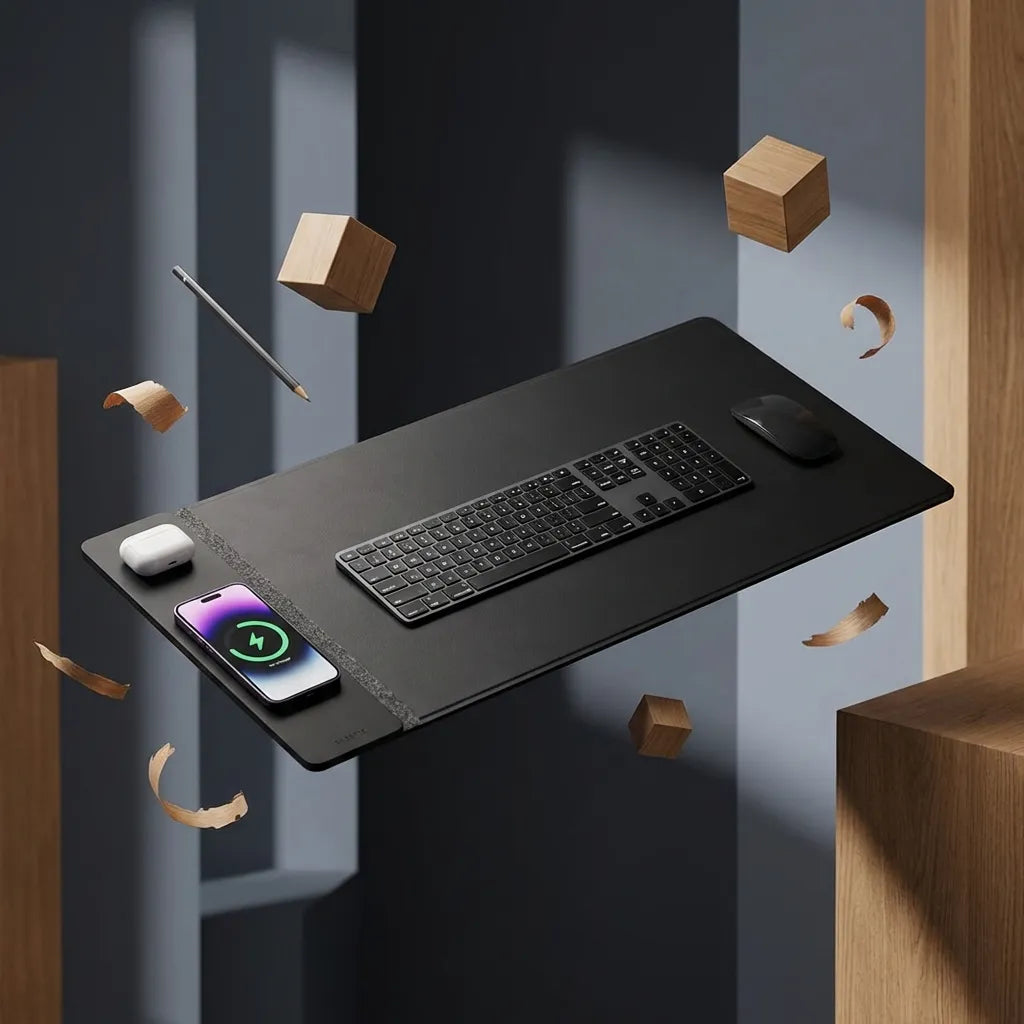
Check the product label, packaging or current product page for care instructions. The active Burotic Wireless Charging Desk Pad, for example, should be treated as an accessory with electronics rather than as a washable piece of fabric.
If the material is uncertain, choose the least aggressive method: room temperature, dry cleaning, broad pressure and time.
Why desk pads curl
Rolled storage
A pad stored tightly around a core can keep that curve after unpacking. Cold delivery conditions can make some materials temporarily stiffer. Let the package reach room temperature before forcing it flat.
Uneven moisture or heat
A damp underside and dry top can expand at different rates. Direct sun, a heater, a hot laptop or a warm drink can also create a localized change. Move the pad away from the source and allow it to dry naturally on both sides.
Dirt between layers
Dust, crumbs or dried cleaner can reduce contact and create small high spots. Even a thin cable or sheet of paper under one corner can start a curl. Lift the entire pad during cleaning instead of wiping only the visible perimeter.
Material memory or separation
An old pad may retain a fold or begin to delaminate. If layers are separating, bubbling or cracking, flattening may not restore them. Replace a damaged pad rather than adding glue that could transfer to the desktop.
A safe flattening process
- Remove the keyboard, mouse and every cable from the pad.
- Lift the pad and inspect both sides for moisture, debris, peeling or electrical components.
- Clean the desk using the desktop manufacturer's instructions and let it dry fully.
- Dust or wipe the pad according to its care directions, then dry it fully.
- Lay the pad flat at room temperature with no object trapped beneath it.
- If permitted, flex the curl gently in the opposite direction. Do not crease it.
- Cover the raised area with a clean flat board and distribute light weight across it.
- Check after several hours and repeat rather than adding heat or excessive force.
For a rolled pad, weighting the whole surface is better than pressing only the corner. A narrow heavy object can leave an impression.
How to stop the pad from sliding
Clean both contact surfaces
Oil from hands, furniture polish and dust reduce friction. Clean the desk and underside with products approved for each material. Let both surfaces dry completely. Moisture trapped under a non-porous pad can affect some finishes.
Check the desk finish
A smooth laminate may offer less grip than a textured surface. A fresh furniture polish can also make a wood desktop slippery. Do not use abrasive cleaners to increase friction. The laminate desk cleaning guide and the wood-care instructions for your specific top should take priority.
Use a compatible non-slip layer
If cleaning is not enough, consider a thin, breathable and non-marking liner only after confirming compatibility with both the pad and desktop. Test a small hidden area first. Avoid rubberized materials that can stain or react with certain finishes during long contact.
Reduce cable pull
A mouse, keyboard or charging cable can drag the pad during normal movement. Create slack and route cables so they do not pull sideways. On a standing desk, test cable tension at the highest and lowest settings.
Keep the working edges clear
Place the pad far enough from the front edge that forearm pressure does not repeatedly lever it upward, while keeping the keyboard and mouse close enough for relaxed reach. If the pad covers a desktop control, grommet or charging cable path, reposition the accessory instead of folding the edge.
A pad that is much larger than the active input area may collide with a monitor shelf or laptop stand. Compare the trade-offs in the desk pad versus mouse pad guide.
Special care for a wireless charging pad
Disconnect power before cleaning or flattening. Do not immerse the pad or allow liquid into the charging module, cable or connector. Do not place heavy weight directly on a charging housing unless the manufacturer permits it. A raised electrical area is not a curl that should be pressed flat.
If the surface becomes unusually warm, swollen, cracked or unreliable, stop charging and follow the product instructions. The wireless charging desk pad cleaning guide covers a conservative dry and lightly damp routine.
Protect the desktop
Desk pads can reduce everyday scuffs, but long-term contact also hides the surface. Lift the pad periodically to remove dust and check for moisture, colour transfer or finish changes. Rotate accessories rather than leaving a hot device in the same place every day.
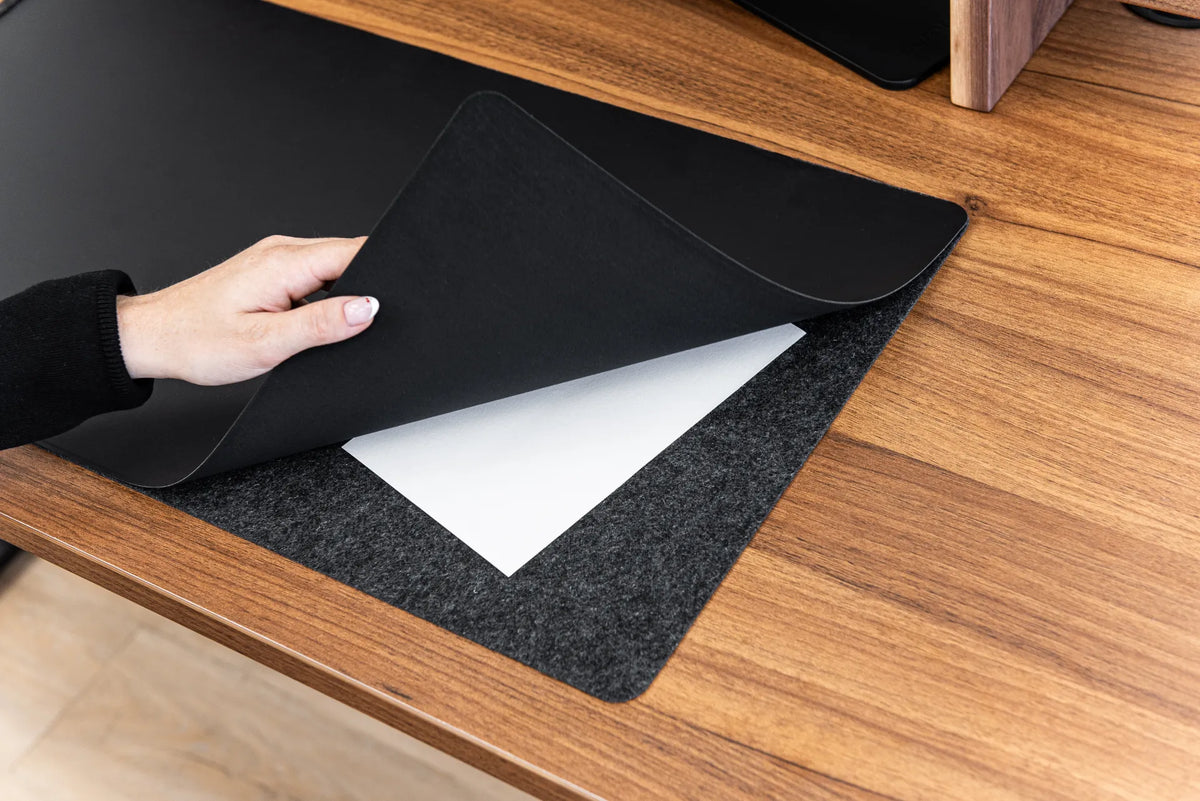
Never trap a damp cloth, cleaning residue or paper beneath the pad. Paper can absorb moisture and stick to a finish. The photo for this article shows a layered pad being lifted with a sheet visible between layers; it illustrates why every hidden surface should be checked before the pad is returned to use.
What not to do
- Do not iron or steam the pad.
- Do not use a heat gun or place it on a radiator.
- Do not soak felt, leather or an electronic module.
- Do not sharply reverse-roll a brittle or layered pad.
- Do not apply permanent glue directly to the desktop.
- Do not assume every rubber liner is safe for every finish.
When replacement is the better choice
Replace the pad if its layers are separating, the top is cracked, an electrical module is damaged, the underside transfers colour, or the edges remain a trip or snag hazard after gentle flattening. Continued aggressive repair can damage both the accessory and the desk.
Final recommendation
Flatten a desk pad with room temperature, a clean dry surface, light distributed pressure and patience. Prevent sliding by removing dust and cable tension before adding a compatible liner. Avoid high heat, soaking and permanent adhesives. For an electronic pad, disconnect it and treat the charging area as hardware, not as a wrinkle.
Sources: CCOHS, Mouse Placement; CCOHS, Sit/Stand Desk; current Burotic product and care information, consulted September 29, 2026.

Previous article
How to Set Up a Standing Desk in a Corner
Next article
How to Organize a Desk Shelf Without Crowding Your Workspace