





How to Clean a Wireless Charging Desk Pad Safely

In this article
A wireless charging desk pad combines a work surface with powered electronics, so it should not be cleaned like a fabric mouse pad or an ordinary piece of leather. The goal is to remove dust, skin oils and small marks while keeping liquid away from the charging module, connector and cable.
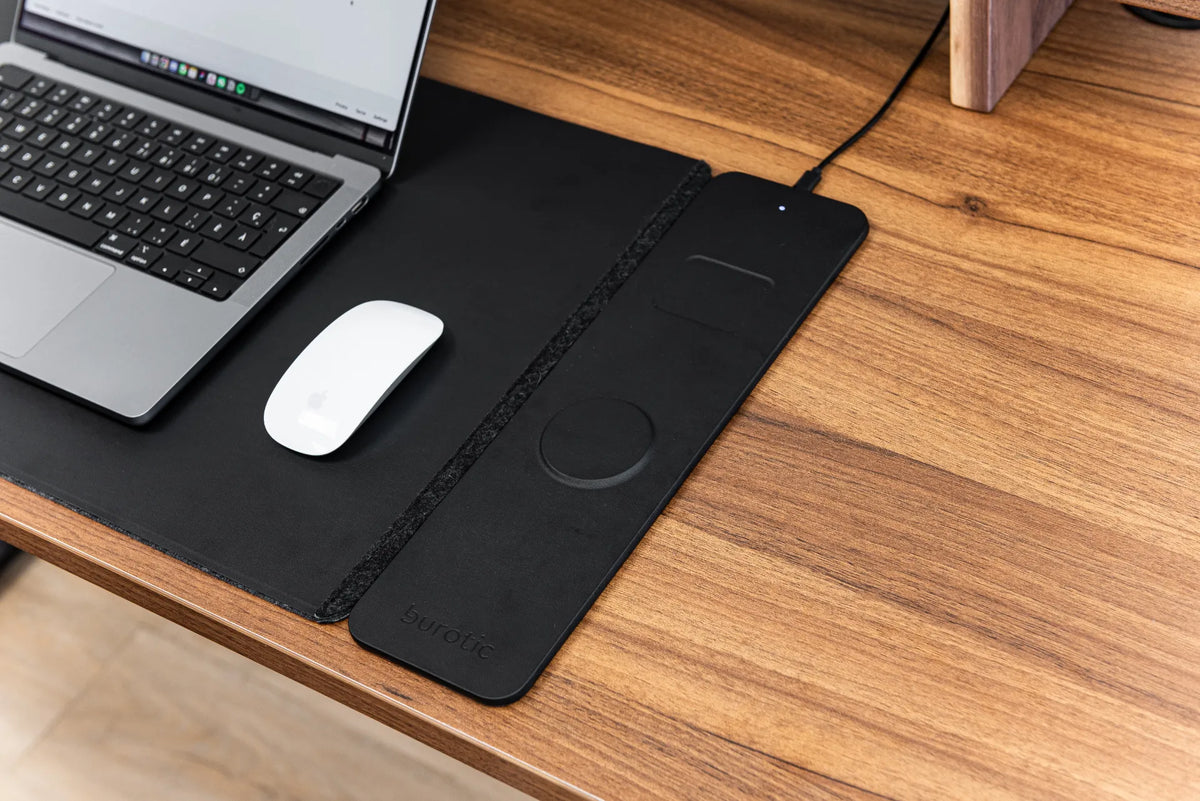
The safest method is conservative: disconnect power, start dry, use as little moisture as possible and follow the care information supplied with the product. The Burotic Wireless Charging Desk Pad is described as premium vegan leather with felt and a modular wireless charging section. The steps below are designed around that construction, but the product instructions always take priority.
What you need
- Two clean, soft microfibre cloths
- Clean lukewarm water
- A small bowl, used away from the desk
- A mild, residue-free soap only when the product instructions allow it
- A dry, clean surface where the pad can air-dry flat
Avoid abrasive pads, stiff brushes, bleach, solvents, strong household sprays, oil-based conditioners and direct heat. These can affect the finish, leave a residue that changes mouse tracking or create unnecessary risk around the charging components. Never spray cleaner directly on the pad.
Step 1: disconnect and clear the workspace
Unplug the charging pad from its power source before cleaning. Remove the phone, earbuds, laptop, mouse and every loose object. If the charging section is removable, detach it only as described by Burotic. Do not force a connector or pull on the cable itself.
Move drinks and the bowl of water to another surface. This sounds minor, but it prevents the most avoidable problem: tipping liquid onto an unplugged pad and the computer equipment beside it. Check the cable, plug and charging surface for visible damage. Stop using the powered section if a cable is frayed, a connector is loose or liquid has entered the module.
Step 2: remove dry debris first
Lift the desk pad and gently shake loose crumbs away from electronics. Use a dry microfibre cloth to wipe the top, edges and felt areas. Work from the cleaner zones toward the dirtier ones so dust is not dragged repeatedly across the surface.
Pay attention to the seam where the work surface meets the charging module. Use the corner of a dry cloth rather than a sharp tool. Pens, blades and hard scrapers can mark the material or push debris into a gap. If grit remains under the pad, remove it before putting the pad back because particles trapped against a finished desktop can cause marks when the pad shifts.
Step 3: test a lightly damp cloth
For a mark that dry wiping does not remove, dampen a cloth with clean water, then wring it out thoroughly. The cloth should feel barely damp and should not release droplets. Test it on a small, inconspicuous area. Wipe gently without soaking an edge, seam or charging component.
If the product instructions permit mild soap, dilute a very small amount in water and apply it to the cloth, not the pad. Use a second cloth dampened only with water to remove residue. More soap is not more effective; residue can attract dust, affect the appearance and change the way a mouse glides.
Do not immerse the pad, rinse it under a tap or put it in a washing machine. A wireless charging accessory contains electrical parts even when it looks like an ordinary desk mat.
Step 4: treat the charging area separately
Use a dry microfibre cloth on the charging module, its connector and the cable. If a barely damp wipe is permitted by the product instructions, keep moisture away from openings and immediately dry the surface. Do not reconnect power while any part feels damp.
Wireless charging works best when the phone and charging area are clean and aligned. Remove thick debris and check that no metal object, coin, key or magnetic accessory is left between the device and the charging surface. Use only compatible devices and power equipment, and follow the device manufacturer’s instructions.
Step 5: dry the pad flat and completely
Blot the cleaned area with a dry cloth. Place the pad flat in a ventilated indoor space, away from direct heat and strong sunlight. Do not use a hair dryer, space heater or hot radiator to speed the process. Heat can change materials and adhesives.
Wait until the top, edges, underside and charging components are completely dry before reconnecting power. If liquid entered an opening or the module behaves unexpectedly, leave it disconnected and contact Burotic for guidance. A cleaning routine should never include testing a device while moisture may still be present.
Clean the desktop underneath
A desk pad can hide fine dust, condensation from a cold drink or a small spill. Lift it regularly and inspect the desktop. For a solid wood surface, follow the finish manufacturer’s care instructions and use minimal moisture. Dry the area fully before replacing the pad. The Burotic solid wood desk maintenance guide explains why prompt drying and finish-specific care matter.
Do not trap a damp cloth, a wet pad or cleaning residue against wood. Give both surfaces time to dry. If the pad has moved during use, wipe away any grit before realigning it. This small habit helps protect both the accessory and the desktop.
How often should a desk pad be cleaned?
There is no universal schedule. A light dry wipe once a week works well for many workspaces. Clean sooner after food, makeup, ink or a visible spill. Inspect the underside monthly, or more often in a humid room or when drinks are regularly used at the desk.
A short routine is safer than waiting for heavy buildup that encourages aggressive scrubbing. Wash and dry hands before work, use a coaster, keep food to one side and give pens a tray. These habits reduce the amount of cleaning the pad needs.
Common mistakes to avoid
Spraying cleaner directly
A spray can reach seams and electrical openings. Apply any permitted solution to the cloth instead.
Using alcohol or solvent without approval
A chemical that is safe for glass may damage vegan leather, coatings or adhesive. Use only care products specifically allowed by the manufacturer.
Scrubbing one spot hard
Repeated pressure can change texture or sheen. Use gentle passes and stop if the surface begins to look different.
Powering the charger too soon
Dry to the touch is not always dry at an edge or connector. Allow extra time and keep it disconnected when unsure.
Ignoring the surface below
A clean top can still cover grit or moisture. Inspect the desktop whenever the pad is lifted.
When cleaning is not enough
Stop using the charging function if the cable is damaged, the connector is loose, the module becomes unusually hot, charging is intermittent after the device and cable have been checked, or liquid has entered the electronics. Cleaning cannot repair electrical damage. Do not open the module unless the manufacturer specifically provides a user-service procedure.
Health Canada advises consumers to use electrical products with recognized Canadian certification marks and to follow manufacturer instructions. For a permanent replacement or a question about the Burotic accessory, contact Burotic with the product details and a clear description of the issue.
Keep the routine simple
For everyday care, unplug, clear the surface, wipe dry, spot-clean with a barely damp cloth only when permitted, and let everything dry flat before reconnecting. Inspecting the desktop underneath is part of the same routine.
The Burotic Wireless Charging Desk Pad combines a work surface and charging area. If you are still deciding between a large pad and a smaller mouse pad, the desk pad versus mouse pad guide compares the two formats.


Previous article
Standing Desk Setup for Content Creators: Camera Gear, Editing and Workflow
Next article
Standing Desk Setup for Content Creators: Camera Gear, Editing and Workflow