

How to Choose an Ergonomic Chair That Fits Your Body

In this article
An ergonomic chair is not ergonomic simply because the label says so. It becomes ergonomic when its dimensions and adjustments let your body work in supported, neutral positions without forcing your feet, thighs, shoulders or arms into awkward angles.
That is why buying a chair by appearance alone is risky. Two people of the same height can have different leg, torso and shoulder proportions. A practical fit check should start with your body and your workstation, then move to features such as lumbar support, armrests and a headrest.
Adjustability matters more than a “universal” size
The Canadian Centre for Occupational Health and Safety states that there is no true average person. For shared workstations, it recommends a fully adjustable chair that can accommodate a broad range of users. For an individual buyer, the same principle applies: the chair should adjust to you rather than requiring you to adapt to a fixed shape.
Prioritize usable adjustment range. A long list of controls is valuable only when the seat, backrest and armrests can actually reach your preferred positions.
1. Check seat height first
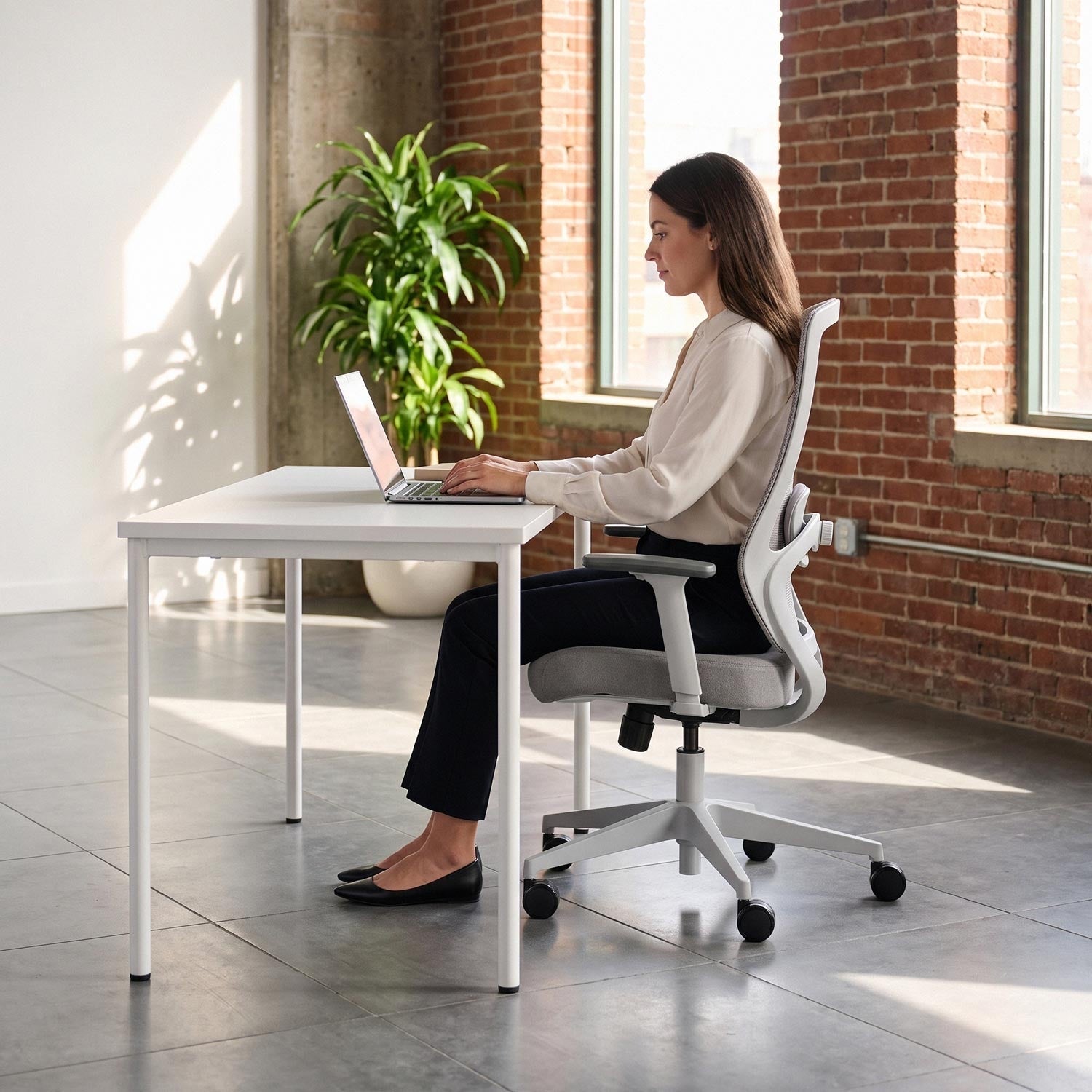
Seat height establishes the rest of the setup. CCOHS suggests standing in front of the chair and adjusting the highest point of the seat to just below the kneecap as a starting point. Once seated, your feet should rest flat on the floor and your knees should be around hip height, without excessive pressure beneath the thighs.
If you raise the chair to match a desk that is too high and your feet no longer reach the floor, use a stable footrest. Do not solve desk-height problems by leaving the legs unsupported.
2. Match seat depth to your legs
Seat depth is the distance from the backrest to the front edge of the seat. Too short, and the chair may not support enough of the thighs. Too long, and the front edge can press behind the knees or prevent you from using the backrest.
Sit fully back with your lower back supported. CCOHS recommends checking for approximately a clenched fist—about 5 cm or 2 inches—between the front edge of the seat and the calves. An adjustable seat-depth slider is particularly useful for taller or shorter users and for shared chairs.
The Loop Ergonomic Chair, for example, has an adjustable seat depth of 18.1 to 20.1 inches and a seat-height range of 17.9 to 21.9 inches. Treat those measurements as compatibility information, not a guarantee: compare them with a chair you already use and test the fit whenever possible.
3. Confirm seat width and usable space
The seat should allow you to sit centred without pressure at the sides. At the same time, a seat that is much wider than needed can place the armrests too far apart. Check the usable width between the armrests, not only the chair’s maximum exterior width.
Also verify the chair’s rated weight capacity and select a model with an appropriate safety margin. Weight capacity does not tell you whether the seat will feel spacious, so capacity and dimensions should be evaluated separately.
4. Position lumbar support, do not chase pressure
Lumbar support should meet the inward curve of the lower back while you sit against the backrest. More pressure is not automatically better. Support that is too low, too high or too pronounced can encourage you to move away from the backrest.
Start with a subtle setting. Adjust the height until the support follows your lower-back curve, then add depth or pressure gradually if the chair offers that control. The goal is sustained support without a concentrated pressure point.
5. Set armrests for relaxed shoulders
Armrests should support the forearms without lifting the shoulders. CCOHS recommends letting the arms hang loosely, bending the elbows to about 90 degrees and setting the armrests so they barely meet the underside of the elbows.
Armrests must also let you approach the keyboard. If they collide with the desk and force you to reach forward, lower, shorten or move them. Adjustable width and inward positioning can be especially helpful for smaller users; wider users may need more lateral space.
Loop uses 3D armrests with height, depth and angle adjustment. The Peak Ergonomic Chair is a wider, more robust alternative with 4D armrests and independent seat and backrest tilt controls. The better option depends on body dimensions and working style, not on which model has the longest feature list.
6. Use recline and tilt during the day
A good working posture is not one frozen position. Small posture changes redistribute load and can reduce fatigue. Set tilt tension so you can recline smoothly without being pushed forward or falling backward. Use an upright position for focused keyboard work, then recline slightly for reading, calls or thinking.
A tilt lock can provide a familiar reference position, but it should not turn the chair into a rigid seat for eight hours. Movement and breaks remain important even with an excellent chair.
7. Decide whether you need a headrest
A headrest is most useful when reclining or during tasks that do not require leaning toward the screen. For active typing, your head may not contact it at all. If you choose one, confirm that it can support the head or upper neck without pushing the head forward.
On Loop, the headrest is optional and can be added later. This makes it possible to start with the chair itself and add the headrest if your use of recline shows that it would be helpful.
A five-minute chair fit test
- Set the seat height so your feet are supported and the knees are around hip height.
- Sit fully back and check for roughly 2 inches of clearance behind the knees.
- Place the lumbar support in the curve of the lower back.
- Relax the shoulders and bring the armrests just under the elbows.
- Move close to the desk and confirm that the armrests do not block access.
- Type and use the mouse for several minutes without reaching or raising the shoulders.
- Recline and confirm that the backrest, seat and headrest—if present—move comfortably with you.
Do not judge only by the first soft impression. A chair can feel plush for five minutes but provide poor support during a full workday. Focus on pressure points, range of motion and whether you can use the controls easily while seated.
Common buying mistakes
- Choosing by height alone: leg and torso proportions matter.
- Ignoring minimum dimensions: a maximum seat height or capacity does not prove the chair can adjust low or narrow enough.
- Using armrests that are too high: this can elevate the shoulders.
- Setting lumbar support aggressively: support should fit the curve rather than force it.
- Expecting the chair to correct the whole workstation: desk, monitor, keyboard and mouse positions must work with it.
- Never changing posture: even a well-fitted chair cannot replace movement and breaks.
The short answer
Choose a chair by matching its seat-height, seat-depth, seat-width and armrest ranges to your body and desk. Then confirm that the lumbar support and recline feel supportive rather than restrictive. For many users, adjustability is more valuable than thick padding or a dramatic design. Measurements narrow the shortlist; a careful fit test makes the final decision.

Previous article
24 vs. 30-Inch Desk Depth: How to Choose for Your Monitor Setup
Next article
Standing Desk Cable Management: A Safe, Movement-Ready Setup Guide