

Should You Lock Your Knees at a Standing Desk?

In this article
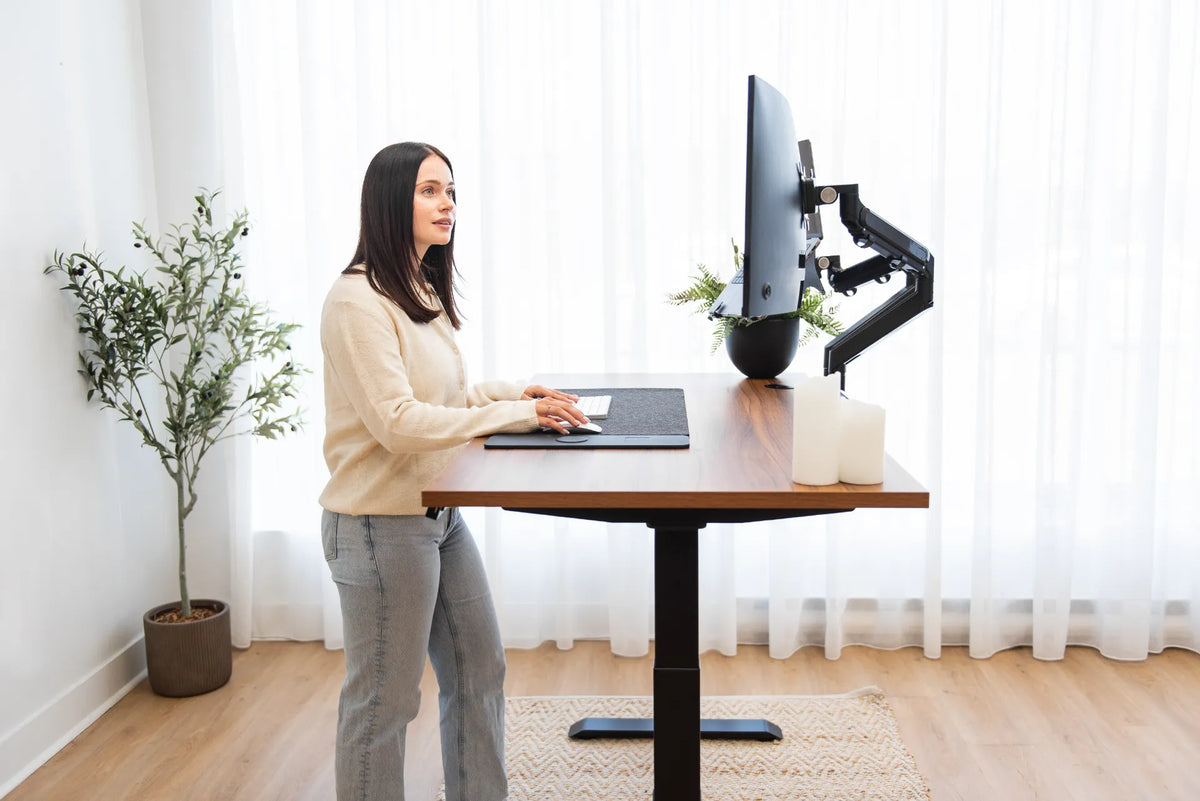
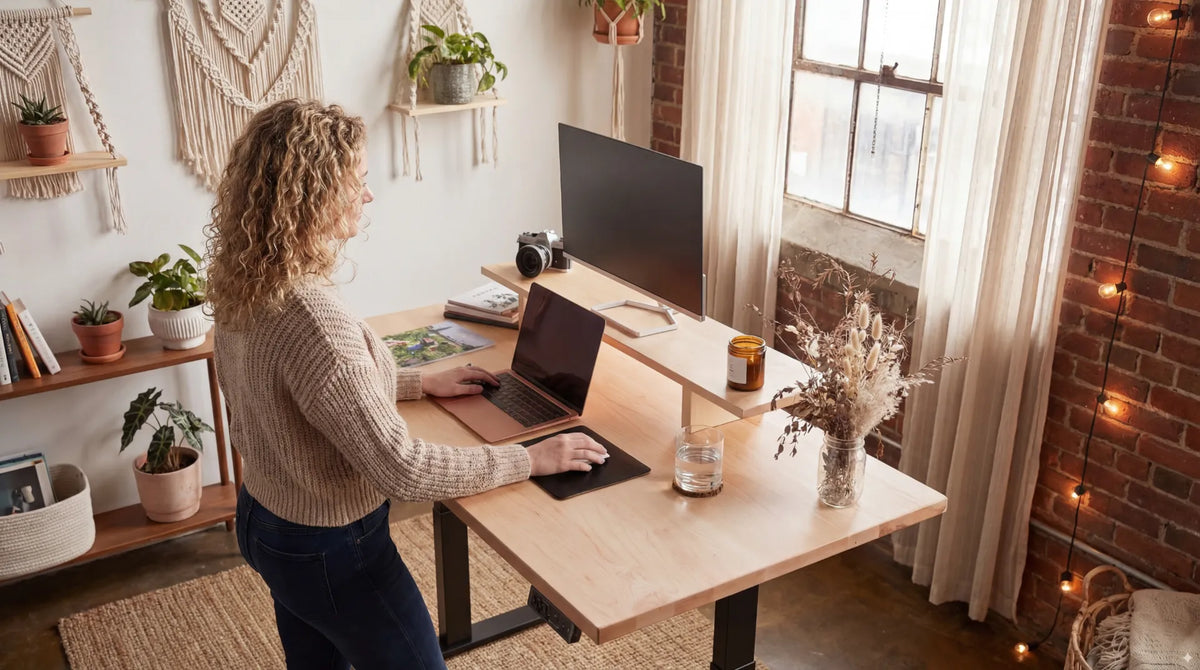
No. You generally should not deliberately lock your knees while working at a standing desk. A better starting position is upright but relaxed, with your knees straight enough to support you without being forced backward or held rigid. Shift your weight occasionally, change foot position and alternate between sitting, standing and short movement breaks.
This is general ergonomic guidance, not medical advice. Pain, swelling, dizziness, numbness or a condition that affects balance or circulation should be discussed with an appropriate health professional.
What does locking your knees mean?
Locking the knees means pushing them fully straight and holding the joints at the end of their available range. Some people also shift the hips forward, lean the upper body back or rest most of their weight on one leg. The posture can feel stable at first because the joints, rather than active postural adjustments, are carrying much of the load.
Standing tall is not the same as forcing the knees backward. Your legs can be extended while the joints remain relaxed. Think of a balanced position in which you could easily take a step, bend one knee or shift your weight without first having to release a rigid pose.
Why rigid standing can become uncomfortable
The Canadian Centre for Occupational Health and Safety notes that prolonged standing can contribute to discomfort in the feet, knees, hips and back. It recommends changing position, shifting weight and using a footrest when appropriate. The goal of a sit-stand workstation is variation, not replacing hours of uninterrupted sitting with hours of motionless standing.
A rigid knee position can also affect the rest of the workstation. If you push the hips forward or lean back, you may move farther from the keyboard. That can lead to reaching, raised shoulders or pressure at the desk edge. If one leg carries most of the load, the pelvis and torso may rotate away from the screen.
Comfort is a useful signal
You do not need to monitor a perfect knee angle all day. Instead, notice whether your posture feels easy to change. If the knees, calves or lower back begin to feel stiff, change position rather than trying to hold the same pose more precisely.
How should your knees be positioned?
Use a relaxed stance with your feet supported and your knees not forced backward. A slight natural bend may be comfortable, but do not hold a deep bend or squat. Your weight should feel balanced enough that you can move between both feet without twisting your torso.
CCOHS guidance for standing work encourages well-balanced positions, adequate room to move and frequent changes in body position. Its workstation stretching guidance also advises against locking joints and illustrates standing with the knees slightly bent.
Start with your feet
Place both feet on a stable surface. Keep enough space between them to feel balanced, then experiment with a small staggered stance. The guide on where to place your feet at a standing desk explains how stance width, footwear and a footrest affect the rest of your posture.
Shift instead of bracing
Move your weight from one foot to the other occasionally. A low footrest can let you support one foot for a short period, then switch sides. This is different from leaning heavily on one hip for a long time. The change should feel temporary and easy to reverse.
Set the desk before correcting your legs
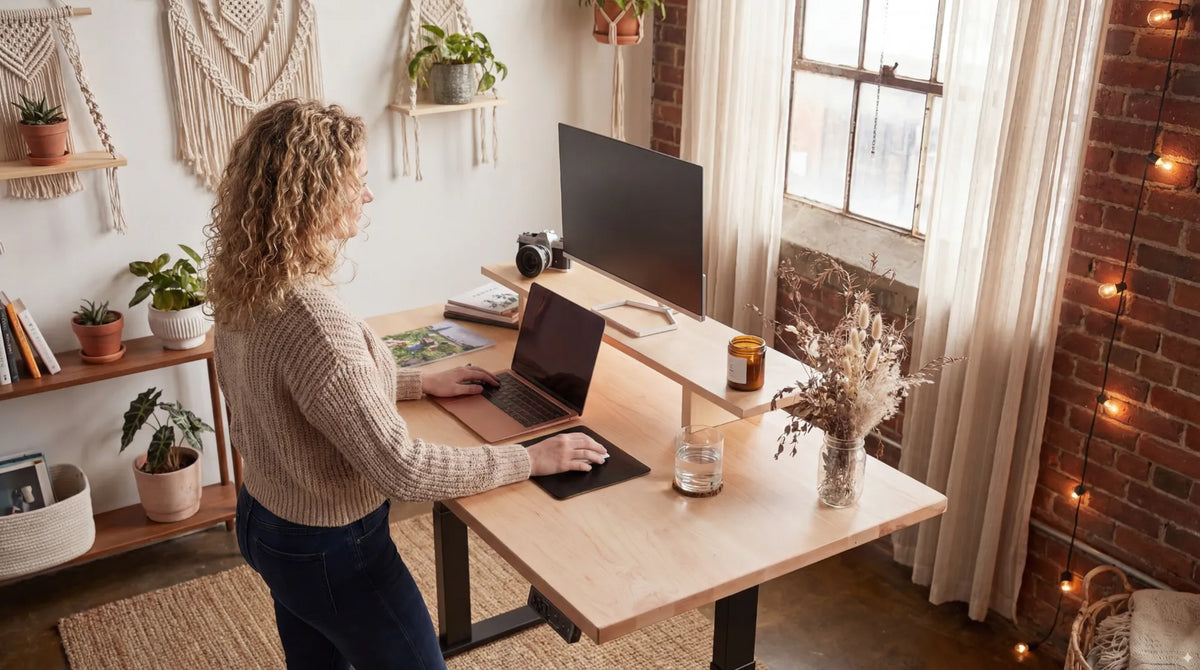
If the work surface is too high or too low, changing your knee position will not solve the main problem. Set the keyboard and mouse near standing elbow height so the shoulders can remain relaxed and the elbows stay close to the body. CCOHS describes the hands, wrists and forearms as straight, aligned and roughly parallel to the floor.
Use the standing desk elbow-angle guide to check the relationship between your body and the work surface. Then place the monitor so you can look forward without lifting the chin or bending the neck excessively.
Keep the work close
A keyboard or mouse positioned too far away can make you lean on the desk. Bring frequently used items into a comfortable reach zone and leave a small buffer at the front edge so the wrists and forearms are not pressed against a hard surface.
Use movement instead of searching for one perfect pose
A good standing position is temporary. CCOHS states that recommendations for sitting and standing intervals vary and that the key is to alternate as needed. Allow your body time to adapt and continue taking breaks away from the computer.
A practical sequence can be simple:
- Begin standing with both feet supported and the knees relaxed.
- Shift one foot slightly forward after several minutes.
- Use a footrest briefly, then switch sides.
- Sit when standing becomes tiring or attention shifts toward discomfort.
- Walk or complete a task away from the computer before returning.
The exact timing depends on the person, the task and the day. Do not use a timer to force yourself to remain standing after the position becomes uncomfortable.
Can an anti-fatigue mat help?
An anti-fatigue mat may make a hard floor more comfortable and encourage small lower-leg movements. It does not correct desk height or make rigid standing desirable. The surface should lie flat, provide stable footing and remain outside walking paths when not in use.
Read how anti-fatigue mats work at a standing desk before choosing one. Burotic's Anti-Fatigue Mat can be considered after confirming the available floor area and how you move between sitting and standing.
Common standing mistakes
- Forcing the knees backward: aim for support without holding the joints rigid.
- Standing on one leg for too long: shift sides and return to a balanced stance.
- Leaning on the desk: check the work surface height and bring input devices closer.
- Staying still because standing feels healthier: movement and position changes remain important.
- Ignoring footwear and flooring: stable support matters more than a fashionable stance.
- Raising the desk too high: this can lift the shoulders and encourage bracing through the arms.
A quick standing-desk check
Stand at the workstation and ask the following questions:
- Can I bend either knee or take a small step without first releasing a rigid position?
- Are my shoulders relaxed and my elbows close to my body?
- Can I use the keyboard and mouse without leaning on the front edge?
- Do my feet feel stable, and can I shift weight comfortably?
- Can I sit or walk away easily when I want a change?
If the answer is no, adjust the desk, stance or work layout. The solution is usually a combination of equipment adjustment and more frequent movement, not a stricter posture rule.
When should you change the setup?
Adjust the workstation if you repeatedly catch yourself bracing the knees, leaning into the desk, shifting only because a joint feels pressured, or losing stable contact with the floor. Start with the simplest variable: desk height, footwear, foot position or the duration of the standing interval. Change one item at a time and reassess after several normal work periods. A posture that looks acceptable in a photograph may still be unsuitable if it cannot be maintained comfortably while typing and viewing the screen.
Persistent pain, swelling, numbness, weakness or a history of knee injury deserves individual assessment from a qualified health professional. General workstation guidance can improve fit and movement opportunities, but it does not identify or treat a medical condition.
The bottom line
Do not intentionally lock your knees at a standing desk. Stand upright with the joints relaxed, keep the work near elbow height, shift your weight and change positions regularly. The best posture is one that supports the task and remains easy to leave.

Previous article
Can You Put a Standing Desk in the Middle of a Room?
Next article
Should Your Laptop Screen Be Below Your Monitor?