





How High Should Office Chair Armrests Be?

In this article
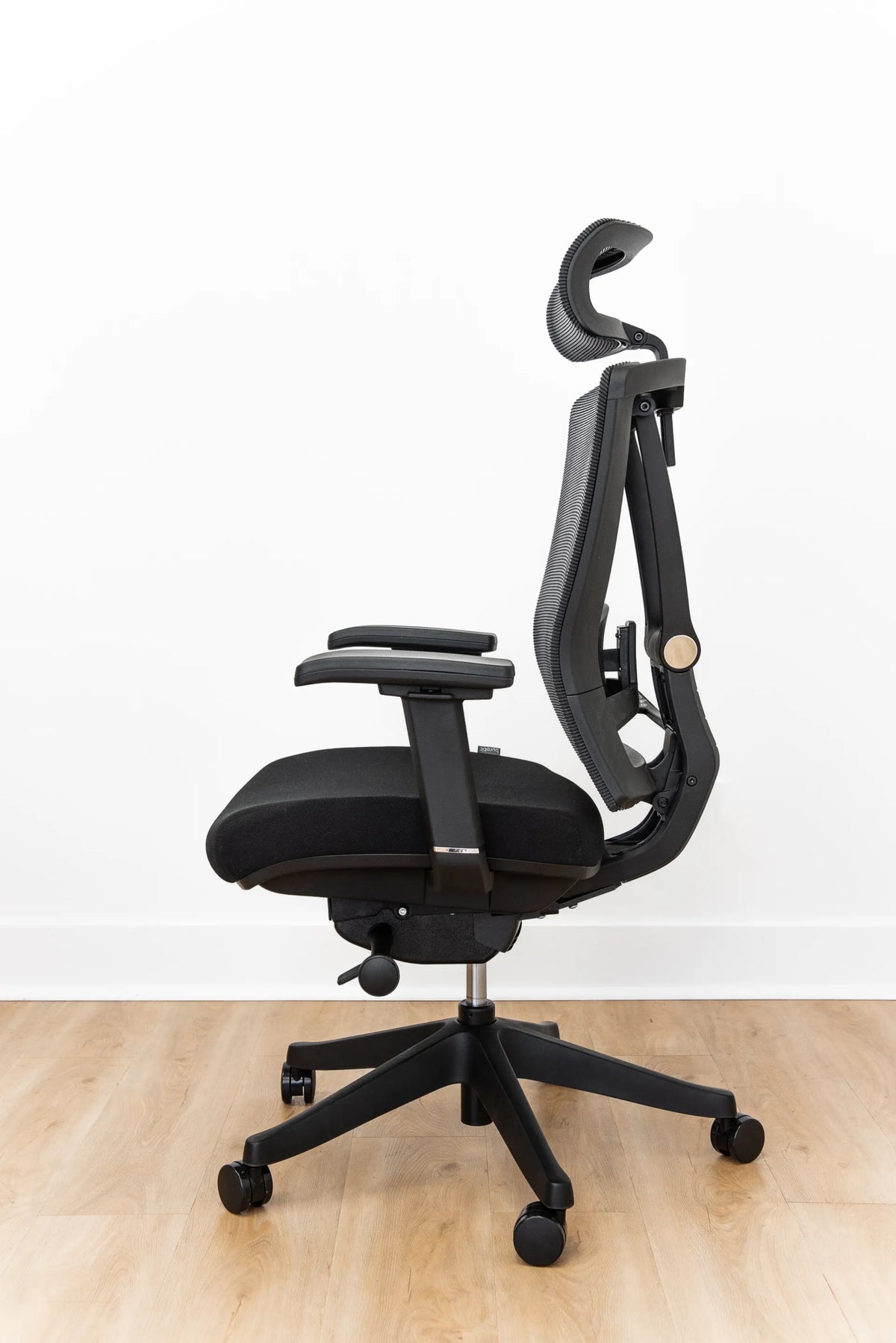
Office chair armrests should sit high enough to lightly support your forearms while your shoulders stay relaxed, but not so high that they lift your shoulders or so low that you have to lean sideways to reach them. A reliable starting point is to let your upper arms hang naturally, bend your elbows to about 90 degrees and raise the pads until they just meet the underside of your forearms or elbows.
That simple rule is useful, but armrest height cannot be set in isolation. Your seat height, keyboard position, desk height, armrest width and the type of work you do all affect whether the setting actually feels right. The goal is not to pin your arms in one posture. It is to give them light support when useful while preserving easy movement and close access to the desk.
The quick answer: set armrests at relaxed elbow height
Sit back in the chair with your feet supported, your shoulders loose and your upper arms hanging beside your torso. Bend your elbows so your forearms are roughly parallel to the floor. Bring each armrest up until it barely supports the arm without pushing it upward. You should be able to remove your forearm without first dropping your shoulder.
The Canadian Centre for Occupational Health and Safety recommends adjusting armrests to elbow height when the upper arms hang down and the forearms are at about a right angle. It also notes that armrests should not interfere with free movement at the workstation. Treat 90 degrees as a practical checkpoint, not a rigid medical prescription. Body proportions, task demands and comfort vary.
Signs the armrests are too high
- Your shoulders rise or feel tense.
- Your elbows are pushed away from your sides.
- You feel pressure under the elbows or along the forearms.
- You cannot move the mouse freely without lifting an arm.
- Your chair must remain too far from the desk because the pads hit the desktop.
Signs the armrests are too low
- You drop one shoulder to make contact.
- You lean sideways or rest more heavily on one arm.
- Your forearms do not receive support when you pause typing.
- You reach upward to the keyboard because the chair and desk are not coordinated.
If the lowest setting still lifts your shoulders, lower or remove the armrests when the chair design permits. An armrest is optional support, not a feature that must be used at all times.
Adjust the chair in the right order
Changing several controls at once makes it hard to identify the real problem. Use this sequence instead.
1. Set the seat height and foot support
Start with your feet flat on the floor or fully supported by a stable footrest. Your thighs should feel supported without excessive pressure behind the knees. If you are unsure, use the steps in Burotic's ideal office chair height guide before touching the armrests.
2. Set the backrest and lumbar support
Sit against the backrest rather than perching at the front of the seat. Position the lower-back support so it follows your body comfortably. The lumbar support positioning guide explains how to find a practical starting point.
3. Relax your shoulders and bend your elbows
Let the arms hang naturally. Avoid pulling the shoulder blades back forcefully or holding a military posture. Bend the elbows and raise the pads to meet the arms lightly.
4. Bring the keyboard and mouse to the same working zone
Your armrest setting should complement the input devices. Keep the keyboard close enough that the elbows remain near the body, and keep the mouse at a similar height. See the guide to proper keyboard and hand placement for the rest of the setup.
5. Test movement, not just still posture
Type, mouse, reach for a notebook and lean back. The pads should not trap your elbows or force your wrists to bend. If an armrest supports you while reading but gets in the way while typing, use a lower setting for active work or move it back if the chair allows.
Should armrests be level with the desk?
They do not need to match the desktop exactly. What matters is that your forearms can approach the keyboard and mouse without raised shoulders or bent wrists. On a fixed-height desk, a slightly lower armrest may slide beneath the surface and let you sit closer. On an adjustable desk, you can often coordinate the work surface with your seated elbow height.
Do not raise the chair only to make the armrests meet a high desk if that leaves your feet unsupported. If the chair must be higher to work comfortably, add a suitable footrest. If the desktop is adjustable, move the surface to the user instead of forcing the user toward the surface.
Width and depth matter as much as height
Armrests that are the right height can still be uncomfortable when they are too far apart. If the pads sit outside your natural elbow position, you may spread the arms or lean to one side. Width-adjustable rests should come inward until the elbows can remain near the torso without squeezing the ribs.
Depth is also important. Long pads can collide with the desk and stop the chair too far away. Shorter pads or rests that slide backward make it easier to approach the keyboard. CCOHS notes that armrests can be a problem when they prevent users from getting close enough to the workstation.
Some chairs also let the pads pivot. A slight inward angle can support the forearms during keyboard work, but too much rotation can crowd the body or press against the wrist. Set both sides symmetrically first, then make small task-specific changes.
Armrests for typing, mousing and reclining
Typing
During typing, the armrests should reduce effort without making the forearms carry body weight. Keep wrists neutral and let the hands move freely over the keys. If the pads push the elbows outward, move them inward or lower them.
Mousing
Mouse work often exposes asymmetry. Keep the mouse close to the keyboard and avoid planting the elbow while reaching forward. If the right armrest blocks the movement, lower it slightly or slide it back rather than moving the mouse farther away.
Reading or reclining
Armrests can be more supportive when you lean back to read or think. A chair with adjustable rests allows you to change the relationship between the pads and your arms as the backrest angle changes. Comfort in a reclined position does not automatically mean the same setting will work for intensive typing.
What if the armrests will not adjust low enough?
First confirm that the seat and desk are set correctly. Then check whether the pads can slide backward or inward to clear the work surface. If the chair permits safe removal of the armrests, that can be preferable to working with elevated shoulders. Do not modify structural parts or use an adjustment method that conflicts with the manufacturer's instructions.
If you are selecting a chair, prioritize an adjustment range that fits your body and desk. The active Loop Ergonomic Chair is one Burotic option to review alongside your own measurements and task needs. Confirm the controls and fit on the current product page before choosing.
A two-minute armrest check
- Support both feet and sit against the backrest.
- Let your shoulders drop naturally.
- Bend the elbows to roughly 90 degrees.
- Raise the pads until they barely contact the arms.
- Move them inward so the elbows stay near the torso.
- Slide or pivot them so they do not block the desk.
- Type and use the mouse for several minutes.
- Lower or move a pad if you notice shoulder lift, pressure or restricted movement.
Recheck the setup after changing desk height, keyboard position or footwear. A setting that works at one workstation may not transfer perfectly to another.
When discomfort needs more than an adjustment
This guide offers general ergonomic information, not a diagnosis. Persistent numbness, tingling, weakness or pain can have many causes. If symptoms continue after basic workstation changes, speak with a qualified health professional or ergonomist. In a workplace, report concerns through the appropriate health and safety process.
Bottom line
The best armrest height is the point where the pads provide light support at relaxed elbow height without lifting the shoulders, spreading the arms or blocking the desk. Start near a 90-degree elbow angle, then fine-tune width, depth and task position. The right result should feel almost unremarkable: supported when you pause, free when you move.


Previous article
How to Organize a Small Desk Without Drawers
Next article
Should Your Desk Be Perpendicular to a Window?