






Proper Keyboard and Hand Placement for Desk Work

In this article
Proper keyboard and hand placement is less about holding one perfect pose and more about arranging the workstation so comfortable movement is easy. When the keyboard is too high, too far away or off-centre, the hands usually compensate. Wrists bend, shoulders rise, elbows move away from the body and the upper back works harder than it needs to.
The Canadian Centre for Occupational Health and Safety, or CCOHS, recommends placing the keyboard directly in front of the user, keeping the shoulders relaxed, the elbows close to the body and the wrists in line with the forearms. Those principles apply whether you sit, stand or alternate between both. The sequence below turns them into a practical setup.
Quick answer: line up the keyboard with your body
Place the keyboard directly in front of your torso, not automatically in the centre of the desk. Keep it close enough that your upper arms can hang naturally. Aim for relaxed shoulders, elbows near the sides and forearms roughly level with the floor. Your wrists should continue the line of your forearms rather than bending sharply up, down or sideways.
Keep the mouse close to the keyboard and at a similar height. Leave a small amount of space at the front of the desk so the hands can move freely, but avoid pushing the keyboard so far back that you reach. CCOHS suggests about 5 cm, or 2 inches, from the front edge as a useful starting point.
Set the desk and chair before the keyboard
A keyboard cannot fix a work surface that is at the wrong height. Start with the chair when seated. Keep the feet supported and adjust the seat so the legs feel stable. Then bring the desk or keyboard level toward the elbows. If a fixed desk remains too high after the chair is adjusted, a footrest may help support the feet while the seat is raised.
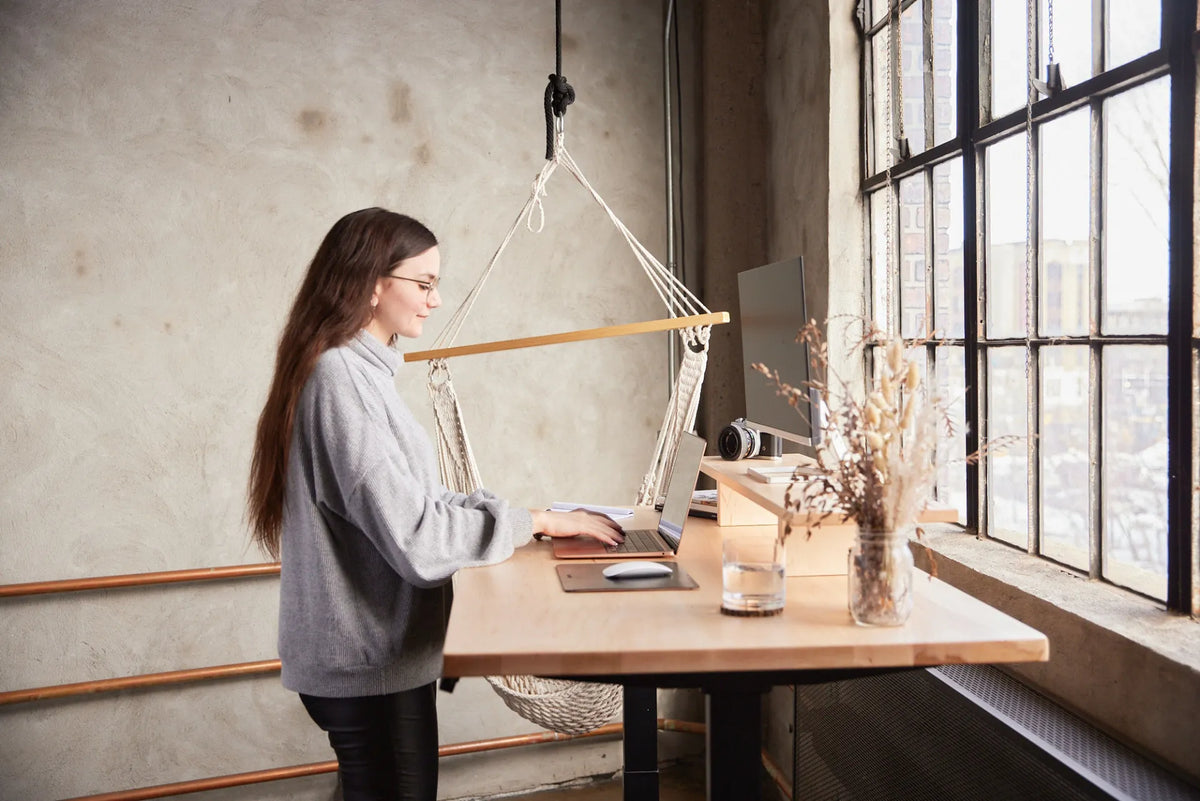
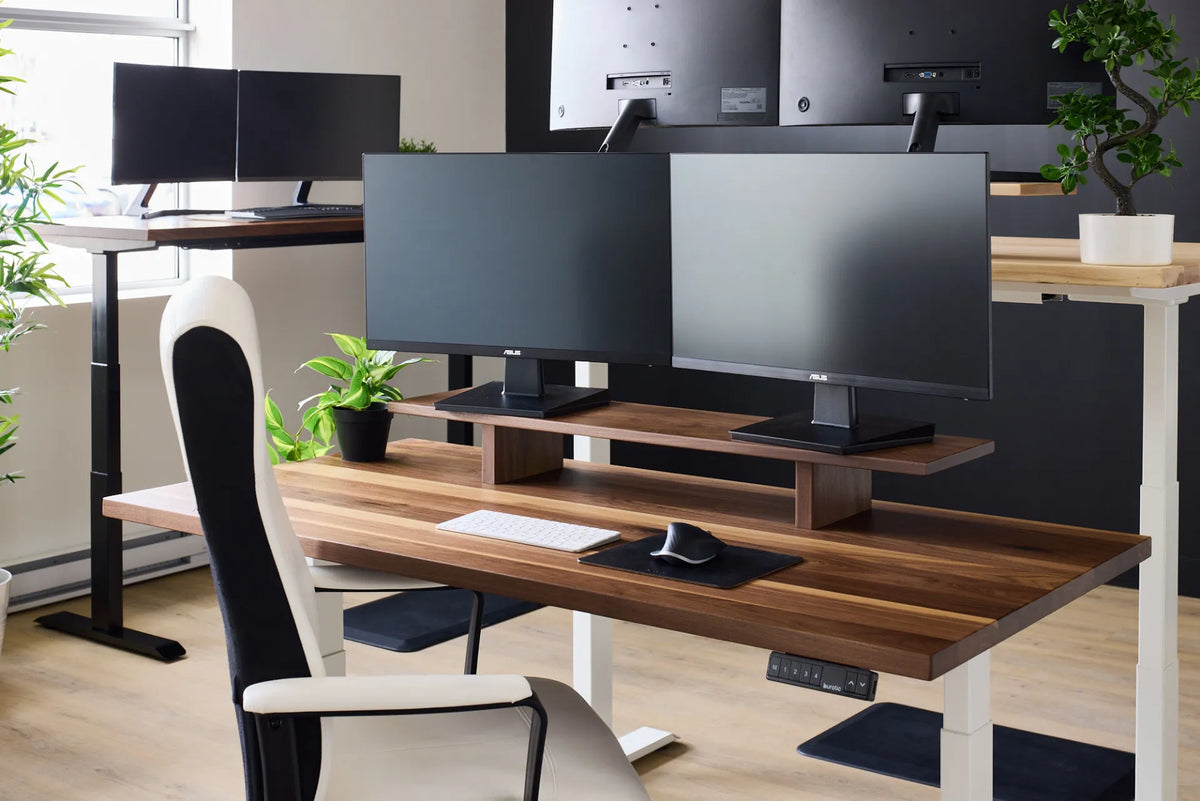
At a standing desk, raise or lower the surface until the hands can reach the keys without lifting the shoulders or bending the wrists. The correct number on the control panel is personal because body proportions differ. Save a comfortable position only after checking the keyboard, mouse and monitor together. Burotic’s Aspire standing desk frame is one option for building an adjustable surface; verify its current dimensions and compatibility on the product page.
How to place the keyboard in five steps
1. Centre the letters you use, not the full hardware
A full-size keyboard includes a number pad, so the physical centre of the device is not the centre of the typing area. Align the letter keys with your torso. Otherwise, the keyboard may shift your hands left while the mouse sits farther right. People who use the mouse heavily may prefer a compact keyboard or a separate number pad to reduce reaching.
2. Bring it into the easy-reach zone
Move the keyboard close enough that your elbows stay near your sides. If your elbows slide forward or your back leaves the chair, the keyboard is likely too far away. Keep enough front-edge clearance that the hands do not strike the desk and the device remains stable.
3. Keep the keyboard low and fairly flat
Many keyboards have rear feet that tilt the keys upward. That angle can increase wrist extension for some users. Begin with the keyboard flat, then change the angle only if it improves comfort without bending the wrists. The best position depends on the keyboard profile and the user.
4. Type with light, mobile hands
Let the fingers move across the keys without pressing harder than necessary. Avoid planting the wrists on a hard edge while typing. CCOHS notes that a wrist or palm rest is intended for pauses; during typing, the hands should move freely above it. If you use a rest, it should contact the heel or palm of the hand rather than compress the wrist.
5. Recheck after changing posture
A position that works while seated may not work while standing. When the desk moves, confirm that shoulders remain relaxed and wrists remain aligned. Small changes in footwear, floor mats or chair height can also affect the surface setting.
Where should the mouse go?
Place the mouse beside the keyboard, close to the body and at about the same level. A mouse far to the side encourages reaching and may rotate the upper arm. A full-width keyboard often creates this problem. CCOHS explains that a shorter keyboard can free several centimetres for a more convenient mouse position.
Hold the mouse lightly. Keep the wrist straight and guide larger movements from the elbow and shoulder instead of pivoting only at the wrist. Adjust pointer speed so moving across the screen does not require repeated long sweeps. If the mouse shape, size or grip forces the hand into an awkward position, try a different input device rather than training yourself to tolerate it.
What neutral wrists actually look like
Neutral does not mean perfectly motionless. It means the hand and forearm generally remain in line while the fingers and arm move naturally. From above, the wrist should not angle strongly toward the thumb or little finger. From the side, it should not stay sharply bent upward or downward.
Check the setup while typing a real paragraph, not while posing for a photo. If the wrists bend upward, lower the keyboard or surface. If the shoulders rise, lower the working height. If the forearms press against a sharp edge, move slightly closer, soften the contact area or adjust the support.
Laptop keyboards need a compromise
A laptop joins the screen and keyboard, so improving one position can worsen the other. Keeping the laptop low for the hands usually places the screen below a comfortable viewing area. Raising it for the eyes makes the keyboard too high. For longer work sessions, use an external keyboard and mouse so the display can be positioned independently. Our laptop and monitor setup guide covers this arrangement in detail.
For short tasks, keep the laptop close, enlarge the display if needed and avoid prolonged leaning. A laptop on the lap may encourage neck flexion and offers little control over hand height. A table or desk with stable support is usually easier to adjust.
Coordinate the keyboard with the monitor
The keyboard should face the screen used most often. If the keyboard is centred but the main display is off to the side, the neck and torso may twist in opposite directions. Place the primary screen directly beyond the main typing area. With two equally used displays, keep the keyboard centred on the space between them only if the work truly alternates evenly.
After moving the keyboard, recheck monitor distance and height. Our ergonomic workstation guide explains how the chair, work surface and display work as one system.
Common setup problems and quick corrections
- Wrists bent upward: lower the keyboard or work surface and flatten the keyboard angle.
- Shoulders raised: lower the surface or raise the chair while supporting the feet.
- Mouse arm reaching outward: bring the mouse closer or use a narrower keyboard.
- Forearms on a hard edge: change distance and remove sharp contact pressure.
- Body turned toward one screen: align the keyboard with the primary display.
- Laptop screen too low: separate the screen position from the input devices.
Movement still matters
Even a carefully adjusted keyboard does not make one posture ideal for an entire day. Alternate tasks, take brief movement breaks and change position before discomfort builds. CCOHS identifies static posture and repetitive work as important ergonomic concerns. A good workstation reduces unnecessary strain, but it does not eliminate the value of variation.
Persistent pain, numbness, weakness or tingling should not be self-diagnosed from a setup checklist. Seek advice from an appropriate health professional or workplace ergonomics resource.
Final setup checklist
- Letter keys centred with the torso.
- Keyboard and mouse within easy reach.
- Shoulders relaxed and elbows near the body.
- Forearms roughly level with the floor.
- Wrists generally in line with the forearms.
- Mouse at a similar height to the keyboard.
- Main screen aligned with the main typing area.
- Position rechecked when switching between sitting and standing.
Start with the desk height, then place the keyboard and mouse around your body rather than arranging your body around the equipment. If you need more height flexibility, review Burotic’s adjustable desk options and confirm the product specifications that matter for your space.
Previous article
How Far Should Your Monitor Be From Your Eyes?
Next article
How to Choose a Standing Desk Frame and Legs