



How High Should Your Keyboard and Mouse Be at a Standing Desk?

In this article
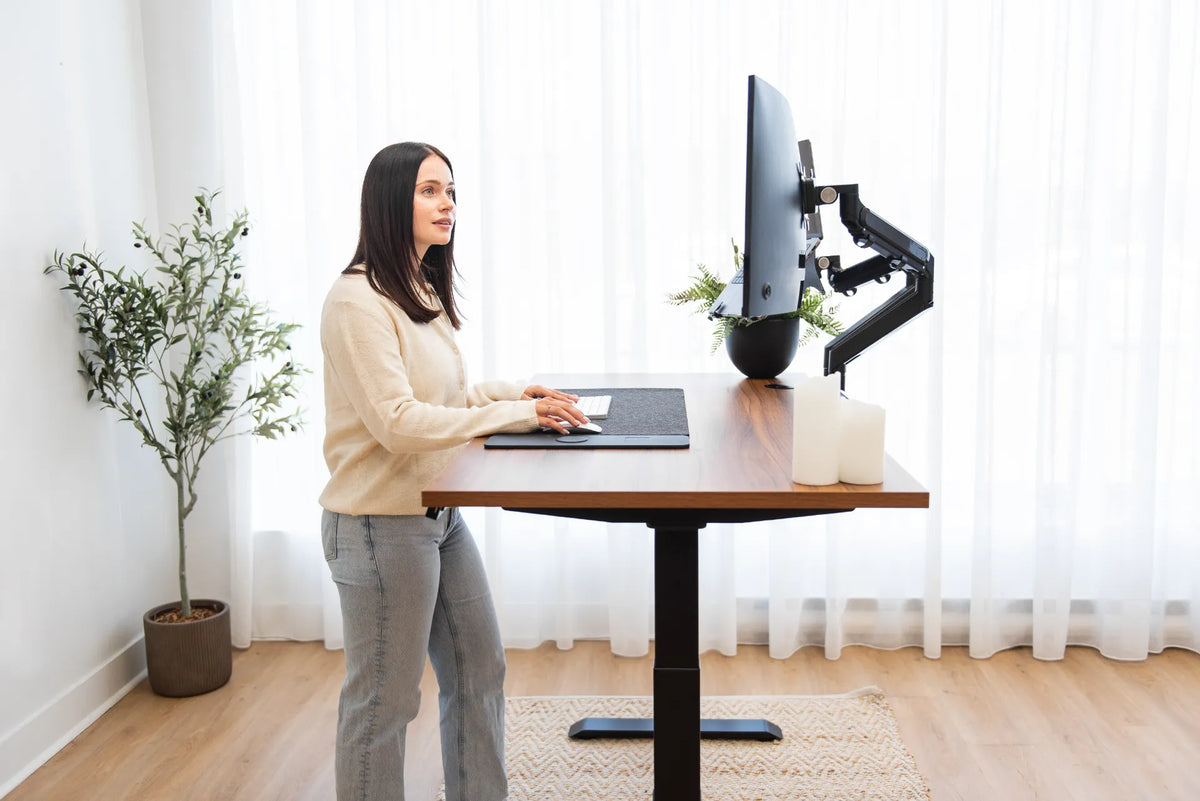
At a standing desk, the keyboard and mouse should normally sit around standing elbow height. Your shoulders should stay relaxed, your elbows should remain close to your sides, and your forearms should be roughly parallel to the floor. The mouse belongs beside the keyboard at the same level, not farther forward or on a higher surface.
Elbow height is a starting point, not a universal number. Body proportions, keyboard thickness, footwear, and the task all change the final setting. A useful height is the one that lets you type and point with straight wrists while keeping your shoulders down.
Quick answer: set the desk from your elbows
- Stand naturally with your weight balanced and your knees unlocked.
- Let your upper arms hang beside your torso.
- Bend your elbows to about 90 degrees.
- Raise or lower the desk until the keyboard surface is near the underside of your forearms.
- Place the mouse immediately beside the keyboard and test both devices for several minutes.
The Canadian Centre for Occupational Health and Safety, or CCOHS, recommends setting a sit-stand platform approximately at standing elbow position. Its guidance also calls for straight hands, wrists, and forearms, relaxed shoulders, and elbows close to the body. Those relationships matter more than a height chart based only on stature.
Why the keyboard surface matters
Measure the working height at the keys, not just at the desktop. A thick mechanical keyboard can place the hands higher than a slim keyboard on the same desk. A desk pad, wrist rest, or keyboard tray can also change the relationship between the work surface and your hands.
If the keys are too high, you may lift your shoulders, spread your elbows, or bend your wrists upward. If they are too low, you may lean forward, round your upper back, or reach down with straight arms. Neither position becomes comfortable simply because the desktop matches a number from a chart.
Use wrist position as a second check
Your wrist should remain close to the same line as your forearm. A small natural angle is normal, but a pronounced bend upward, downward, or sideways suggests that the device height, tilt, or distance needs attention. CCOHS recommends adjusting the keyboard, desk, or chair so the wrist can remain neutral.
Do not press the wrist against a hard desktop edge while typing. A palm support can be useful during pauses, but it should not force the hands upward or become a pressure point during active keying.
Place the mouse at the same height and within easy reach
A well-positioned keyboard does not solve a mouse that sits far to the side. Keep the mouse close enough that your upper arm stays near your torso. The hand should move from the keyboard to the mouse without making the shoulder reach forward or outward.
CCOHS notes that a shorter keyboard can create more room for the mouse. If a full-size keyboard pushes the mouse beyond a comfortable reach, consider moving the keyboard slightly left, using a compact model, or changing where the numeric keypad sits. Our guide to compact versus full-size keyboards explains the space tradeoff.
Check mouse and keyboard together
Type for two minutes, then use the mouse for two minutes. Watch for a shoulder that rises only when pointing, a wrist that bends sideways, or a forearm that loses support. The mouse should not require a different desk height from the keyboard. If it does, first remove any separate platform or object that changes its level.
Should the desk be exactly at elbow height?
Not always. The CCOHS recommendation is approximate. Some users prefer the keys slightly below the elbow so the forearms angle down gently. Precision tasks on paper may call for a different surface height than continuous keyboard work. The practical test is whether the position keeps the shoulders relaxed, the wrists close to neutral, and the devices within easy reach.
Do not raise the desk to match the monitor. The screen and input devices have different jobs. Set the desk for the hands first, then adjust the monitor independently with its stand, riser, or arm. Raising the whole desk to improve screen height often creates a keyboard that is too high.
How to tell when the desk is too high
- Your shoulders drift upward while typing.
- Your elbows move away from your sides.
- Your wrists bend upward over the front edge of the keyboard.
- You feel pressure under the forearms from the desk edge.
- You stand on your toes or tense your legs to meet the surface.
Lower the desk a small amount, then retest. Changes of one or two centimetres can be meaningful. If you use memory presets, save the new height only after working at it for ten to fifteen minutes.
How to tell when the desk is too low
- You lean your torso toward the keyboard.
- Your head moves forward as you type.
- Your arms hang nearly straight instead of bending comfortably.
- Your wrists bend downward toward the keys.
- You brace weight through your palms.
Raise the desk gradually and bring the devices closer. If the screen then feels low, adjust the screen rather than continuing to raise the keyboard. The Burotic guide to standing desk height for short and tall users covers the relationship between body size and the full workstation.
Footwear and floor surfaces change the setting
Shoes can change elbow height relative to the desktop. If you alternate between indoor shoes and bare feet, one saved setting may not work equally well for both. A thick anti-fatigue mat also raises the body relative to the desk. Recheck the keyboard height whenever the mat or footwear changes.
Stand on the surface you actually use before saving a preset. Keep the knees soft, shift position periodically, and avoid treating one upright pose as the goal for an entire work block. CCOHS recommends varying position rather than standing continuously.
Keyboard tilt and distance still matter
Height cannot correct a keyboard that is too far away. Keep it close enough that the elbows remain near the body, while leaving a small space at the desk edge. CCOHS suggests about 5 cm as a practical starting point. For a detailed distance test, see how far the keyboard should be from the desk edge.
Keyboard feet that tilt the back upward can increase wrist extension for some people. If the wrists bend, try the keyboard flat or slightly negatively tilted. Our guide on flat versus tilted keyboard placement explains when each option can work.
A five-minute standing setup test
- Set the desk near elbow height.
- Centre the keyboard in front of your main work area.
- Place the mouse beside it at the same level.
- Type a paragraph and complete a normal pointing task.
- Relax your hands and check whether the shoulders immediately drop.
- Adjust the desk in small steps until the working posture matches the relaxed posture as closely as practical.
Repeat the test later in the day. Fatigue can reveal a small reach or shoulder lift that is easy to miss during a brief staged check.
When a height-adjustable desk helps
A height-adjustable desk makes it easier to set the input devices for the individual user and to preserve separate sitting and standing heights. Burotic's standing desk collection offers several surface and frame configurations. Product choice does not replace an ergonomic assessment, but adjustment range makes a neutral setup easier to achieve.
Bottom line
Start with the keyboard and mouse near standing elbow height. Keep both devices at the same level, directly within reach, and adjust until your shoulders stay relaxed and your wrists remain close to straight. Set the hands first and the monitor second.
If discomfort persists after reasonable changes, stop treating the problem as a simple measurement issue. A qualified ergonomist or health professional can assess individual needs. General workstation guidance is not a medical diagnosis.
Previous article
Where Should You Place an Anti-Fatigue Mat at a Desk?
Next article
Do You Need a Footrest at Your Desk?