






27 vs. 32-Inch Monitor: How Much Desk Depth Do You Need?
Compare the space a 27 or 32-inch monitor needs, measure eye-to-screen distance, and test desk depth before changing your display or desk.

In this article
A 32-inch monitor can fit on the same desk as a 27-inch monitor, but that does not mean both will feel equally comfortable. The larger screen takes more visual space, its stand may occupy more of the desktop, and the distance that worked for the smaller screen may feel crowded. Desk depth should be chosen around the actual display, its mounting position and your seated posture.
For a compact setup, a 24-inch-deep desktop may work with either size after a careful fit test. A 30-inch-deep desktop usually gives more placement flexibility, especially with a bulky stand, paper documents or a laptop beside the display. Neither depth is an ergonomic guarantee. The useful question is whether you can read your real work, keep the input devices close and use the full screen without repeatedly leaning or turning.
What changes when you move from 27 to 32 inches?
The advertised size is the diagonal of the display, not its width or the depth of its stand. For a flat 16:9 panel, a 27-inch screen has an approximate visible width of 59.8 cm and height of 33.6 cm. A 32-inch screen is approximately 70.8 cm wide and 39.8 cm tall. These are calculated panel dimensions; bezels, curved designs and other aspect ratios change the actual product footprint.
That means the 32-inch option is about 18.5% wider and taller at the same aspect ratio. At the same viewing distance, more of the display extends toward the edges of your visual field. Some people appreciate that extra workspace. Others find themselves moving their head more often or leaving the outer parts of the screen unused.
Resolution is a separate decision. A larger screen does not automatically create more usable detail. Compare the resolution, operating-system scaling and applications you use. A spreadsheet that looks comfortable at one scaling setting may look unexpectedly small after a display upgrade, even when the physical screen is larger.
Desk depth is not your viewing distance
A desktop measured front to back cannot tell you how far your eyes will be from the screen. Your eyes usually sit behind the front edge, while the panel may sit well in front of the rear edge. The monitor stand, mounting arm, chair position and your normal working posture all affect the result.
Measure directly from your eyes to the screen while sitting naturally. Do not lean forward for the measurement or stretch your arms to make the result look larger. Then record how far the display face sits from the desk's front edge. These two measurements explain why two people using identical desktops can have very different viewing distances.
CCOHS treats monitor placement guidance as a starting point to adapt to the person. It recommends roughly an arm's length as a practical estimate and notes that a wide display may need to move farther away. Increase text size when necessary rather than automatically leaning closer. Burotic's general monitor-distance guide explains the baseline; this comparison focuses on the space needed when changing screen size.
When a 24-inch-deep desk can work
A 24-inch desktop is about 61 cm deep. It can be a sensible choice when the room is tight, the setup uses one display and the stand leaves enough room for the keyboard and mouse. A slim stand or compatible arm may let you position the panel farther back without filling the centre of the surface.
For a 27-inch monitor, start by checking the stand rather than assuming the screen is small enough. A wide, forward-projecting base can be more restrictive than the panel itself. The keyboard should remain in a position that lets you work with relaxed shoulders, not squeezed against the front edge because the stand occupies the middle.
A 32-inch display may also work on this depth if you can achieve your preferred distance and read comfortably. Test it before buying. If the display must hang beyond the back edge to feel usable, check the wall gap, mounting instructions and cable clearance. Do not rely on an unstable or improvised arrangement.
When 30 inches of depth gives useful flexibility
A 30-inch desktop is about 76.2 cm deep, giving 15.2 cm more front-to-back space than a 24-inch top. That extra area can help move a large display back while keeping a clear input zone. It can also accommodate a notebook, document holder or the stand's base without forcing every object into the same narrow strip.
The benefit is flexibility, not a requirement to push everything to the rear. Keep the keyboard and mouse where your arms can use them comfortably. Move the display to suit your vision and task, then give secondary objects their own locations. A deeper desk filled with storage can still leave too little functional room.
Choose the deeper option only after checking the room. The added depth reduces the space behind the chair and may affect a door, walkway or nearby cabinet. Burotic's 24 vs. 30-inch desk-depth comparison covers that room-level tradeoff.
Run a fit test using your actual equipment
1. Mark the proposed desktop
Use paper or removable tape to mark the width and depth on a table. Include a line for the back wall if the desk will sit near one. The mock-up should represent the usable surface, not a generous imaginary extension beyond it.
2. Place the stand and input devices
Set the monitor stand or a paper outline in the proposed location. Add the keyboard and mouse, including enough space for normal mouse movement. If you use a laptop as a second screen, include its open footprint and the cables leaving its sides.
3. Recreate a normal task
Open the spreadsheet, document, design application or browser layout you use most. Compare both display sizes if possible. Look at text in the centre and information near the corners. Adjust application zoom or scaling before deciding that the only solution is more desk depth.
4. Check the body position
Notice whether you sit forward, lift your chin, pull the keyboard closer or turn repeatedly to read outer windows. Change one setting at a time. Write down what improved the task so the final purchase decision reflects a repeatable setup rather than a brief showroom impression.
5. Include standing height
On an adjustable desk, repeat the test while standing. Your position relative to the front edge may change. Check that the display remains usable, the arm stays within its intended range and the cables move freely through the desk's travel.
Will a monitor arm solve a shallow-desk problem?
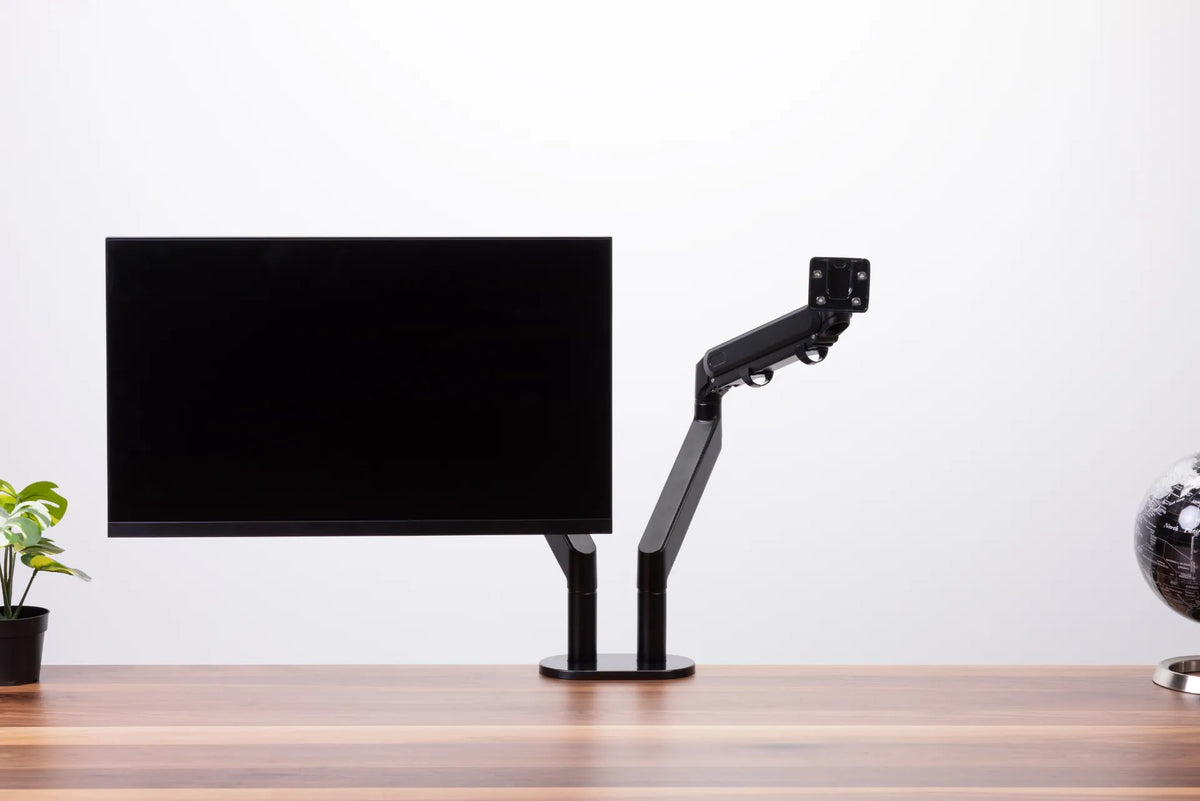
An arm can remove a stand's base from the surface and allow more precise positioning. It does not add depth to the room or guarantee enough rear clearance. Some arms need space behind their mounting point, while others can keep the display nearer the edge. Check the actual mechanism before choosing.
Compare the monitor's weight without its stand, VESA pattern and the arm's stated limits. Confirm desktop thickness, clamp clearance and the location of frame rails underneath. The Burotic Monitor Arm is an option to evaluate against those measurements. Do not assume that every 32-inch display will fit simply because another display of that diagonal does.
What if a laptop sits beside the monitor?
A laptop adds width, but it can also affect depth when it is raised or angled. Decide which screen is primary and preserve that screen's central position. The featured photo shows a curved monitor and raised laptop on black arms above a wood-grain desktop. It illustrates separate support for the devices; their exact screen sizes and the desktop material cannot be established from the photo.
If the laptop is only a reference display, consider using it less often or closing it when not needed. Buying a larger desk to house equipment you rarely use may be less useful than simplifying the workflow.
Choose the screen and desk as a pair
Keep the 27-inch option when it suits the task and allows a comfortable layout within the room. Choose 32 inches when the larger working area adds real value and your measurements show that the screen can be positioned properly. A deeper desk is useful when it solves a demonstrated distance or footprint constraint.
The Aspire Laminate Standing Desk provides configurations to compare with your mock-up. Check the current dimensions for the option you select. The best pairing is the one that supports your work without sacrificing comfortable input placement or the space around the desk.
Sources
- CCOHS: Positioning the Monitor, consulted October 8, 2026.
- OHCOW: Work Surfaces, consulted October 8, 2026.

Previous article
Home Office in a Living Room: Layout and Setup Guide
Next article
Feet Don’t Reach the Floor at Your Desk? What to Adjust