





How Wide Should a Monitor Riser Be? A Practical Sizing Guide

In this article
A monitor riser should be wide enough to support the entire monitor base, leave a safe margin around it and provide the storage space you actually plan to use. There is no universal width that works for every screen. For one monitor, measure the base rather than relying on the advertised diagonal screen size. For two monitors, measure the combined footprint in the final angled position.
The practical rule is simple: start with the equipment, add a modest margin, then confirm the riser still fits the desk. Width is only one part of the decision. Depth, height, load rating and stability matter just as much.
Quick answer
For a single monitor, choose a riser whose usable top is wider than the monitor base. Add roughly 5 to 10 cm of total side margin so small placement errors do not leave the stand at the edge. If you want speakers, a notebook or a charging dock on the same platform, measure those items in their intended positions and add their widths too.
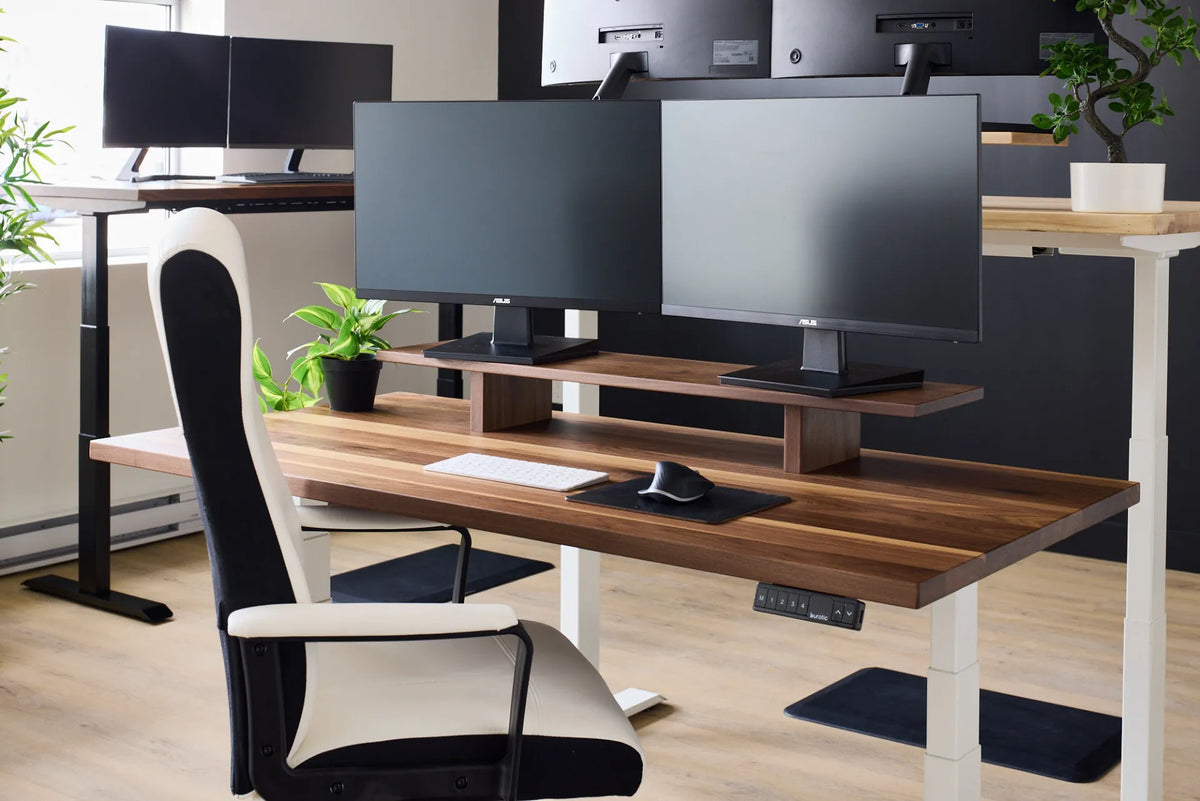
For two monitors on their original stands, arrange them first, angle them toward your normal viewing position, and measure the widest distance between the outside edges of both bases. A riser intended only for one screen may not be long enough. If the monitors are mounted on arms, the shelf does not need to support their bases, so its width can be selected mainly for organization.
Measure the base, not only the screen
A 27-inch monitor can have a compact rectangular foot, a wide V-shaped base or a deep stand with legs that spread toward the user. Two monitors with the same diagonal size can therefore require very different shelf dimensions. Product photos can also hide feet that extend beyond the centre column.
Place the monitor on a flat surface and record the maximum base width from left to right. Measure the deepest point from front to back separately. If the base swivels, test the angle you expect to use. The usable platform must support every contact point, not simply the centre post.
A simple sizing formula
Use this starting formula for one screen:
Minimum usable riser width = monitor base width + desired side margin.
If the base is 45 cm wide and you want 5 cm of total margin, look for at least 50 cm of clear, flat support. Do not count a raised lip, rounded edge or decorative overhang as usable space. If the manufacturer lists exterior dimensions and interior dimensions, use the smaller usable measurement.
How wide for two monitors?
Do not calculate dual-screen width by doubling the screen diagonal. Set up both monitors on the desk at the height, angle and spacing you intend to use. If both screens receive similar use, they often form a shallow curve centred on the keyboard. If one is primary, that screen usually sits directly in front of you while the secondary screen angles in from one side.
- Put both stands in their final positions.
- Confirm the screens can be viewed without frequent, large head turns.
- Measure the outside-to-outside width of the two bases.
- Add a small margin so neither base sits on an edge.
- Check that the full riser remains comfortably inside the desktop.
If the required shelf would dominate the desk, consider a compatible monitor arm. An arm can free surface space, but it introduces other checks, including monitor weight, mounting pattern, clamp compatibility and movement range. Our guide to monitor stand versus monitor arm explains the tradeoffs.
Match the riser to the desk
A long shelf still needs breathing room on the desktop. Measure the clear width between anything that cannot move, such as lamps, speakers, drawers, wall returns or clamp-mounted accessories. Leave room to route cables without crushing them behind a wall.
Also consider the desk depth. A deep monitor base on a deep riser can push the keyboard toward the front edge. The Canadian Centre for Occupational Health and Safety recommends placing the monitor directly in front of the user at a comfortable viewing distance and angle. A riser should help you reach that position, not consume so much depth that the keyboard and mouse become cramped.
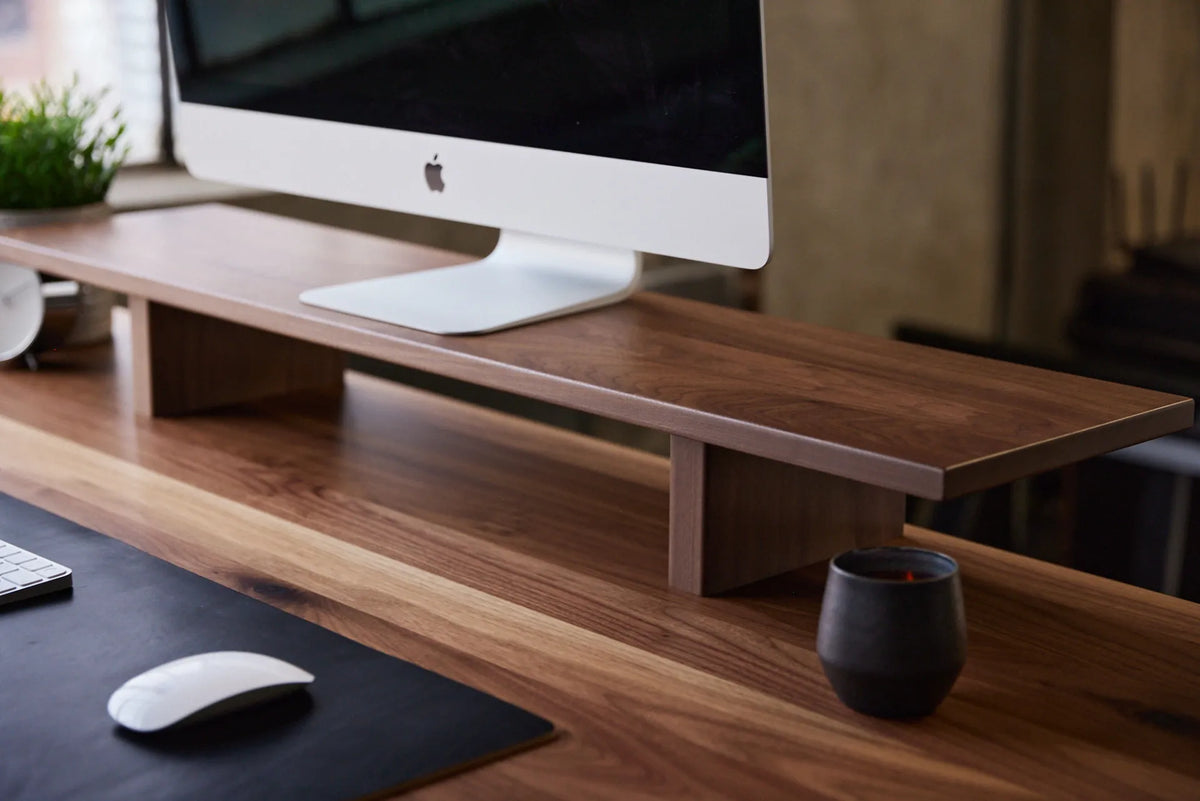
If you are still selecting a desktop, compare the riser footprint with the dimensions of the desk, not with the nominal product name alone. A Burotic Monitor Stand can create a second level for a monitor or accessories, but the exact fit should always be confirmed against your equipment and selected desk.
Decide what will live underneath
Many people choose a riser partly to reclaim space under the screen. Before buying, measure the objects you want to slide below it. A compact keyboard may fit while a full-size keyboard with a number pad may not. A notebook, docking station or small audio interface can require more clearance than expected.
Check three measurements:
- Inside width: the clear opening between supports.
- Inside height: the vertical clearance under the platform.
- Inside depth: the usable front-to-back space before a brace or cable opening.
Exterior width tells you whether the shelf fits the desk. Interior width tells you whether it solves the storage problem. These are not interchangeable.
Width does not fix the wrong height
A perfectly sized platform can still place the screen too high or too low. CCOHS explains that monitor position depends on viewing angle and distance, and that a poorly placed screen can encourage forward bending, chin elevation or sideways posture. Start from your seated posture, then set the display so the top area is around eye level or slightly below, with the main content comfortably below the horizontal line of sight.
Measure the lift created by the riser together with the monitor stand's own adjustment range. If the riser is fixed and too tall, lowering the chair is not a good workaround because it can disturb elbow, foot and desk relationships. Review our monitor stand height guide before choosing a fixed platform.
Confirm depth and stability
The monitor base should sit fully on the platform with no foot hanging over the front or back. Add enough depth for cable connectors to bend naturally. A shelf pressed against the wall can place strain on power and video cables, particularly if the monitor swivels.
Check the manufacturer's load rating and follow it. Do not assume a long shelf is stronger than a short one. The material, span, joinery and supports determine capacity. Include the weight of every monitor, speaker and accessory placed on top. Set the shelf on a flat, solid desk and verify that it does not rock before installing electronics.
Common sizing mistakes
- Buying from screen size alone without measuring the stand.
- Using exterior width when storage requires interior clearance.
- Forgetting that angled dual monitors change the base footprint.
- Choosing a shelf so deep that it crowds the keyboard.
- Ignoring the monitor's height adjustment range.
- Adding speakers or accessories without checking the load rating.
- Letting the shelf overhang the desktop.
Before you order: five-minute fit test
- Arrange the monitor or monitors in the intended working position.
- Trace each base on paper or mark the footprint with removable tape.
- Measure the total width and depth of that footprint.
- Add the storage items you want above or below the shelf.
- Compare the resulting rectangle with the desk's clear surface.
- Verify height, load rating, cable space and edge clearance.
This test is more reliable than a generic chart because it accounts for the equipment you already own.
The practical answer
The right monitor riser width is the smallest size that fully supports the actual base, provides a reasonable margin and accommodates any planned storage without crowding the desk. Measure the final arrangement rather than estimating from the screen diagonal. For dual monitors, position and angle both displays before measuring.
Once width is confirmed, check height, depth, load capacity and viewing position. A well-sized riser should make the workstation easier to organize while helping the monitor reach a comfortable location.

Previous article
Why Won't My Standing Desk Move? What to Check Before a Reset
Next article
Should You Close Your Laptop When Using an External Monitor?