





How to Align Dual Monitors: Height, Angle and Primary Screen

In this article
Two monitors can make comparison, communication and detailed work easier, but only when the arrangement reflects how you actually use them. A perfectly symmetrical setup is not automatically ergonomic. If one screen holds most of your work, that screen should normally be directly in front of you. If both screens are used equally, the seam between them can sit in front of you and the displays can form a shallow arc.
This guide explains how to align dual monitors by height, angle, distance and task priority. It also covers mixed screen sizes, laptops, monitor arms and the extra checks needed on a height-adjustable desk. These are general workstation principles, not medical advice. Persistent neck, shoulder or eye symptoms should be discussed with an appropriate health professional.
Start with your primary-screen pattern
Before moving hardware, decide which of these two patterns matches your work.
One primary monitor
Place the screen used for focused work directly in front of your body, keyboard and chair. Put the secondary display immediately beside it and turn that display inward. This limits repeated neck rotation toward the screen that carries most of your attention. The Canadian Centre for Occupational Health and Safety, or CCOHS, recommends placing the most frequently used monitor directly in front and the secondary monitor to one side at an angle.
Two equally used monitors
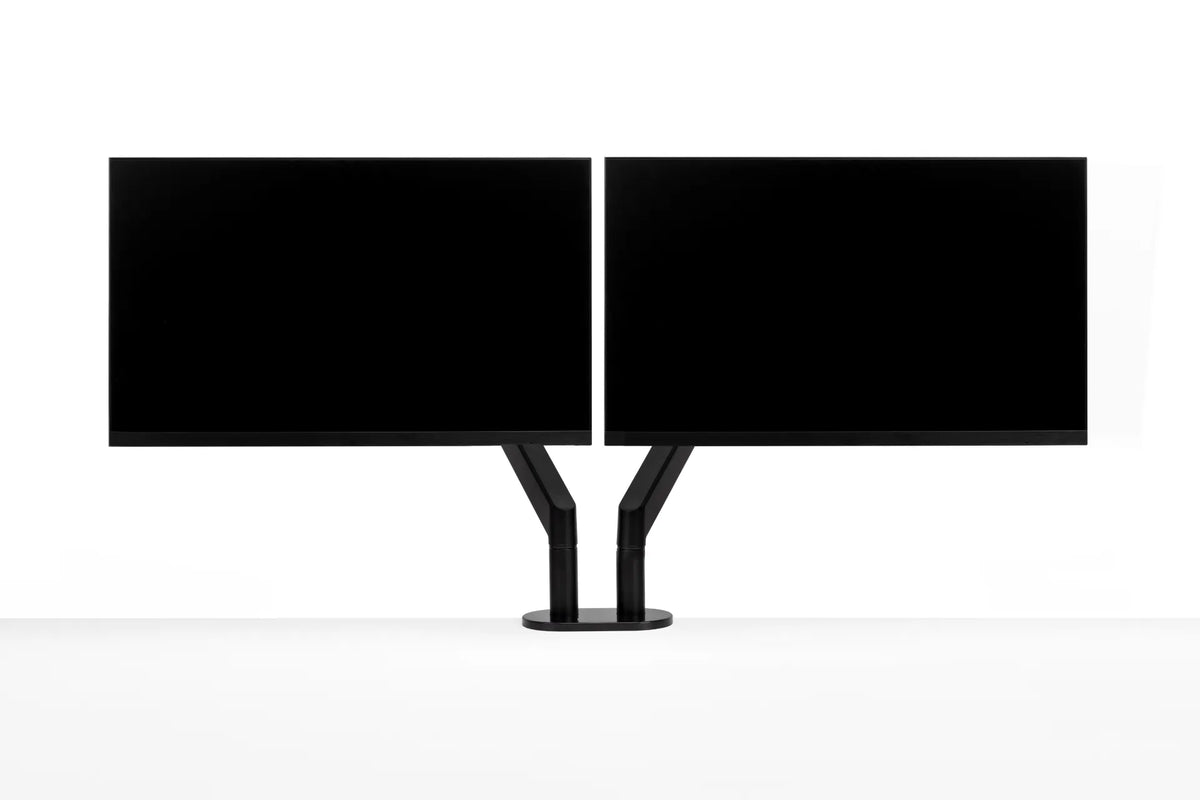
If you split attention evenly, centre the meeting point between the displays in front of you. Bring the inner bezels close together and angle both screens inward to create a shallow semicircle. This arrangement shares head movement between the two sides instead of making one side dominant.
Do not centre the combined width of two screens if one is used 80 percent of the time. That visually balanced layout can leave your main work permanently off-axis. A short observation period is more useful than guessing: note which display holds your document, code, design canvas or customer record during the longest uninterrupted tasks.
Match the useful viewing areas, not just the plastic frames
When monitors are the same model, aligning their top edges is usually a practical starting point. With different sizes, resolutions or stand heights, matching the top frames may place the active content at noticeably different levels. Instead, compare the zones you look at most often.
Open similar windows on both screens and position the displays so the text baselines and main work areas feel continuous. The upper portion of each active display should sit at or slightly below your natural eye level for most users. CCOHS notes that the viewing area should generally remain between horizontal eye level and roughly 35 degrees below it. Individual vision needs, progressive lenses and screen size can change the best position.
If one monitor is much larger, let the main screen determine the overall height. Align the smaller display around the area you need to scan, not necessarily around its outer casing. A small vertical offset is often better than forcing an artificial top-edge match.
Set distance before final height
Distance affects the angle of your eyes and neck. Move both displays back far enough that you can read normal text without leaning forward, then adjust text scaling if necessary. Our guide to monitor viewing distance explains why an arm's-length estimate is only a starting point.
Try to keep both screens at similar viewing distances. If the secondary monitor sits much farther away, your eyes repeatedly refocus as you move between screens. If it sits much closer, the arc becomes uneven and the nearer screen may dominate your field of view. A curved arrangement should be based on distance from your eyes, not on a perfectly straight desk edge.
Choose the right inward angle
Start with the inner edges touching or nearly touching. Rotate each display so its surface faces you rather than the back wall. The required angle increases as the combined setup gets wider. Two compact screens may need only a gentle turn, while large displays may need a more visible V shape.
A useful test is to sit or stand in your normal working position and look at the far outside edge of each screen. You should not need to lean forward or repeatedly twist your torso to read content there. If you do, increase the inward angle, move the screens farther back, reduce the distance between them or reconsider which applications deserve full-screen space.
Keep glare in mind. A screen that is correctly angled toward you may also catch a bright window or overhead fixture. Adjust the screen angle, blinds or lighting rather than compensating by tilting your head. CCOHS recommends positioning monitors at right angles to windows when practical to reduce reflections.
Align the keyboard, chair and primary display
Monitor alignment does not work in isolation. Your keyboard should support the same forward-facing position as the display used most. If the keyboard is centred on the full desk while the primary monitor sits off to one side, your hands and eyes pull your torso in different directions.
For a primary-screen setup, line up the centre of the chair, the main letter area of the keyboard and the centre of the primary display. For equal use, align your body with the seam between screens. Our step-by-step guide to centring a monitor on a desk provides a quick reference for establishing this forward axis.
Place the mouse close to the keyboard on the side that lets your upper arm remain near your body. Avoid shifting the keyboard far to one side just to make room for a large secondary screen. The display arrangement should adapt to the input position, not force a long reach.
Use a dual monitor arm when independent adjustment matters
Original monitor stands can work well if they offer enough height and the desk is deep enough. A monitor arm can free surface space and make height, depth and angle changes easier. The advantage is especially useful when the two monitors have different original stands.
Before choosing an arm, verify the mounting pattern, the supported weight and screen size for each side, the required desktop thickness and the clear space around the clamp or grommet. Do not rely on screen diagonal alone. The combined geometry of two wide displays can also limit how far the arms move toward a wall.
A dual arm is not always better than two single arms. A dual unit can simplify installation and create a coordinated look, while separate arms may give more freedom with mixed screen sizes or an asymmetrical layout. See our comparison of single and dual monitor arms before deciding.
Check the setup at sitting and standing heights
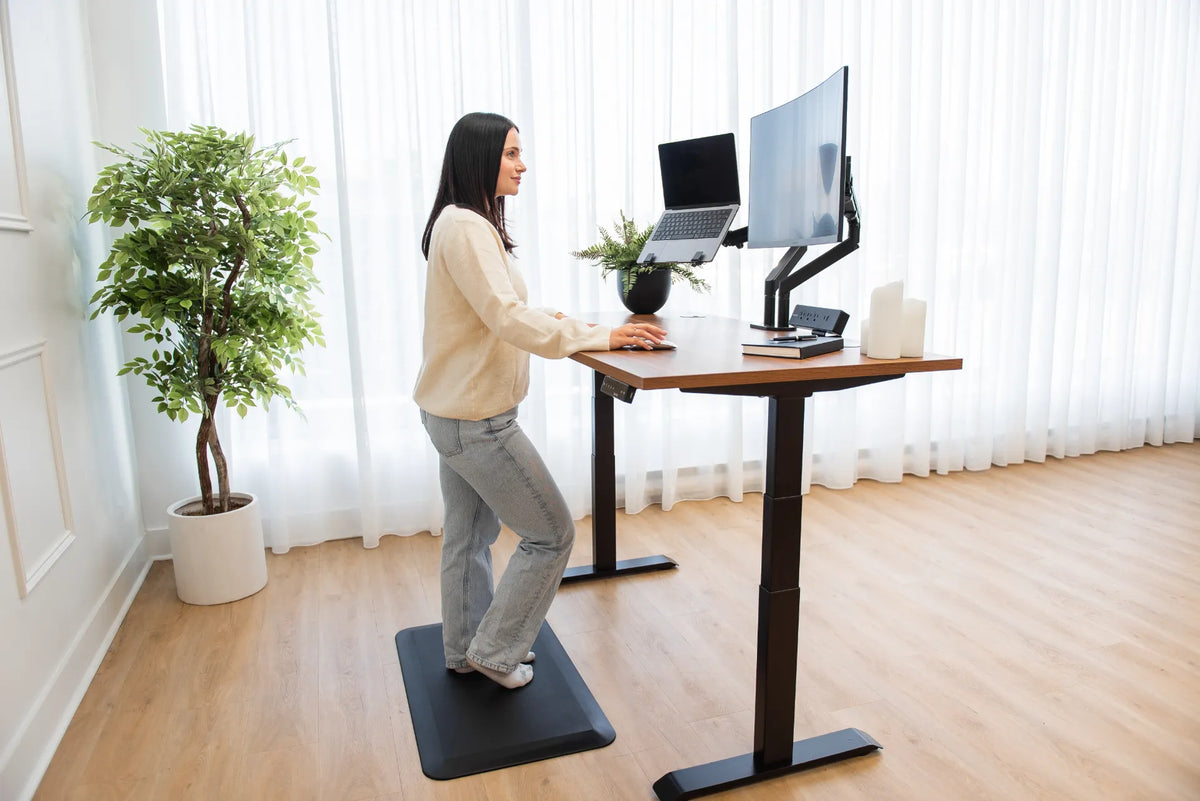
On a standing desk, adjust the desk to a comfortable keyboard height first. Then set the monitors. CCOHS advises keeping the keyboard and mouse aligned as they would be while sitting and maintaining an appropriate monitor height. Do not raise the desktop to fix a low screen, because that can make the shoulders lift and the wrists bend.
Move the desk through its full intended range while watching the arms, screens and cables. Confirm that the displays do not touch a wall, shelf, lamp or window trim. Leave enough cable slack for movement without allowing loops to enter moving joints. Repeat the alignment check after returning to sitting height; arm joints can shift slightly when the desk changes position.
Fine-tune with a five-minute test
- Open the applications used in a normal work session.
- Work for five minutes without deliberately correcting your posture.
- Notice whether your head stays turned toward one side.
- Check whether you lean toward the smaller or more distant screen.
- Move only one variable at a time: centre, height, distance or angle.
- Repeat the test in both seated and standing positions.
Small changes are easier to evaluate than a complete reset. If the primary screen still pulls you sideways, bring it closer to the centre before changing the chair or desk. If the outside edges are hard to read, adjust the arc or scaling before moving the whole workstation.
A practical dual-monitor checklist
- The primary screen is directly ahead, or the centre seam is ahead when use is equal.
- The active viewing areas are aligned for easy scanning.
- Both screens are at similar viewing distances.
- The displays form a shallow arc facing the user.
- The keyboard and chair support the same forward axis.
- Glare is controlled without awkward head positioning.
- Arms, clamps and cables clear the desk's full travel.
Good dual-monitor alignment is less about perfect symmetry than about reducing unnecessary movement during the tasks you perform most. Establish the primary-screen pattern, match the useful viewing areas, then verify the arrangement through a real work session. If you need more independent adjustment, a compatible monitor arm can make the final positioning easier without consuming valuable desk space.
Previous article
How to Position Paper Documents at a Computer Workstation
Next article
Standing Desk Safety Around Children and Pets