

Single vs. Dual Monitor Arm: Which Setup Fits Your Desk?

In this article
A monitor arm can free usable desk space and make screen adjustment easier, but the choice between a single and dual monitor arm is not simply one screen versus two. A pair of single arms may offer better independent placement. A dual arm may give a cleaner shared installation. The right answer depends on monitor compatibility, desk construction, movement range and how often your setup changes.
This guide compares the two approaches without assuming that more hardware is better. Before buying, record the exact monitor models, weights without their factory stands, VESA patterns and cable connections.
The quick answer
Choose one single monitor arm for one external display or when a second screen is unlikely. Choose two single arms when independent placement, unequal monitor sizes or future rearrangement are priorities. Choose a dual monitor arm when two compatible displays will remain together and a consolidated mount suits the desk.
These are starting points, not guarantees. Arm geometry varies. Two arms described as dual can have very different reach, height and side-by-side limits.
How a single monitor arm works
A single arm attaches one display to one base. Depending on the model, the base may clamp to the rear edge or pass through a grommet hole. Articulating joints control height, depth, side-to-side position, tilt and rotation within a defined range.
The main advantage is independence. You can position one screen without moving another. If you later add a second single arm, each screen can use its own mounting point. This can help when the displays have different sizes, weights or preferred orientations.
How a dual monitor arm works
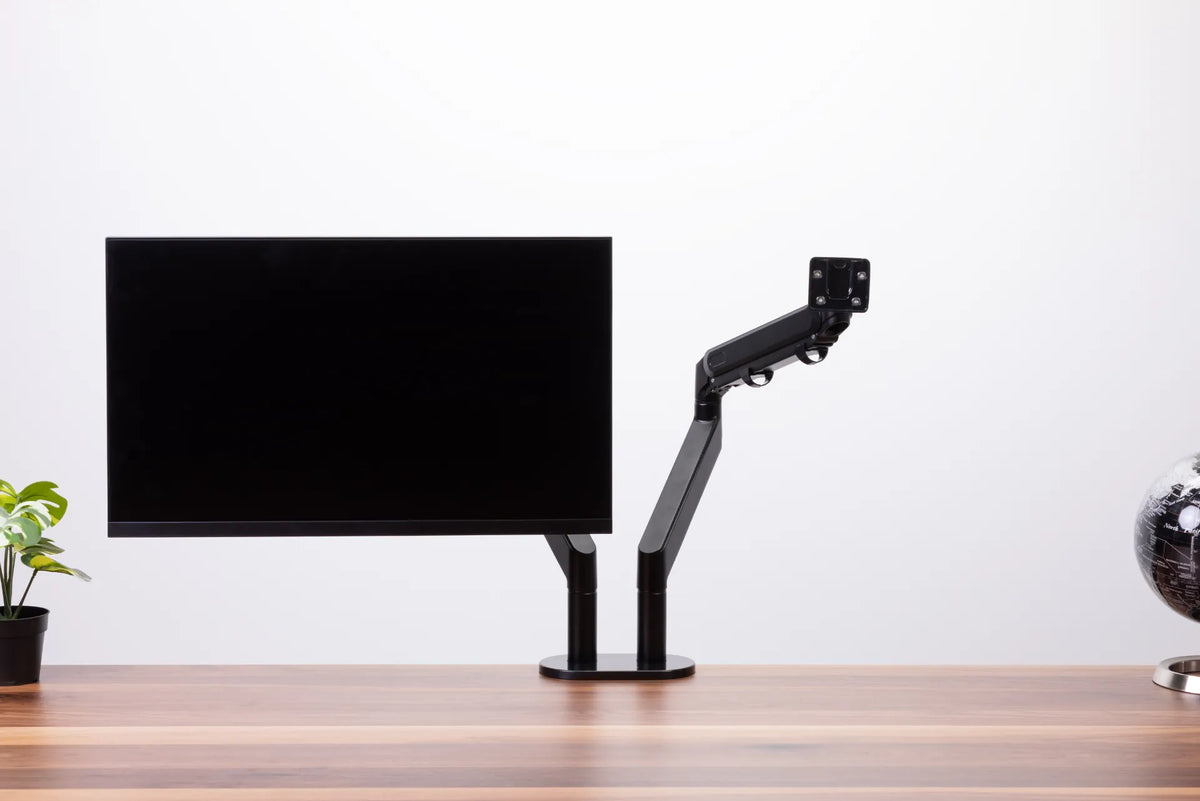
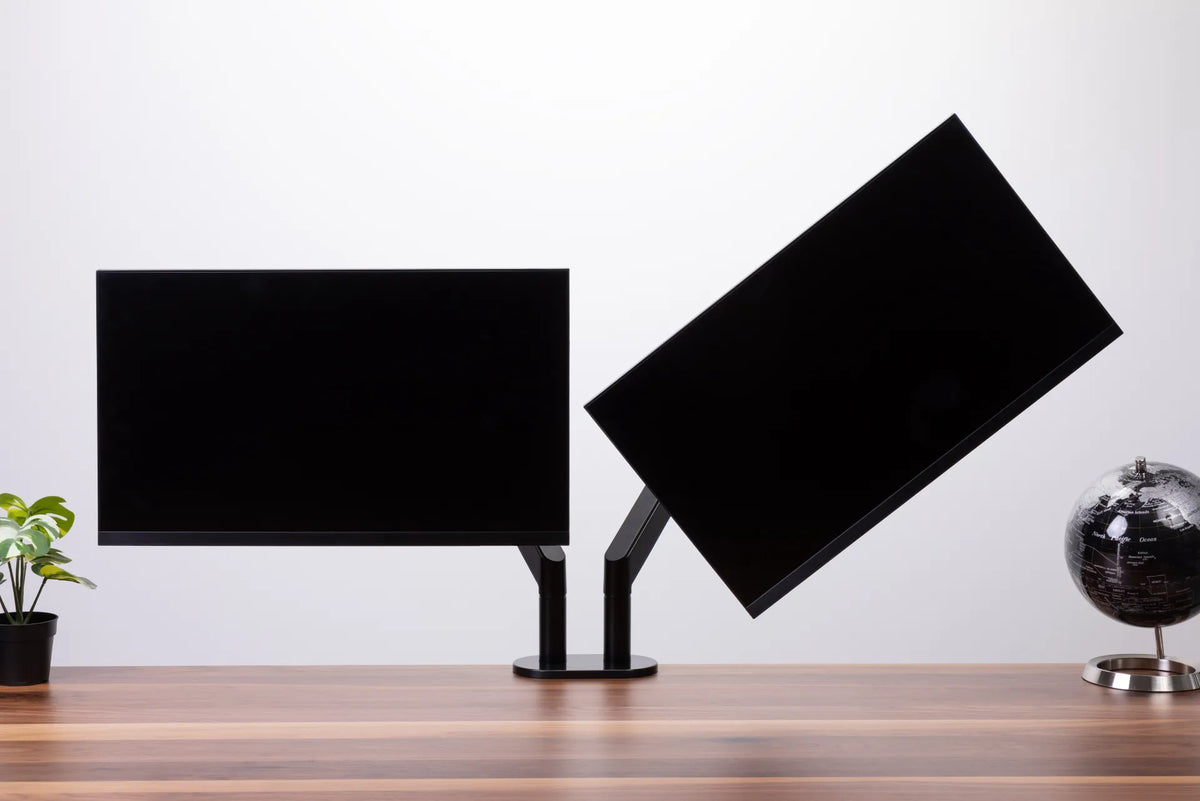
A dual arm supports two displays from one mounting base or central structure. It can reduce the number of clamps and present a tidy installation. It may also simplify symmetrical side-by-side alignment when the two screens are similar.
The compromise is shared geometry. The position of one screen can limit the other, especially when monitors are wide or deep. Some dual arms can place two large displays comfortably; others reach their practical limit with smaller models. The label alone is not enough.
Compare flexibility and alignment
Two single arms maximize independent movement
Separate bases let you spread the mounting points across the desktop. That can provide more flexibility for an angled secondary display, a portrait screen or unequal monitors. It is also easier to replace one arm if one screen changes significantly.
The trade-off is a busier rear edge and more planning. Two clamps need compatible locations, and each arm needs a clear movement zone. Independent movement can also make perfect symmetry more time-consuming to establish.
A dual arm can make a stable pair simpler
If both displays are similar and stay in a consistent landscape arrangement, a dual arm can be efficient. One mounting point leaves more of the rear edge free and can make cable grouping cleaner. However, check whether the arms can bring the inner bezels together at your desired distance without forcing the screens too close to you.
Start with monitor compatibility
Confirm the VESA mounting pattern, screen size and monitor weight. Use the weight of the display without the original stand. Stay within the arm's stated range for each position. Very light monitors can be as problematic as heavy ones if the tension mechanism has a minimum load.
Curved and ultrawide screens shift the centre of mass farther from the mounting plate. A nominal size range does not tell the full story. Check the arm manufacturer's explicit guidance for that display type. Burotic's monitor arm compatibility guide walks through eight checks before purchase.
Check the desktop and mounting area
Inspect the top material, thickness, edge shape and underside. A clamp needs full, stable contact. Bevelled edges, support rails, cable trays, drawers and frame cross-members may block the preferred position. A grommet mount needs a suitable hole and the clearance specified by the manufacturer.
A dual base concentrates both displays at one location. Two single bases distribute the mounting points, although they still load the surface. Do not improvise reinforcement or drill a top without confirming the material and instructions. If you use a standing desk, test the mount at both seated and standing heights.
Plan screen position before choosing the arm
CCOHS recommends placing the primary monitor directly in front of the user, generally around arm's length away, with the top of the viewing area at a comfortable height. The exact distance depends on screen size, content and individual vision. Review its monitor positioning guidance rather than relying on a universal number.
For two screens used equally, place the join near the centre and angle both slightly inward. If one screen is primary, centre it and place the secondary display beside it. Burotic's two monitors on a small desk guide covers layouts when width is limited.
Portrait mode changes the geometry
A portrait monitor needs rotation clearance above the desk and beside the other display. The arm must support rotation, and the cable connectors must remain clear during the turn. A single arm often makes mixed orientation easier because it is not tied to the position of a second branch.
A suitable dual arm can still work well for one landscape and one portrait display. Verify with the actual dimensions, not diagonal size alone. See Burotic's vertical monitor setup guide for task and positioning considerations.
Account for cables and standing-desk travel
Every display needs power and a video connection, and some carry USB data or charging cables. Route each cable through the full arm movement without pulling on the connector. Leave a small service loop near each joint. Do not bind cables so tightly that the arm cannot move.
For a height-adjustable desk, raise the desk to the highest intended position and extend the arm before fixing the cable path. Then lower it and check for loops that could meet the frame, wall or floor. A dual installation can consolidate cables near one base; two singles can create cleaner routes to equipment on opposite sides. The better option depends on where the computer or dock sits.
Desk space and visual order
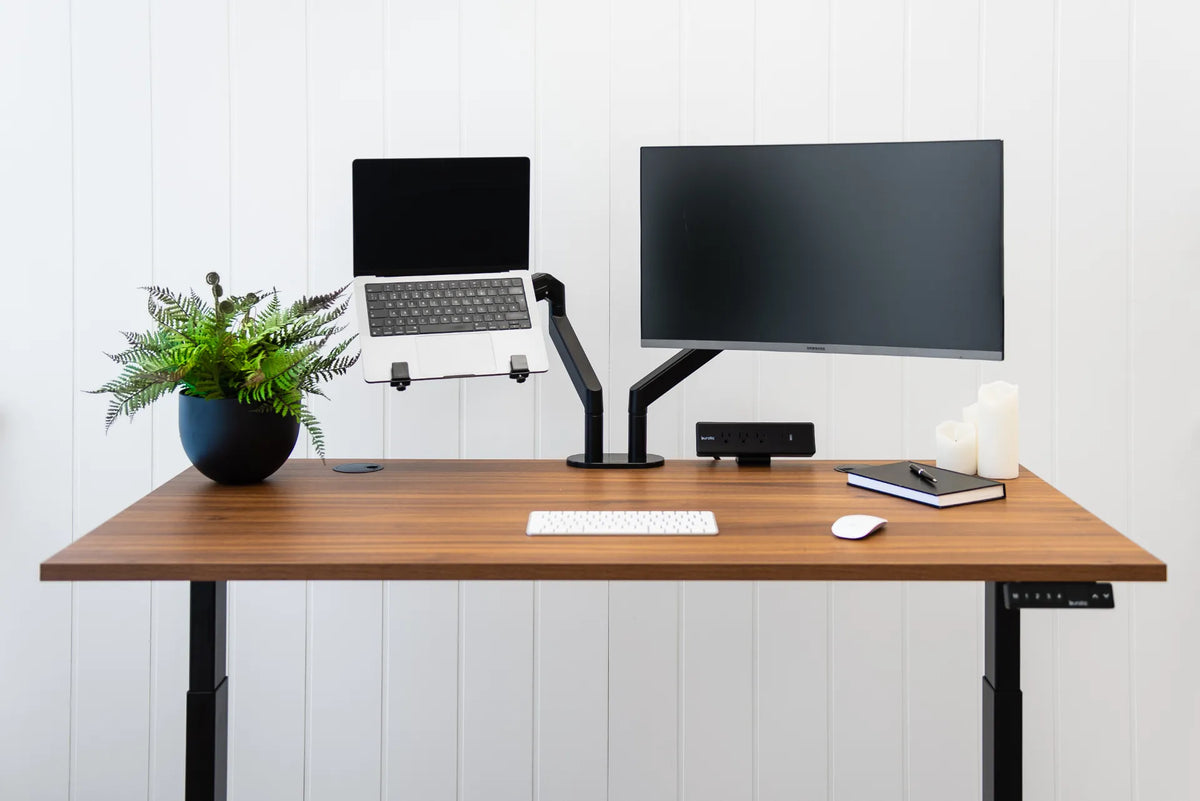
Both choices can free the area previously occupied by monitor stands. One dual base may look cleaner and preserve more edge space. Two single arms can spread hardware behind other accessories and may be easier to fit around an off-centre cable tray. Measure the real clamp footprint and rear reach rather than assuming the dual option is always smaller.
If you are also considering a shelf or riser, compare the full options in Burotic's monitor stand vs. monitor arm guide.
Which setup should you choose?
One single arm is usually best when:
- You use one external display.
- You want the simplest compatible installation.
- Your laptop remains the occasional secondary screen.
- You may change the monitor before expanding the setup.
Two single arms are usually best when:
- The monitors differ in size, weight or orientation.
- Independent reach and height matter.
- The rear edge can accept two mounts.
- You expect the layout to evolve.
One dual arm is usually best when:
- Two compatible displays form a stable pair.
- A consolidated mounting point fits the desktop.
- The arm's geometry supports the desired spacing.
- A grouped cable route and clean rear edge are priorities.
Verify before you mount
Write down each monitor's width, height, weight and VESA pattern. Mark the proposed screen positions and mounting points. Check the desktop above and below, simulate the arm reach, and confirm cable lengths at maximum desk height.
The current Burotic Monitor Arm page lists single and dual configurations. Compare the live specifications with your exact monitors and desk. A careful compatibility check matters more than the number of arms: the goal is a primary screen centred comfortably, a useful secondary screen and hardware that can move without strain or obstruction.

Previous article
Solid Wood vs. Laminate Standing Desk Tops: How to Choose
Next article
Laptop-Only Desk Setup: How to Work Comfortably Without a Monitor