





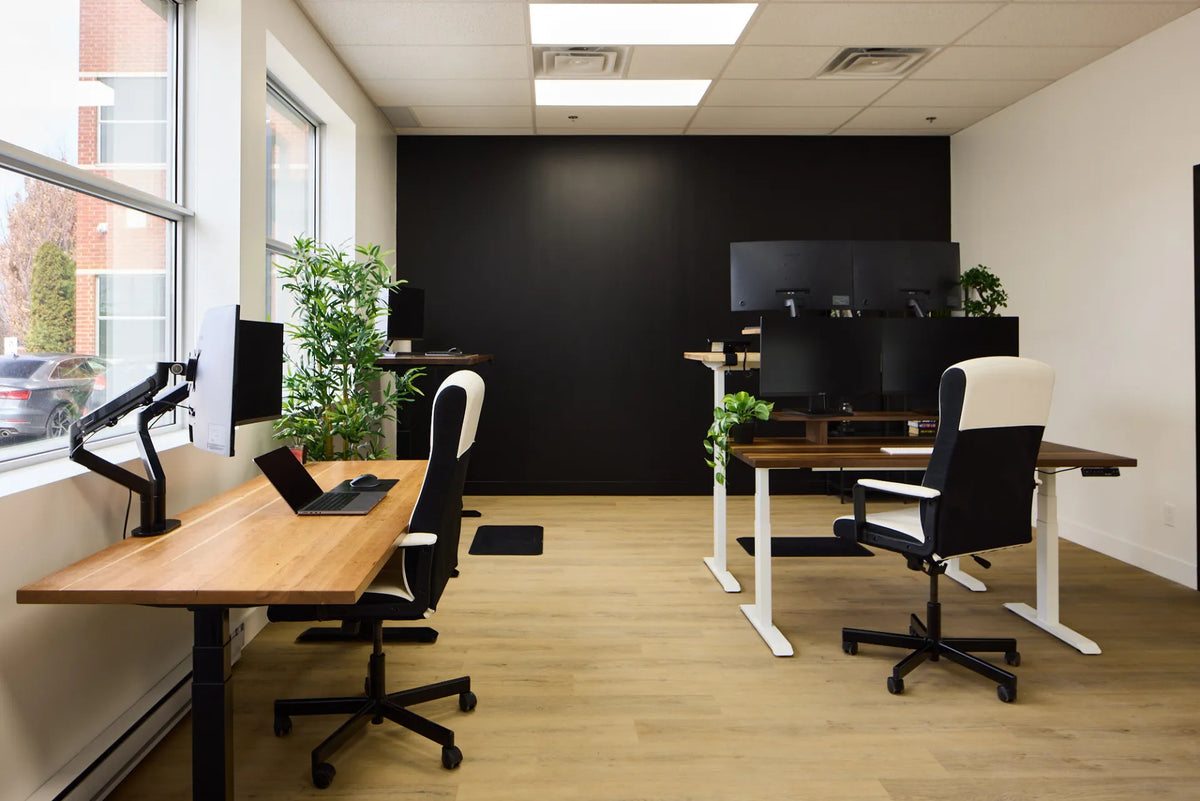
Hot Desking Setup Guide: Shared Adjustable Workstations

In this article
Hot desking works only when a shared workstation can be adjusted faster than it becomes frustrating. A polished reservation system cannot compensate for a desk that starts every day at the wrong height, a monitor that will not move, missing adapters or a chair nobody knows how to reset. The most useful hot desking setup is therefore not the one with the most equipment. It is the one that gives every user a clear, repeatable path from arrival to a comfortable working position.
This guide focuses on shared adjustable workstations in Canadian offices. It covers the desk, chair, screen, input devices, storage, hygiene and the short instructions that make a flexible space usable. It is general ergonomic information, not medical advice. Anyone with pain, an injury or a workplace accommodation should follow qualified professional guidance and the employer's established process.
What makes a hot desk different?
A dedicated desk can remain tuned to one person. A hot desk must accommodate different body sizes, dominant hands, screen preferences, tasks and mobility needs. Every adjustment that is hidden, stiff or undocumented becomes a barrier. The design goal is not a universal posture. It is a workstation that can be personalized without tools and returned to a neutral starting point.
The Canadian Centre for Occupational Health and Safety, or CCOHS, emphasizes that workstations should fit the worker and the task. In a shared setting, that principle makes adjustability and clear instructions more important, not less. A simple setup card can prevent people from copying the previous user's settings and working around equipment that is actually adjustable.
Start with the adjustable desk
Choose a neutral arrival height
Set a consistent neutral height after each booking rather than leaving the surface wherever the previous user stopped. The neutral position should be easy to recognize and safe for the next person to approach. It is not meant to be everyone's working height. The user should still adjust the surface so the elbows can stay near the body and the shoulders remain relaxed while typing.
If the desk has memory buttons, reserve one only if the system and workplace policy support a shared reset. Personal presets can create confusion when several people use the same desk. A small label beside the control can explain how to raise, lower and stop the surface, while the standing desk memory guide can support workplaces that intentionally use preset positions.
Protect the full movement path
Before anyone raises the desk, the floor and underside must be clear. Check nearby shelves, window sills, mobile pedestals, chair arms, wall-mounted objects and cables. Shared desks accumulate unfamiliar items quickly. A marked no-storage zone beneath the moving surface helps preserve legroom and prevents collisions.
Run the desk slowly through its intended range during commissioning. Repeat the check after moving equipment or changing the floor plan. The standing desk clearance guide provides a practical inspection sequence for the occupied workstation.
Make the monitor easy to reset
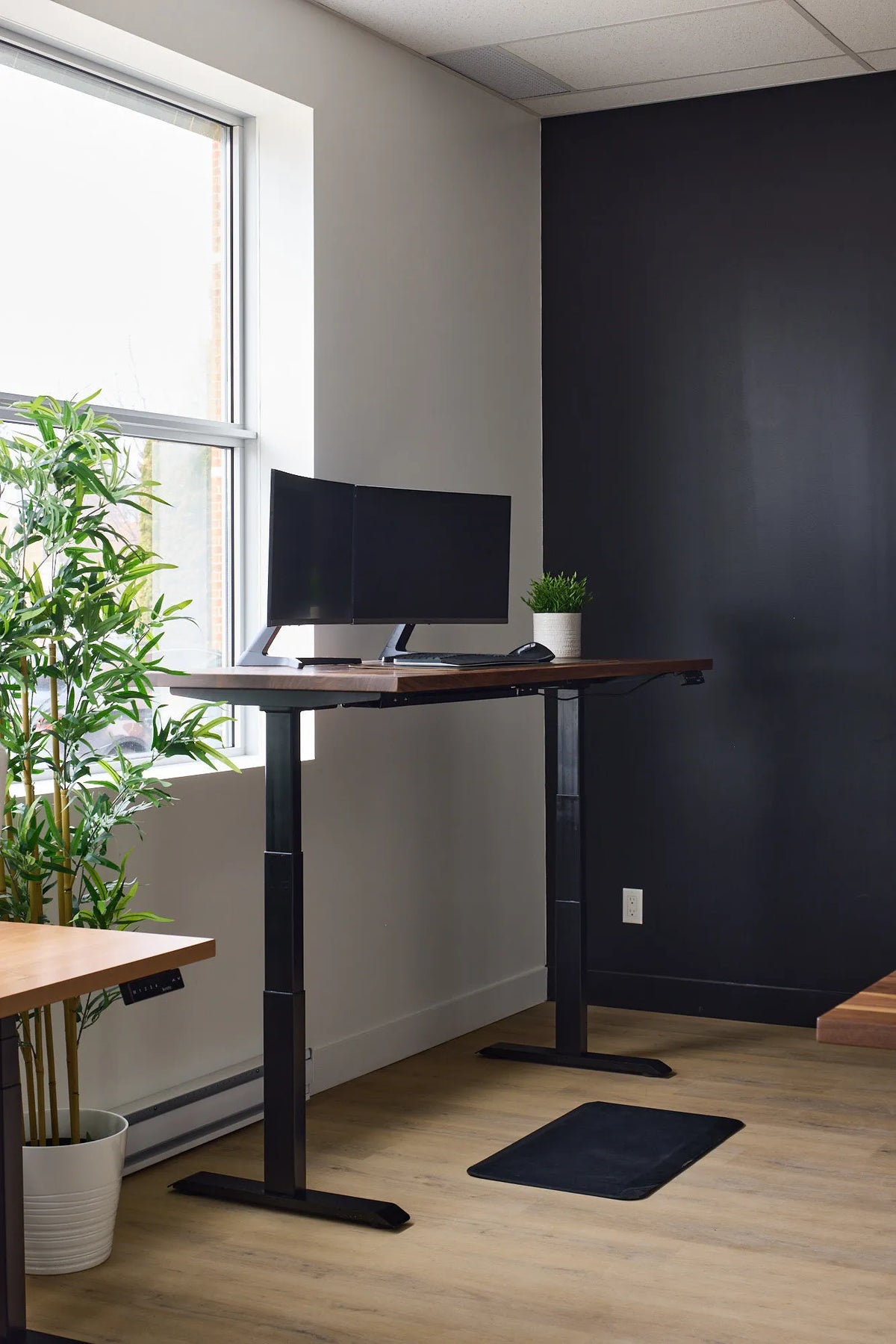
A shared screen should move without a struggle and remain stable after adjustment. Users need enough height and depth range to place the screen directly in front of them, at a comfortable viewing distance, with the top portion of the display around eye level as an initial reference. People who wear progressive lenses may need a lower position.
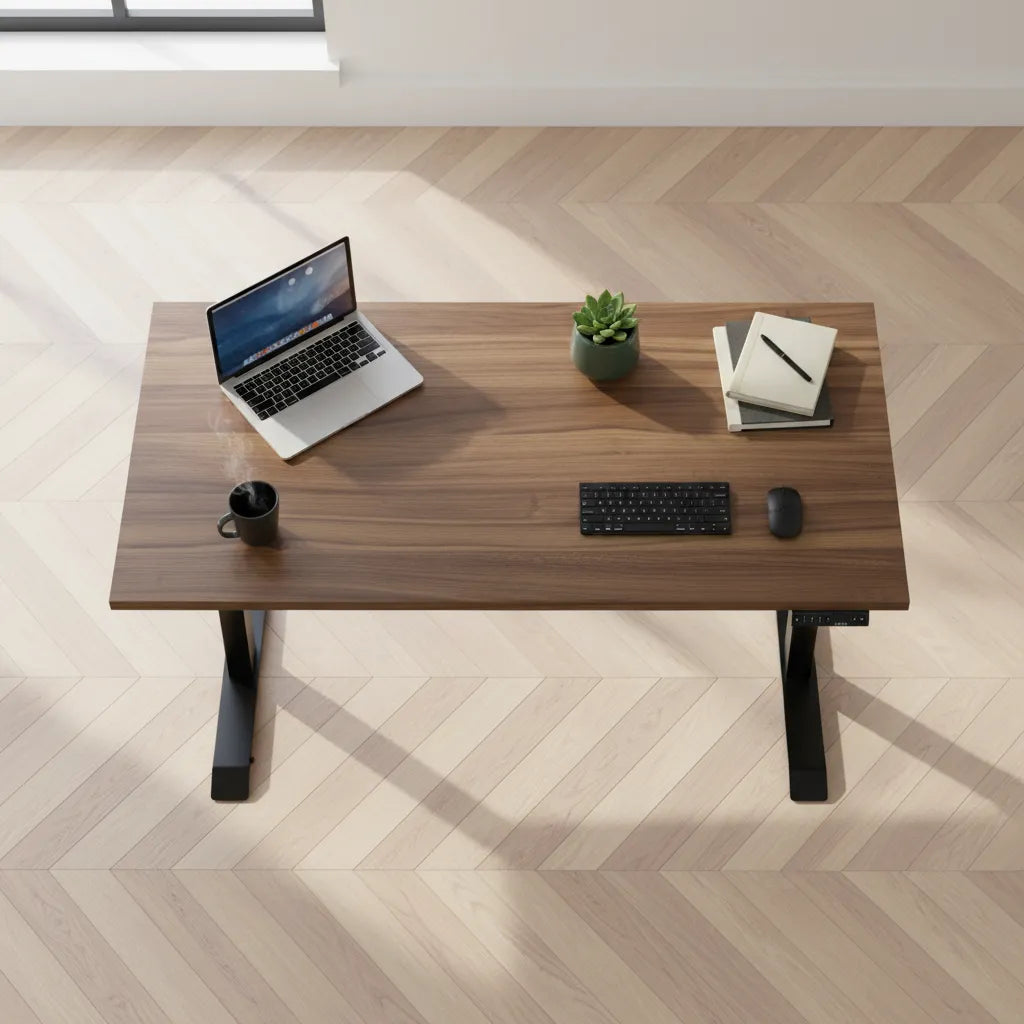
Marking a centre line on the desktop can make it easier to align the primary screen, keyboard and chair. If an arm is used, keep its joints accessible and route cables with enough slack for movement. Do not encourage users to loosen structural fasteners. A damaged clamp, drifting arm or cracked mounting point should be taken out of service and inspected.
Standardize the keyboard, mouse and connections
Provide a full-size or compact keyboard and a separate mouse that can be moved independently. The mouse should sit close to the keyboard on the user's preferred side, not beyond a fixed docking station. Wireless devices need a visible charging routine or a dependable supply of replacement batteries. Wired devices need enough slack without creating loops across the work surface.
A docking connection is most useful when it is clearly labelled. State which connector delivers display, charging and network functions, and keep required adapters attached to the station when possible. Avoid making employees crawl under the desk to identify ports. Test the connection with the devices your organization actually supports.
Use a chair that can be understood quickly
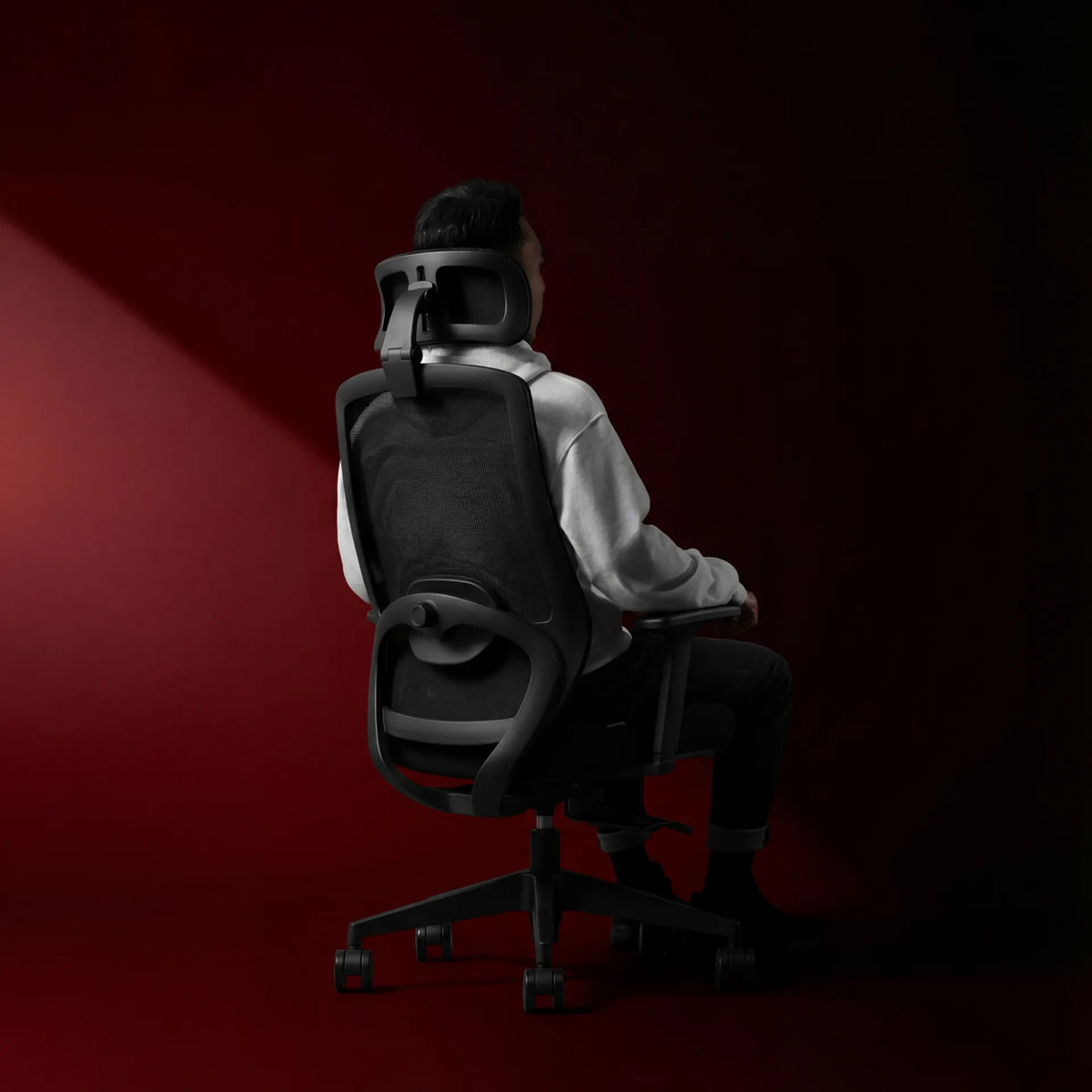
A highly adjustable chair is useful only if users can find the controls. Attach a compact diagram that identifies seat height, backrest or lumbar adjustment, armrests and recline controls. The first adjustment should normally be seat height: feet supported, thighs comfortable and elbows able to work near the surface. A footrest can help when the desk cannot go low enough for a shorter user.
Do not treat one chair model as proof that every employee is accommodated. Shared offices may need more than one chair size or an alternative approved seat. Keep the selection process separate from personal health assessment. Employees who need a specific support should use the workplace accommodation route rather than improvising with cushions that cannot be cleaned or secured.
Plan storage without stealing legroom
Hot desks need temporary storage for a bag, coat, headset and small personal items. Place it beside the user or in a locker, not in the knee space. A mobile pedestal can become a collision hazard when the desk moves. If one is used, define its parked position and include it in the full-height clearance check.
Keep permanent supplies consistent from station to station. A short inventory reduces uncertainty: keyboard, mouse, charging connection, monitor, cleaning supplies and any approved accessories. Anything not on that list should have an owner and a return location.
Build hygiene into the turnover process
Cleaning should be simple enough to happen between users and appropriate for the actual materials and electronics. Follow the manufacturer's instructions for the screen, keyboard, mouse, chair surfaces and desktop. Do not spray liquid directly onto controls, ports or powered equipment. Provide products that are compatible with the finishes instead of asking employees to bring unknown cleaners.
A two-minute departure routine can include signing out, removing personal items, disconnecting the laptop safely, wiping approved touch points, returning the chair and desk to their neutral positions, and reporting damage. Cleaning does not replace regular workplace maintenance, but it makes ownership of the immediate handoff clear.
Write a one-minute setup sequence
- Place the chair and personal items without blocking the desk.
- Adjust seat height and support, then bring the chair close to the surface.
- Set the desk height for relaxed shoulders and comfortable elbows.
- Centre the keyboard, keep the mouse close and support the feet.
- Move the primary screen in front, then set its height and distance.
- Connect the laptop and confirm display, power, network and audio.
- Check cables and nearby objects before changing desk height.
- Alternate positions and take movement breaks rather than standing continuously.
Place the sequence where it can be seen before work starts. A QR code may lead to a longer guide, but the basic instructions should not require a phone. Use plain language and provide the information in the languages required by the workplace.
Design the room around shared use
Hot desking is also a circulation problem. People arrive with equipment, pull chairs back, adjust surfaces and move to lockers or meeting rooms. Maintain clear routes and avoid placing a popular station where a standing user blocks a doorway. The office desk spacing guide explains how chair movement and circulation affect the plan.
Noise and privacy matter as much as furniture. Separate concentrated work from frequent calls when possible. Provide suitable rooms or booths for confidential conversations instead of relying on high partitions that may reduce visibility and daylight. Confirm accessibility requirements with the applicable standards, policies and qualified specialists.
Choose equipment for repeatability
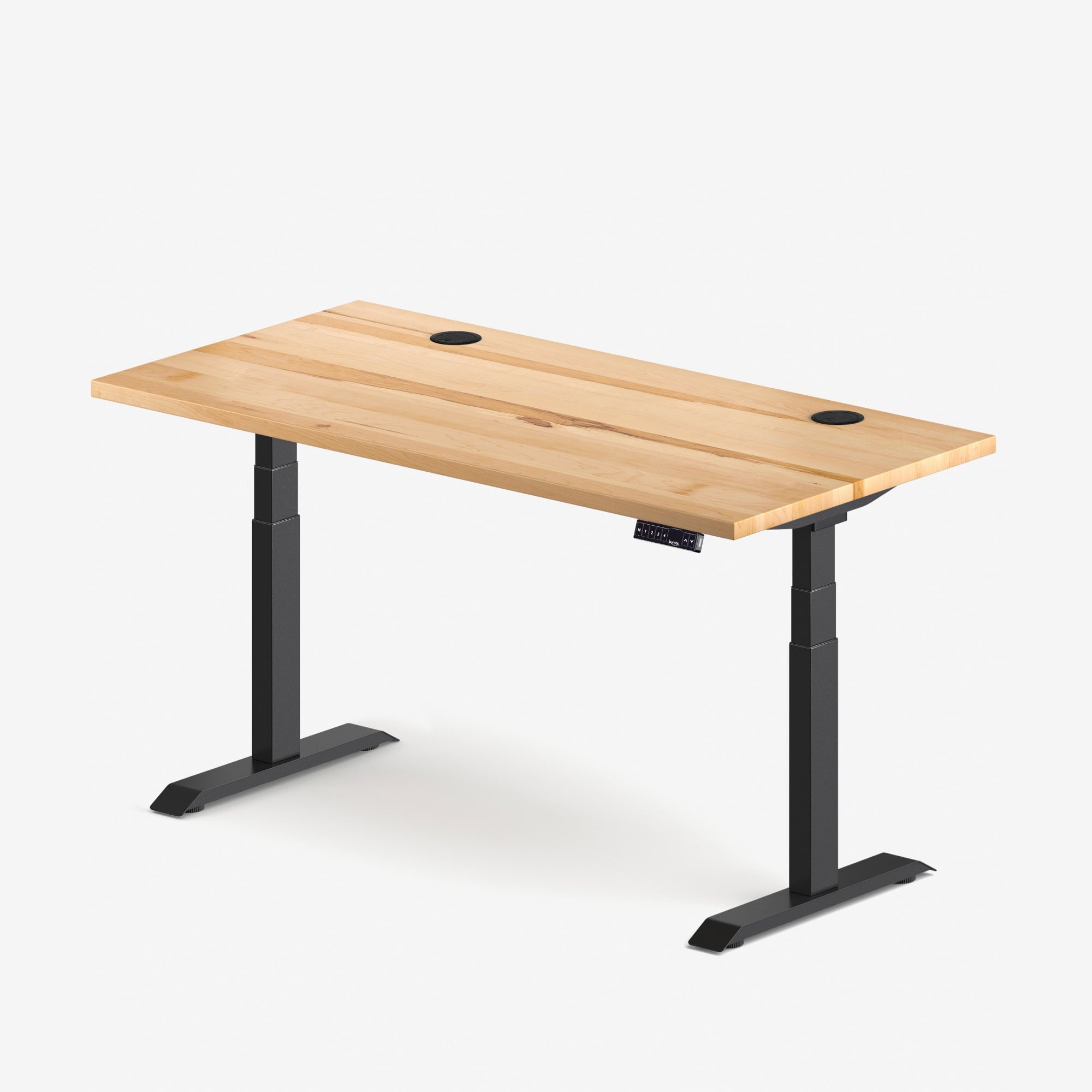
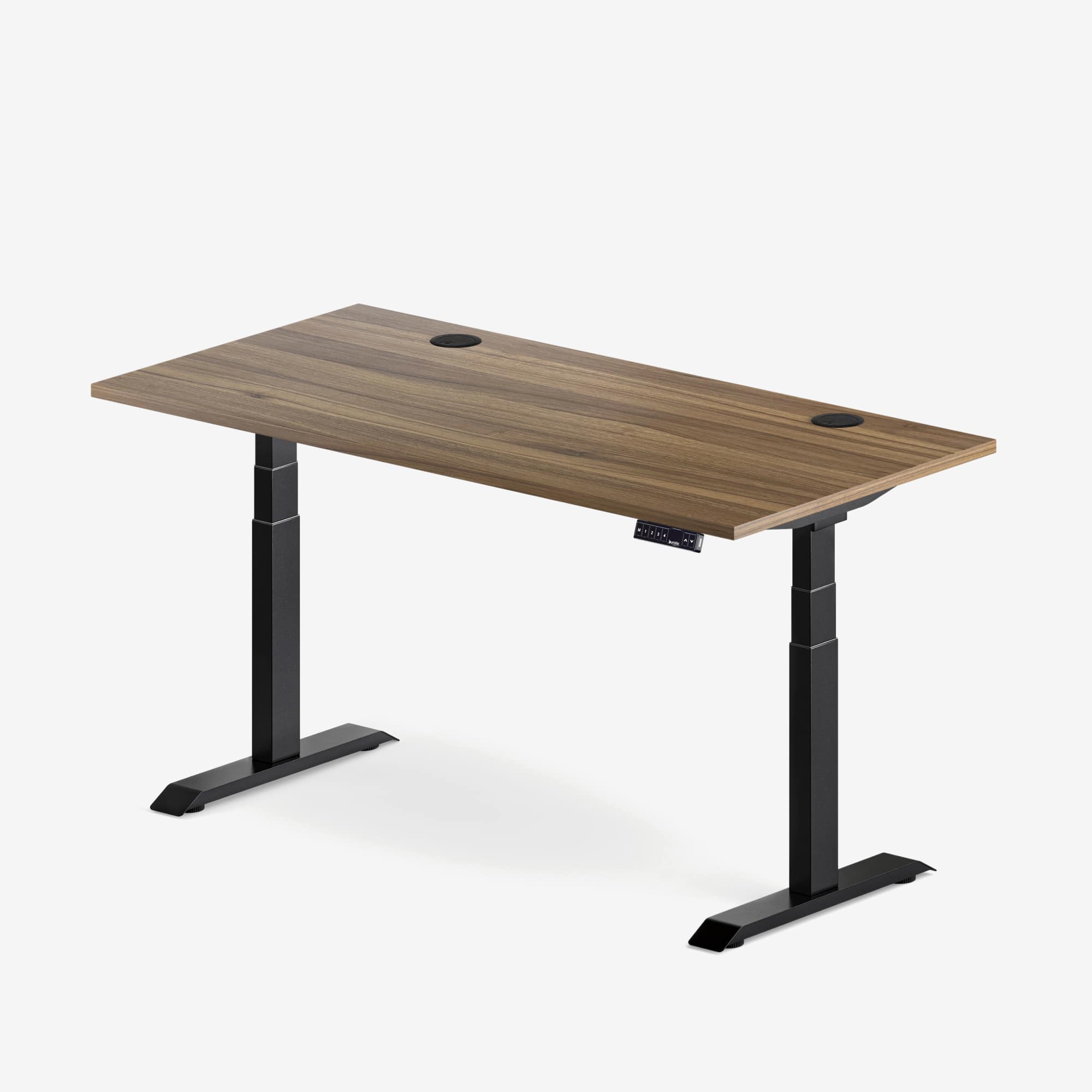
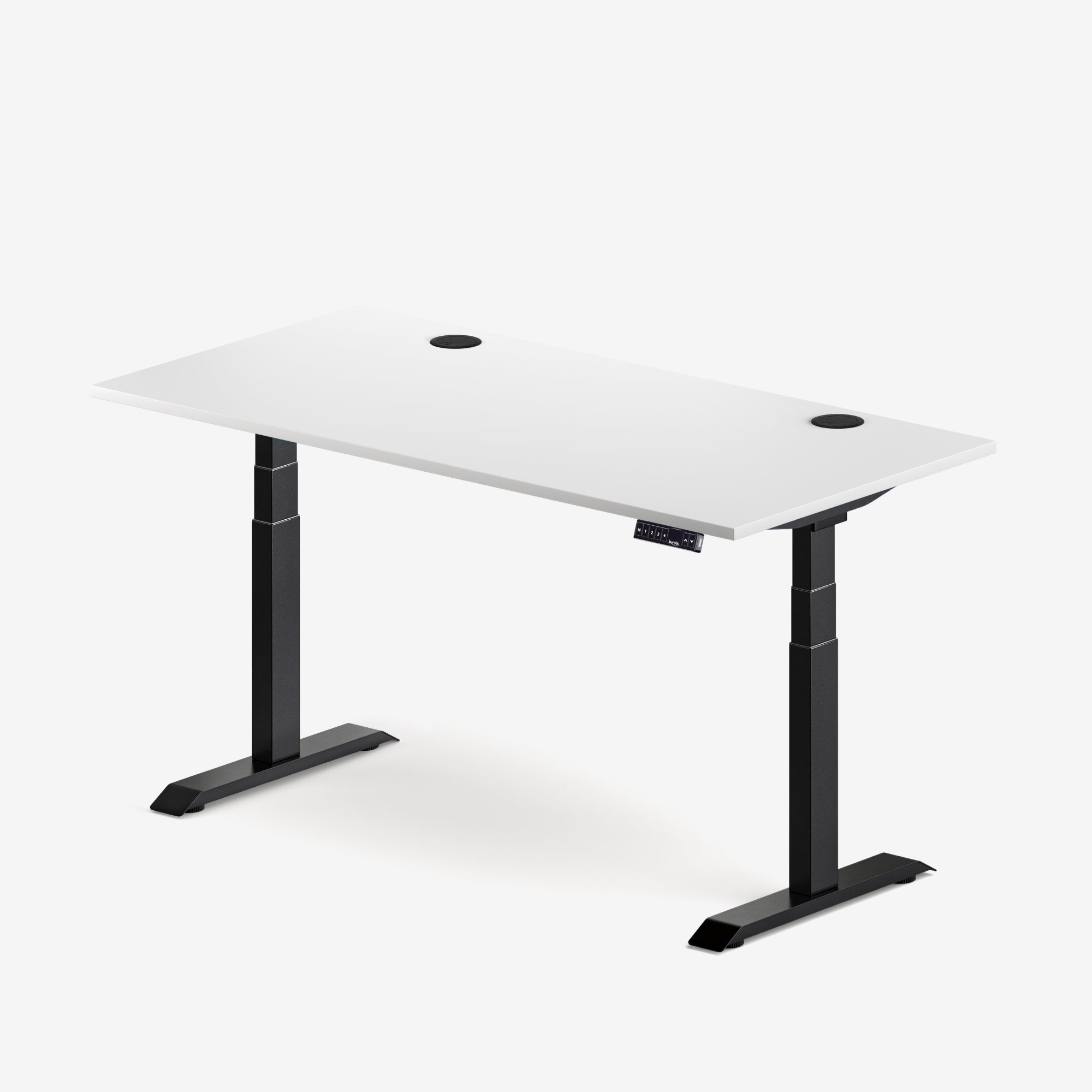
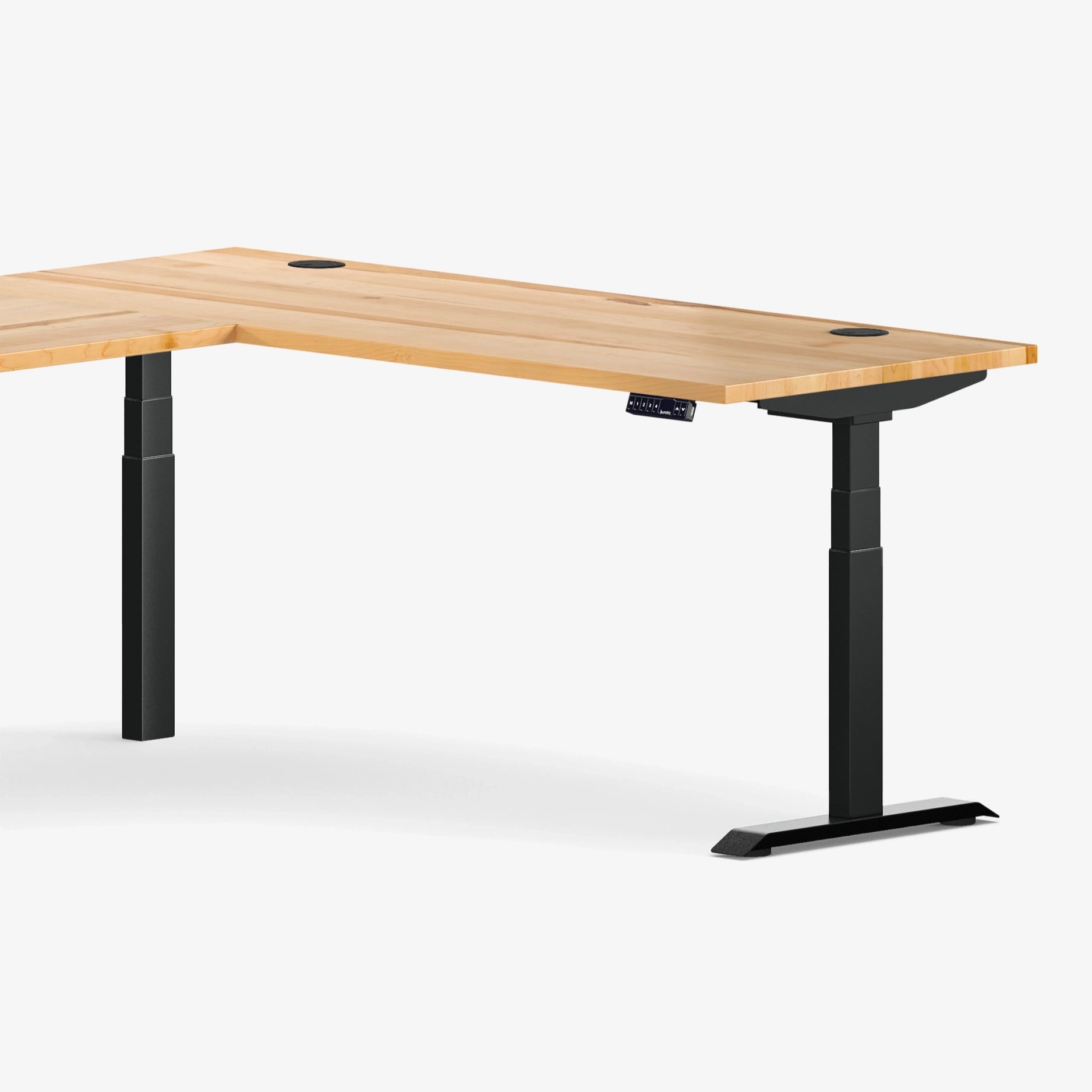
For a shared office, prioritize clear controls, stable adjustment, replaceable components and consistent models. Burotic's active Aspire Custom Solid Wood Standing Desk can be considered where a durable adjustable workstation and a wood surface fit the project. Product configuration should be verified for the exact installation, room plan and users.
Commission one pilot station before ordering a large quantity. Ask employees of different sizes and job types to complete the setup sequence. Record where they hesitate, which adjustments are hard to find and which cables become tight. A ten-minute pilot often reveals more than a specification table.
Measure whether the system works
Track practical signals: setup time, missing accessories, damage reports, support requests, abandoned bookings and workstation-related accommodation issues. These are more actionable than asking whether people like hot desking in the abstract. Review the data after a floor move, equipment change or policy update.
The best shared workstation feels predictable. Users can arrive, adjust it, work and leave it ready without guessing. Start with an adjustable desk, an understandable chair, a movable screen and dependable connections. Then support the hardware with a short reset process and responsive maintenance.
Sources: CCOHS, Sit/Stand Desk; CCOHS, Monitor Positioning; CCOHS, Working Space.
Previous article
Clamp-Mounted Desk Accessories: Fit, Placement and Desktop Protection
Next article
How to Stop Monitor Wobble on a Standing Desk