





Where Should You Position a Monitor Arm on Your Desk?

In this article
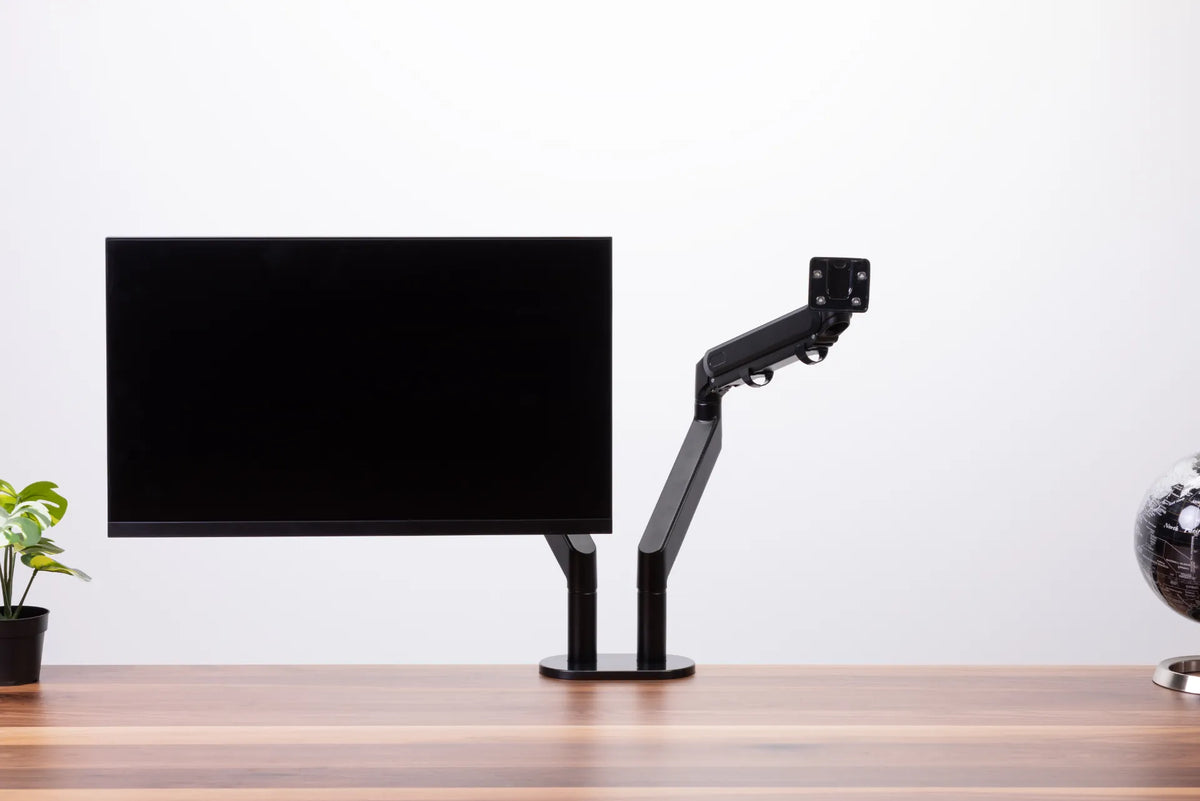
The best monitor arm position is the location that puts the active screen directly in front of you, keeps the mount secure on a suitable part of the desktop, and lets every joint move without striking a wall or pulling a cable. That location is not always the exact centre of the back edge. The right clamp point depends on the arm geometry, screen size, desk depth and whether the monitor is primary, secondary or shared equally.
Plan the final screen position first, then work backward to the mount. This avoids a common mistake: centring the clamp neatly while forcing the arm into an awkward, fully extended shape. The following process works for fixed and adjustable desks, one or two monitors, and both clamp and grommet installations.
Quick answer: start with the screen, not the clamp
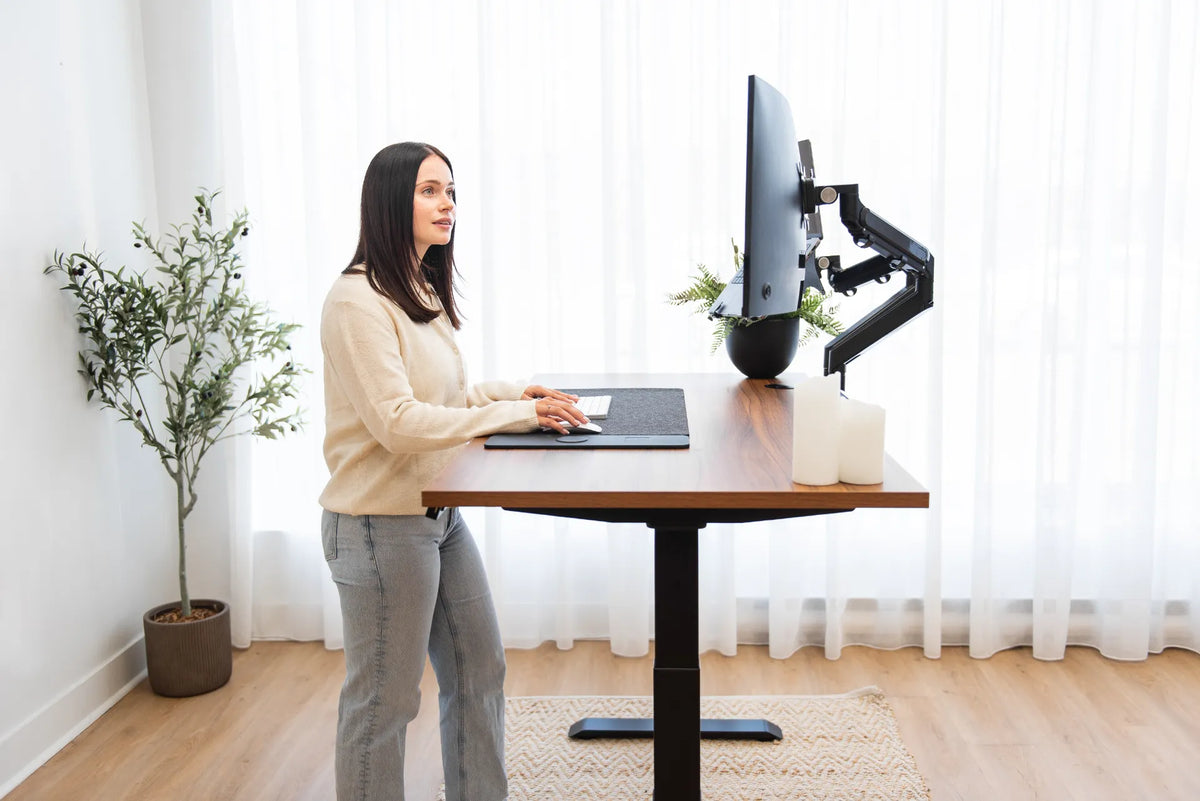
Sit or stand in your normal working position. Centre the primary screen on your body and place it roughly an arm's length away as a starting point. Keep the top of the visible screen at or slightly below eye level for most users. The Canadian Centre for Occupational Health and Safety, or CCOHS, recommends adjusting distance, height and angle together because screen size, vision and task needs vary.
Once the screen feels right, hold the monitor arm behind it and identify a mounting point that leaves the joints partially folded. A modest bend gives the arm room to move forward, backward and sideways. Confirm that the clamp sits on a flat, structurally suitable area and that its lower plate clears the base, cable tray and accessories.
Position a single monitor arm
Place the primary screen in front of you
For a single monitor, the centre of the display should normally align with your body and keyboard. If the monitor is far to one side, repeated head rotation can become part of every task. Move the screen first, then choose whether the mount belongs directly behind it or slightly off-centre.
An off-centre clamp is often useful. Many arms need space for their lower and upper segments to fold behind the display. Mounting a few centimetres to one side can keep those segments away from the wall while the screen remains centred. Judge the result by the display position, not by visual symmetry at the back edge.
Keep the arm away from full extension
An arm that is almost straight has little adjustment range left and places the screen farther from the support point. An arm folded too tightly may project behind the desk or make the screen difficult to centre. Aim for a relaxed bend within the product's supported movement range. Follow the manufacturer's tightening and load instructions, and never exceed the arm's stated screen size or weight limits.
Position two monitors by how you use them
Primary and secondary screens
If one monitor holds most of your work, centre that screen on your body. Place the secondary screen beside it and angle it inward. The seam may sit slightly off-centre because the main display deserves the most neutral head position. Mounting the dual arm off-centre can help the primary screen reach the middle without forcing both branches into extreme positions.
Two equally used screens
If both displays receive similar attention, place them side by side with their inner edges meeting in front of you. Angle them into a shallow semicircle so the viewing distance remains reasonably consistent. CCOHS recommends arranging equally used monitors close together and positioning the user near their centre line.
The article on single versus dual monitor arms explains the trade-offs between independent placement and a shared support. Before buying or remounting, also complete the monitor arm compatibility checks for VESA pattern, screen weight, desktop mounting and available space.
Check wall and rear clearance
A monitor arm needs a three-dimensional movement envelope. Its joints can swing behind the desk even when the screen moves forward. Pull the desk to its normal distance from the wall, then test the arm at the closest and farthest useful screen positions. Include portrait rotation if you use it.
If the arm strikes the wall, do not simply push the monitor farther forward. Try an off-centre mount that lets the segments fold sideways, or move the desk enough to create safe clearance. Make sure the desktop cannot rise into a shelf, window ledge or wall-mounted object. On an adjustable desk, repeat the test at the lowest and highest settings.
Choose a suitable point on the desktop
The clamp or grommet must contact a flat, sound surface that fits the hardware. Avoid unsupported lips, deep bevels, cable cut-outs and locations where an underside part prevents full contact. Do not improvise with spacers unless the monitor-arm manufacturer approves them. A protective pad can reduce marking, but it cannot make an unsuitable mounting point structurally sound.
Check what is directly below the chosen point. A cross-member, control box, drawer or cable tray may block the lower clamp plate. The active Burotic Monitor Arm page provides the current product specifications; compare them with the actual top before drilling or tightening anything.
Plan viewing distance and height
CCOHS presents an arm's length as a useful initial viewing distance and notes that larger screens may need more distance. Increase text size before pulling a screen too close. Keep the head balanced and avoid lifting the chin to see the upper portion. People using bifocals or progressive lenses may need a lower screen position to avoid extending the neck.
Set desk height and chair position before making the final monitor adjustment. Then move the monitor independently. The monitor distance guide provides a step-by-step visual check that can be repeated in sitting and standing positions.
Route cables for the complete arm movement
Attach display and power cables along the arm only after choosing the screen range. Leave controlled service loops at the monitor and near the mount. The cable should not become tight when the screen moves forward, rotates or rises. It should also avoid the joints, where repeated pinching can damage it.
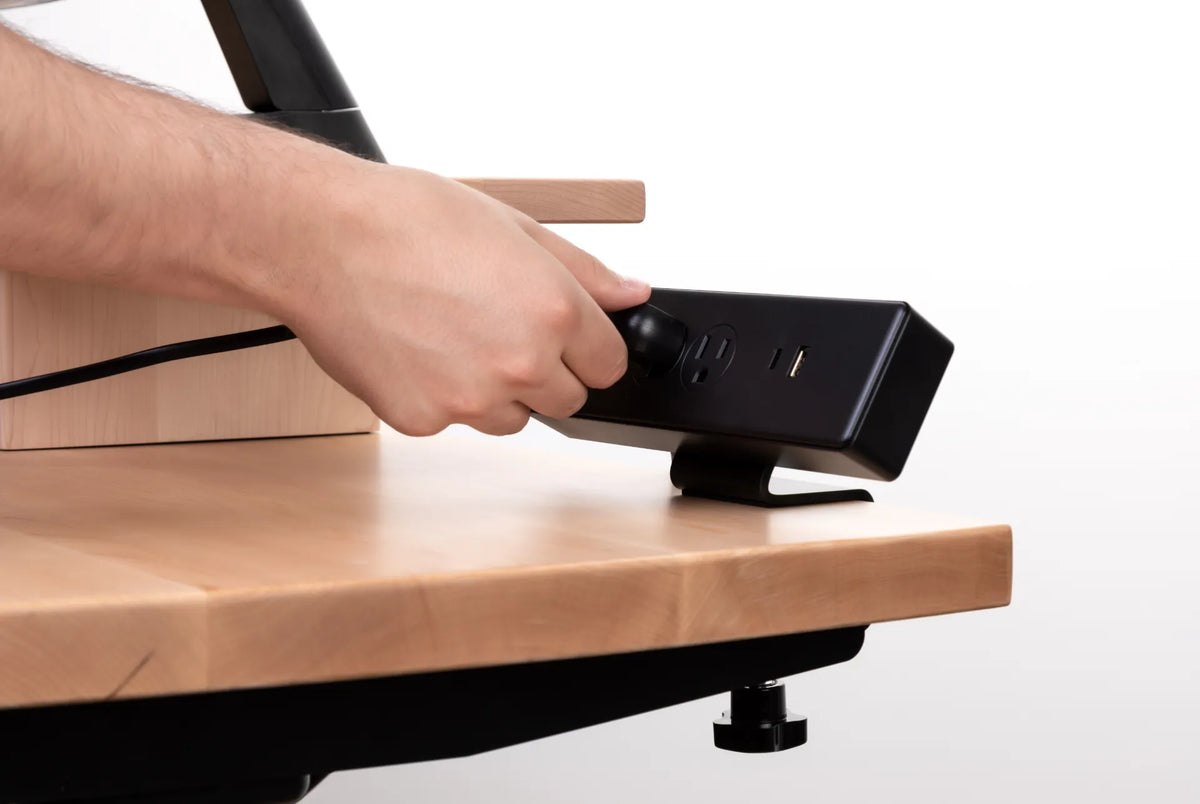
For an adjustable desk, the cable bundle must travel with the desktop while the supply connection remains safe. Raise and lower the desk slowly while another person watches the full route. The standing desk cable management guide covers the moving connection between the desktop and the wall.
Installation sequence
- Set the chair and desktop to a comfortable working height.
- Mark the desired centre, height and distance of each screen.
- Inspect the top and underside for a sound, unobstructed mounting area.
- Hold the assembled arm in place and test its joint sweep.
- Install the clamp or grommet exactly as the manufacturer directs.
- Attach the screen, set the specified tension and keep a hand on it during the first movements.
- Adjust height, tilt, distance and angle without forcing any joint.
- Route cables with enough controlled slack for every intended position.
- Test sitting, standing and the desk's full height range.
Common positioning mistakes
Centring the mount instead of the screen
The back-edge hardware can be asymmetrical while the screen remains ergonomically centred. Prioritize the view and movement range.
Mounting before checking the underside
A tray or structural part can prevent the clamp from seating properly. Inspect and measure both faces first.
Leaving no wall clearance
A hidden elbow may strike the wall as the screen moves. Test the entire sweep before final tightening.
Using a taut cable as a stop
Cables must never limit the arm. Add an appropriate length and secure the loop so it stays clear of joints.
Ignoring desk movement
A safe sitting position can become unsafe at standing height. Test the whole system, including surrounding furniture.
Final recommendation
Put the primary display where your task and posture require it, then choose the clamp point that supports that position with usable joint travel. An off-centre mount is often better than a centred mount when it improves wall clearance and keeps the screen in front of you.
Finish by checking the attachment, screen load, cables and full desk movement. A well-positioned arm should make adjustment easy without asking the wall, the cable or a fully extended joint to act as a limit.
Sources: CCOHS, Monitor Positioning; Desky Canada, Where Should I Position My Monitor Arm?.
Previous article
How Thick Should a Standing Desk Top Be?
Next article
How Thick Should a Standing Desk Top Be?