

Should the Top of Your Monitor Be at Eye Level?

In this article
The top of a computer monitor is a useful reference point, but it is not a rigid target for every person or every screen. For most people using a conventional landscape monitor, the top edge of the viewable screen should sit at or slightly below eye level. This lets the eyes look slightly downward toward the centre of the display while the head remains balanced over the shoulders.
That starting point is supported by the Canadian Centre for Occupational Health and Safety, which advises that the top of a tall or portrait monitor should not be higher than the operator's eyes. The goal is not to create a mathematically perfect workstation. It is to make the screen easy to see without repeatedly lifting the chin, bending the neck or leaning forward.
The short answer
Start with the top of the active display area at eye level or a little below it. Then sit in your normal working position and look toward the middle of the screen. Your gaze should fall naturally downward, not straight up and not sharply toward your lap. If you can read your usual content with your head upright and shoulders relaxed, the height is probably close.
A monitor that is slightly lower is often preferable to one that is too high. A high screen can encourage you to tip your head back or lift your chin. A very low screen can encourage a forward head posture. The best position stays within a comfortable middle range and works with your actual vision, glasses, screen size and tasks.
Why eye level is only a starting point
People sometimes interpret “eye level” as a command to place the centre of the screen directly in front of the eyes. That usually puts the display too high. Your eyes naturally look somewhat downward when your head is neutral. The U.S. Occupational Safety and Health Administration similarly recommends placing the top of the monitor at or slightly below eye level, with the centre of the screen normally below the horizontal eye line.
The correct height also depends on where the information you use most appears. If your work is concentrated in the upper half of the screen, you may prefer a slightly lower display. If you spend much of the day reading documents with content centred vertically, you may need only a small adjustment. The position should support your task rather than follow a rule without context.
How to set monitor height in five steps
1. Adjust the chair and desk first
Set your chair so your feet are supported and your shoulders can relax. Place the keyboard and mouse around seated elbow height, close enough that your upper arms can stay near your torso. If the chair and input devices are wrong, changing the monitor alone will not solve the workstation.
2. Sit back in your normal position
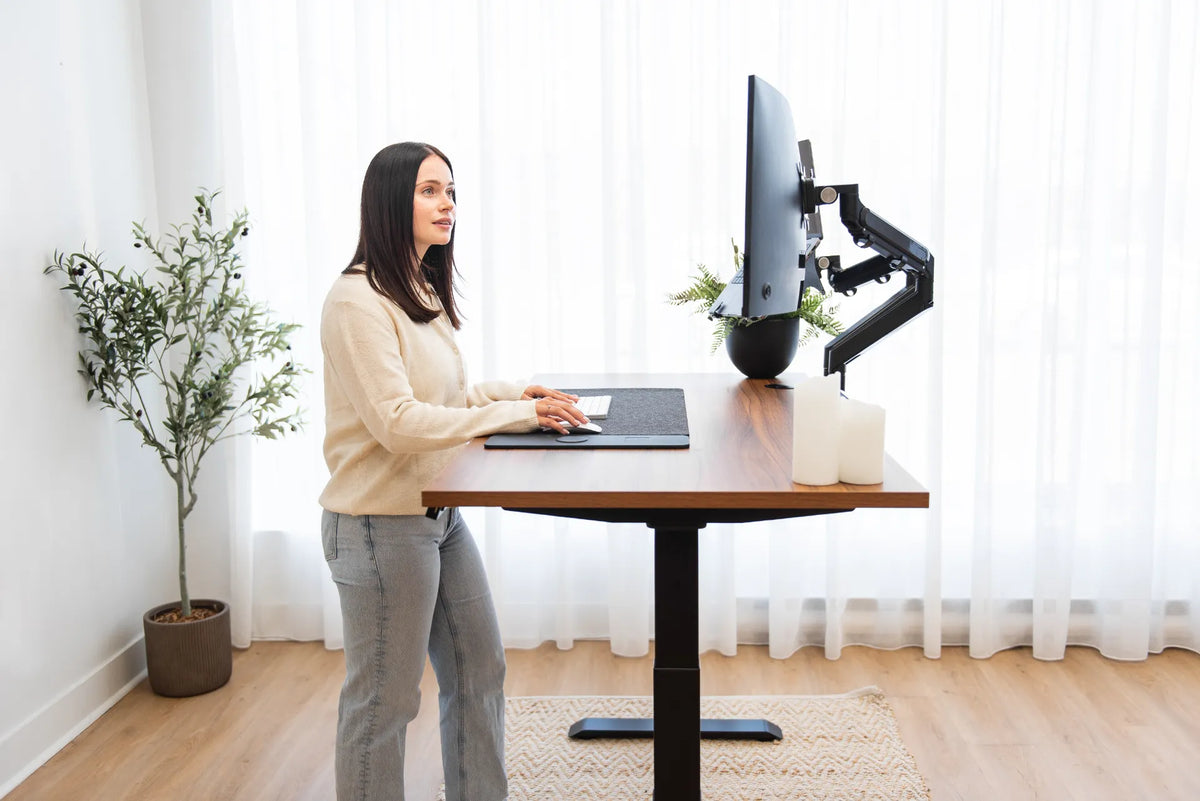
Do not measure while sitting unusually tall. Use the posture you can sustain: back supported, head balanced and hands resting near the keyboard. If you alternate between sitting and standing, repeat the test in both positions and use an adjustable monitor arm when one fixed height cannot serve both.
3. Place the primary screen directly ahead
The screen you use most should be centred with your body and keyboard. Turning the head a little for a secondary display is different from spending hours rotated toward the primary screen. If you work with two displays equally, centre the seam and angle both inward. For detailed distance guidance, see How Far Should Your Monitor Be From Your Eyes?
4. Raise or lower the screen
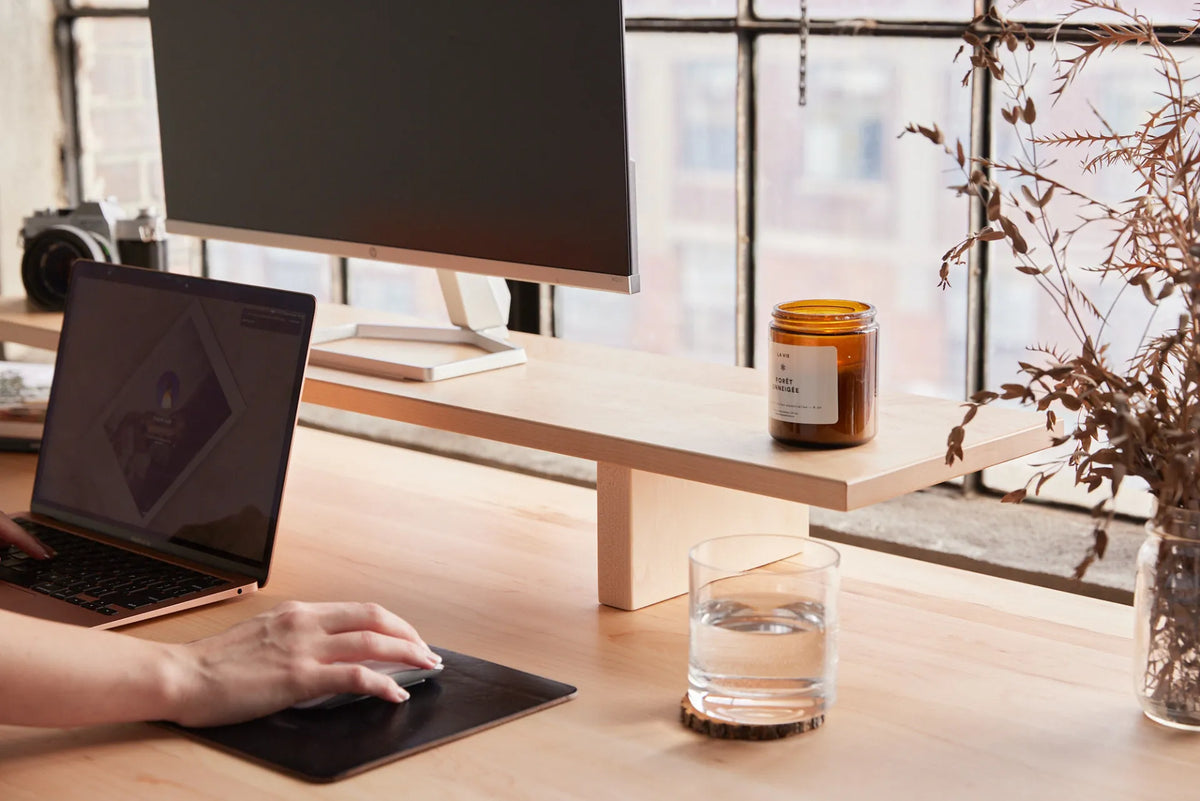
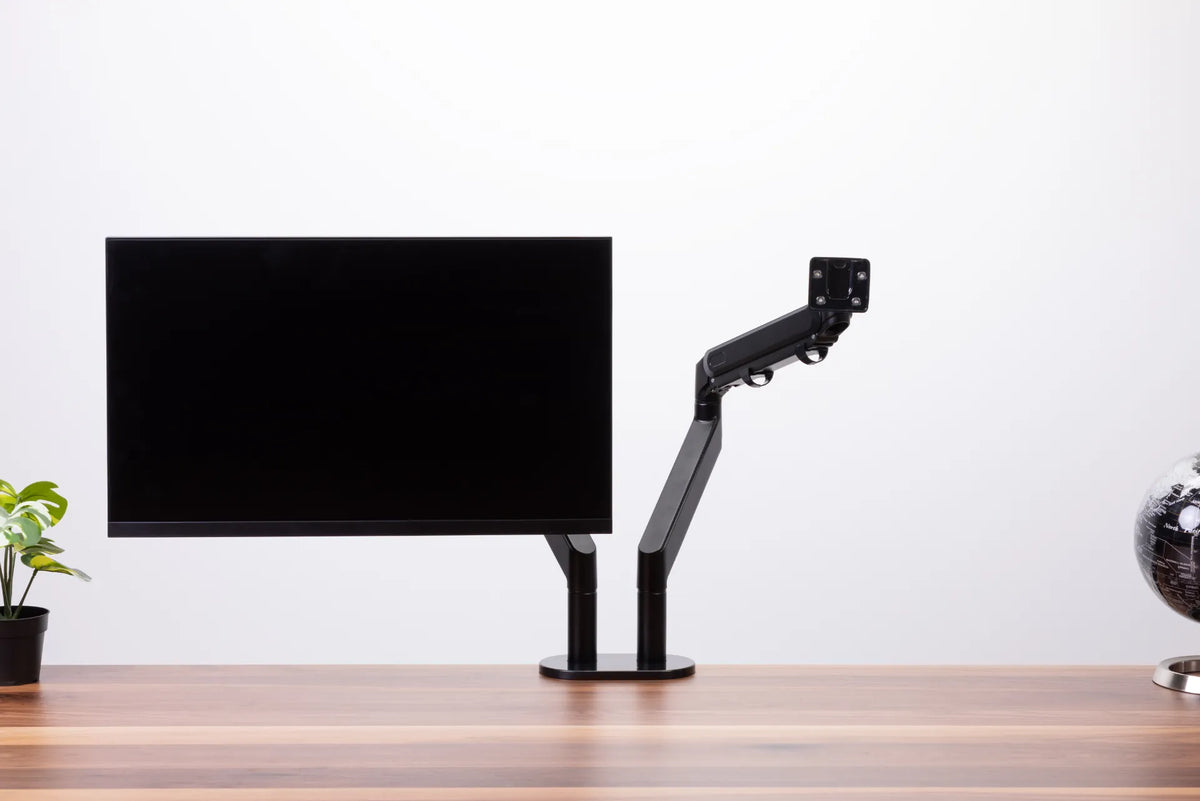
Move the display until its top active edge is around eye height or slightly lower. A stable monitor riser can work when one fixed position is enough. A monitor arm is more useful when you change posture, share the desk or need to control both height and depth. Avoid unstable stacks that can shift when the desk moves.
5. Test with real work
Use the setup for 20 to 30 minutes. Notice whether you raise your chin, lean toward small text or slide down in the chair. Enlarge text before moving the monitor closer if legibility is the real issue. Small changes of a few centimetres can matter more than chasing a universal measurement.
When the monitor should sit lower
Progressive lenses and bifocals
People who use progressive lenses or bifocals may lift the chin to look through the correct part of the lens when a monitor is too high. Lowering the display and adjusting its tilt can reduce that compensation. The right position depends on the prescription, so persistent difficulty is worth discussing with an eye-care professional or an ergonomics specialist.
Large and portrait displays
A tall screen can extend well above the eyes if its centre is placed like a smaller monitor. Keep the upper edge from rising above eye level, then increase viewing distance if needed so the whole display is easier to scan. With portrait orientation, a lower position is particularly important because so much content extends vertically.
Shorter users and fixed desks
If a fixed desk forces you to raise the chair for the keyboard, add foot support before judging screen height. If you lower the chair just to see the monitor, the desk may become too high for the arms. Work from the body outward: supported feet, suitable seat height, relaxed input position and then the screen.
Laptop screen height is a different problem
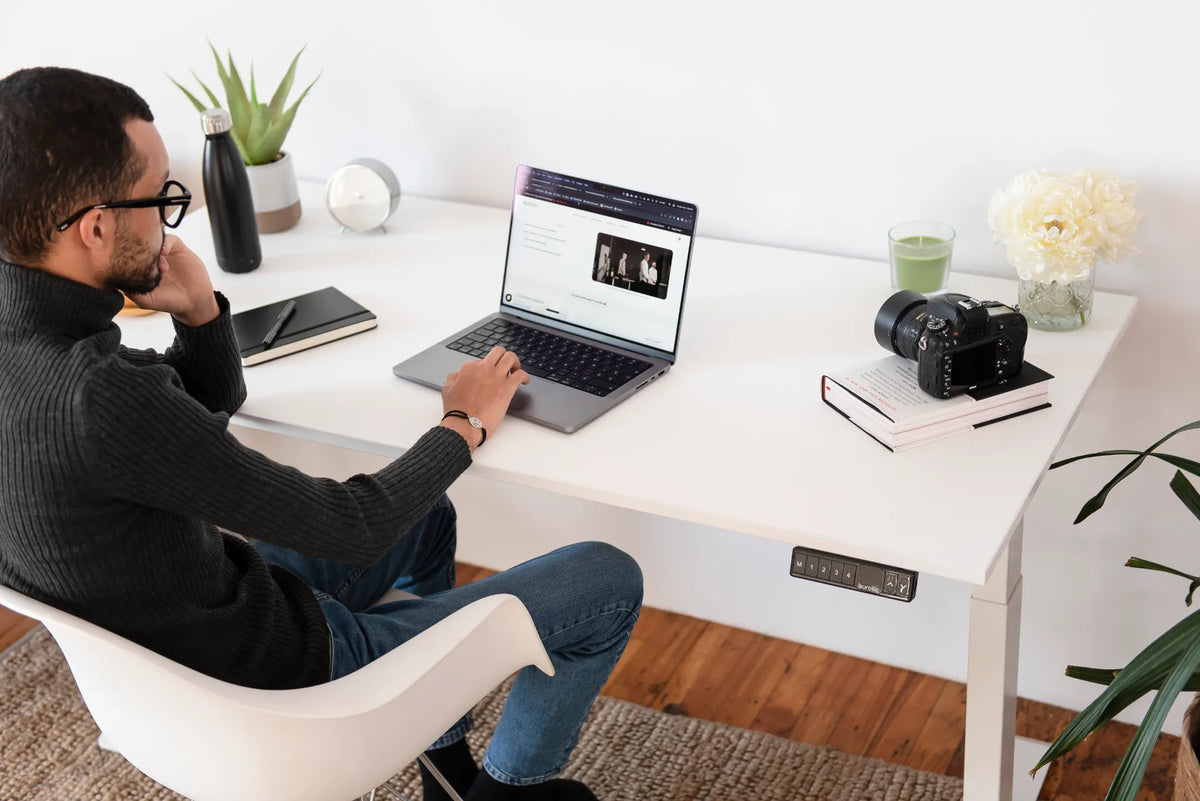
A laptop joins the display and keyboard, so raising the screen also raises the keys. That tradeoff is acceptable for short, light tasks, but it is difficult to maintain for a full workday. For longer sessions, place the laptop on a stable stand or mount and use an external keyboard and mouse. Our guide to an ergonomic laptop and monitor setup explains how to combine the devices without twisting toward one side.
If the laptop is the only computer and you cannot add peripherals, keep it close enough that you do not reach for the keys, enlarge the display and take frequent changes of posture. The article on a laptop-only desk setup covers practical compromises for temporary spaces.
Common monitor-height mistakes
- Placing the centre at eye level: this often makes the top too high.
- Adjusting around poor vision: leaning forward may mean the text is too small, not that the screen is too far away.
- Using the bezel instead of the active image: focus on the visible screen area, especially with thick frames.
- Ignoring the primary task: video editing, coding and document review can place important information in different zones.
- Locking in one height for sit-stand work: recheck the screen after changing desk height.
- Raising the monitor before fixing glare: reflections may cause awkward posture even when the height is correct.
How height, distance and tilt work together
Monitor height cannot be judged in isolation. If a screen is extremely close, even a reasonable upper edge may require more head and eye movement. If it is too far away, you may lean forward. Start around a comfortable arm's-length range and adjust for screen size, text scale and vision. Larger or wider screens may need more distance.
Tilt should keep the screen surface easy to view without creating glare. A slight backward tilt often works, but the correct angle depends on height and distance. If the screen is raised, check that you are not tilting it steeply downward to compensate. The screen should come to you without forcing your neck into a new position.
A two-minute self-check
- Sit back and let your shoulders drop.
- Look straight ahead without lifting the chin.
- Let your eyes move down toward the centre of the screen.
- Read for one minute, then check whether your head moved forward or back.
- Adjust height, distance or text size one variable at a time.
Recheck after a few days. Comfort is influenced by workload and duration, so a position that feels fine for five minutes may still need refinement. General ergonomic guidance is not a medical diagnosis. Seek professional advice for persistent pain, numbness, headaches or vision symptoms.
Bottom line
For most desk work, the top of the monitor should be at or slightly below eye level, not the centre of the screen. Treat that as a reliable starting point, then adapt for large displays, portrait orientation, corrective lenses and the way you actually work. A stable riser or adjustable monitor arm can make the final adjustment easier, especially on a sit-stand desk.
Once the screen height is comfortable, confirm the keyboard, mouse and viewing distance. Ergonomics works as a system, and the best setup is the one that lets you work with your head balanced, shoulders relaxed and posture changing naturally through the day.
Previous article
Face-to-Face vs. Side-by-Side Desks: Which Office Layout Works Better?
Next article
Do You Need an External Keyboard and Mouse With a Laptop?