





How Far Should Your Monitor Be From Your Eyes?

In this article
Monitor distance is one of the easiest workstation settings to overlook. If the screen is too close, you may lean back, feel visually crowded or notice that your eyes work harder. If it is too far away, you may move your head forward, narrow your eyes or enlarge every document just to read comfortably. The useful answer is not one rigid measurement. It is a starting range that you refine for your screen, eyesight, task and desk.
The Canadian Centre for Occupational Health and Safety, or CCOHS, describes a general viewing-distance range of about 40 to 74 cm. That is roughly 16 to 29 inches. It also stresses that ergonomic recommendations are guidelines to be adapted, not fixed rules for every person. This guide explains how to find your own position and how to coordinate it with screen height, text size, glare and desk depth.
Quick answer: start about an arm’s length away
For many desktop monitors, an arm’s length is a useful first check. Sit in your normal working posture, keep your back supported and extend one arm toward the screen. Your fingertips should land near the display without requiring you to round your shoulders. Then adjust within the broader CCOHS range until text is clear and your head stays comfortably over your torso.
Do not force yourself to keep a screen far away if the text becomes difficult to read. Increase operating-system scaling, browser zoom or application font size before pulling your body toward the display. Likewise, a very large monitor may feel more comfortable farther away than a compact laptop screen.
Why distance and height must be adjusted together
Distance determines how large the content appears. Height and viewing angle determine where your eyes and neck point. CCOHS places the centre of the screen below horizontal eye level and describes a downward viewing angle of roughly 15 to 30 degrees as a common starting point. The exact placement depends on the display, corrective lenses and the work being done.
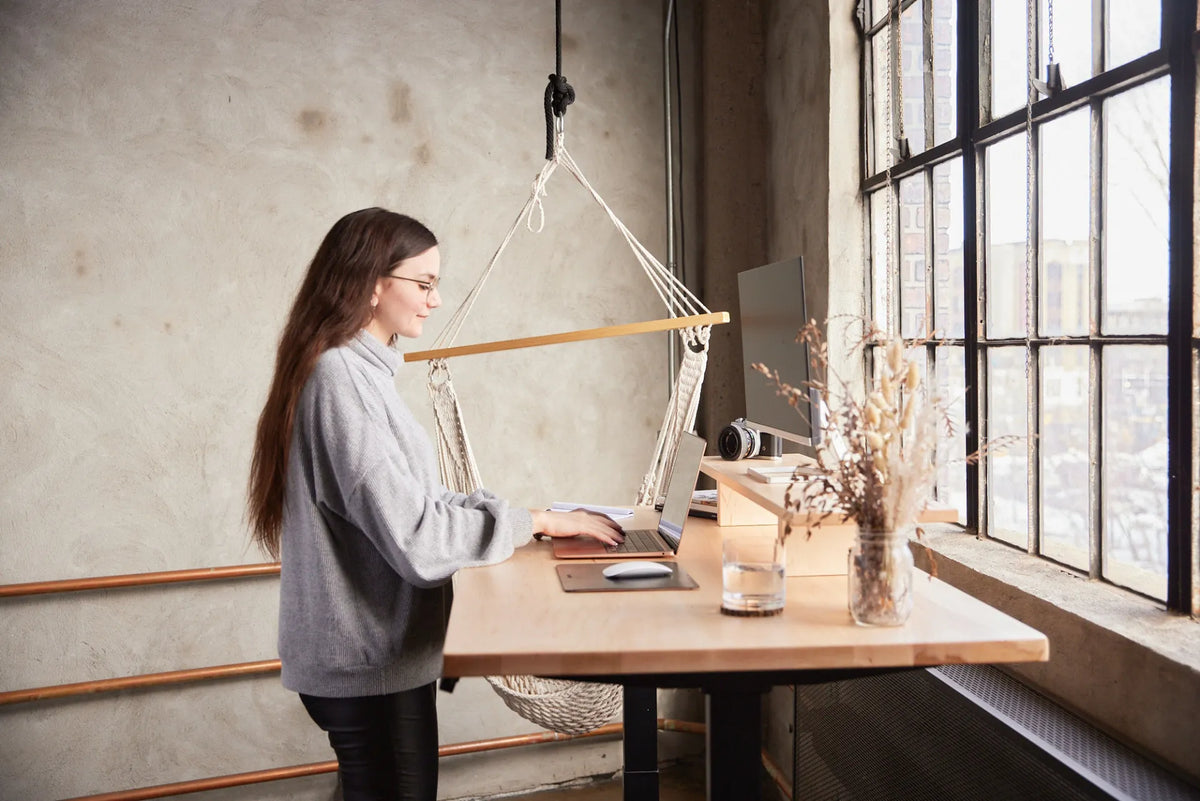
A screen can be at the right distance and still create an awkward setup if it is too high, too low or off to one side. Before measuring, sit or stand in the posture you actually use. Relax your shoulders, keep your head balanced and place the main screen directly in front of you. If you alternate between sitting and standing, confirm the relationship in both positions.
A five-step monitor-distance test
1. Set your working posture first
Adjust the chair or standing desk so your keyboard and mouse are near elbow height. Keep frequently used controls close enough that you do not reach. Screen adjustments made while you are slouching will be wrong as soon as you sit upright.
2. Begin within the 40 to 74 cm range
Measure from your eyes to the screen surface, not from the front edge of the desk. Start near the middle of the range. Larger displays and detailed work may lead you toward a different point, but the result should not make you crane your neck or lean forward.
3. Open your real work
Test a typical spreadsheet, browser page, design file or document. A blank desktop does not reveal whether the text is readable. Keep your normal font settings at first, then change scaling if the interface is too small.
4. Watch your body for several minutes
Notice whether your chin moves forward, your eyes narrow or your shoulders leave the backrest. Those are practical clues that the display may be too far away, too small or poorly scaled. If you feel boxed in, repeatedly pull your head back or cannot scan the display comfortably, it may be too close.
5. Fine-tune in small increments
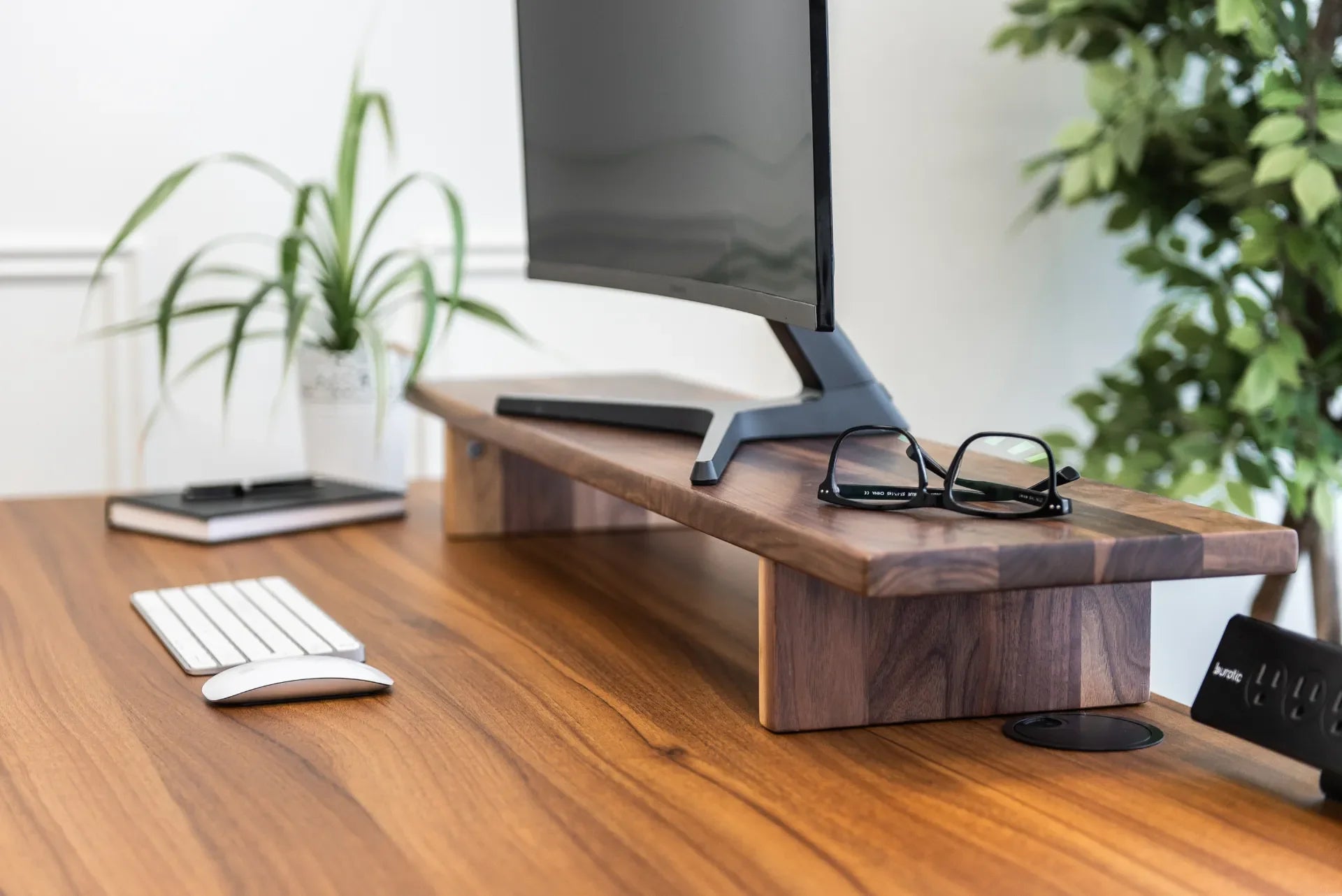
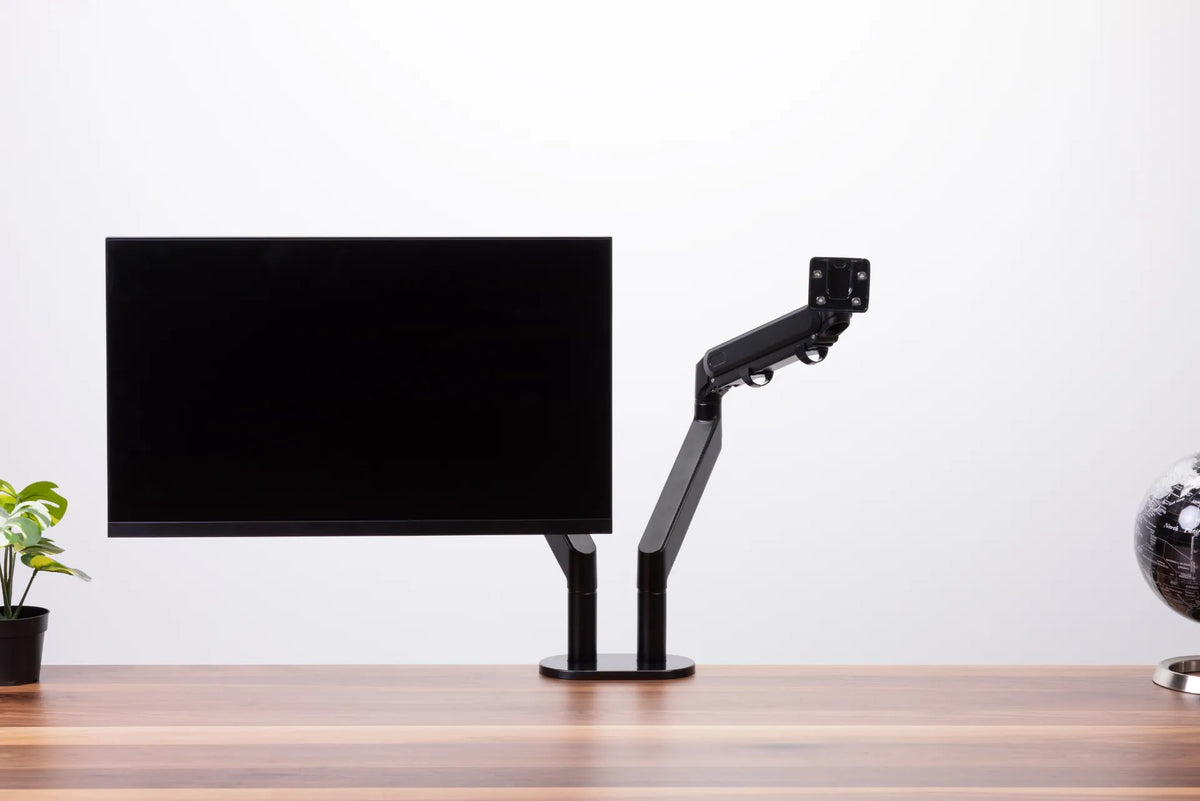
Move the monitor a few centimetres at a time. Recheck height after every meaningful distance change because the viewing angle changes with it. A monitor arm makes this easier when the screen must move between users or between sitting and standing. A stable monitor stand can be useful when a fixed elevation suits the setup.
Adjust for screen size and resolution
Screen size alone does not determine distance. A high-resolution display with tiny interface elements may be uncomfortable at the same distance as a similarly sized screen with larger scaling. Use a text size that lets you read while your head remains neutral. The goal is clear content without compensating with posture.
For ultrawide or very large screens, consider whether you can see the outer edges without frequent neck rotation. Move the screen slightly farther away, increase scaling or reorganize windows so the most important content stays near the centre. For a laptop, the built-in screen and keyboard are physically connected, so an ideal screen position often creates an awkward typing position. Our laptop and monitor setup guide explains when an external keyboard, stand or separate display can help.
Desk depth can limit a good setup
A shallow work surface may force a large monitor too close to your eyes, especially when the original stand has a deep footprint. Measure the complete base, not just the panel thickness. A monitor arm can reclaim surface depth by moving the support point toward the back edge, but its clamp and the desktop must be compatible.
If you are choosing a new surface, consider the screen, stand, keyboard, wrist space and any document holder together. The 24 vs. 30-inch desk-depth guide provides a more complete planning method. Avoid placing the monitor so far back that you respond by sliding forward and losing back support.
Reduce glare before changing distance
Glare can mimic a distance problem. CCOHS recommends controlling light and positioning the screen to reduce reflections rather than relying first on an add-on anti-glare filter. Check the display with the blinds and room lights in their normal daytime settings. A screen placed perpendicular to a bright window is often easier to manage than one facing the window or reflecting it directly.
Adjust brightness and contrast for the room, clean the screen and make sure text remains sharp. If you still struggle to focus, experience persistent headaches or have vision concerns, consult an appropriate health professional. General ergonomic guidance is not a diagnosis.
What about two or more monitors?
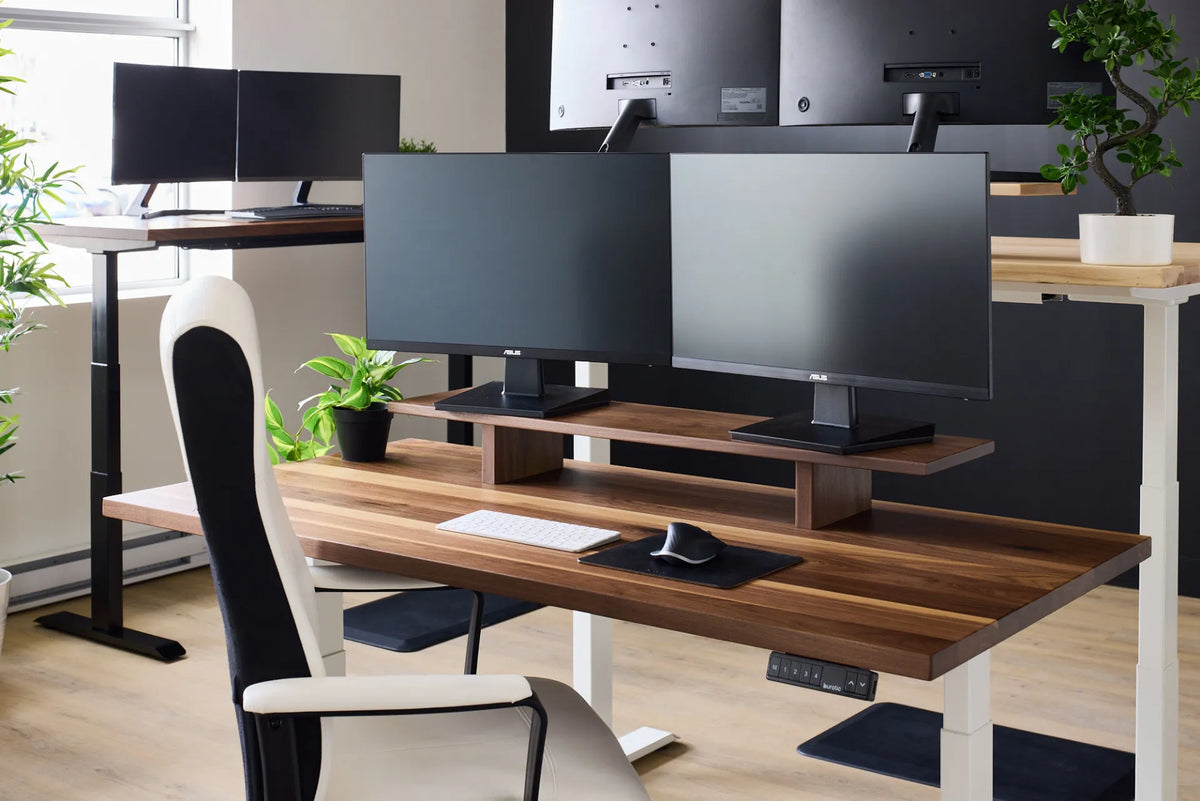
If one screen is clearly primary, centre it in front of you and place the secondary display beside it at a similar distance. Angle the screens inward so you are not repeatedly refocusing across large depth differences. Put the boundary between two equally used screens near your centre line and position both as symmetrically as the work permits.
For three displays or one very wide screen, keep high-frequency tasks in the central visual zone. No distance setting removes the need to move occasionally. Change posture, look away from the screen periodically and vary tasks when possible.
Common mistakes to avoid
- Measuring from the desk edge instead of from the eyes.
- Using arm’s length as a rigid rule even when text is unclear.
- Moving closer instead of increasing display scaling.
- Raising the screen without checking the downward viewing angle.
- Placing the primary monitor to the side for long periods.
- Ignoring glare, screen cleanliness or outdated vision correction.
A practical final check
At the end of a normal work session, ask four questions. Can you read without leaning forward? Is your head balanced rather than pushed toward the screen? Can you reach the keyboard and mouse without lifting your shoulders? Can you move between sitting and standing without rebuilding the workstation? If the answer is yes, your monitor distance is probably working for you.
Start with the CCOHS range, adapt it to real tasks and let posture and readability guide the final centimetres. If the monitor needs frequent repositioning, explore Burotic’s adjustable monitor supports and verify compatibility with your display and desktop before ordering.
Previous article
How to Protect Wood Floors Under an Office Chair and Standing Desk
Next article
Proper Keyboard and Hand Placement for Desk Work