


How Much Mouse Space Do You Need on a Desk?

In this article
For everyday office work, start with a clear mouse area about 20 to 25 cm wide and 20 to 30 cm deep. This is not a regulated universal minimum. It is a practical starting zone that lets many people point, scroll and select without repeatedly lifting the mouse or reaching beyond a relaxed arm position. Creative work, low pointer sensitivity and large sweeping movements may need more room.
The best mouse space is not simply the largest empty rectangle on your desk. It must sit close to the keyboard, at the same height, and within easy reach. A large pad placed too far to the side can still produce an awkward shoulder position.
Measure movement and reach separately
Mouse space has two dimensions. The first is the physical travel area needed to move the pointer across your screens. The second is the reach zone needed to keep your upper arm relaxed near your torso. A layout can satisfy one and fail the other.
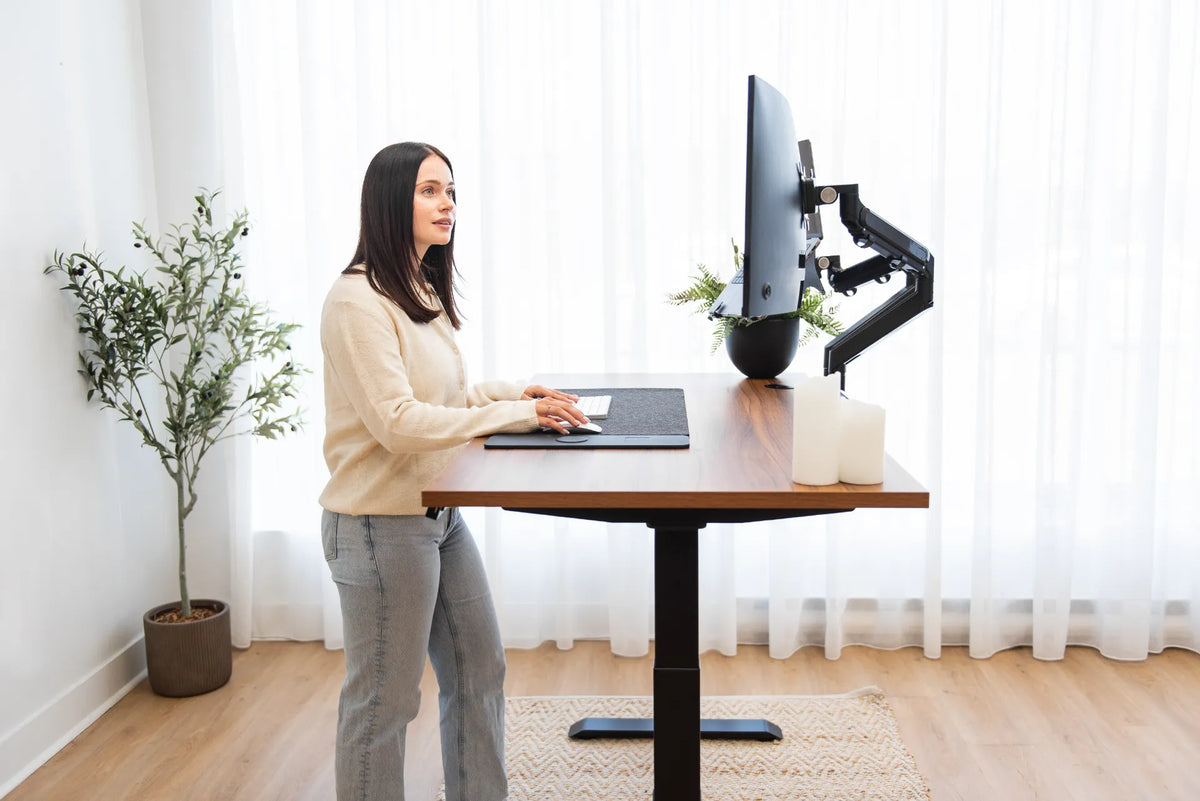
To test your current setup, sit normally with shoulders relaxed. Place your hand on the mouse without leaning or moving your upper arm far from your side. Move the pointer to every corner of every screen. If you frequently hit the edge of the pad, lift the mouse or reach outward, adjust the surface area, pointer settings or device position.
Practical starting sizes by task
General office work
Email, spreadsheets and browser work usually use short, controlled movements. A clear area around 20 by 20 cm may be enough, but 25 by 30 cm provides more tolerance for different pointer speeds and hand sizes. The important part is keeping that area immediately beside the keyboard.
Design, photo and video work
Precision tasks often benefit from a lower pointer speed and longer physical movements. Start closer to 30 by 30 cm and test your real software. A high-resolution screen or two-screen canvas may increase travel, but software sensitivity and acceleration can change the requirement substantially.
Gaming or very low sensitivity
Low-sensitivity gaming can require broad arm movements and considerably more width than office work. The needed area depends on the game and settings, so measure the movement used for a full turn rather than relying on a generic pad label. Keep this use case separate from office ergonomics, where compact movement and easy reach are usually more important.
Keyboard width often creates the real constraint
The mouse is commonly pushed outward because a full-size keyboard occupies the centre of the desk and extends a numeric keypad toward the mouse side. The Canadian Centre for Occupational Health and Safety notes that a shorter 35.6 cm keyboard can create about 10.2 cm of extra room compared with a regular 45.7 cm keyboard. That recovered space can bring the mouse closer to the shoulder line.
If you rarely use the numeric keypad, a compact keyboard may improve mouse placement more effectively than buying a larger desk. If you use the keypad frequently, consider centring the letter keys rather than the entire keyboard, or moving the mouse between you and the keyboard for mouse-heavy tasks.
Compare the trade-offs in Compact vs. Full-Size Keyboard: Which Fits Your Desk and Workflow?.
Keep the mouse in the easy-reach zone
CCOHS warns that a mouse placed in the upper corner of a workstation can require forward and outward reaching. Repeating that posture can increase fatigue in the shoulder and upper back. There is no single correct location for every person, but the mouse should be close enough that you do not lean or hold the arm away from the body for long periods.
Place the mouse at the same level as the keyboard and as close to it as practical. Keep the wrist in a neutral, straight position. Move from the arm when helpful rather than anchoring the wrist and making every movement with small muscles. General information cannot diagnose pain. Persistent discomfort, numbness or weakness deserves advice from a qualified health professional.
The setup steps in How to Position a Mouse at Your Desk can help you refine reach, height and grip.
Desk pad, mouse pad or bare desktop?
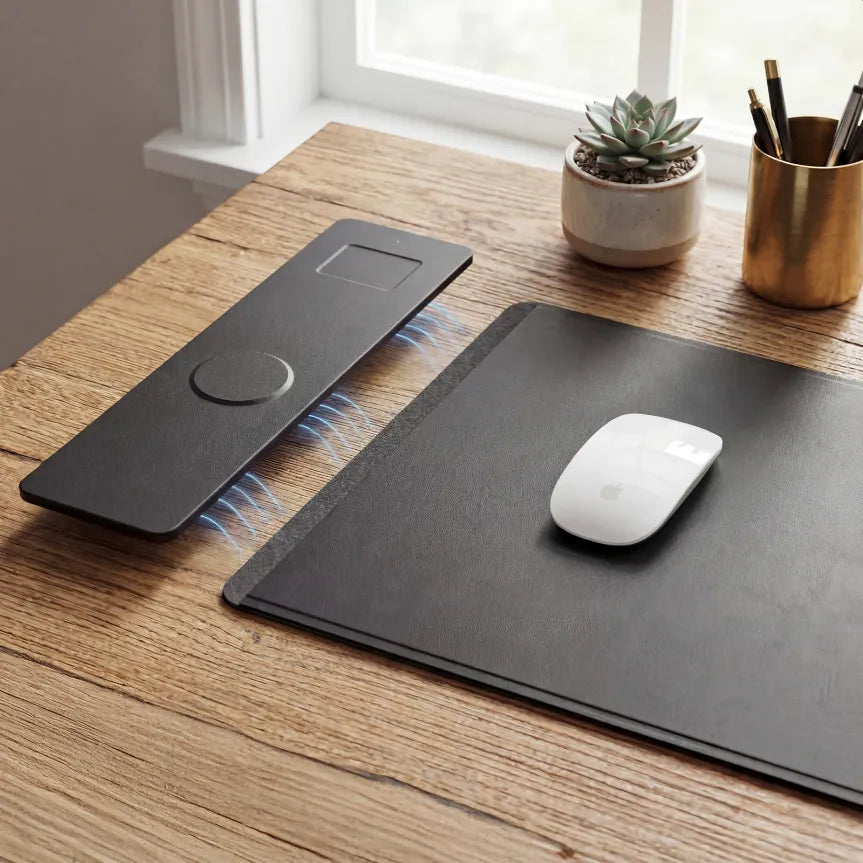
A dedicated mouse pad defines a predictable tracking area and is easy to reposition. A larger desk pad can place the keyboard and mouse on one continuous surface, reduce small height differences and protect more of the desktop. A bare surface may track well with some sensors, but finish, texture and reflectivity affect performance.
Choose the surface after confirming the required movement area. The active Burotic Wireless Charging Desk Pad is one current option for a broader work surface. Verify its listed dimensions against your keyboard and movement test instead of assuming any desk pad will fit every layout. The guide Desk Pad vs. Mouse Pad compares the two formats.
How desk depth and monitor count affect mouse space
Desk depth does not directly create side-to-side mouse room, but a shallow desk can crowd the keyboard forward and leave less comfortable forearm support. Two monitors can also increase pointer travel across a larger digital canvas. Increasing software pointer speed may reduce physical travel, but settings that are too fast can make precise selection difficult.
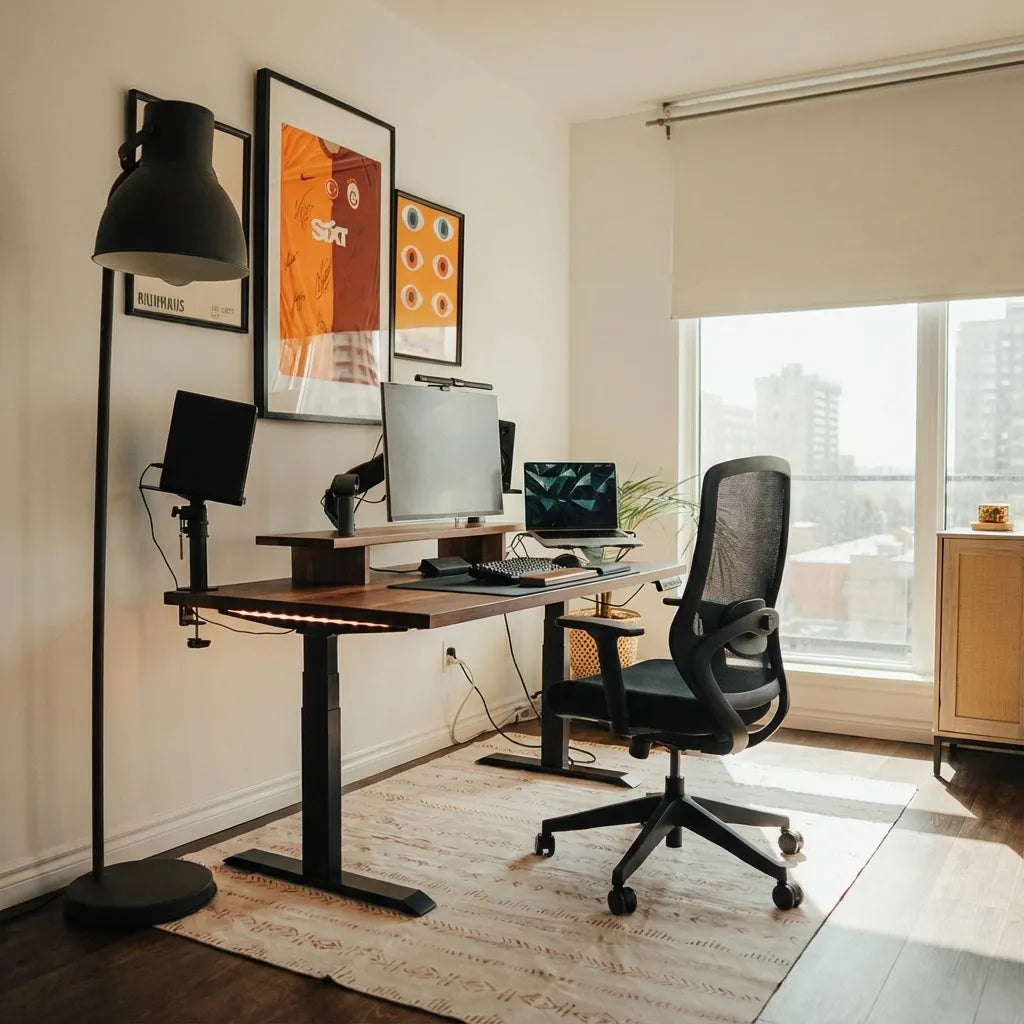
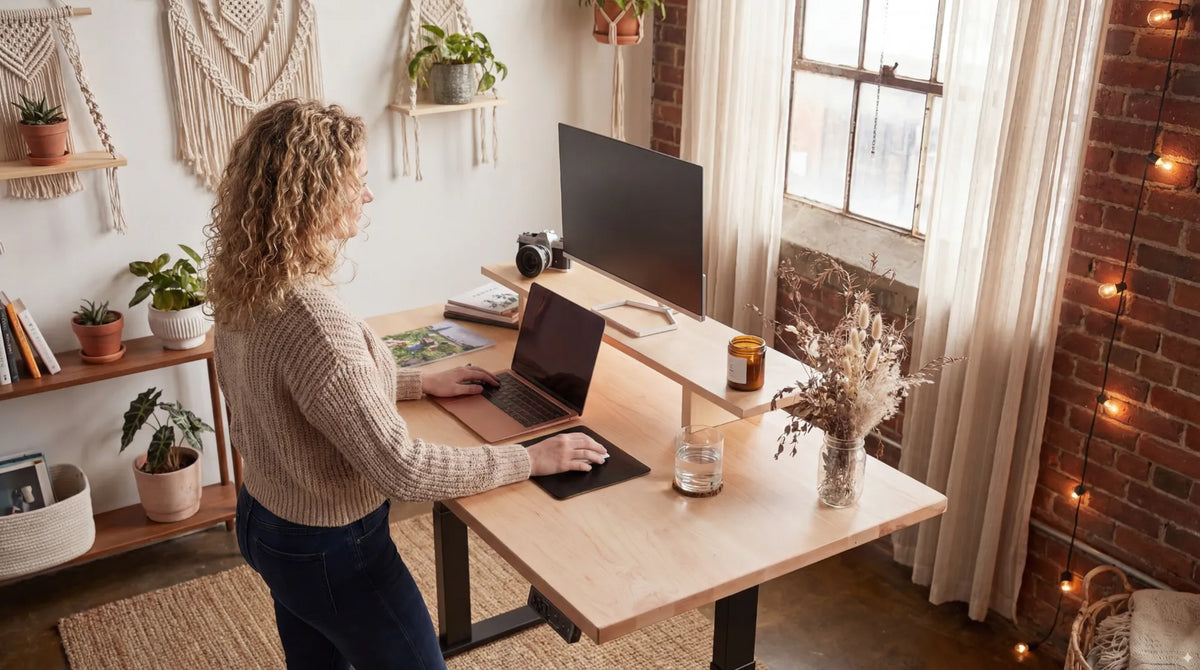
Arrange the desk in this order: centre the primary visual work, place the keyboard for relaxed shoulders, reserve the mouse zone immediately beside it, then fit secondary accessories around that core. Do not place frequently used objects, a phone stand or a drink inside the mouse path.
A five-minute sizing test
- Clear an area at least 30 by 30 cm beside the keyboard.
- Use painter's tape to mark a 20 by 20 cm zone.
- Work normally for several minutes and note edge hits, lifting and reaching.
- Expand the zone in 5 cm increments until movement feels unrestricted.
- Move the entire zone closer to the keyboard if the shoulder reaches outward.
- Repeat with the exact pointer settings and applications you use most.
This test produces a better answer than copying someone else's measurement because it accounts for your hand, device, screen layout and settings. Once you know the movement envelope, choose a pad or desk width that preserves it.
Account for left-handed use and shared workstations
A left-handed user needs the same clear movement zone on the opposite side of the keyboard. In a shared workstation, leave both sides clear or make the keyboard and pad easy to reposition. Save separate pointer-speed profiles when the operating system allows it. A layout that works for one person should not force the next person to reach across the keyboard or work around fixed accessories.
Common mistakes
- Buying a huge pad but placing it too far away: surface area cannot compensate for poor reach.
- Centring the whole full-size keyboard: this can move the letter keys left and the mouse farther right.
- Using a tiny decorative pad: repeated edge hits interrupt movement and encourage mouse lifting.
- Letting accessories invade the path: phones, notebooks and cups reduce usable area.
- Ignoring settings: pointer speed, acceleration and application sensitivity change physical travel.
Bottom line
Begin with roughly 20 to 25 cm of width and 20 to 30 cm of depth for office mouse use, then test your real tasks. Add space for precision or low-sensitivity movement, but keep the mouse close to the keyboard and within easy reach. Keyboard width and placement often matter more than the total size of the desk.
Sources
- CCOHS: Computer Mouse, Common Issues from Use, revised October 8, 2024.
- CCOHS: Computer Mouse, Location Beside Keyboard, revised October 8, 2024.
Previous article
How Deep Should a Desk Be for Two Monitors?
Next article
Why Is Your Standing Desk USB Port Charging Slowly?