

Should Your Second Monitor Be on the Left or Right?
Your second monitor can go on either side. The better choice depends on which screen you use most, your dominant tasks, room layout and ability to keep head movement balanced.

In this article
Your second monitor can be placed on either the left or the right. Ergonomically, the better side is the one that lets you keep your most-used screen directly in front of you, glance at the secondary display with a small head movement and avoid twisting your torso. Handedness can influence workflow, but it is not the deciding rule.
If you use both screens equally, centre the pair in front of your body and angle them slightly inward. If one screen is clearly primary, centre that screen and place the second one on the side that best supports your tasks and available space.
Start with screen priority, not left or right
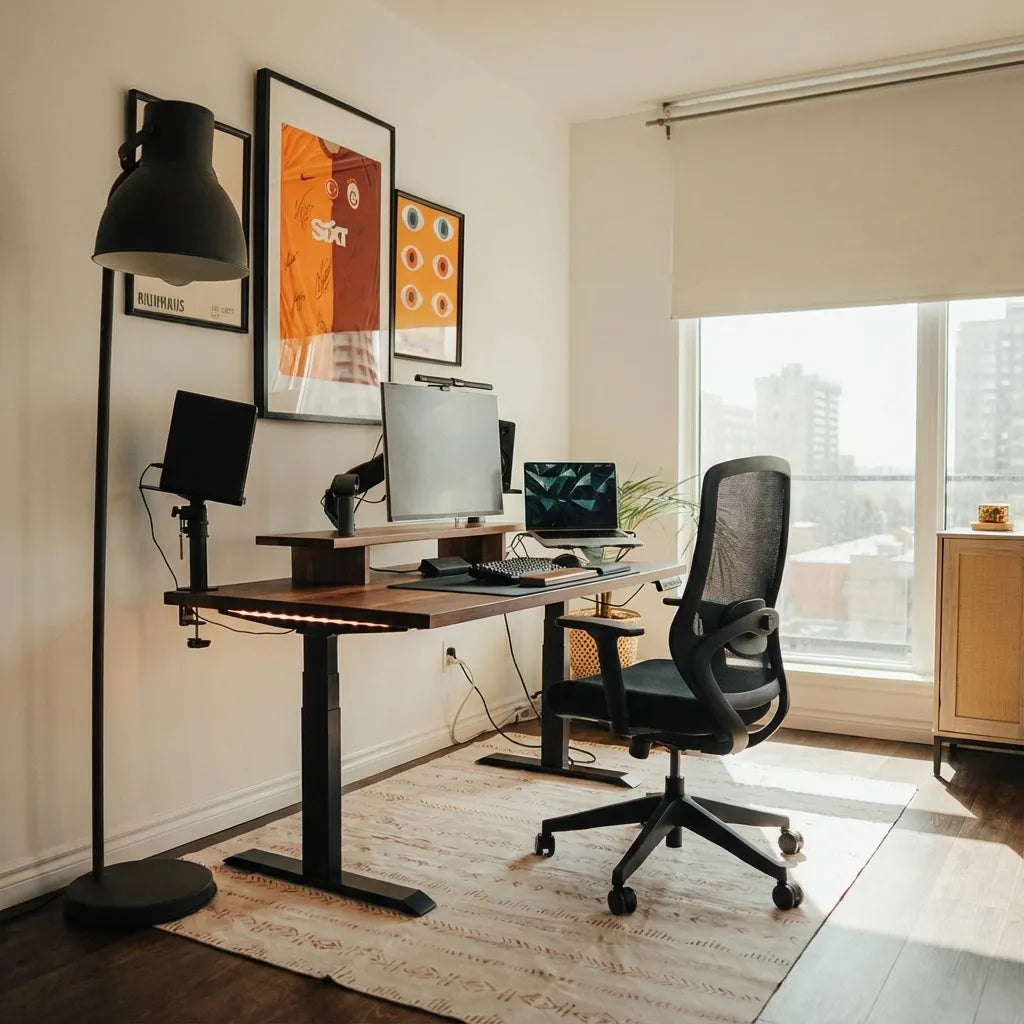
The Canadian Centre for Occupational Health and Safety advises placing the monitor used most directly in front of you and positioning the secondary monitor to one side at an angle. When both are used equally, the screens should sit in front of you with adjacent edges and form a shallow semicircle.
This makes the first decision simple: identify where your eyes spend most of the workday. The screen holding your document, design canvas, code editor or other main task should normally be primary. Email, chat, reference material and preview windows often work well on the secondary screen.
When the second monitor works better on the right
- Your application naturally opens tools or reference panels on the right.
- The right side of the desk has more clearance for an arm, stand or monitor edge.
- A wall, window or shelf limits movement on the left.
- You frequently drag items from a primary screen toward a right-hand workflow.
- Your secondary tasks happen to feel more natural on that side.
Right-handed mouse use does not automatically mean the second display belongs on the right. In fact, a screen placed too far right can compete with the mouse area. Keep enough room for the forearm and pointer movements, especially on a shallow desk.
When the second monitor works better on the left
- You keep communication, research or reference windows to the left of the main task.
- The left side has better physical clearance or less glare.
- Your computer, docking station or cable path is easier to manage there.
- You use a right-hand mouse and want the secondary screen away from the mouse zone.
- Your room layout makes a right-side screen feel crowded.
Again, these are practical reasons, not fixed ergonomic laws. Choose the side that minimizes repeated rotation and keeps both screens readable without leaning.
What if you use both monitors equally?
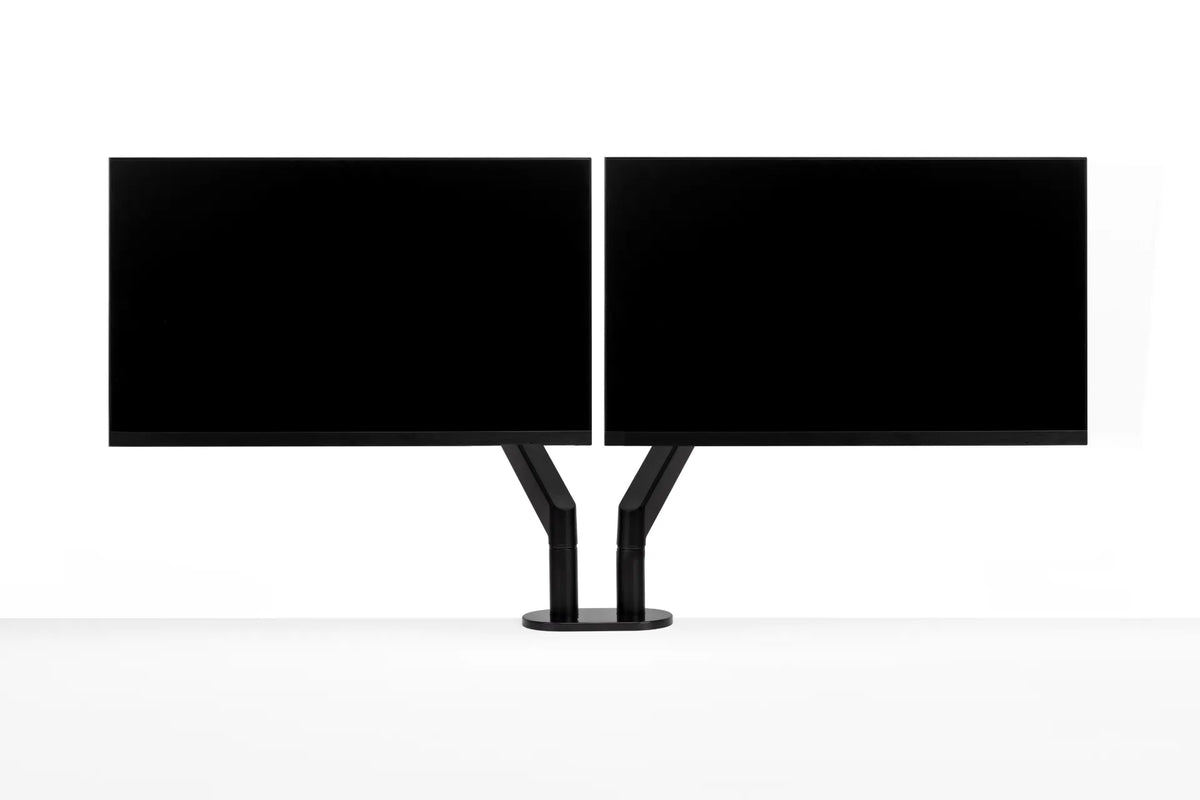
Centre the seam between the two displays with your body and keyboard. Angle each screen inward so both face you, creating a gentle arc. The screens should be at similar height, distance and tilt. This arrangement shares head movement between both sides instead of making one side do all the work.
If the monitors differ in size or resolution, align the areas you actually view rather than forcing the outer frames into perfect symmetry. Burotic's guide to aligning dual monitors explains how to handle mismatched screens.
How far to the side is too far?
The United States Occupational Safety and Health Administration notes that a monitor placed far to one side can load the neck unevenly. Its workstation guidance recommends keeping displays within a comfortable side-to-side viewing angle and the primary screen directly in front.
Use symptoms as a setup warning, not as a diagnosis. If you repeatedly turn the shoulders, lean toward one display or finish the day with one-sided fatigue, bring the secondary screen closer and increase interface text if needed. Persistent pain should be assessed by a qualified health professional.
A five-step placement method
1. Set the chair and keyboard first
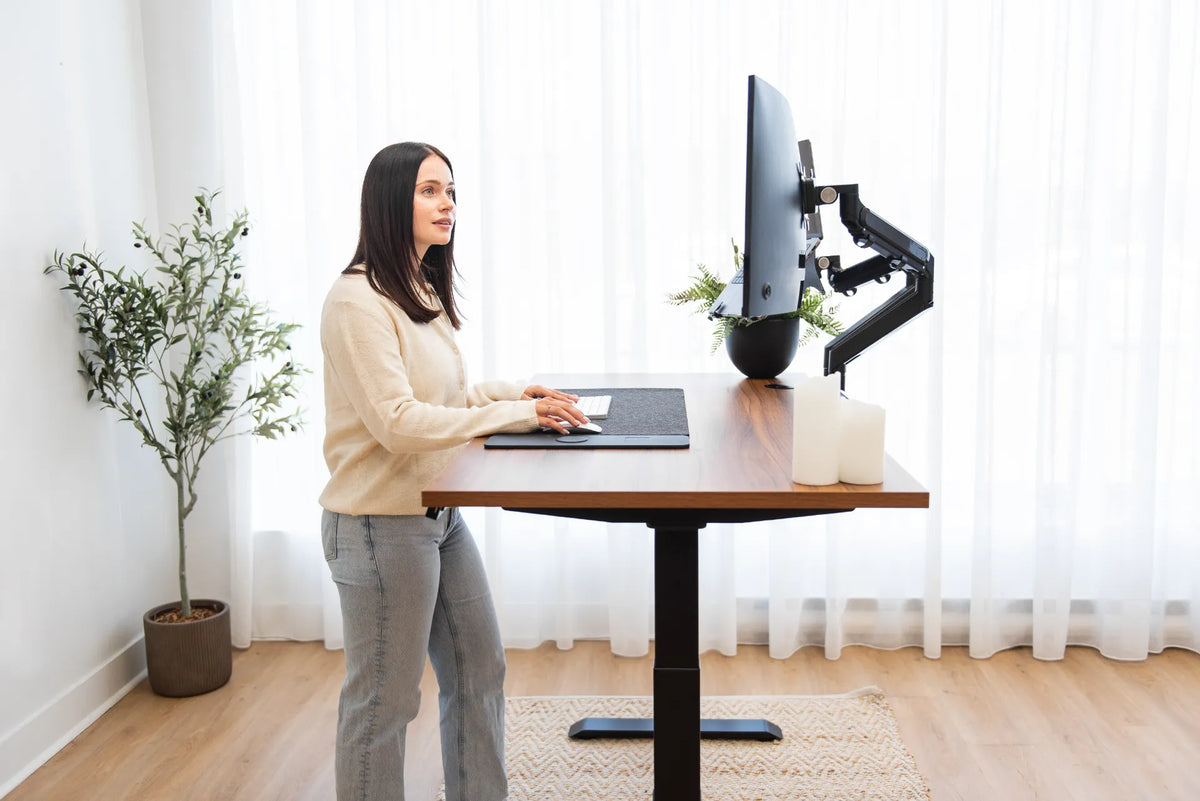
Centre your chair on the keyboard area and keep the mouse close. Your body position should define the workstation centre, not the edge of the desk.
2. Centre the primary display
Place your most-used screen directly in front of your nose and torso. The top of the visible screen is commonly at or slightly below eye level, with individual adjustment for corrective lenses and comfort.
3. Add the second screen beside it
Put the inside edges close together and angle the secondary display toward you. Avoid a large gap that requires extra eye and neck travel. See the guide on how much gap to leave between dual monitors.
4. Test both sides
Work for a short period with the secondary display on each side. Track how often you turn, which windows you move and whether glare changes. A ten-minute real-task trial reveals more than handedness alone.
5. Save the final layout
Set the operating system arrangement to match the physical screens so the pointer crosses the correct edge. Keep frequently used secondary windows near the inner edge rather than at the far outside corner.
Use and task type can change the answer
A developer may keep code centred and documentation to one side. A designer may centre the canvas and place palettes on the secondary display. A customer service worker may use two applications equally and benefit from centring the seam. A video editor may place the timeline on the primary display and a preview on the side that provides the cleanest sight line.
If you switch primary tasks during the day, software window layouts can reduce physical repositioning. Move the main application to the centred screen rather than rotating toward a side screen for hours.
Monitor arms make side changes easier
A stand can work well when the geometry is fixed, but independent arms provide more control over height, distance and angle. Burotic's Monitor Arm is available in configurations that include single and dual options on its current product page. Check your monitors' compatibility and desk mounting space before choosing.
If you are still choosing between support types, compare a monitor stand and monitor arm. The right solution is the one that holds both screens securely in the viewing position you need.
Frequently asked questions
Should the larger monitor always be primary?
Not necessarily. The primary monitor is the one used for the task that occupies most of your focused time. A smaller screen can be primary if it has the clearest text, best colour accuracy or most important application. Size matters mainly because a large screen farther to the side may demand more head movement.
Should a laptop count as the second monitor?
Yes, if you use its display. Apply the same priority rule and raise the laptop when necessary so its screen is not dramatically lower than the main monitor. Use an external keyboard and mouse when the laptop is elevated, so screen placement does not force an awkward hand position.
How often should I reconsider the side?
Recheck after changing desks, monitor size, chair position or primary software. A layout that worked for one job may create unnecessary turning for another. Small seasonal changes in window glare can also make the opposite side more comfortable.
Bottom line
There is no universally correct side for a second monitor. Put the main screen directly in front, then choose the left or right side that minimizes turning, glare, cable conflict and interference with your input devices. For equal use, centre the pair. For unequal use, centre the primary display. Test both arrangements with real work, then refine distance, height and angle.

Previous article
Can You Put a Custom Desktop on a Standing Desk Frame?
Next article
Can You Put a Custom Desktop on a Standing Desk Frame?