




Where Should You Place an Anti-Fatigue Mat at a Desk?

In this article
Place an anti-fatigue mat directly in front of the keyboard and monitor, centred on the spot where you naturally stand. Your feet should land fully on the mat without forcing you to lean toward the desk. Keep every edge flat, visible, and clear of chair casters, desk feet, and walking paths.
The mat should support your standing position, not define it too narrowly. Leave enough usable surface to shift weight, change stance, and take a small step. When you return to sitting, move the mat out of the chair's path unless the product and layout are specifically designed to accommodate both.
Find your real standing zone first
Raise the desk to a comfortable working height before placing the mat. Stand with your shoulders relaxed, elbows near your sides, and hands reaching the keyboard without stretching. Mark the position of your heels and toes mentally, then centre the mat under that zone.
Do not simply align the mat with the front edge of the desk. A deep desktop, monitor arm, keyboard tray, or large chair can change where your body actually belongs. Placement should follow your posture and reach, not the furniture outline.
How far under the desk should the mat go?
Slide the mat far enough under the front edge that you can stand close to the keyboard while keeping your whole foot supported. In many setups, the front third of the mat remains outside the desk and the rest extends beneath the work surface. The exact amount depends on mat depth and desk geometry.
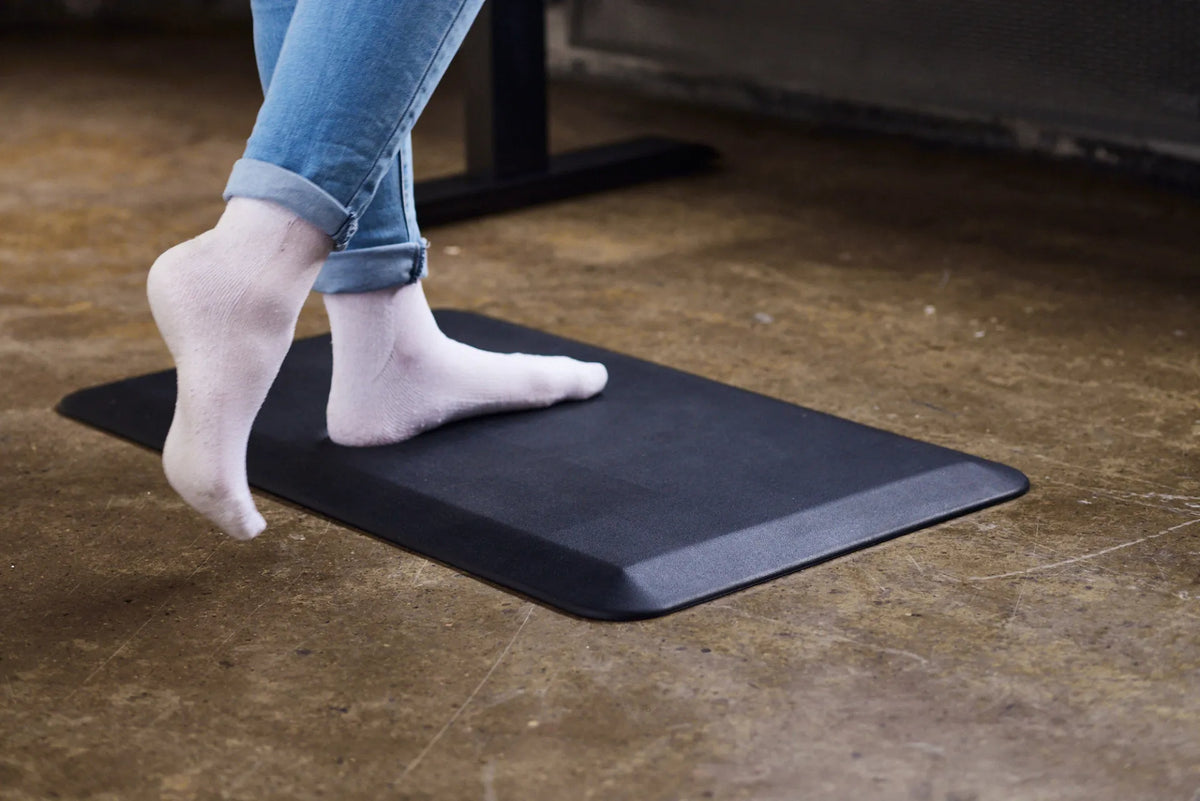
Check that the mat does not rest on a desk foot or crossbar. A raised corner can become a trip hazard and may make the mat rock. The featured photo shows a black rectangular mat under the front edge of a light wood desk, with a person standing in brown loafers. The desk legs remain outside the mat and the edges lie flat on the floor.
Keep the keyboard and monitor aligned with the mat
The centre of the mat should usually line up with the centre of your primary working area. If the keyboard is centred but the monitor is far to one side, your feet may face forward while your head rotates. Fix the screen and input-device alignment rather than twisting on the mat.
On an L-shaped desk, place the mat at the section you use for focused computer work. If you move frequently between two sides, one larger mat may not be the safest answer. You may need a mat that is easy to reposition, provided its edges remain flat each time.
Do not put a mat in a walkway
CCOHS warns that mats can create tripping and falling hazards when installed improperly. Keep the mat inside the workstation footprint rather than extending it into a doorway, shared aisle, or route to storage. Bevelled or sloped edges can reduce the chance of catching a toe, but they do not make a poor location safe.
Check the floor underneath. Dust, moisture, or a very smooth surface can allow the mat to slide. The mat should remain stable when you step on and off. If it creeps during use, stop and correct the floor or mat compatibility rather than relying on your foot to push it back.
Make sitting and standing transitions easy
A common problem is leaving the mat where the chair needs to roll. Casters can catch the edge, compress the material, or make the chair unstable. Before lowering the desk, move the mat to a consistent storage spot beside or under the workstation where it stays flat.
Choose a storage movement that does not require awkward lifting. Some users slide a light mat with one foot, while others stand it against a nearby wall. Follow the product's care instructions and avoid folding a mat that is intended to remain flat.
Do you need a larger mat?
A mat should be large enough for natural weight shifts but not so large that it blocks the chair or walkway. Our guide to anti-fatigue mat size explains how to compare mat dimensions with your stance and desk width.
Placement does not replace movement
An anti-fatigue mat is one part of a standing setup. CCOHS advises organizing work so people can change position frequently, and notes that footwear and flooring also affect comfort. Standing still for a long period can remain tiring even on a supportive surface.
Alternate between sitting and standing, take short steps, and vary tasks. If you feel pain, numbness, swelling, or persistent discomfort, stop and seek appropriate professional advice. General workstation guidance is not medical treatment.
Check footwear and floor conditions
Supportive footwear can complement a mat. Very soft shoes on a very soft mat may feel unstable, while hard soles on concrete can feel unforgiving. Test the combination you actually wear during work.
CCOHS recommends level, non-slip floors for standing work. Inspect the mat regularly for curled edges, tears, compressed areas, or contamination. Clean it according to the manufacturer's instructions. Read our guide on anti-fatigue mat thickness before assuming a thicker mat will be more comfortable.
Match the mat to a height-adjustable desk
Set the standing desk height after stepping onto the mat, since the mat may raise you slightly. Keep the keyboard and mouse near standing elbow height and the monitor at a comfortable viewing angle. Recheck these settings whenever you change footwear or move the mat.
Burotic's anti-fatigue mat is designed as a standing-work accessory. Confirm the current product details on its page and compare its dimensions with the clear floor area at your desk. For the work surface itself, browse Burotic's standing desk collection.
A five-point placement check
- The mat is centred on the keyboard and primary screen.
- Both feet fit fully while you stand at a relaxed reach distance.
- No edge sits on a desk leg, cable, rug, or uneven floor joint.
- The mat does not extend into a walkway.
- The chair has a clear path when you sit.
Repeat this check after moving furniture or changing desk height. A mat that worked in one layout may create a hazard in another.
Test the placement during a normal work cycle
Do not judge the mat only during a thirty-second trial. Use it through a real standing interval, step away for a short task, return to the keyboard, and then transition back to the chair. Notice whether you repeatedly step off an edge, push the mat forward, or catch it with a caster. Those patterns show that the location, size, or storage routine needs adjustment. The best placement feels predictable and does not require you to watch your feet every time you change position.
Bottom line
Centre the anti-fatigue mat where you naturally stand to use the keyboard and primary monitor. Slide it far enough under the desk to support your whole foot without touching the desk feet. Keep its edges flat and out of traffic, then move it clear of the chair when sitting.
A well-placed mat supports movement and comfort. It should never lock you into one spot or introduce a new trip hazard.
Sources
- CCOHS: Anti-fatigue Mats, fact sheet confirmed current January 25, 2022.
- CCOHS: Working in a Standing Position - Basic Information, revised November 30, 2022.
- CCOHS: Office Ergonomics - Sit/Stand Desk.
Previous article
Where Should You Place a Lamp to Reduce Screen Glare?
Next article
How High Should Your Keyboard and Mouse Be at a Standing Desk?