





How Much Desk Depth Do You Need for a Monitor Arm?

In this article
A monitor arm does not come with one universal desk-depth requirement. For many single-screen setups, a 24-inch-deep desk can work, while a 30-inch-deep desk usually offers more flexibility for larger screens, deeper keyboards, and a wider range of viewing distances. The right choice depends less on the arm itself than on where the screen must sit relative to your eyes and how the arm moves behind or above the work surface.
Before buying an arm or desk, check five measurements: usable desktop depth, preferred viewing distance, screen depth, mounting-edge clearance, and the space available behind the desk. This prevents a technically compatible mount from creating an uncomfortable or impractical setup.
Desk depth and usable depth are not the same
Published desk depth is measured from the front edge to the back edge. Usable depth is the part left after accounting for a wall, cable tray, grommet, monitor-arm clamp, desk mat, keyboard, and any front-edge curve. A 24-inch desktop may provide less than 24 inches between your typing position and the screen.
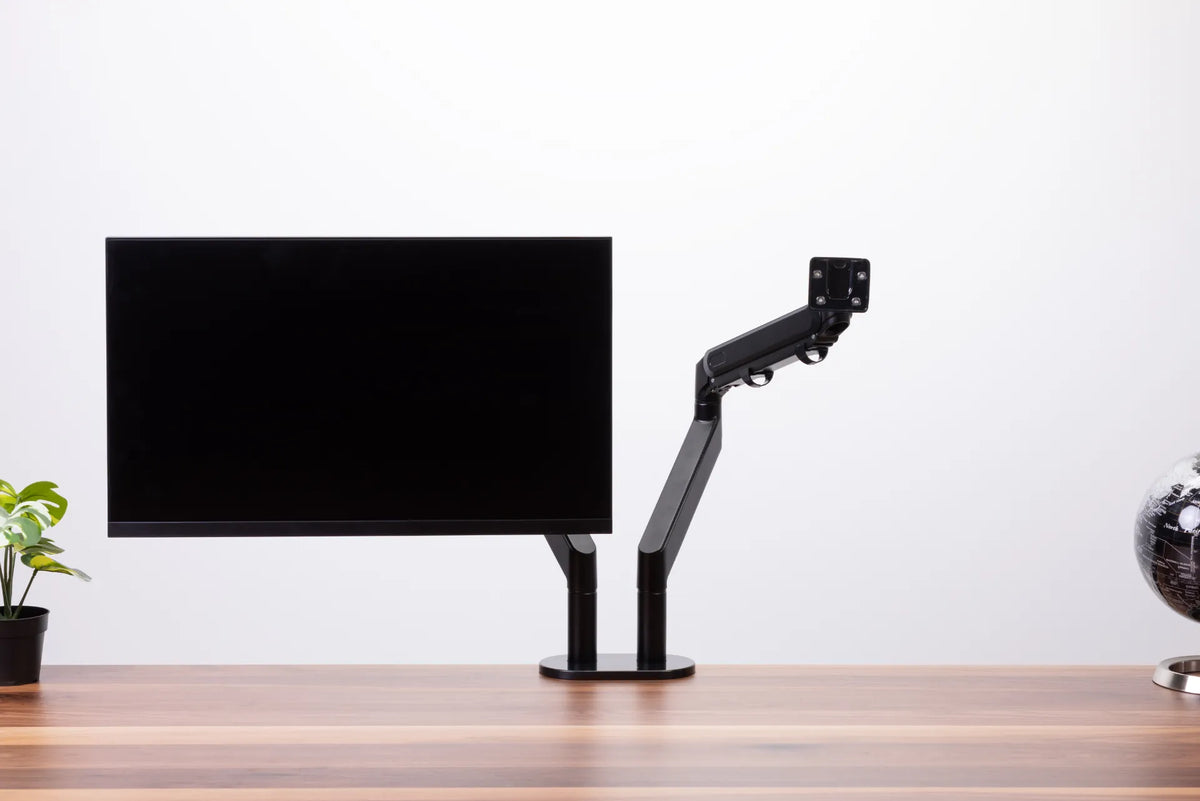
The monitor arm can recover some surface area by removing the standard monitor base, but it cannot change the distance your eyes need. It may also require the desk to sit slightly away from the wall so the arm and cables can move.
A practical starting point by desk depth
24-inch depth
A 24-inch desk can suit a laptop, a compact keyboard, and many single monitors when the arm allows the display to sit near the back edge. It is most successful when the screen is not unusually deep, the user can read comfortably at a moderate distance, and the clamp does not force the desk far from the wall.
Measure carefully if you use a large screen, a full-size keyboard with wrist rest, drawing equipment, or speakers. These can consume the front-to-back space quickly. For a broader comparison, see Burotic's 24 vs. 30-inch desk depth guide.
30-inch depth
A 30-inch desk gives more freedom to position a 27-inch or 32-inch display, move the keyboard forward or backward, and maintain a clear writing zone. It can also be easier for a monitor arm that sweeps behind the desk. The extra depth does not mean the screen should automatically be pushed to the rear. Bring it forward if text becomes too small or if you lean toward the screen.
Shallower than 24 inches
Shallow desks can still work, but compatibility becomes more sensitive to the exact screen and arm. A slim monitor, compact keyboard, and arm with controlled depth adjustment help. Consider interface scaling so text remains readable at the position the desk permits. If the arm pushes the screen too close, a wall mount or a different room layout may be more suitable, provided installation is permitted and safe.
Start with viewing distance, not the clamp
OSHA says a desk should allow the monitor to be viewed from at least 20 inches, or about 50 centimetres, and still support an appropriate viewing angle. CCOHS notes that viewing distance depends on factors such as character size, screen size, resolution, and the user's visual abilities. Larger wide displays may need to sit farther away to limit neck rotation.
Measure from your normal eye position to the screen surface, not from the front edge of the desk. Sit in your working posture with the keyboard and mouse where you use them. Ask someone to measure, or mark the eye position with a temporary reference. Then position the monitor so text is clear without leaning forward.
Burotic's monitor distance guide explains how to fine-tune this measurement. If you are choosing between common sizes, the 27 vs. 32-inch monitor desk-depth comparison adds screen-specific planning.
Check the mounting edge
Most desk-mounted arms use a clamp at the back edge or a bolt through a grommet hole. Compatibility depends on the arm's specifications and the desk construction. Before installation, verify:
- the allowed desktop thickness;
- the amount of flat surface required above and below the clamp;
- whether an apron, frame rail, cable tray, drawer, or crossbar blocks the clamp;
- whether the desktop material and construction are approved for the concentrated load;
- whether the chosen position leaves space for cables and full desk movement.
Do not assume that a thick-looking edge is solid. Some desktops use hollow or lightweight construction that may require specific reinforcement or may not be suitable for a clamp. Follow the arm and desk manufacturers' instructions. Do not improvise with unapproved fasteners.
Allow space behind the desk
An articulated arm may extend behind the mounting point when you pull the screen closer. If the desk is tight against a wall, the elbow of the arm can hit the wall and push the monitor forward. Measure the arm's rearward envelope through the positions you plan to use.
You do not always need a large gap. Some arms can be configured so their joints sweep sideways or remain over the desktop. The exact requirement comes from the product geometry, not from desk depth alone. Test movement slowly before committing to the final desk position.
Account for monitor size and orientation
A larger screen is wider, but its stand-off depth and viewing needs also matter. A curved display can project farther toward the user. A vertical display can be easier to fit horizontally but needs enough height adjustment so the top does not sit above a comfortable range. CCOHS advises keeping the top of a tall or portrait monitor no higher than the user's eye level.
With two monitors, desk depth must support both viewing distance and the inward angle between screens. If one screen is primary, centre it and place the secondary display beside it. If both are used equally, position them in a shallow arc with their meeting point in front of you. A dual-arm assembly may have a larger rear sweep than a single arm.
Preserve room for the keyboard and hands
Desk depth is not only a monitor measurement. You need room for the keyboard and mouse at a distance that keeps shoulders relaxed and elbows close to the body. A deep desk is not useful if the keyboard is pushed far away to make the surface look clear. Likewise, a shallow desk can feel cramped if a large monitor base, speakers, and documents all occupy the same zone.
A monitor arm can free the base footprint and make it easier to place the keyboard under the visual centre of the screen. The Burotic Monitor Arm page provides the current product details to check against your monitor and desktop before purchasing.
Measure your setup in six steps
- Measure the desktop from front to back and note any curved or bevelled edges.
- Place the keyboard and mouse where your shoulders and wrists feel neutral.
- Measure from your eyes to the intended screen plane.
- Inspect the back edge above and below for rails, trays, drawers, and thickness changes.
- Measure the space between the desk and wall through the arm's expected movement.
- Check the monitor weight, mounting pattern, and size against the arm's current specifications.
Use temporary tape to mark the screen plane and clamp location. This simple mock-up makes it easier to see whether the display will crowd the keyboard, whether the arm will hit the wall, and whether cables can move without tension.
Common planning mistakes
Choosing depth by screen diagonal alone: two monitors with the same diagonal size can have different curve, housing depth, resolution, and comfortable viewing distance.
Ignoring the underside of the desk: a frame rail or cable tray can block an otherwise perfect clamp position.
Forgetting arm movement: compatibility in one static position does not guarantee clearance when the screen moves.
Assuming the arm fixes a shallow desk: an arm frees surface area, but it cannot create a safe mounting edge or guarantee comfortable viewing distance.
Leaving cables tight: power and video cables need enough slack for monitor adjustment and, on a standing desk, the complete height range.
So, how deep should the desk be?
Use 24 inches as a workable starting point for many compact single-monitor arrangements and 30 inches when you want more flexibility for larger screens, writing space, or wider arm movement. These are planning ranges, not medical or technical guarantees. Your measured eye-to-screen distance and the arm's mounting geometry decide the final fit.
A good monitor-arm setup keeps the screen clear and centred, protects space for the keyboard and mouse, and moves without hitting the wall or pulling cables. Measure the complete system before buying, then make small adjustments after installation.

Previous article
How to Organize a Home Office Desk Without Losing Work Space