


What Desk Width Do You Need for Two Monitors?

In this article
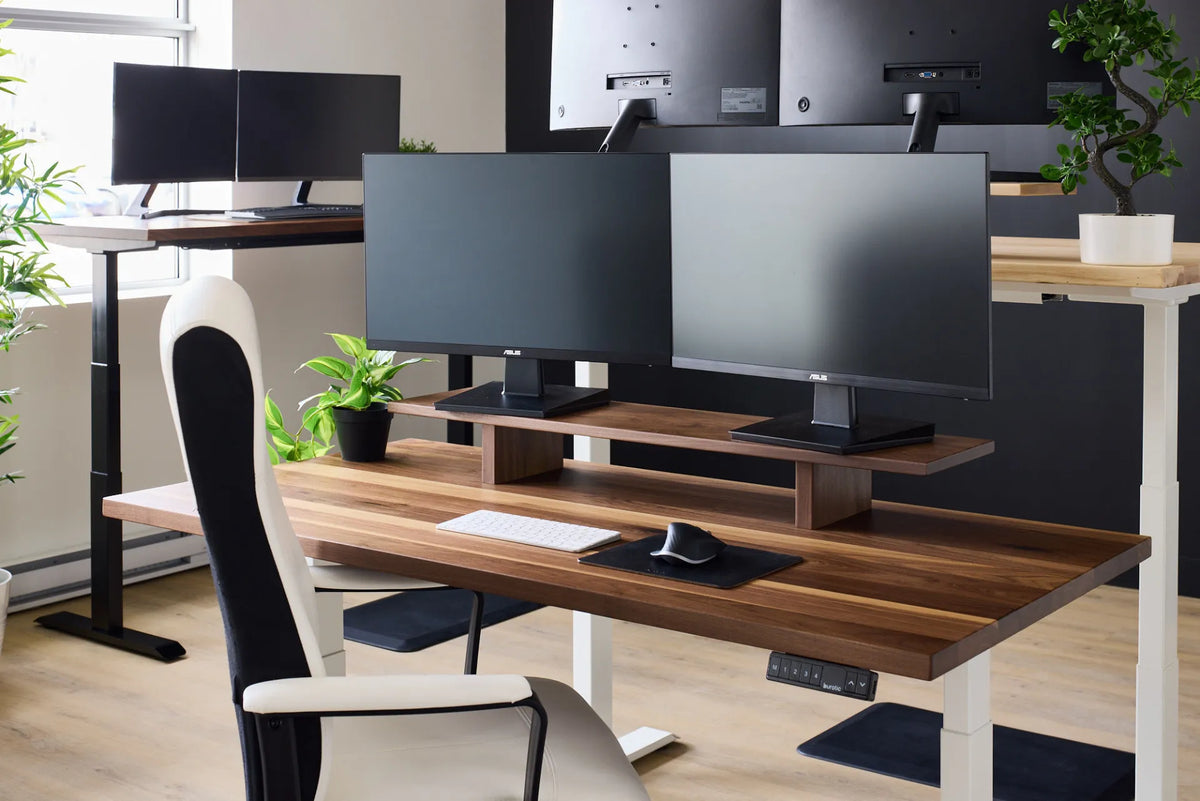
Most two-monitor workstations fit best on a desk that is 60 inches wide, but screen size and the way you use the displays matter more than a single rule. A 48-inch desk can work with two compact monitors, especially on a dual arm. A 60-inch surface gives most people a comfortable balance of screen room and clear work space. A 72-inch desk is useful when the monitors are large, the computer tower stays on the surface, or you also need room for documents, speakers, or creative tools.
The right measurement is not simply the combined diagonal size printed on the monitor boxes. You need to account for the actual screen widths, the gap or overlap between them, their inward angle, the stand or arm, and the space needed for your keyboard and mouse. Measure the complete setup before choosing a desk.
Quick answer: 48, 60 or 72 inches?
- 48 inches: workable for two smaller displays when the setup is compact and the desk has little else on it.
- 60 inches: the most versatile starting point for two typical office monitors, a keyboard, mouse and a modest amount of side space.
- 72 inches: useful for larger screens, wider speaker placement, paperwork, a laptop beside the displays, or equipment that must remain on the desktop.
These are planning ranges, not guarantees. A pair of monitors with broad feet can occupy more surface than larger screens supported by one central arm. A curved display can also need more depth and a different angle. The best choice comes from measuring the physical equipment and testing how you will look between the screens.
Measure the two monitors correctly
Use actual width, not diagonal size
Monitor size is measured diagonally. Two 27-inch monitors are not 54 inches wide. The exact width depends on the aspect ratio and bezel, so check the manufacturer's physical dimensions or measure the screens from outer edge to outer edge. Add the two widths, then decide whether the displays will sit flat, form a shallow curve, or overlap slightly from your point of view.
For a rough planning exercise, place painter's tape on a table or floor to represent the proposed desktop. Mark the screen widths and the centre of your sitting position. This makes it easier to see whether the outer edges force excessive head movement before you buy a surface.
Include the stands or arm footprint
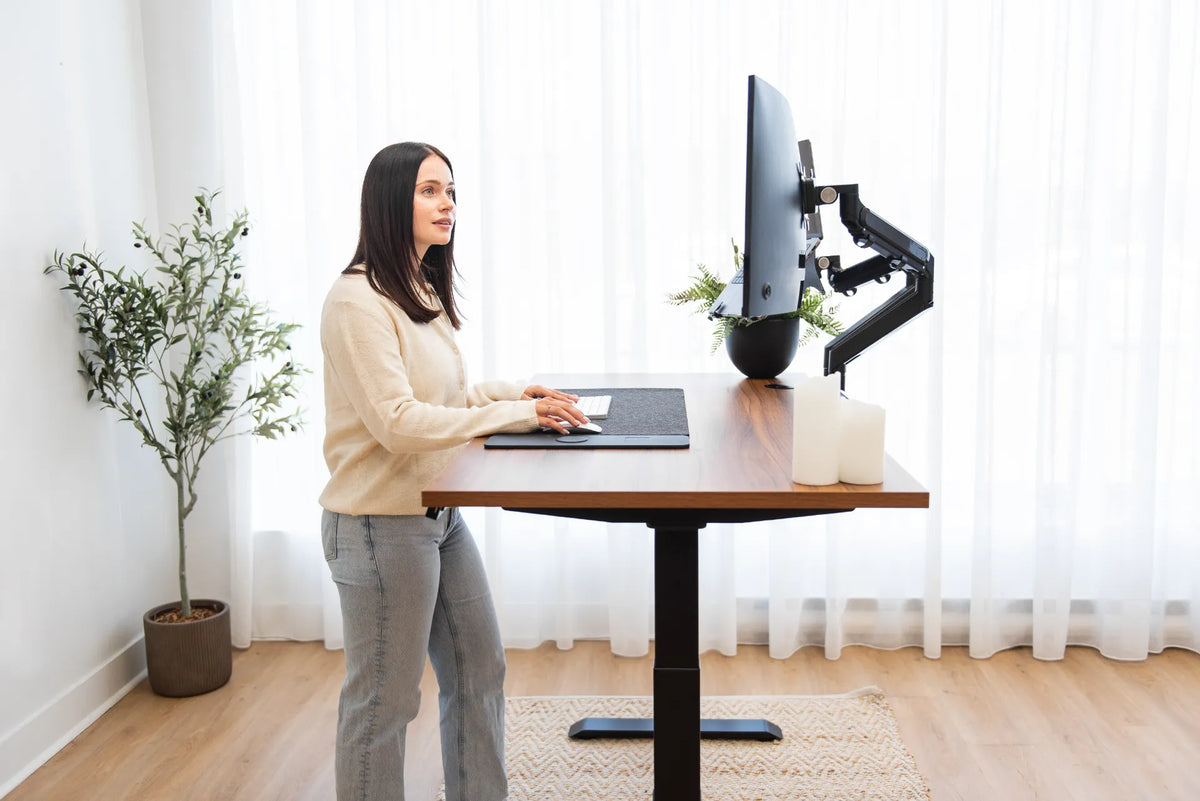
Two factory stands may need a surprising amount of width and depth. Their feet can interfere with a notebook, speakers, or the mouse area even when the screens themselves fit. A monitor arm can lift the screens off the surface and consolidate the support point, but the desk edge, desktop thickness, screen weight, mounting pattern, and arm capacity must all be compatible.
An arm does not make every small desk suitable. The screens still occupy visual width, and the arm may project behind the desk when the monitors are pulled closer. Leave clearance from the wall and enough cable slack for all intended positions.
How wide should the desk be for common setups?
Two 24-inch monitors
A well-planned 48-inch desk can often support two 24-inch monitors, particularly with slim bezels and a dual arm. It is a compact choice for a small room, but the margin at each side may be limited. If you keep a laptop, notebooks, or speakers beside the displays, a 60-inch desk is more forgiving.
Two 27-inch monitors
For two 27-inch monitors, 60 inches is a practical starting point. It generally leaves enough room to angle the screens and keep the main input devices centred. Choose 72 inches if you want substantial writing space beside the keyboard or if the stands are wide. Before settling on the width, also review 24 vs. 30-inch desk depth, because screen distance can be just as limiting as width.
Two 32-inch monitors
Two 32-inch screens create a broad visual field. A 72-inch desk is usually easier to arrange, and generous depth becomes important. If the screens are used equally, you may centre the seam between them. If one is primary, centre that display and place the second at an inward angle. Do not push both far to the side simply to make the bases fit.
A monitor plus a laptop
A laptop beside an external monitor can use less width than two full-size monitors, but the open laptop still needs a stable position and an appropriate viewing height. If the laptop is only a secondary display, a stand or compatible arm can recover space below it. Use an external keyboard and mouse when raising the laptop so the input devices remain at a comfortable height.
Width is only half of the decision
Desk depth determines how far the screens can sit from your eyes and how much room remains for the keyboard. The Canadian Centre for Occupational Health and Safety says an arm's length is a useful initial estimate for monitor distance, adjusted for the user and the screen. OSHA recommends placing the monitor directly in front of the user and at least 20 inches away as a starting point.
With two displays, you also need room to form a shallow arc. A narrow desk may force the screens too close even when there is enough horizontal width. A deeper surface, or an arm that lets the screens move backward safely, can make a larger difference than adding a few inches of width.
Centre the setup around the way you work
If one monitor is primary
Place the primary monitor directly in front of your body and angle the secondary monitor toward you. Keep the screens close together to limit repeated side-to-side movement. Put frequently used windows on the primary display and occasional reference material on the secondary one.
If both monitors are used equally
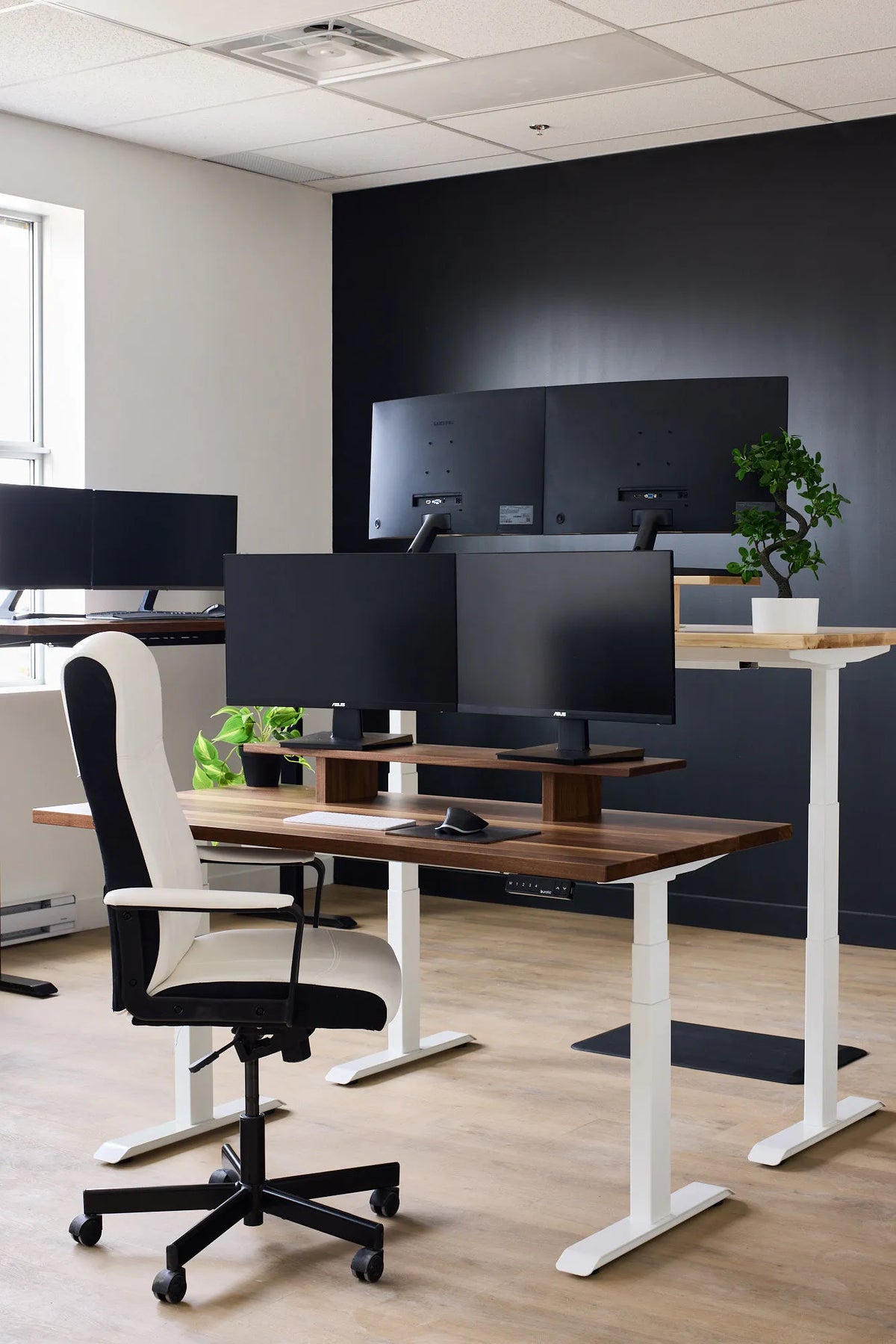
Place the inner edges together and centre the seam in front of you. Angle both screens slightly inward so their surfaces are at a similar viewing distance. This arrangement works best when the monitors match in size and height, but matching is not mandatory. Burotic's guide to using dual monitors of the same or different sizes explains the tradeoffs.
If the second monitor is occasional
Keep the main screen centred and place the occasional display farther to the side. Turn your chair when working on it for more than a brief glance instead of holding your neck rotated. If the second screen is rarely used, ask whether the desk space would be more valuable for another task.
Allow room for the keyboard, mouse and real work
A desk is not merely a monitor shelf. Reserve a central keyboard and mouse zone that lets your elbows remain near your sides. Leave enough mouse travel for your normal sensitivity settings. If you work with paper, protect one uninterrupted area rather than relying on small gaps between stands.
Also decide where charging devices, a mug, speakers, and the computer will live. Equipment used occasionally can move to a shelf or drawer. A tower may fit below the desk if ventilation, cable length, and movement are addressed. For broader size planning, compare 48, 60 and 72-inch standing desks.
When a 48-inch desk is enough
A 48-inch desk can be a smart choice when the room is small, the monitors are compact, and most work is digital. It works best with slim bezels, a compact keyboard, minimal speakers, and a well-fitted monitor arm. Measure the outer screen span and make sure the clamp or grommet location does not conflict with the frame below the top.
Do not choose 48 inches only because the screens technically fit. If your mouse repeatedly falls off the pad, papers cover the keyboard, or the outer screen forces prolonged neck rotation, the setup is too crowded for your task.
When 60 or 72 inches is worth it
Choose 60 inches when you want a flexible general-purpose two-monitor desk without dedicating an entire wall to it. Move to 72 inches when screens are large, the workstation supports several task types, or you want clear space that does not need to be rebuilt each time you write, draw, or review paper.
Room size still sets the limit. Measure doors, baseboards, heating units, and chair clearance. The Burotic standing desk collection provides several configurations, but the useful choice is the one that fits both the equipment and the circulation around it.
A simple pre-purchase checklist
- Measure the actual outside width of both screens.
- Record the stand footprints or monitor-arm mounting requirements.
- Choose whether one screen is primary or both are equal.
- Confirm viewing distance, wall clearance, and cable slack.
- Reserve a centred keyboard and mouse area.
- Add the width needed for documents, speakers, or a laptop.
- Mark the full desktop dimensions in the room before ordering.
For most people, 60 inches is the safest starting point for two monitors. A compact 48-inch desk can work with disciplined equipment choices, while 72 inches gives larger screens and mixed tasks more breathing room. Measure the complete workstation rather than shopping from monitor diagonals alone.
Previous article
How Much Desk Depth Do You Need for a Monitor Arm?
Next article
Do You Need Armrests on an Office Chair?