





Desk Power Bar Setup: Safe Placement and Cable Planning

In this article
A desk power bar can make a workstation easier to use, but the best location is not simply the place that hides the most cable. It must keep the plugs accessible, protect cords from movement and preserve enough slack for every height of an adjustable desk. It must also be appropriate for the equipment connected to it and carry a recognized Canadian certification mark.
This guide covers how to plan outlets, USB connections and cable routes for a home or business office in Canada. It focuses on low-power office equipment such as monitors, laptops and chargers. Always follow the ratings and instructions on the electrical product and the connected equipment. If an outlet, plug or cord is damaged, hot, loose or discoloured, stop using it and consult a qualified electrician.
Quick answer: where should a desk power bar go?
For a fixed desk, place the power bar where plugs can be reached without forcing cords across walkways or under rugs. For a standing desk, mount or position it so the bar and most device cables move with the desktop. Then leave one controlled power lead with enough slack to reach the wall at the desk's highest position without pulling, rubbing or catching on the frame.
An on-desk position prioritizes frequent access to charging ports. An under-desk position prioritizes a clear work surface. Neither is automatically safer. The right choice depends on the power bar's intended mounting method, its certification and rating, the desk structure and how often you connect or disconnect devices.
Start with a power inventory
Before buying or mounting anything, list every device used at the desk. Separate equipment that stays connected from items charged occasionally. A typical workstation may include a laptop adapter, one or two monitors, a desk lamp, a phone charger and perhaps powered speakers. A desktop computer, printer or other equipment can change the load and the number of connections required.
Read the labels on the power bar and equipment. Health Canada advises consumers to check the product description for power, voltage and current ratings and to contact the seller when uncertain. Do not rely on the number of available sockets as evidence that every combination is appropriate.
Keep high-demand equipment separate
Portable electric heaters should never be plugged into a power bar or extension cord, according to Health Canada. Other high-demand appliances may also require a direct wall connection or a dedicated circuit. A desk power bar intended for office electronics is not a substitute for permanent wiring or for electrical planning by a qualified professional.
If the workstation repeatedly needs more connections than a suitable power bar provides, ask whether the room needs additional permanent receptacles. Adding one power bar to another, or using improvised adapters, can create an unsafe and hard-to-manage system.
Verify Canadian electrical certification
Health Canada states that electrical products that plug into an outlet must meet Canadian national safety standards and be certified by an accredited body. Look for a legitimate Canadian certification mark such as CSA, cUL or cETL on the product itself. A logo shown only in an online listing is not a substitute for the mark on the electrical product.
Ontario's Electrical Safety Authority also directs consumers to use approved products bearing a recognized mark. Requirements and enforcement can vary by province or territory, but the basic purchasing check is broadly useful across Canada: verify the certification, read the rating and use the product only as intended.
Certification is not the same as surge protection
A power bar and a surge protector are not interchangeable terms. Some bars distribute power without offering surge protection. If surge protection is important for your equipment, confirm that the product specifically provides it and review the manufacturer's specifications. Do not infer the feature from appearance, price or the presence of USB ports.
Protection devices also have limits and may require replacement after certain events or over time. Follow the manufacturer's instructions. For valuable equipment or a location with power-quality concerns, a qualified electrician or information-technology professional can help assess the appropriate solution.
Choose between on-desk and under-desk placement
On-desk power bar
An on-desk bar keeps frequently used charging ports and outlets visible. It can be useful when visitors connect laptops, when devices change regularly or when reaching under the desk is difficult. The tradeoff is surface space and a more visible cable path.
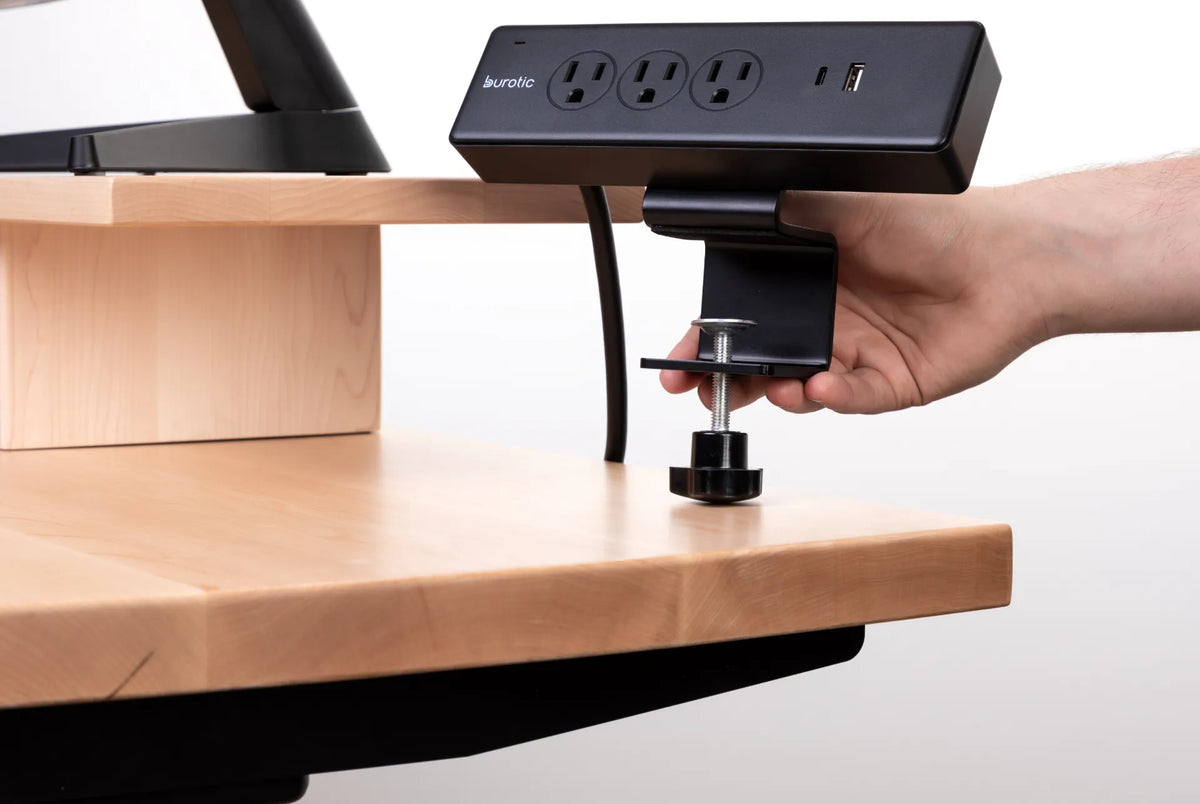
Place it away from drinks, the main hand movement area and the edge where it could be knocked. Use only the mounting or clamping method designed for the product. Do not drill into or modify electrical equipment. Confirm that the clamp fits the desktop thickness and does not interfere with the standing desk frame, reinforcement bars or controls.
Under-desk power bar
An under-desk bar lets monitors, computer adapters and accessories connect close to their devices while keeping the surface clear. It works especially well when the bar moves with an adjustable desktop. The main power cable can then become the only lead that travels from the moving desk to the wall.
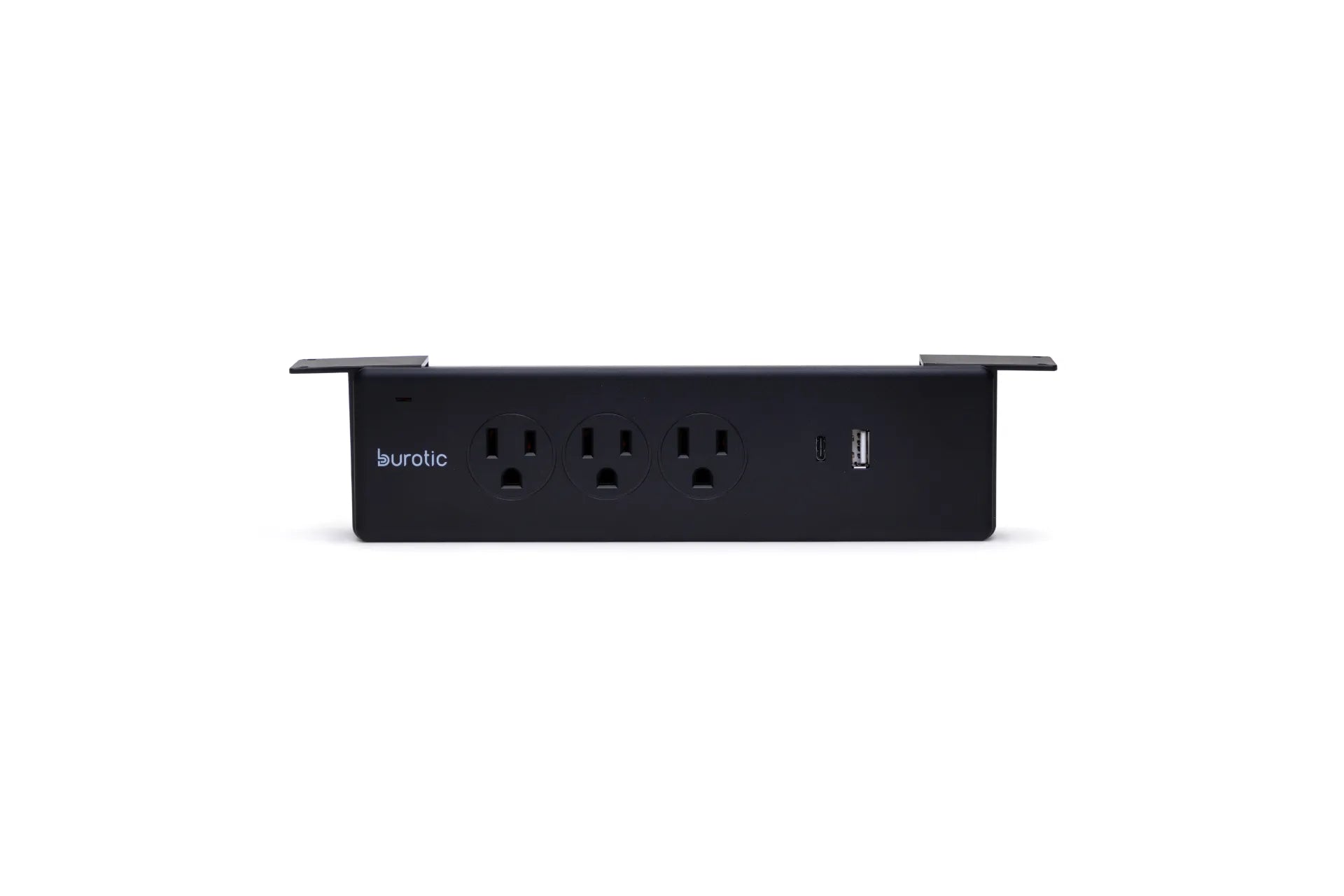
Mount it where plugs remain inspectable and reachable. Avoid trapping adapters against the frame or placing the bar where knees, drawers or moving components can strike it. The Burotic Power Bar is offered in on-desk and under-desk configurations, with three visible power outlets plus USB-C and USB-A connections. Confirm the selected configuration and all current specifications on the product page before ordering.
Plan for the full travel of a standing desk
Cable planning must be tested at both the lowest and highest positions. Raise the desk slowly while watching every cable. Nothing should tighten, drag across a sharp edge, enter the leg mechanism or pull a plug sideways. Lower the desk and verify that the extra length does not form loops near feet, casters or moving parts.
Leave a deliberate service loop in the main power lead. Secure the upper portion to the moving desk and guide the remaining length vertically toward the wall. The loop should be generous enough for full travel but controlled enough to stay clear. Recheck the route after moving the desk or adding equipment.
For a complete sequence, use Burotic's standing desk cable management guide. It explains how to separate fixed and moving zones before choosing trays, clips or sleeves.
Route cables without creating hidden damage
Do not run power cords under carpets, rugs or furniture where they can be crushed, overheated or damaged without being noticed. The Electrical Safety Authority specifically warns against this practice. Keep cords out of walkways and away from chair casters, sharp edges and pinch points.
Separate power routing from signal and accessory organization when practical. Label both ends of each cable before bundling. Use reusable ties loosely enough that cords are not compressed. Avoid fastening a cable directly across a joint or adjustment point.
Keep inspection possible
A perfectly hidden system can become difficult to inspect. Leave plugs, adapters and the power bar visible enough to check for damage, dust or heat. Unplug equipment by holding the plug rather than pulling the cord. Replace damaged components rather than repairing them with tape.
Schedule a quick check whenever the workstation changes. A new monitor, dock or charger may alter the load and cable path. The same applies after relocating the desk, reversing a frame component or adding a drawer.
USB-A and USB-C planning
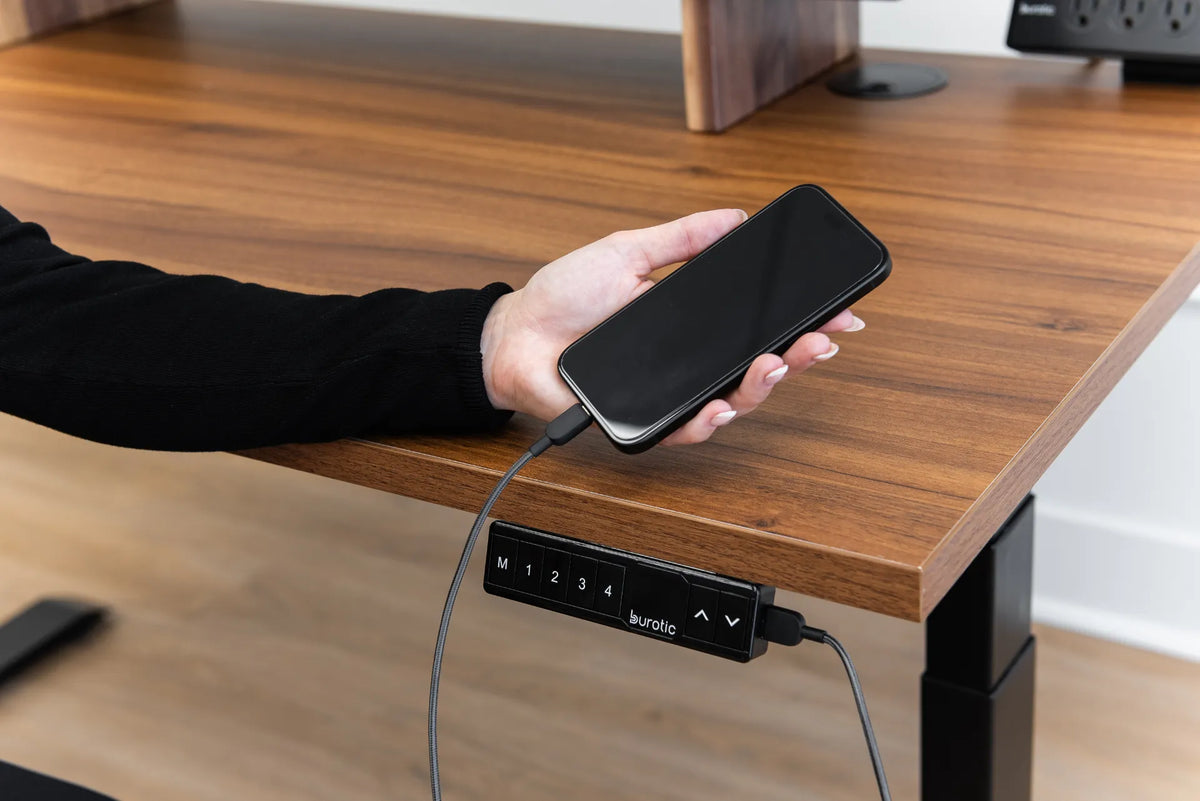
Built-in USB ports reduce the need for separate adapters, but the connector shape alone does not guarantee a specific charging speed or device compatibility. Check the stated output and the requirements of the phone, tablet, headphones or other device. A USB-C port can serve many functions across different products, so verify what the power bar actually supports.
Keep frequently used charging cables at the front or on the side of the desk. Route permanent device power below. This simple distinction reduces the temptation to disconnect monitors or crawl under the surface every time a phone needs charging.
A step-by-step installation check
- List the equipment: record every device, plug type and rating.
- Choose a certified product: verify the Canadian approval mark on the item.
- Select the position: decide whether daily access or a clear surface matters more.
- Check the structure: locate the frame, controls, reinforcement and any drawer.
- Dry-fit the power bar: confirm reach and clearance before fastening it.
- Connect permanent devices: keep adapters supported and plugs fully seated.
- Route the main lead: create controlled slack between the moving desk and wall.
- Test full travel: raise and lower the desk slowly while observing every cable.
- Inspect at working height: confirm legroom, access and freedom from pinch points.
- Recheck after one week: look for shifting clips, tension, heat or damaged insulation.
Common mistakes to avoid
- Daisy-chaining power bars: do not connect one bar to another to create more outlets.
- Connecting a portable heater: Health Canada says heaters must not use a power bar or extension cord.
- Hiding cords under a rug: damage can occur out of sight.
- Testing only at seated height: a standing desk may pull the lead tight when raised.
- Assuming every USB-C port is identical: verify output and compatibility.
- Blocking inspection: leave the product accessible enough to monitor its condition.
Build the power plan with the rest of the desk
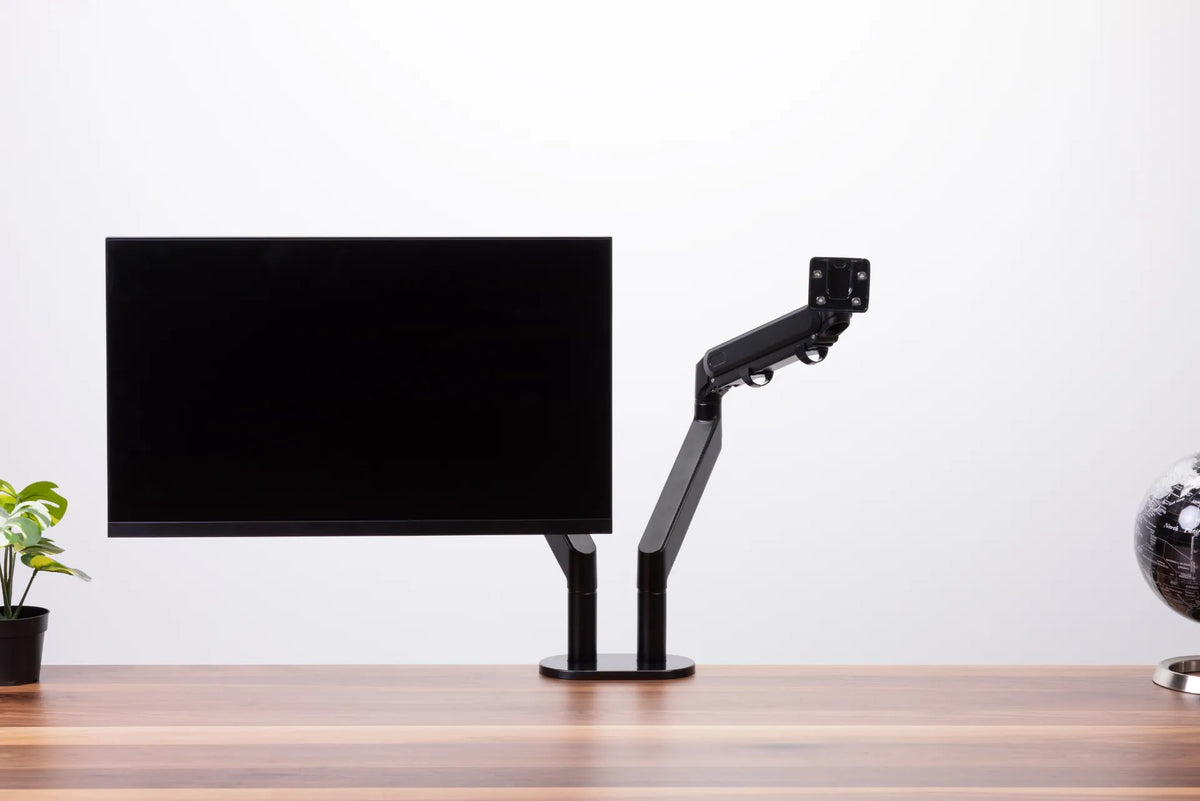
Power distribution, cable management and accessory placement should be planned together. A monitor arm may change where adapters sit. A drawer may occupy the best mounting area. A desktop computer may need a supported location that moves with the desk. Review Burotic's standing desk accessory guide before drilling or fastening components.
A good installation looks simple because the planning happened first. Count the connections, verify certification and ratings, choose a location that matches daily use, then test the desk through its full range. If the electrical requirements exceed an ordinary office setup, involve a qualified electrician.
Final checklist
Use a certified power bar with the right rating, connect only suitable office equipment, keep cords visible and protected, and leave controlled slack for desk movement. Never treat a power bar as permanent wiring. The Burotic Power Bar can help centralize common desk connections, while Health Canada's guidance on buying electrical products and electrical product safety, plus the ESA's list of recognized approval marks, provide important Canadian safety references.
Previous article
Minimalist Desk Setup Guide for Focused Work
Next article
Active Sitting Stool vs. Ergonomic Chair: Which Should You Use?