





Best Standing Desk Accessories: 8 Upgrades That Actually Help

In this article
The best standing desk accessories solve a real problem. They keep screens at a useful height, prevent cables from pulling as the desk moves, make standing more comfortable and reduce the small interruptions that clutter creates. The least useful accessories add visual noise without improving the way you work.
This guide ranks eight upgrades by practical impact. You do not need all of them. Start with the problem that interrupts your work most often, confirm compatibility with your desk and add one item at a time.
Quick ranking
| Priority | Accessory | Main benefit | Best for |
|---|---|---|---|
| 1 | Monitor arm | Screen positioning and clear desk space | Single or dual external monitors |
| 2 | Cable management | Safe cable travel | Every motorized desk |
| 3 | Anti-fatigue mat | More comfortable standing | Hard floors and longer standing blocks |
| 4 | Desk-mounted power | Convenient charging | Frequently connected devices |
| 5 | Laptop stand | Higher laptop screen | Laptop plus external keyboard |
| 6 | Desk mat | Defined work zone and surface protection | Keyboard and mouse setups |
| 7 | Under-desk storage | Less desktop clutter | Small workspaces |
| 8 | Footrest or movement tool | More position variety | Users who change posture often |
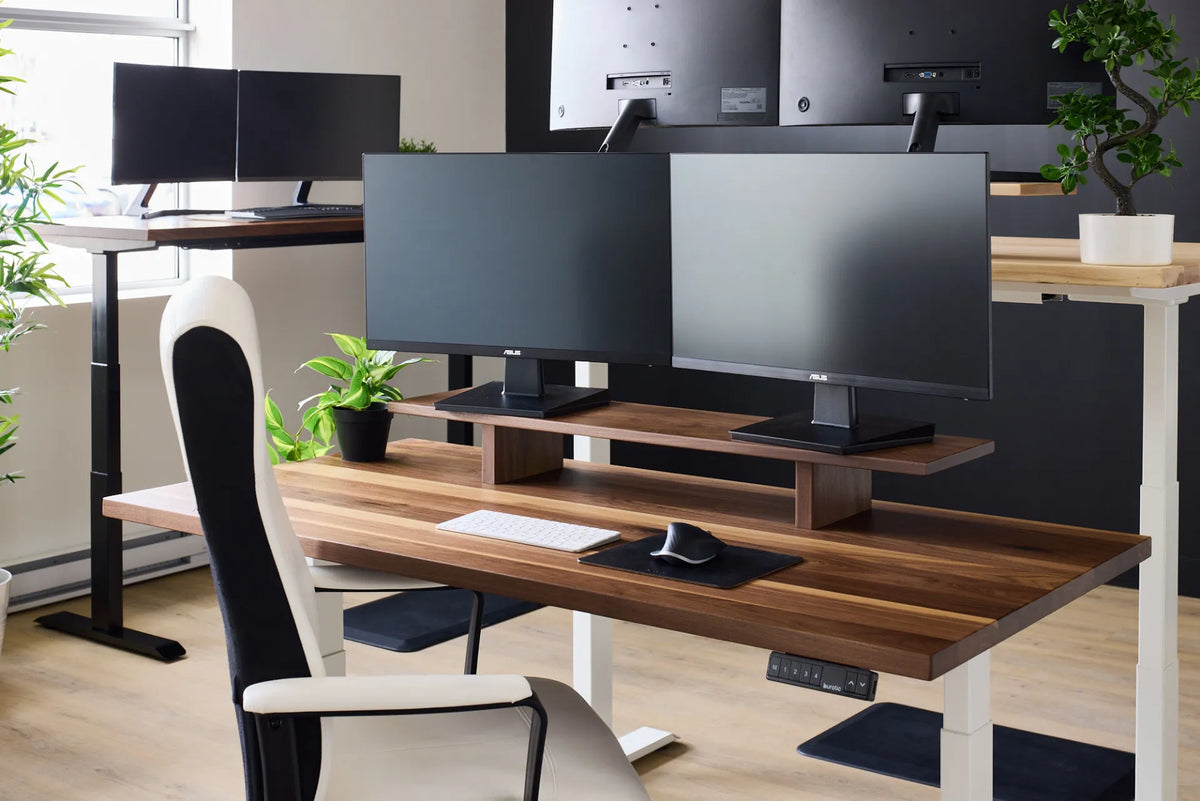
The photographed Burotic setup includes a walnut-look adjustable desk, a black frame, a monitor arm, a laptop platform, an external keyboard and mouse, a large desk mat, a compact power unit and cable grommets. These visible elements make the image a direct example of a coordinated accessory setup.
1. A monitor arm
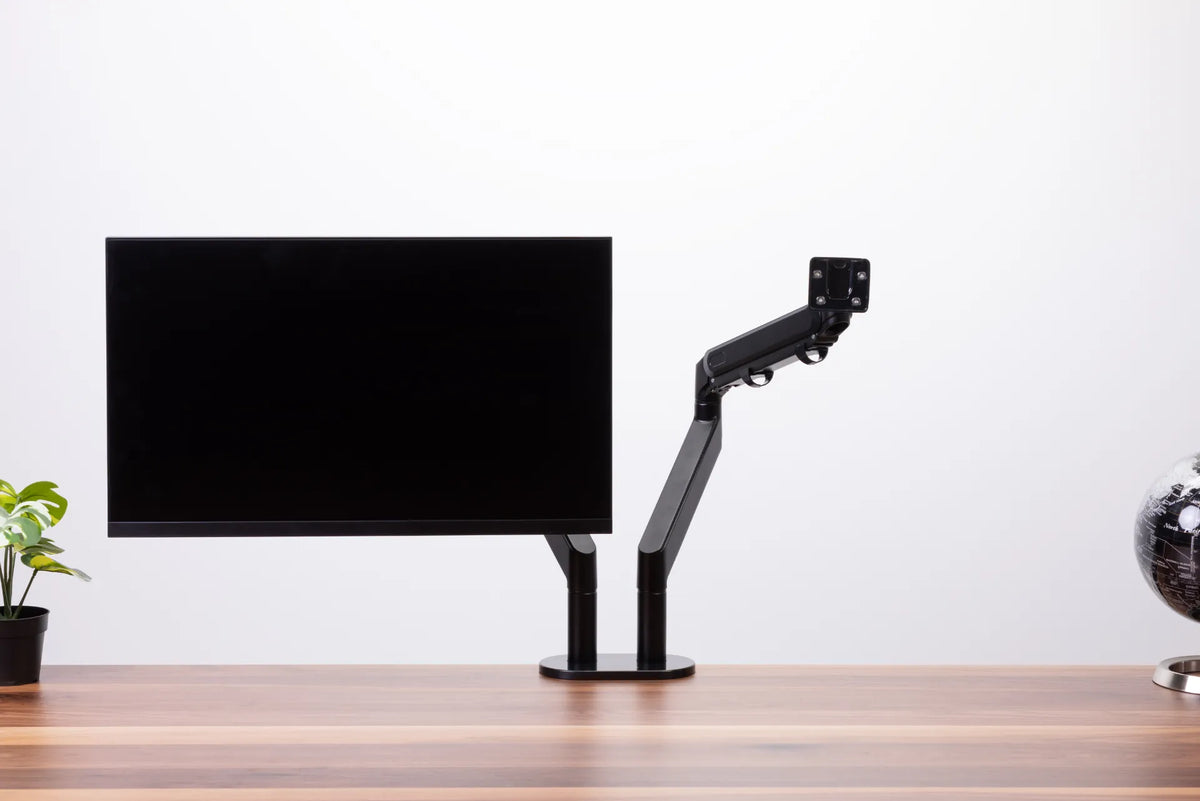
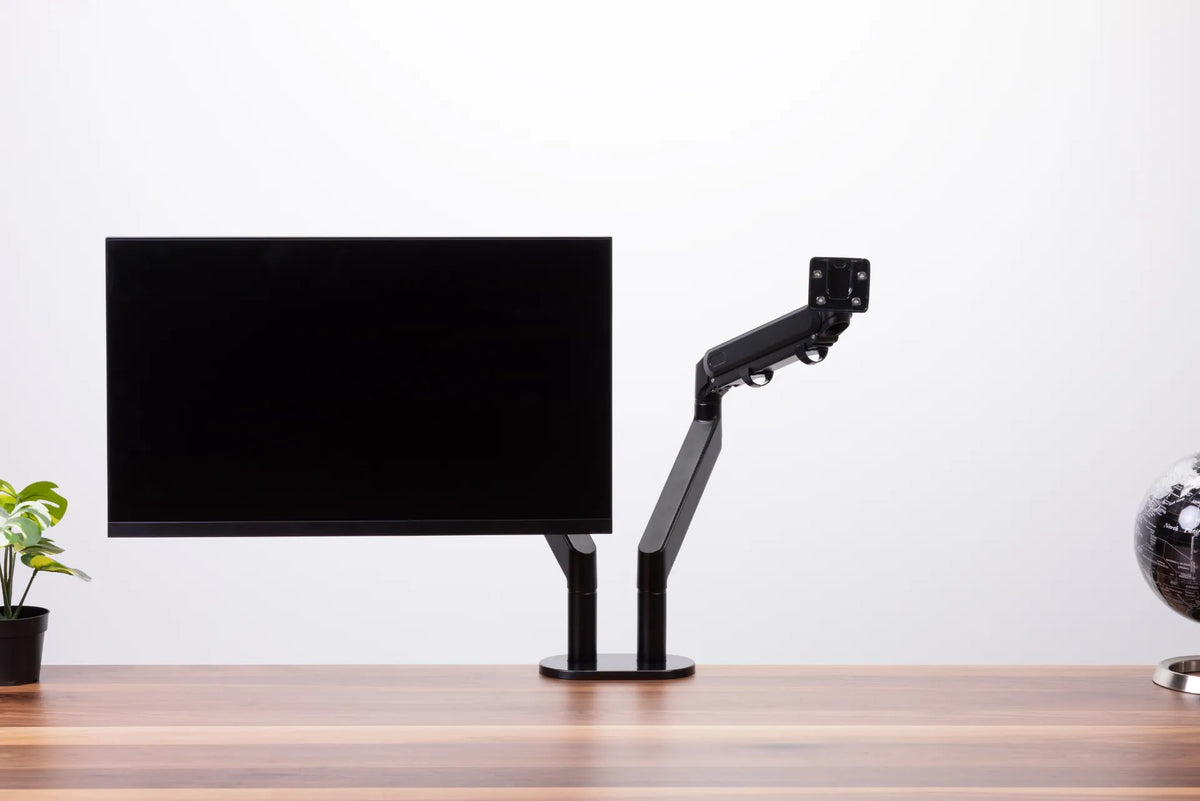
A monitor arm is often the highest-impact upgrade because it separates screen position from the fixed height of a monitor stand. It can free space below the display and make it easier to centre a screen when switching between sitting and standing.
What to verify
- Monitor weight and size within the arm’s specified range
- VESA mounting pattern
- Clamp or grommet compatibility
- Available clearance below and behind the desktop
- Enough reach for the intended screen position
- Cable routing that does not limit movement
A large display placed too far forward can create leverage that makes an arm feel unstable. A very light monitor can also be difficult to balance on an arm designed for heavier screens. Use the manufacturer range rather than judging by screen size alone.
The Burotic Monitor Arm is available in single and dual configurations, with laptop-stand options. Confirm the configuration and monitor specifications before ordering.
2. Cable management that moves with the desk
A standing desk needs a cable system designed for its full travel. A tidy desk at sitting height can still fail when raised if the power lead becomes taut, a monitor cable snags or a heavy adapter hangs from a connector.
Build the system in layers. Mount a power bar or cable tray below the surface so most device cables move with the desk. Leave one controlled service loop from the moving desk to the wall outlet. Keep wires away from frame joints, motor shafts and pinch points.
Raise and lower the desk through its full range while watching every cable. Our standing desk cable management guide provides a complete test. The Burotic Cable Management Solution is a verified internal product option for organizing wiring below the desktop.
3. An anti-fatigue mat
An anti-fatigue mat can make a hard floor feel less unforgiving and encourage small foot and ankle movements. It does not make unlimited standing advisable. The Canadian Centre for Occupational Health and Safety recommends changing position and notes that prolonged standing may contribute to foot, knee, hip and back discomfort.
What makes a mat useful?
Look for a stable, slip-resistant surface, enough area to reposition the feet and edges that do not create a trip hazard. A mat that is extremely soft can feel unstable. Placement matters too: it should not block chair casters when you return to sitting.
The Burotic Anti-Fatigue Mat is designed as a standing-zone accessory. Review our anti-fatigue mat buying guide before deciding whether a mat addresses your floor and standing habits.
4. Desk-mounted power and charging
A clamp-on or surface-mounted power unit reduces the need to crawl under the desk. It is useful for a phone, headset, laptop adapter or temporary device that is connected often. The benefit is convenience, but electrical capacity and cable travel still matter.
Use a certified product appropriate for Canada, respect its rated load and avoid daisy-chaining power bars. Keep liquid containers away from connections. Mount the unit where it does not interfere with a monitor clamp, drawer, frame rail or your knees.
5. A laptop stand with an external keyboard
A laptop stand can raise the screen closer to eye level, but it should normally be paired with an external keyboard and pointing device for extended work. Raising the laptop while continuing to type on its built-in keyboard can lift the shoulders and reach the arms forward.
A monitor arm with a laptop platform can also align a laptop beside an external display. Check ventilation, device weight and whether the platform holds the computer securely at every desk height.
6. A desk mat
A desk mat defines the keyboard and mouse zone, softens contact at the forearms and helps protect the work surface from everyday wear. It is a comfort and organization accessory, not a substitute for correct keyboard height.
Choose a size that allows normal mouse movement without covering controls, grommets or frequently used writing space. Materials respond differently to heat, cleaning products and spills. Follow the care instructions for both the mat and desktop.
A charging desk pad combines surface protection with convenient phone charging when device compatibility and placement align. The Burotic Wireless Charging Desk Pad is one verified option. Do not assume every phone, case or accessory will charge at the same rate.
7. Under-desk storage
A drawer, small file unit or mounted organizer keeps frequently used items within reach without occupying the main work area. Storage must be planned around the moving frame. An under-desk drawer can conflict with frame rails, control boxes, knees or armrests.
Before installing anything, inspect the underside and follow the desk manufacturer’s fastener guidance. Confirm screw length so it cannot reach the top surface. Cycle the desk through its full height range and check nearby walls, cabinets and chair arms.
8. A footrest or movement accessory
A footrest can support the feet when the chair must be raised to match a fixed work surface. At a sit-stand desk, a low foot rail or stable support can also provide a temporary change in stance. Balance boards and active mats add more movement, but they demand more attention and are not appropriate for every person or task.
Begin with a stable setup. If you introduce a movement accessory, use it for short periods, keep a handhold available when needed and remove it from walking paths when not in use.
What not to buy first
Decorative lighting, headphone hooks, cup holders and small organizers can be convenient, but they rarely fix a poor screen position, cable hazard or uncomfortable standing surface. Buy them after the primary ergonomic and electrical issues are resolved.
A keyboard tray is valuable in some fixed-desk setups, but a height-adjustable desk can often bring the work surface itself to elbow height. A tray still makes sense when desktop thickness, equipment or user proportions prevent a good position. Measure knee clearance before installing one.
A practical buying order
- Set the desk and chair correctly before buying accessories.
- Position the screen and decide whether a monitor arm is needed.
- Build cable management for the full height range.
- Add a mat if the floor and standing duration justify it.
- Improve power access without overloading circuits.
- Add laptop support, storage and surface accessories only where they solve a specific problem.
Compatibility checklist
- Desktop thickness and material
- Frame rails and control boxes below the surface
- Clamp depth and rear clearance
- Monitor and laptop weights
- Desk travel from minimum to maximum height
- Electrical certification and rated load
- Knee, chair and walking clearance
- Warranty implications of drilling or permanent mounting
The best accessory is the one that removes friction
For most people, the priority order is monitor position, cable safety, standing comfort and convenient power. A monitor arm, cable-management system and anti-fatigue mat therefore deliver more practical value than a collection of small gadgets.
Build the workspace gradually. Verify compatibility, test the desk through its complete movement and keep enough clear surface for the work itself. A carefully chosen accessory should make the setup easier to use, not more complicated.

Previous article
Why Does My Office Chair Keep Sinking? Causes and Safe Fixes
Next article
8 Simple Standing Desk Exercises and Movement Breaks for Work