






Should Your Monitor Face a Window? How to Reduce Glare

In this article
A monitor can face a window, but it is rarely the easiest arrangement for comfortable viewing. When a bright window sits directly behind the screen, the large difference between the daylight and the display can make the screen seem dim. When the window is behind you, reflections can appear on the screen. In most rooms, placing the screen roughly perpendicular to the window is the best starting point because it limits direct light in front of and behind the display.
That rule is not absolute. Window direction, time of day, screen finish, desk depth, blinds, and the work you do all matter. The goal is not to obey a compass direction. It is to create a clear, stable image without squinting, leaning, or repeatedly changing posture to see around reflections.
What happens when a monitor faces a window?
If your eyes look past the display toward an uncovered window, the window may be much brighter than the screen. Your visual system must adapt to both at once. Text can appear lower in contrast, and you may respond by increasing screen brightness, narrowing your eyes, or moving closer. None of those reactions proves the layout is unsafe, but they are useful signs that the lighting balance needs attention.
The Canadian Centre for Occupational Health and Safety notes that appropriate lighting without glare or shadows can reduce eye fatigue and headaches. It also recommends giving workers control over daylight with curtains or blinds. The practical lesson is simple: natural light is valuable, but direct bright sky in your central field of view should not overpower the task.
Facing the window
This position gives you a pleasant outward view and can work well when the window is shaded, the sky is overcast, or the desk is set back from the glass. It becomes difficult when direct sun or a bright patch of sky surrounds the monitor. A roller shade, sheer curtain, exterior awning, or adjustable blind can reduce the contrast while preserving useful daylight.
Facing away from the window
With the window behind you, the room may feel evenly lit, but the screen can reflect the window, your outline, or bright objects outdoors. Glossy screens show this most clearly. Tilting the display may move the reflection, yet a large tilt can introduce ceiling-light glare or disturb the viewing angle. The Occupational Safety and Health Administration recommends using blinds or drapes to reduce window glare and keeping the screen clean because dust can worsen glare.
Perpendicular to the window
A side-on layout often gives the most forgiving balance. The brightest light is outside the direct line between your eyes and the display, while reflections are less likely to sit in the centre of the screen. If you are planning the whole room rather than only the display, Burotic's guide to placing a desk perpendicular to a window explains the broader layout tradeoffs.
Use a five-minute glare test before moving furniture
You can evaluate the current position without special equipment. Open a document with a white background, then display a dark page or turn the screen off for a moment. Look for a bright window shape, light fixture, or your own reflection. Return to your usual working content and notice whether you squint, lean forward, shade the screen with a hand, or raise brightness near its limit.
Repeat the check in the morning, around midday, and late afternoon. Daylight moves. A layout that works at 9 a.m. may become uncomfortable at 3 p.m. CCOHS suggests detecting reflected glare from the normal working position and temporarily blocking the suspected light path. If details become easier to see, the light source is contributing to the problem.
How to position the monitor near a window
1. Start with the screen at a right angle to the glass
Rotate the desk or monitor so the screen surface is approximately perpendicular to the window. It does not need to be mathematically exact. Shift the angle until neither the bright outdoors nor a clear reflection occupies the main viewing area.
2. Control daylight before increasing screen brightness
Use blinds, curtains, or a shade to soften direct light. Adjustable slats are useful because they can redirect daylight toward the ceiling instead of the screen. If the window is in front of you, reduce the brightness of the opening without making the room dark. If it is behind you, angle the slats so the window is not mirrored in the display.
3. Balance the light around the screen
A bright display in a dark room can also feel harsh. Add soft ambient light that does not reflect in the screen. Place a task lamp to the side of the monitor and aim it at documents or the desk surface, not at the display. Matte desk accessories and non-glossy wall finishes can help limit secondary reflections.
4. Set viewing distance and height after glare is controlled
Do not solve glare by pushing the monitor so far away that text becomes hard to read or by lifting it above a comfortable viewing zone. CCOHS advises that the screen should generally sit around 15 degrees below the horizontal line of sight, with the top of a tall or portrait display no higher than eye level. OSHA says the work surface should permit a viewing distance of at least 20 inches, or about 50 centimetres. Treat these as starting points, then adjust text size and distance for clear viewing.
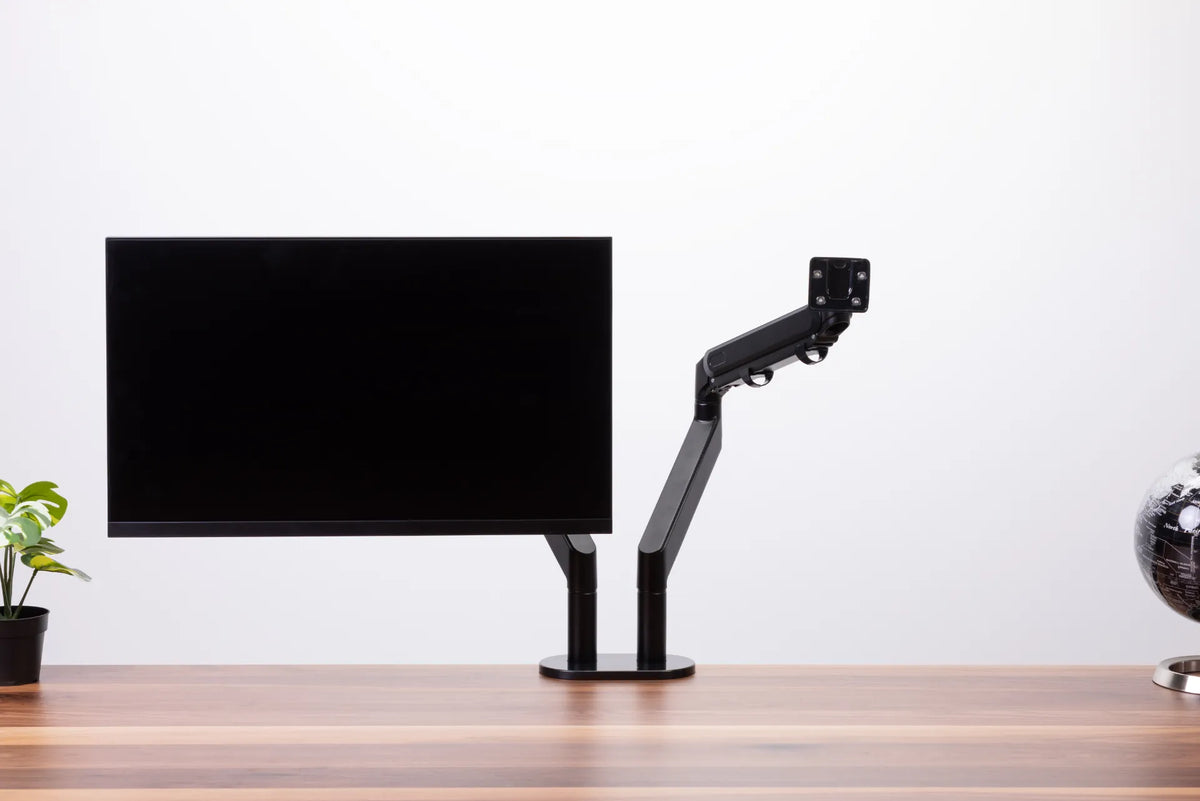
If you need more precise distance guidance, see How Far Should Your Monitor Be From Your Eyes?. A height-adjustable monitor arm can make small angle, depth, and height changes easier when daylight shifts.
5. Keep the primary screen directly in front of you
Avoid fixing glare by moving the screen far to one side. For work centred on one monitor, keep it in front of your body so your head does not remain rotated. With two screens, centre the main display and angle the secondary display inward. If both are used equally, place the seam between them in front of you and use a shallow arc.
What if the desk cannot move?
Rental apartments, built-in counters, and small rooms often leave only one workable wall. In that case, improve the layers you can control:
- Add a light-filtering blind or curtain rather than relying only on a blackout shade.
- Move the monitor a few centimetres sideways or rotate it slightly to break a reflection path.
- Use larger text or interface scaling instead of leaning toward a washed-out image.
- Clean the screen and reduce bright, glossy objects behind you.
- Use a monitor hood only for specialized work after simpler lighting changes have been tested.
An anti-glare filter can help in a stubborn setting, but CCOHS recommends controlling glare through lighting design and monitor placement first because anything placed between the user and the image can reduce image quality.
Common mistakes near a window
Turning brightness to maximum all day: This can mask poor lighting temporarily but may create an overly bright screen when daylight fades. Match the display to the room instead.
Tilting the screen aggressively: A steep tilt may trade a window reflection for a ceiling-light reflection and can affect how colours or contrast appear.
Moving only the monitor: A comfortable screen position also depends on keyboard, mouse, chair, and desk location. Keep input devices centred with the primary screen.
Ignoring seasonal changes: The sun is lower in winter in much of Canada. A position that avoids direct sun in summer may need a blind or a small rotation in winter.
A practical decision rule
If you can choose freely, begin with the monitor perpendicular to the window. If you prefer facing the view, keep the monitor far enough from the glass to moderate the brightness and use adjustable window coverings. If the window must remain behind you, test the screen for reflections throughout the day and change its angle or the blind position as needed.
The best position is the one that keeps the image readable, the primary screen in front of you, and your head and shoulders relaxed. A flexible desk layout and adjustable monitor support make that position easier to maintain as light changes.
Previous article
How to Organize a Home Office Desk Without Losing Work Space
Next article
How to Organize a Home Office Desk Without Losing Work Space