






Should Your Mouse Be Level With Your Keyboard?
Your mouse should usually be on the same level as your keyboard and close enough to use with the elbow near the body. This guide explains when a tray or platform can work, how to test reach and what to change when the two devices sit at different heights.

In this article
Your mouse should usually be on the same working level as your keyboard and close enough that you can use it with your elbow near your body. A mouse that sits noticeably higher, lower or farther away can encourage repeated reaching or wrist deviation.
Same level does not require the devices to touch. It means your forearm and hand can move between typing and pointing without climbing onto a raised platform or dropping to a lower surface. The best position also depends on keyboard width, dominant hand, desk space and the time spent using each device.
Quick answer
- Place the mouse beside the keyboard on the same surface when possible.
- Keep it close enough that the upper arm can remain near the torso.
- Avoid placing it behind the keyboard or beyond a wide numeric keypad.
- Keep the wrist generally straight rather than bent sideways or upward.
- Use a separate platform only if it preserves height, reach and stability.
Why the same level usually works best
CCOHS recommends placing the keyboard directly in front of the user, with relaxed shoulders, elbows close to the body and wrists in line with the forearms. Its mouse guidance emphasizes keeping the pointing device within easy reach. When the mouse and keyboard share a level surface, the hand can transition between them with less vertical movement.
OSHA likewise identifies mouse placement that is too far away as a workstation concern. A small keyboard tray can cause the mouse to be placed on the higher desktop, requiring the arm to reach up and out. The problem is not the tray itself; it is the mismatch between surfaces and the resulting posture.
How close should the mouse be?
Keep the mouse as close to the keyboard as practical without interfering with typing. There is no universal centimetre value because shoulder width, keyboard size and pointing style differ. Use your elbow as the check: it should stay near the body rather than moving outward every time you reach for the mouse.
A full-size keyboard with a numeric keypad increases the distance to a right-handed mouse. If the keypad receives little use, a compact keyboard or separate numeric pad can open a closer mouse position. CCOHS specifically notes that a shorter keyboard provides more mouse-placement options.
Do not hide the mouse behind the keyboard
Placing the mouse behind the keyboard may save width but increases forward reach. That can make the shoulder slide forward and the wrist work near the edge of the desk. If the desk is narrow, consider a compact keyboard, a front-mounted platform designed for both devices or a different input device rather than stacking reach zones.
What if the mouse is higher than the keyboard?
This often happens when the keyboard sits on a tray and the mouse remains on the desktop. The hand must move upward and outward for each pointing task. If the height difference is obvious, try to fit both devices on a stable tray designed for them, raise the keyboard to the desktop, or use an adjacent mouse platform at the same level.
Do not add a loose box or unstable object as a mouse platform. The surface must support precise movement without sliding. Check that the new height does not force the shoulders upward.
What if the mouse is lower than the keyboard?
A mouse on a lower pull-out shelf can make the wrist bend or the shoulder drop. The issue is more noticeable when you alternate rapidly between typing and pointing. Bring the devices to one level or adjust the entire input surface so the forearms remain roughly horizontal and the shoulders relaxed.
The broader desk height still matters. Two devices can be level with each other and both be too high or too low. For sit-stand work, see how high the keyboard and mouse should be.
Should the mouse sit on the same desk pad?
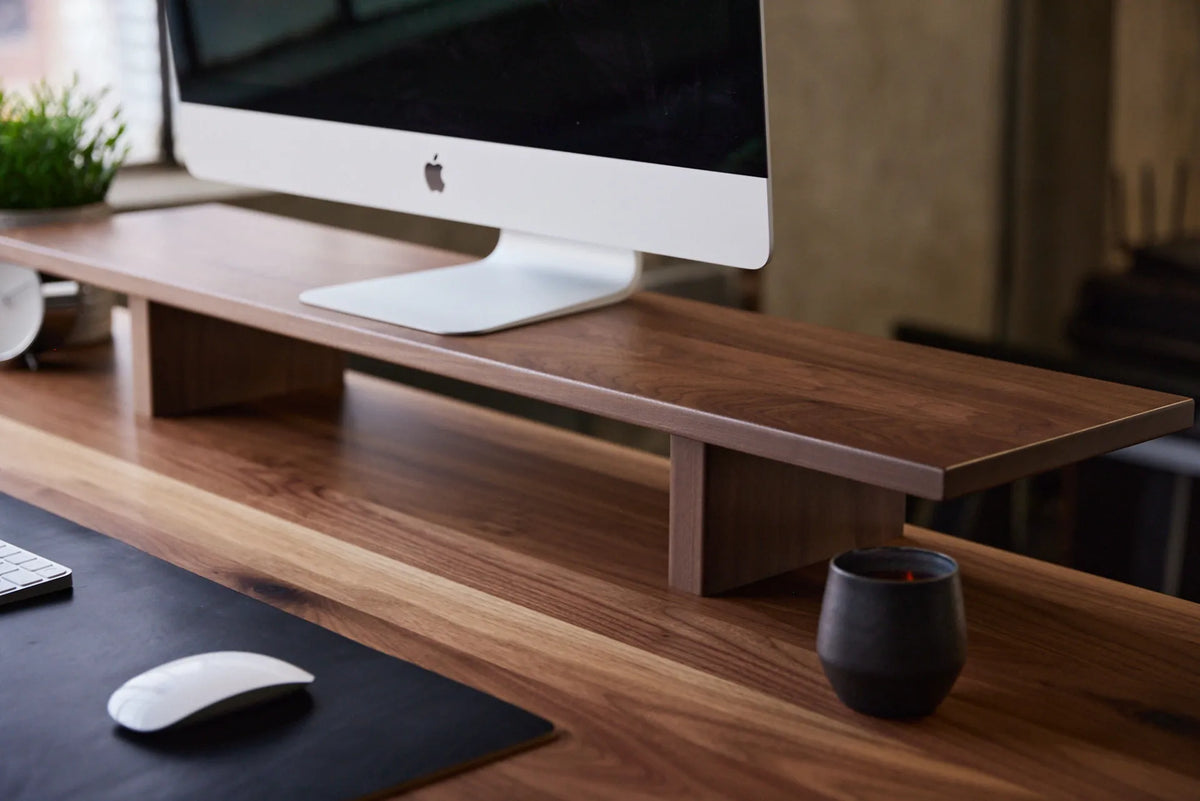
It can, provided the pad lies flat, gives the sensor a reliable surface and does not raise one device more than the other. The selected photo shows a compact keyboard and mouse on one black desk pad over a walnut desktop. That is a visible configuration, not a guarantee that every pad suits every sensor or keyboard.
Check that the keyboard does not rock, the mouse tracks consistently and the pad edge does not sit under one wrist. A very thick pad can change the device height or create a ridge. If you prefer a separate mouse pad, match its height closely to the keyboard's working surface.
Alternative mouse positions
Between the user and keyboard
CCOHS describes an arrangement where a cordless mouse sits between the operator and the keyboard. This can reduce sideways reach for mouse-heavy work. It requires enough desk depth and may be less convenient during sustained typing. Treat it as an option to test, not a universal rule.
Left-handed placement
Moving the mouse to the left can reduce reach around a right-side numeric keypad and distribute use differently. Change the primary button setting if needed and give yourself time to adapt. The mouse should still remain close, level and stable.
Central pointing devices
A trackball, roller-style device or other central pointer can reduce lateral reach for some users. Compatibility, learning time and task precision vary. A specific ergonomic recommendation should come from a qualified assessment when pain or an accommodation need is involved.
A practical setup test
- Centre the keyboard on your body and main screen.
- Place the mouse beside it on the same level.
- Sit back with shoulders relaxed and elbows near the torso.
- Move between typing and pointing without lifting the shoulder.
- Check that the wrist stays generally straight.
- Work for 20 minutes and notice repeated reaching or contact with a hard edge.
If the mouse drifts away during work, define a practical movement zone rather than repeatedly dragging it back from the far edge. Our guide to positioning a mouse at a desk covers reach, grip and left- versus right-side options.
Common setup mistakes
- Putting the mouse on the desktop while the keyboard is much lower on a tray
- Reaching around a wide keyboard for every mouse action
- Letting documents push the mouse farther away
- Resting the wrist on a sharp desk or pad edge while moving the mouse
- Raising both devices so high that the shoulders lift
- Assuming a visually tidy setup is automatically comfortable
When to change equipment
Adjust placement first. If the mouse still cannot stay close and level, consider a shorter keyboard, a larger input tray, a compatible platform or another pointing device. For keyboard angle, read whether the keyboard should be flat or tilted.
A height-adjustable work surface can help align the full input zone with your elbows in both sitting and standing positions. Compare the current Burotic Aspire Solid Wood Standing Desk dimensions with your room and equipment before choosing. The product is a workstation option, not a medical treatment.
Bottom line
Keep the mouse and keyboard on the same level whenever practical, with the mouse close enough to avoid repeated reaching. Then adjust the entire input surface so the shoulders stay relaxed and the wrists remain generally straight. If discomfort, numbness or weakness persists, seek a qualified ergonomic or health assessment rather than relying on equipment changes alone.
Sources
- Canadian Centre for Occupational Health and Safety: Keyboard Selection and Use
- Canadian Centre for Occupational Health and Safety: Mouse Location Beside the Keyboard
- Canadian Centre for Occupational Health and Safety: Mouse Between Keyboard and Operator
- Occupational Safety and Health Administration: Pointer and Mouse

Previous article
Should an Anti-Fatigue Mat Be Firm or Soft?
Next article
Should an Anti-Fatigue Mat Be Firm or Soft?