






Can You Put an All-in-One Computer on a Monitor Riser?
Yes, an all-in-one computer can sit on a monitor riser when the riser supports its total weight, fully contains the base and places the screen at a comfortable height. This guide explains the measurements and stability checks to complete before you lift the computer.

In this article
Yes, you can put an all-in-one computer on a monitor riser, but only after checking the computer's weight, the size of its base, the riser's rated capacity and the resulting screen height. An all-in-one is different from a typical monitor because the display, processor and other components are built into one housing. That usually makes it heavier and may give it a deeper or less forgiving stand.
A riser can create useful space under the screen and help position the display, but raising it automatically is not an ergonomic improvement. If the screen ends up too high, the setup can encourage you to lift your chin. The Canadian Centre for Occupational Health and Safety notes that a monitor placed too high can contribute to neck and shoulder discomfort. Treat the riser as a sizing decision, not a decorative default.
Quick answer: when is a monitor riser suitable?
A monitor riser is a reasonable option when all five of these statements are true:
- The riser's published load capacity is greater than the complete weight of the computer and its attached stand.
- The entire computer base sits flat on the riser with no feet or edges hanging over.
- The riser is stable on the desktop and does not rock, bow or slide.
- The raised screen stays at a comfortable viewing height and distance.
- Cables can reach their ports without sharp bends, tension or interference.
If any one of these checks fails, use the computer directly on the desk or choose a different support. Do not rely on the riser's appearance, material or shelf thickness alone to estimate capacity.
Measure the computer before choosing a riser
1. Find the total weight
Use the manufacturer's technical specifications for the exact computer model. The number must include the display housing and the original stand, not only a shipping or display-panel weight. Accessories that physically rest on the riser also count toward the load.
Compare that number with the riser's stated capacity. Leave a reasonable margin rather than selecting a support that matches the computer to the last kilogram. The rated capacity is the relevant evidence. A similar-looking shelf in a photograph is not proof that your model will be supported safely.
2. Measure the footprint of the base
Measure the widest and deepest points that contact the desk. Some all-in-one stands have a broad rectangular foot. Others use two feet or a curved base that extends farther forward than the screen. Record the footprint, not the screen width.
The base should fit fully on the usable top surface of the riser. Decorative bevels, rounded corners and cable openings may reduce usable depth. If a rubber foot lands on an edge or across a gap, the computer may not sit evenly.
3. Check the centre of mass
An all-in-one computer can be top-heavy. Even when its base technically fits, the screen should not feel easy to tip when the desk is touched. Place the base near the centre of the riser from front to back unless the computer manufacturer specifies another position. Avoid setting it against the front edge to gain cable space behind it.
Will the riser make the screen too high?
This is the most common reason not to add a riser. According to the CCOHS guidance on monitor positioning, a slightly downward line of sight is generally more comfortable than looking upward. The top of a tall screen should not be above the user's eye level as a general starting point. People who use progressive or bifocal lenses may prefer an even lower position.
Measure while sitting in your normal working position:
- Adjust the chair and desk so your feet, arms and input devices are supported comfortably.
- Sit back rather than leaning toward the screen.
- Measure from the desk to your eye level.
- Compare that height with the top of the viewable screen before and after adding the riser.
If the computer already reaches the right height, a riser may create a new problem. A lower support, a desk shelf used only for storage, or no riser may be better. Our guide to monitor riser height explains how to use eye position as the deciding measurement.
Check width, depth and desk space together
A riser occupies more than the area under the computer. It changes where the keyboard, mouse, notebook and cables can go. Before buying, mark the proposed footprint on the desk with removable tape or paper.
Confirm that you can still keep the keyboard and mouse close enough to avoid reaching. The Government of Canada's computer workstation guidance recommends arranging the workstation so the keyboard can be pulled toward the user and the monitor can be positioned without repeated head turning or tilting.
Depth matters especially on a 24-inch work surface. A deep computer base on a deep shelf can push the keyboard toward the front edge. Review the measurements in our monitor riser depth guide and monitor riser width guide before deciding.
Stability checks after installation
Set up the riser on a clean, level desktop with the desk stationary. Then complete these checks before regular use:
- Press gently on each corner of the empty riser. It should not rock.
- Place the computer with two people if its size or weight makes lifting awkward.
- Confirm that every foot sits flat and that the riser does not visibly bow.
- Type normally and move the mouse. Watch for screen movement beyond the computer's usual response.
- Raise and lower a height-adjustable desk through its full range while keeping clear of pinch points.
- Recheck cable slack at the lowest and highest desk positions.
Stop using the riser if it cracks, loosens, slides or deforms. Do not add improvised blocks to correct a mismatch.
Cable and ventilation details people often miss
All-in-one computers may have power, network and accessory ports close to the back of the stand. A riser should not force a connector against a wall or shelf edge. Use gentle cable curves and enough slack for any desk movement.
Do not cover ventilation openings. The riser should support the base, not the computer housing, unless the manufacturer explicitly permits another arrangement. Keep liquids away from the computer and power connections, even if the shelf creates a convenient place for a mug.
Should you choose a riser or a monitor arm?
Most all-in-one computers use an integrated stand, so a monitor arm is only an option when the exact model offers a compatible mounting interface and the arm supports its weight. Do not remove the original stand or add an adapter unless the computer manufacturer documents that configuration.
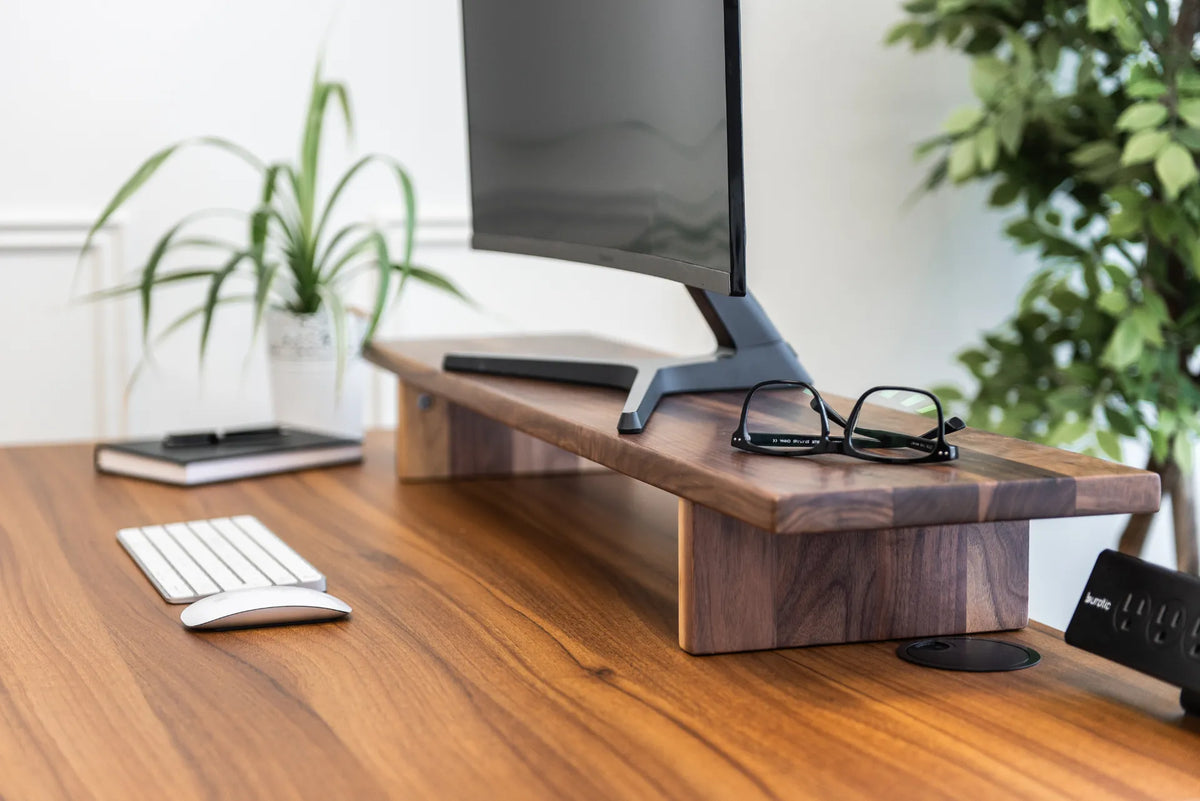
A riser is simpler when the original base fits and the screen only needs a modest lift. It can also provide open storage below. The Burotic Monitor Stand is one option to compare, but you should verify the current product dimensions and capacity against your exact computer before ordering.
A practical pre-purchase checklist
- Exact computer model and total assembled weight
- Base width, depth and foot positions
- Riser usable width and depth
- Riser rated load capacity
- Screen height after the lift
- Available desk depth for keyboard and mouse
- Cable reach at sitting and standing heights
- Ventilation and port clearance
Bottom line
An all-in-one computer can work well on a monitor riser when the numbers line up. Start with capacity and base fit, then confirm that the screen does not become too high. The best setup is the one that remains stable, keeps the display comfortable to view and leaves enough room for the rest of your work.
If you are planning a coordinated wood workspace, compare your computer measurements with the current dimensions of the Burotic Monitor Stand before choosing a finish.

Previous article
What Should You Keep on Your Desk for Daily Work?
Next article
What Should You Keep on Your Desk for Daily Work?