





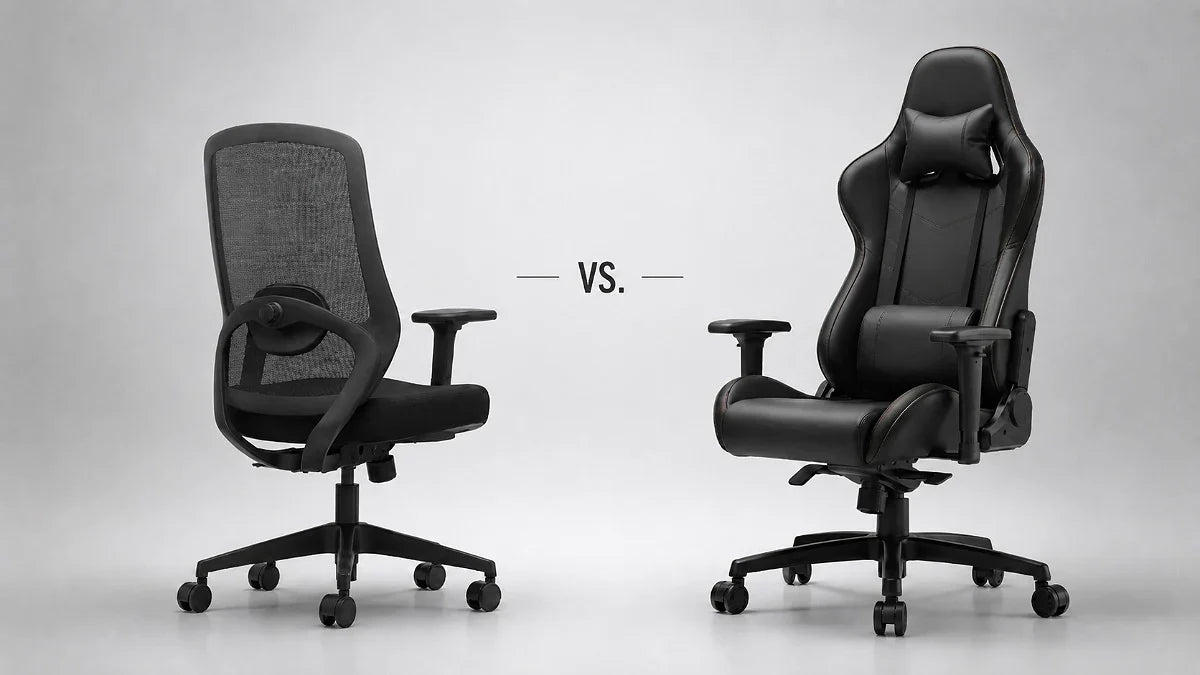
Office Chair vs. Gaming Chair: What Matters for Working From Home?
Compare office and gaming chairs by fit, seat depth, lumbar support, armrests, recline, materials and desk clearance before choosing.

In this article
Office chairs and gaming chairs increasingly borrow features from each other. Gaming models may include adjustable lumbar support and armrests, while office chairs can offer high backs, headrests and deep recline. The label on the product page is therefore less useful than the question that matters: does the chair fit your body and support the tasks you perform?
For a full workday at home, compare adjustment ranges, seat dimensions, back support, armrests, movement, materials and desk clearance. This guide explains where the two categories often differ and how to evaluate either one without relying on appearance alone.
The short answer
An ergonomic office chair is usually the more direct choice for computer work because task chairs are commonly designed around upright keyboard and mouse use, fine adjustments and frequent posture changes. A gaming chair can still work well if its dimensions fit the user and its controls support the required working positions.
Neither category is automatically ergonomic. A chair with many levers can still be a poor fit, while a simpler chair can be comfortable when its dimensions and adjustment ranges match the user.
What makes a chair ergonomic?
Ergonomics is about fitting work to the person. For seating, that means the chair should support the user while allowing access to the keyboard, mouse, screen and work surface without excessive reaching or awkward joint positions.
The Canadian Centre for Occupational Health and Safety recommends looking at adjustability, lumbar support, seat dimensions, armrests and a stable five-point base. It also notes that one chair may not fit every worker.
Useful chair features often include:
- a seat-height range that lets the feet rest on the floor or a stable footrest;
- a seat depth that supports the thighs without pressing behind the knees;
- a backrest that supports the lower back;
- armrests that support the arms without lifting the shoulders;
- tilt or recline that permits comfortable changes of position;
- a stable base and suitable casters for the floor;
- controls that can be reached and understood while seated.
Typical office chair design priorities
Office chairs are generally built for tasks performed close to a desk. Their designs often prioritize adjustability, a compact footprint and freedom of arm movement.
Task-focused posture
A task chair should let you approach the desk while keeping the keyboard and mouse close. Armrests that lower, narrow or move backward can help the chair clear the desktop and reduce reaching.
Fine seat adjustments
Seat depth, lumbar position, tilt tension and adjustable armrests are common comparison points in ergonomic office seating. These features help accommodate differences in torso, thigh and arm length.
Breathable construction
Mesh is common in office chairs because it allows airflow and can create flexible support. It is not inherently better for everyone. The frame shape, tension and edge design still need to suit the user.
Visual versatility
Office chairs often use neutral colours and less pronounced side bolsters, which can make them easier to integrate into a home office, conference room or shared workplace.
Typical gaming chair design priorities
Gaming chairs vary widely. Many use a high back, pronounced side contours, dense foam and a deep recline inspired by automotive seating. Newer models increasingly include adjustable lumbar systems, seat-depth controls and refined armrests.
High back and head support
A tall backrest can feel supportive during reclined play, media viewing or breaks. However, a headrest that pushes the head forward may be uncomfortable during upright work. Its position should match the user rather than forcing contact.
Deeper recline
Gaming chairs often advertise a larger backrest recline angle. This can be useful away from the keyboard, but the chair still needs a stable, supported working position for typing and mouse use.
Bolsters and fixed contours
Side bolsters create a contained seating feel and a recognizable gaming appearance. They can also reduce usable seat width or limit changes in leg position. Compare the flat, usable portion of the seat, not only the chair’s maximum outside width.
Upholstery and styling
Gaming chairs commonly use fabric, synthetic leather or other upholstered surfaces. Material affects airflow, cleaning, feel and appearance, but it does not determine ergonomic fit by itself.
Office chair vs. gaming chair comparison
| Feature | Ergonomic office chair | Gaming chair |
|---|---|---|
| Primary design context | Desk tasks, meetings and varied office work | Gaming, media use and mixed upright or reclined positions |
| Seat shape | Often open and relatively flat | Often contoured, sometimes with side bolsters |
| Backrest | May use mesh or flexible task support | Often tall and upholstered |
| Armrests | Often designed for desk clearance and task positioning | Frequently adjustable, but range varies by model |
| Recline | Usually focused on controlled movement and task support | Often offers a deeper backrest recline |
| Appearance | Usually neutral and workplace-oriented | Often more expressive or game-inspired |
| Best choice | Whichever model fits the user and the actual tasks | |
These are broad patterns, not rules. Evaluate the individual product specifications and test the controls whenever possible.
1. Compare seat height with your legs and desk
Sit fully back and adjust the chair so the feet are supported. The thighs should feel supported without excessive pressure, and the seat should allow you to work near the desk.
If the chair must be raised to match a fixed desk, a footrest may be necessary. With a height-adjustable desk, set the chair first and bring the work surface toward elbow height. Do not leave the feet unsupported simply to make the arms reach the keyboard.
The CCOHS chair-adjustment guide provides a practical sequence for setting seat height, backrest and armrests.
2. Check usable seat depth
A seat that is too deep can press behind the knees or prevent the user from reaching the backrest. A seat that is too shallow may not support enough of the thighs.
Seat-depth adjustment is especially valuable when several people share a chair or when the user falls outside average proportions. Gaming-chair bolsters and thick back cushions can change the effective depth, so measure the usable seated area rather than relying only on the external specification.
Burotic’s published ergonomic chair fit guide explains how to compare seat height, depth, width and lumbar position with your own body.
3. Evaluate lumbar support in your working posture
Lumbar support should meet the lower back while you sit in the position used for work. A separate pillow can feel comfortable for some people, but it may be too thick, too high or difficult to keep in place for others.
Built-in lumbar systems also vary. Some move vertically, some change depth or tension, and some flex with the backrest. Test the entire usable range. More adjustment is only helpful when the control reaches the position you need.
4. Test armrests against the desk
Armrests should support the forearms lightly without raising the shoulders. They should not prevent the chair from moving close enough to the keyboard and mouse.
Gaming chairs often advertise 3D or 4D armrests, while office chairs may use the same terms or describe each direction separately. Ignore the label and check the actual range:
- Can the rests go low enough?
- Can they move inward or outward to match shoulder width?
- Can they move forward or backward for desk clearance?
- Can the pads angle toward the keyboard or controller?
- Do they remain stable in the selected position?
The current Burotic Loop Ergonomic Chair lists 3D armrests, adjustable seat depth, adjustable lumbar support and a breathable mesh design. Confirm the product page for the current configuration and options.
5. Distinguish tilt from backrest recline
Chair listings may use tilt, synchro-tilt and recline as if they mean the same thing. They do not always describe the same movement.
- Tilt: the seat and back move around a pivot.
- Synchro-tilt: the back and seat move in a coordinated ratio.
- Backrest recline: the back changes angle relative to the seat.
- Tilt lock: the mechanism can stop at one or more positions.
- Tension control: resistance changes according to the user’s preference or weight.
For computer work, test whether the chair supports a slightly reclined or upright posture while the hands still reach the input devices comfortably. A very deep recline is mainly useful away from active keyboard and mouse work.
6. Consider movement, not one fixed posture
A supportive chair should permit small posture changes. Locking the body into one position for an entire day is not the goal.
CCOHS guidance encourages adjusting the workstation and changing position rather than remaining static. The chair, desk and accessories should work together so you can move without losing support or reaching for equipment.
If you use a sit-stand desk, alternate among sitting, standing and short movement breaks. A chair does not need to solve every posture by itself.
7. Compare materials for your environment
Material preference depends on climate, clothing, cleaning needs and how the chair is used.
- Mesh: offers airflow and a flexible feel, but edge shape and mesh tension matter.
- Fabric: can feel soft and breathable, but cleaning requirements vary.
- Synthetic leather: offers a smooth appearance and wipeable surface, but heat and long-term wear depend on material quality and environment.
- Foam upholstery: changes with density, thickness and seat geometry. More padding is not always more supportive.
Inspect warranty terms for upholstery separately from the frame or mechanism when the manufacturer divides coverage by component.
8. Account for body size and working style
Overall height alone is not enough. Consider shoulder width, hip width, thigh length, lower-leg length and preferred arm position.
A person who alternates between focused typing, video calls and controller use may need different armrest positions throughout the day. A user who frequently reclines may value a headrest and broader back support. A person who primarily types may prioritize desk clearance, seat depth and responsive tilt.
The Burotic Peak Ergonomic Chair provides another office-chair configuration for customers comparing dimensions, support and adjustment options. Review both chair specifications rather than treating price or category as a proxy for fit.
9. Check the base, casters and floor
A five-point base is commonly recommended for office-chair stability. Casters should be appropriate for the floor and allow controlled movement without rolling unexpectedly.
Hard flooring, carpet and chair mats can require different caster designs. Confirm what is included and which optional casters are compatible before ordering. Do not assume that a visually similar wheel will fit the chair stem or suit the floor.
10. Test the chair with your actual desk
If possible, test a chair for more than a few seconds. Set the seat height, depth, lumbar support, armrests and tilt. Then perform the tasks you actually do:
- type and use the mouse;
- join a video call;
- read from the main monitor;
- use a controller or tablet if relevant;
- recline briefly;
- move close to and away from the desk;
- stand and sit several times.
A chair that feels plush immediately may not fit well after adjustment. A firmer chair may feel unfamiliar at first but provide better task support. Use the return or trial period to evaluate fit, not only initial softness.
When an office chair is likely the better choice
- You spend most of the day typing or using a mouse.
- You need fine seat-depth, lumbar or armrest adjustments.
- You want breathable materials or a compact visual profile.
- The chair must fit beneath a desk or work in a shared office.
- Several users with different body sizes may use the same chair.
When a gaming chair may suit you
- You split time between work, gaming and media use.
- You value a tall back and deeper recline.
- The seat bolsters fit without restricting your legs.
- The adjustment ranges match your desk and body.
- You prefer its upholstery and visual style.
Common buying mistakes
- Choosing by appearance before checking dimensions.
- Assuming every chair labelled ergonomic will fit.
- Comparing total width instead of usable seat width.
- Ignoring the lowest armrest position and desk clearance.
- Using a head or lumbar pillow that forces the body forward.
- Confusing deep recline with support during computer work.
- Buying for maximum weight capacity without checking seat height and depth.
- Keeping a poor setup because the chair has many adjustment controls.
Choose the chair, not the category
The office-chair and gaming-chair categories are useful starting points, but they should not decide the purchase. Compare the seat, backrest, armrests, movement and materials against your body and daily tasks.
For most full-time computer work, a well-fitted ergonomic office chair is the simpler path. A gaming chair can still be a good option when it provides the same essential fit and task support. In either case, adjust the chair with the desk and monitor rather than evaluating it in isolation.
Sources
- CCOHS: Ergonomic chairs
- CCOHS: Adjusting office chairs
- CCOHS: Work chairs for sitting positions
- OSHA Computer Workstations: Chairs
- OSHA Computer Workstation Purchasing Guide
This article provides general selection and setup information. Persistent pain or a medical condition should be discussed with a qualified health professional or ergonomist.

Previous article
How to Choose a Monitor Arm: 8 Compatibility Checks Before You Buy
Next article
How to Use a Walking Pad With a Standing Desk: Setup and Safety Guide