

How to Use a Walking Pad With a Standing Desk: Setup and Safety Guide

In this article
A walking pad can add light movement to parts of the workday, but it is not simply a treadmill placed under any desk. The machine changes your standing height, your distance from the screen, your balance, the way cables move, and the tasks you can perform comfortably.
A useful setup starts with fit and control. Measure the desk, follow the walking pad manual, begin with simple tasks, and keep a normal chair available. This guide focuses on practical setup for a home office or professional workstation. It does not replace product instructions or advice from a health professional.
What is an under-desk walking pad?
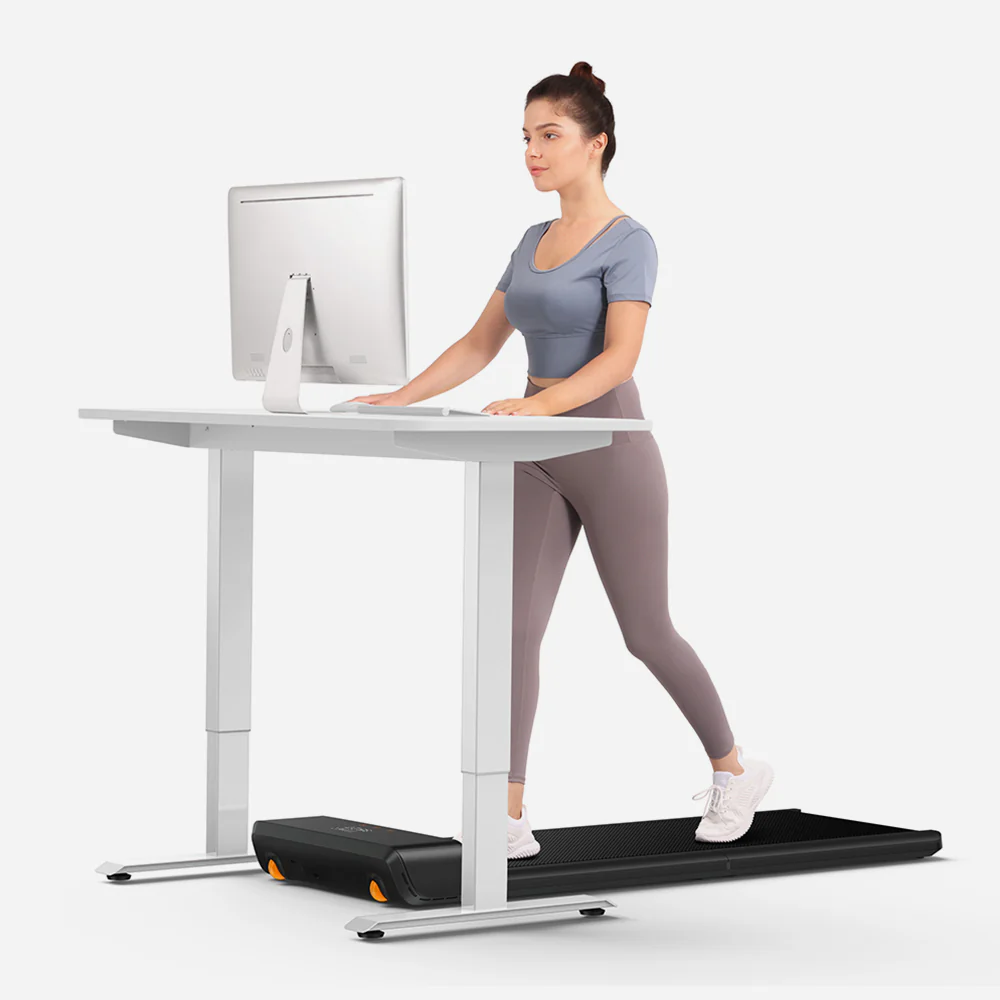
An under-desk walking pad is a compact treadmill intended for walking, often at lower speeds and without a raised console in the working configuration. It is designed to fit below a standing desk so a user can move while completing selected computer tasks.
Do not assume that every compact treadmill is approved for use under a desk or for running. Check the manufacturer's manual for the permitted operating mode, speed range, user limit, safety features, clearance, maintenance, and storage method. A speed number by itself does not establish that a model is safe for running.
Measure the complete workstation before you buy
Clear space between the desk legs
Measure the narrowest distance between the feet and legs at floor level, not only the width of the desktop. Include any crossbar, stabilizer, cabinet, computer mount, power bar, or cable tray that reduces the opening. The walking pad needs space, but so do your feet when stepping on and off.
Walking pad footprint and usable belt
Record the machine's full length, width, and height as well as the usable belt dimensions. Add the clearance required by its manual. A machine can technically fit between the desk legs while leaving no comfortable entry path or safe place to step aside.
Your working position
Mark where your body will be on the belt. Then check whether the keyboard and monitor can remain directly in front of you. Avoid a setup that makes you reach forward, twist, or walk too close to the front or rear edge of the belt.
Room and storage route
Plan where the walking pad will go when you sit. Confirm its weight, wheels, folding method, lifting instructions, and the opening under the desk or nearby furniture. Storage should not require an awkward lift or block an exit.
Recalculate desk height on the walking pad
The deck raises your entire body above the floor. Your normal standing preset will therefore be too low in many cases. Step onto the stationary walking pad in the footwear you expect to use, then raise the work surface until your shoulders can relax and your forearms approach a comfortable horizontal position.
CCOHS recommends an overall adjustable setup and keeping the keyboard directly in front of the user, with the elbows close to the body and the wrists aligned with the forearms. Treat this as a starting point and adjust for comfort. Save a dedicated walking height if your desk has memory presets.
If the desk cannot rise high enough once you stand on the deck, do not compensate by hunching, bending the wrists, or lifting the shoulders. The walking pad and desk may not be compatible for your body dimensions.
Set the monitor after setting the keyboard
Keyboard height should be established before monitor height. Once your arms are comfortable, move the monitor so you can view it without lifting the chin or leaning forward. CCOHS describes an arm's length as a useful starting estimate for viewing distance, with adjustment for the user, screen size, vision, and task.
A monitor arm can help because the screen height and distance can be changed independently of the desktop. Confirm compatibility first, and make sure the arm remains stable when the desk and walking pad are in use.
Motion can make small text and precision visual work more demanding. Increase text size when appropriate and reserve detailed visual tasks for sitting or stationary standing if walking makes them uncomfortable.
Control cables before the belt moves
Power and data cables should never cross the walking belt, the step-on route, or the storage path. Secure the desk's power bar and adapters so the adjustable surface can travel through its full range without pulling a plug. Keep the walking pad's power cord separate from the desk's moving cable bundle unless the product instructions specify otherwise.
Before the first session:
- Raise and lower the empty desk through its full range.
- Confirm that no cable becomes tight, pinched, or caught.
- Place the walking pad cord away from the belt and your feet.
- Keep the controller or remote in a consistent, reachable location.
- Make sure an emergency stop method, if supplied, remains usable.
For a complete moving-desk checklist, see Burotic's standing desk cable management guide.
Choose tasks that work well while walking
Walking is not ideal for every type of desk work. Start with activities that tolerate some body movement and do not require fine hand control.
Often practical at an easy pace
- Reading larger text
- Reviewing documents
- Listening to meetings or training
- Routine email triage
- Brainstorming or outlining
- Voice calls when the room and microphone allow it
Often better while seated or stationary
- Detailed spreadsheet work
- Graphic design and precision editing
- Long-form typing when accuracy drops
- Video calls where movement is distracting
- Handling hot drinks, sharp tools, or loose papers
- Any task that makes you look away from the belt while stepping on or off
The right division depends on the user. If attention, typing accuracy, balance, or comfort declines, stop walking and change position.
Start slower and shorter than you think
Learn the controls while standing beside the machine or on a stationary belt, following the manual. Begin at the lowest practical speed and with a short session. Step off before changing equipment, moving cables, reaching for objects, or troubleshooting.
Do not chase a step target at the expense of safe work. The Government of Canada notes that every movement and step counts and encourages adults to be active daily while minimizing sedentary behaviour. A walking pad can contribute to movement, but it does not replace the full range of physical activity appropriate for you.
Alternate among sitting, stationary standing, walking, and movement away from the desk. CCOHS emphasizes frequent changes of body position because continuous sitting or standing can contribute to discomfort and fatigue.
Footwear, floor protection, and noise
Use footwear and a walking surface that match the manufacturer's guidance. Keep loose clothing, laces, and objects away from the belt. Inspect the floor for levelness and stability before use.
Sound includes the motor, belt, footfall, and vibration transmitted through the floor. Actual noise depends on speed, footwear, maintenance, room construction, and the person using the machine. In an apartment, condo, or shared office, consider the space below and review building rules. A protective mat may help in some setups, but it must be compatible with the walking pad and must not block ventilation or create instability.
Daily safety and maintenance checks
- Inspect the belt and surrounding area before starting.
- Remove cables, paper, clothing, and small objects from the route.
- Confirm that the machine sits level and does not rock.
- Check that the remote, display, and stop controls work as intended.
- Follow the manual for belt alignment, lubrication, cleaning, and service.
- Stop if you notice unusual sound, heat, smell, movement, or error messages.
- Unplug and store the unit as directed when it is not in use.
Do not open electrical components or improvise repairs. Follow the manufacturer’s service process.
Can you use a chair and walking pad at the same desk?
Yes, provided the workstation is designed for a practical changeover. Plan the storage position before buying. A chair needs enough floor area to roll, swivel, and approach the desk without striking the walking pad. The walking pad should not become a footrest, obstacle, or trip hazard when you sit.
Save separate desk presets for seated work, stationary standing, and walking if available. Recheck the keyboard and monitor rather than assuming one standing preset works for both the floor and the raised deck. Burotic's standing desk height guide explains a measurement-first approach.
A seven-step setup sequence
- Read the walking pad manual and confirm approved use.
- Measure the desk opening, machine, required clearance, and storage route.
- Place the unit on a stable surface with clear access.
- Stand on the stationary belt and set the keyboard height.
- Set the monitor height and viewing distance.
- Route every power and data cable away from the belt and moving parts.
- Test the controls, then begin with a slow, short, low-complexity task.
Choosing compatible Burotic equipment
The Burotic Under-Desk Treadmill is a WalkingPad A1 Pro supplied for active desk use. Confirm the current product details, manual, user limit, operating instructions, and availability before purchase. Pair it only with a desk that provides the required height and floor clearance for you. The Aspire Standing Desk Frame offers adjustable height and memory presets, which can help create a repeatable walking position when the full setup fits.
A well-planned walking workstation should make movement easier without making work less controlled. Measure first, keep transitions simple, and treat sitting, standing, walking, and away-from-desk movement as complementary options.
This article provides general ergonomic and safety information. It is not medical advice. Stop and consult an appropriate professional if you experience pain, dizziness, balance problems, or other concerning symptoms.

Previous article
Office Chair vs. Gaming Chair: What Matters for Working From Home?
Next article
48 vs. 60 vs. 72-Inch Standing Desk: Which Width Fits Your Setup?