





How to Position Paper Documents at a Computer Workstation

In this article
Paper has not disappeared from computer work. Contracts, handwritten notes, forms, drawings and reference pages still share the desk with screens. The problem is rarely the paper itself. It is the repeated movement created when a document sits too low, too far to one side or underneath other equipment. A better document position can reduce unnecessary head turning, keep the main display visible and preserve a useful writing area.
This guide explains how to position paper documents at a computer workstation, including a sit-stand desk. It covers documents used for reference, documents being written on and papers that need temporary storage. The recommendations are general ergonomic guidance, not medical advice. If reading or writing causes persistent discomfort, vision problems or neurological symptoms, consult an appropriate professional.
Match document position to the task
There is no single correct location for every sheet of paper. A document that you read while typing belongs near the visual path between the keyboard and monitor. A form you are completing by hand needs a stable, clear writing surface. A file used once during a meeting can stay in a secondary reach zone until it is needed. Start by naming the task before buying a holder or rearranging the desk.
Three questions make the choice clearer: How often do you look at the document? Do you need to write on it? Does it have to remain visible while you use the keyboard? The answers determine whether the page should be centred, angled beside the keyboard, elevated near the monitor or stored away.
For reference documents, reduce the visual distance
The Government of Canada computer workstation checklist recommends a document holder between the worker and monitor when many paper documents are used. It also recommends placing documents in line with the computer when repeated side turning is a concern. The goal is to reduce the difference in location and viewing distance between the page and the screen.
A centred in-line holder can sit below the monitor and above the keyboard when the workstation has enough depth. This arrangement works well when the document is read frequently but not written on. The eyes move down and up rather than repeatedly turning far to one side. Make sure the holder does not block the lower part of the screen, push the monitor too high or force the keyboard beyond easy reach.
A side-mounted holder can work when there is not enough depth in the centre. Place it on the side that minimizes turning for the current task and bring it as close to the monitor as practical. If the document is the main source and the screen is secondary, it may be reasonable to place the paper closer to the centre and shift the display slightly. The dominant item should occupy the more direct visual path.
For writing, protect a stable work area
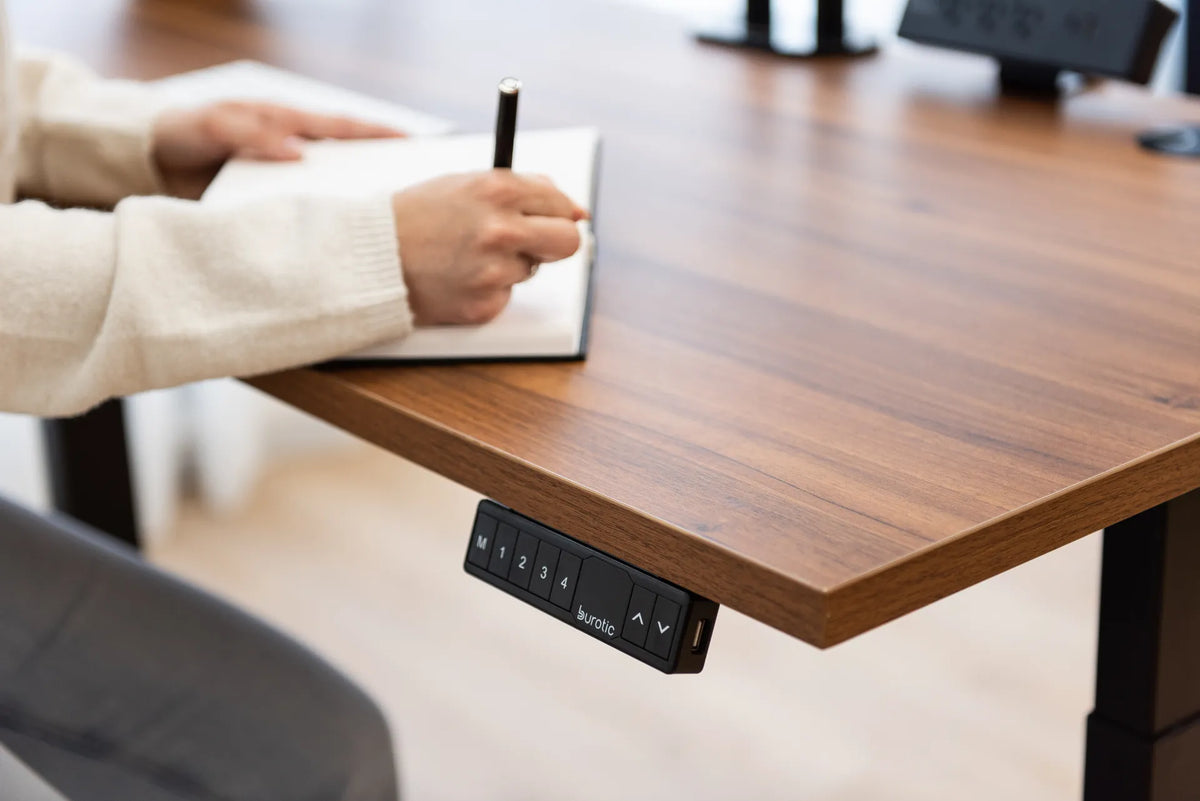
Writing requires different geometry from reading. The paper needs support, the writing arm needs room and the hand must be able to move without hitting the keyboard or controller. Clear a dedicated area rather than placing a notebook partly on a desk pad, cable or closed laptop. The featured image shows a person writing in an open notebook on a walnut-coloured standing desk. A black memory controller is visible below the front edge, but the large clear surface around the notebook is the functional focus.
Angle the page slightly to match the writing hand rather than forcing the forearm to twist. A right-handed writer often turns the top of the page slightly left; a left-handed writer may prefer the opposite, but personal technique varies. The useful test is whether the forearm can rest or move freely and whether the wrist remains reasonably aligned.
Adjust the desk for the writing task. The height used for keyboard work may not feel right for handwriting because the hand applies pressure and the user may look down more. Burotic's guide to standing desk height for handwriting explains how to test a separate setting. On a height-adjustable desk, save the writing height if the controller provides memory positions.
Choose a document holder by use, not appearance
In-line holders
An in-line holder sits between the keyboard and monitor. It can reduce side-to-side head movement and is often useful for data entry, transcription or comparing text. Check that its slope does not reflect overhead light and that its front edge does not interfere with the keyboard. A model that supports several pages should hold them securely without requiring repeated pinching or lifting.
Side holders
A side holder can attach to the monitor, sit on a base or clamp to the desk. It preserves central writing space and may suit documents consulted periodically. Position it close to the screen and at a similar viewing distance where possible. Avoid mounting it so far to the side that the shoulders or torso rotate with every glance.
Flat and angled writing supports
A low writing slope can bring the page closer to the visual field, but it must remain stable under writing pressure. It should not introduce a sharp front edge or force the elbows outward. If the support is used on a sit-stand desk, secure it according to the manufacturer's directions before changing height.
Coordinate paper with the monitor
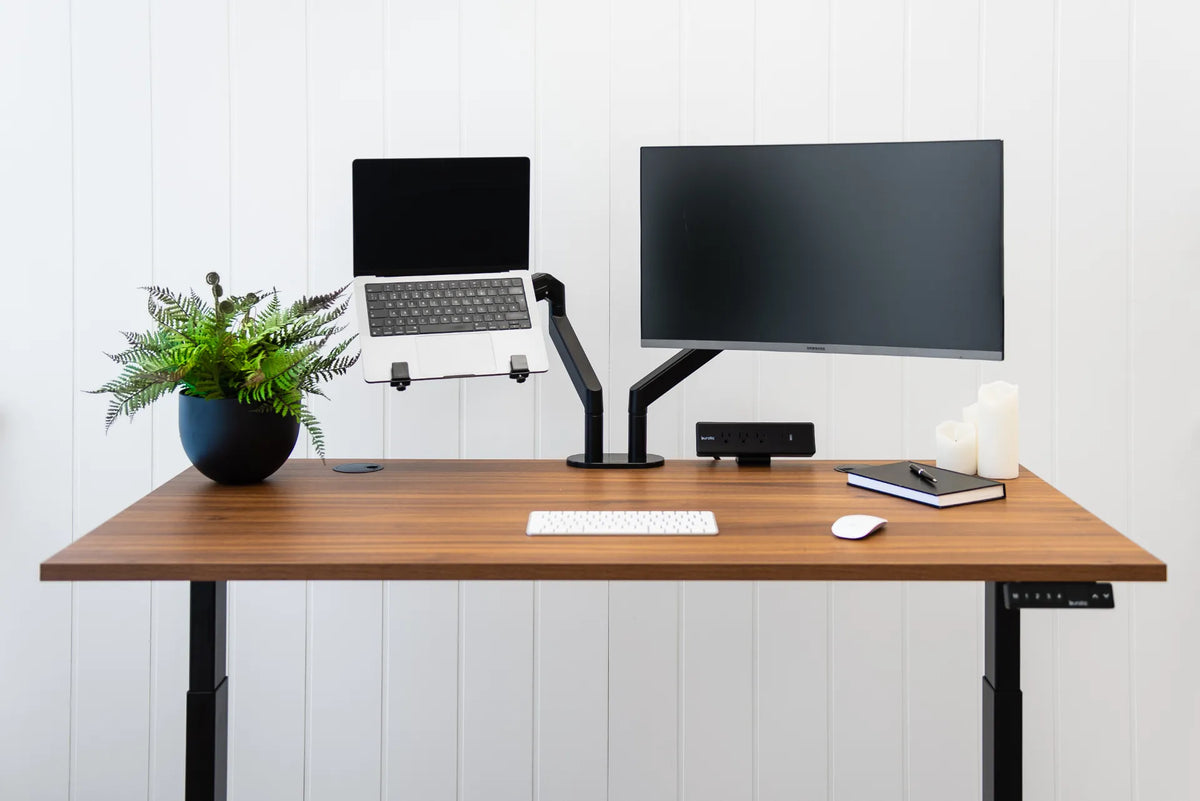
Set the main monitor first. The screen should be centred for the main computer task, at a practical viewing distance and at a height that does not force sustained upward or downward head posture. Burotic's guide to centring a monitor on the desk covers that baseline.
Then position the paper according to frequency. If you alternate between page and screen every few seconds, keep them close together. If you read the page for several minutes at a time, it can take the central position temporarily. Avoid placing important paper flat behind the keyboard, where reading it requires leaning forward and looking sharply down.
Lighting matters as much as position. CCOHS notes that office work often involves both screens and paper and recommends directing a task lamp toward the document, not the monitor. Adjust the lamp to improve page contrast without creating glare on the display or a bright reflection on glossy paper.
Plan documents within desk reach zones
Keep the active page in the primary or secondary zone, depending on whether it is being written on or only consulted. Put the next document within easy reach. Move completed pages to a tray or drawer instead of building a pile that narrows the keyboard and mouse area. The new Burotic guide to desk reach zones explains how frequency should control placement.
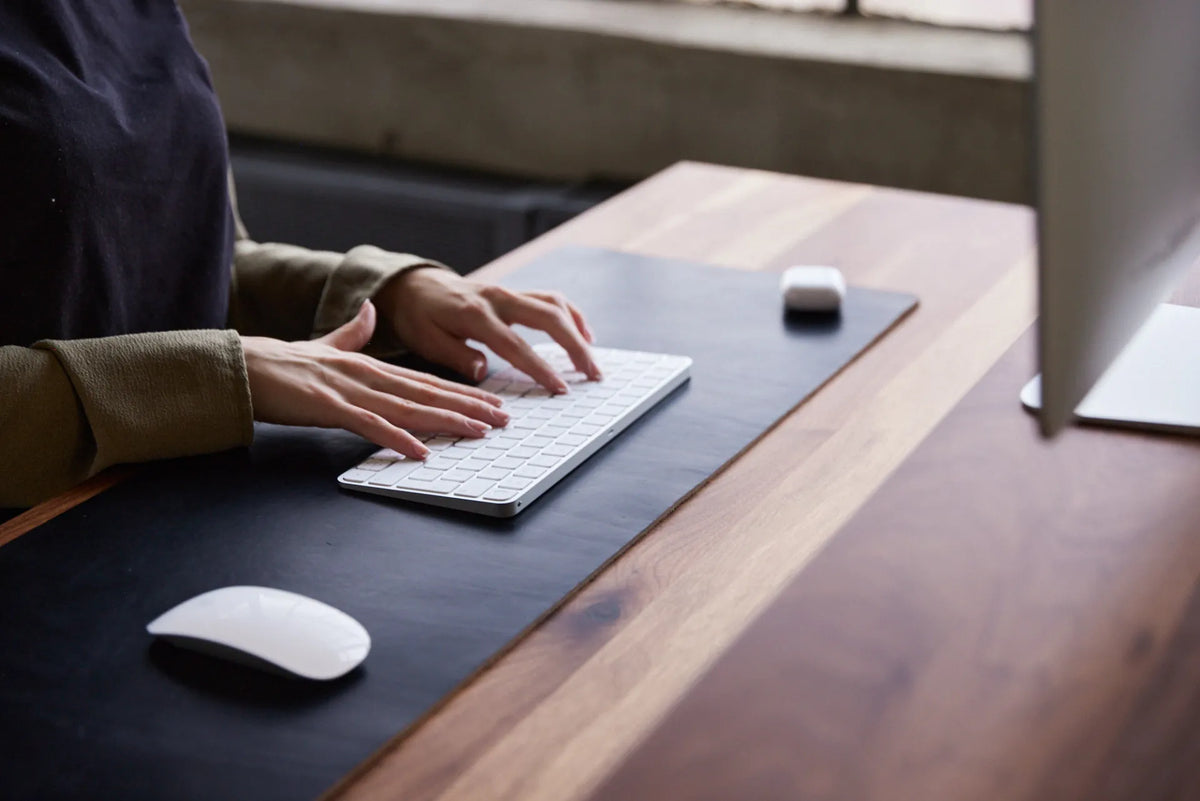
For a mixed paper and computer day, divide the surface deliberately. One side can remain clear for writing while the keyboard and mouse stay centred for computer input. Do not make the mouse travel around a notebook. If the paper task becomes the main activity, move the input devices as a group, complete the paper work and then restore the computer layout.
Special considerations for sit-stand work
At standing height, people often step farther from the desk or lean forward to read a flat page. Bring the document closer or elevate it rather than bending from the waist. Recheck the monitor and keyboard after changing height because all three elements must work as a system.
Keep papers, clips and holders clear of the desktop edge and controller. Test the desk's full travel so an attached holder does not contact a shelf, wall or window sill. Loose pages near an open window or floor fan should be secured before the desk moves. Cables from a task lamp or digital pen charger also need enough slack for the highest position.
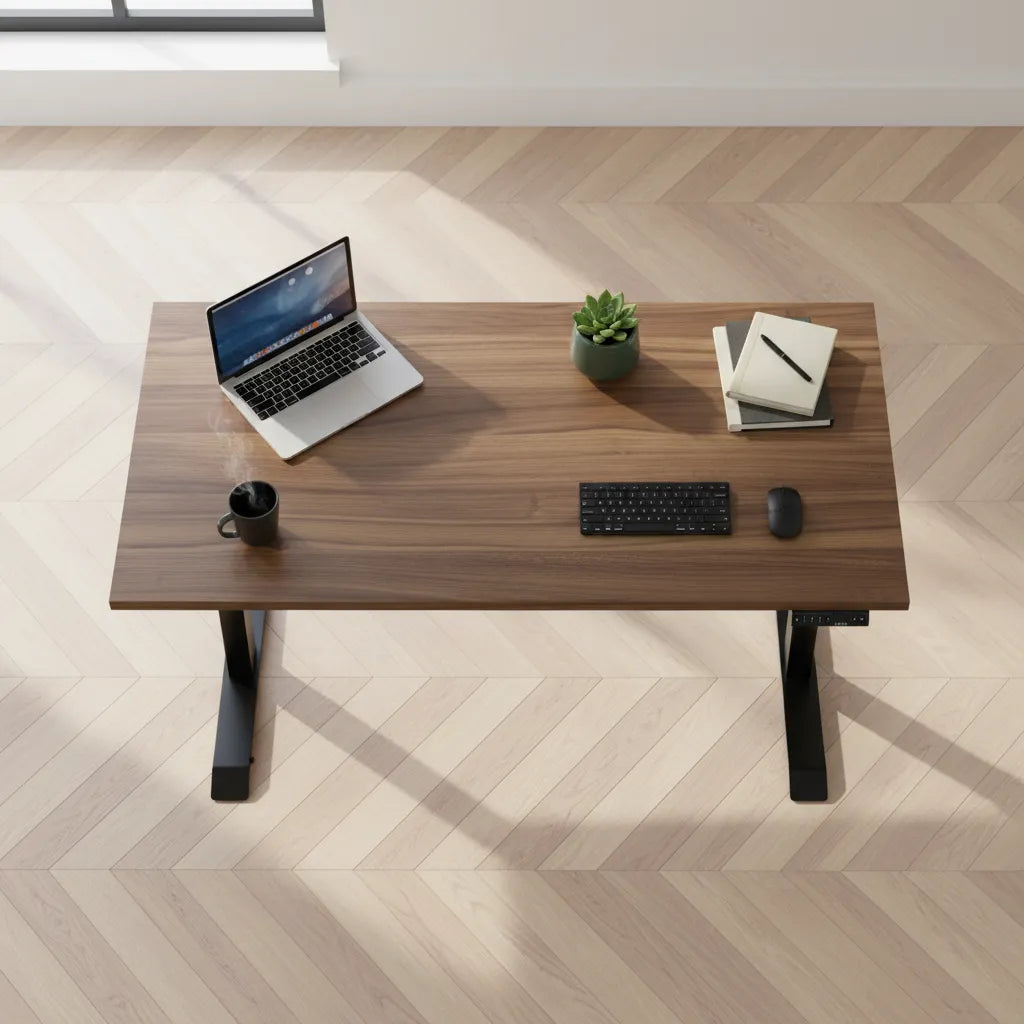
A configurable desk such as the Aspire Laminate Standing Desk can support separate heights for typing and paper tasks. The adjustment is useful only when the surface remains clear enough to change tasks safely.
Common mistakes with paper documents
- Keeping the page far to one side. Repeated neck turning accumulates over a long data-entry session.
- Reading a flat page behind the keyboard. This encourages forward leaning and a steep downward gaze.
- Writing over cables or uneven objects. The unstable surface changes hand pressure and can damage equipment.
- Covering input devices with paper. Repeated clearing adds friction and can move the keyboard away from its centred position.
- Letting piles enter the moving envelope. Papers can fall, snag or block the controller when the desk changes height.
- Using a holder that blocks the screen. An accessory is not helpful if it creates another awkward posture.
A simple setup sequence
- Adjust the chair or standing position and set the desk height for the main task.
- Centre the keyboard, mouse and primary monitor.
- Choose one active document and decide whether it will be read, written on or both.
- Place it in line with the screen for frequent reference, or clear a stable side area for writing.
- Add a holder only if it reduces head movement or frees useful surface space.
- Test five minutes of real work, then adjust distance, angle and lighting.
- Move completed pages into a defined tray or storage location.
Bottom line
Good document position follows the task. Frequent reference pages belong close to the monitor's visual line; handwriting needs a stable, clear surface and its own useful height. A holder can reduce repeated head movement, but only if it works with the monitor, keyboard, lighting and reach zones. For broader planning, Burotic's paperwork and document review setup connects these choices into a complete workflow.
Previous article
Desk Reach Zones: Where to Put the Items You Use Most
Next article
How to Align Dual Monitors: Height, Angle and Primary Screen