





Why Is My Wireless Charging Desk Pad Not Charging?

In this article
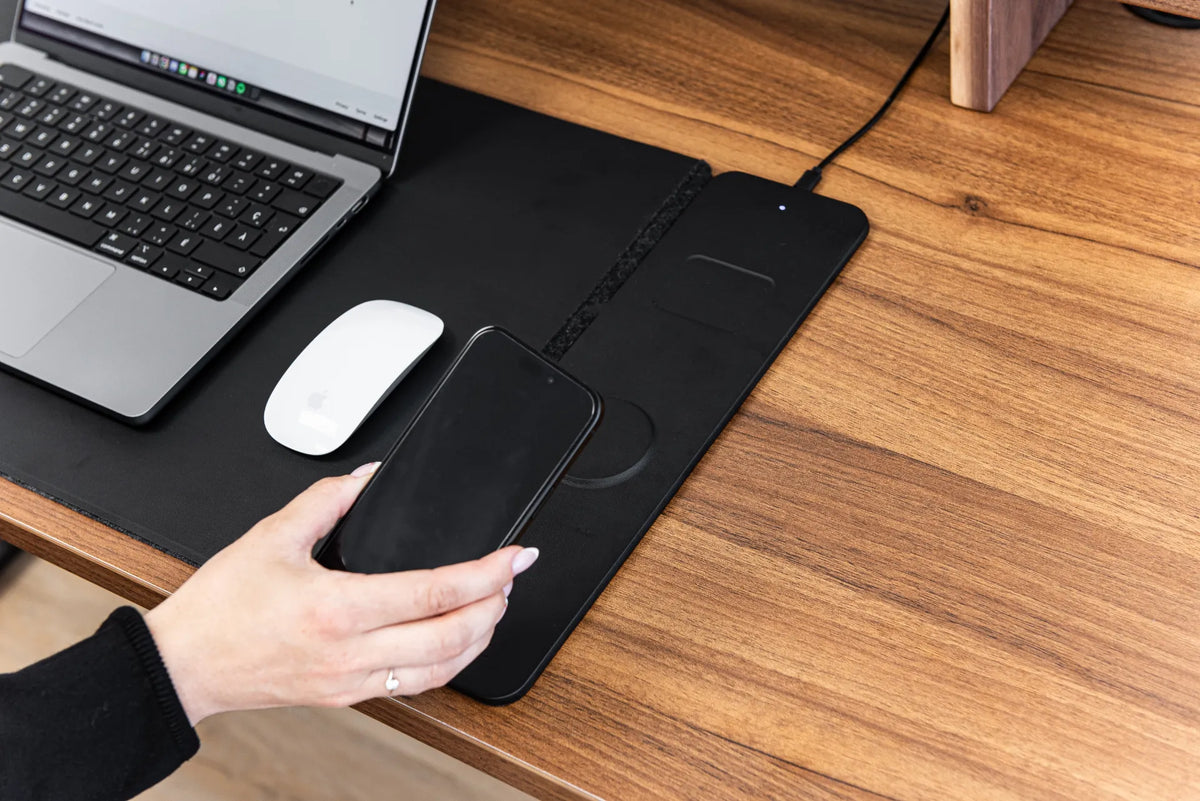
If a wireless charging desk pad is not charging your phone, start with the simplest checks: confirm the pad has power, place the centre of the phone over the marked charging area, remove a thick or metal case, and test a second compatible device if one is available. Most intermittent problems come from power delivery, alignment, the case or an object between the coils.
Stop using the charger if the cable, connector or pad is damaged, if liquid is present, or if the phone or pad becomes unusually hot. Troubleshooting should identify the failed link without opening or modifying the charging module.
Quick troubleshooting order
- Reconnect the pad to its recommended power source.
- Check for a power or status light, if the model has one.
- Place the phone flat and centred on the charging zone.
- Remove the case and all cards, rings or metal accessories.
- Restart the phone and try again.
- Test another known-compatible device or charger.
- Inspect the cable and ports for damage or looseness.
Change one variable at a time. If you move the phone, change the adapter and remove the case simultaneously, you will not know which action solved the problem.
1. Confirm the pad is actually powered
A charging surface can look normal while receiving no power. Disconnect and firmly reconnect both ends of the cable. If the module uses a removable power adapter, confirm that the adapter is plugged into a live outlet and matches the product instructions. Do not assume every computer USB port or spare phone adapter provides the required output.
If the pad has an indicator light, note whether it stays off, flashes or changes after the phone is placed. Use the product manual to interpret the signal because light patterns are not universal. Test the wall outlet with a different small device when safe to do so. Avoid daisy-chaining power bars or using damaged adapters.
2. Reposition the phone slowly
Wireless charging transfers energy between a coil in the charging surface and a coil in the phone. Those coils need adequate overlap. The Wireless Power Consortium explains that alignment is one of the central challenges of wireless charging, which is why magnetic systems use a ring to position compatible devices.
Set the phone flat over the centre of the marked zone. Wait several seconds for the charging symbol, then move it in small increments if nothing appears. A large phone, an off-centre camera bump or an unusual internal coil position can change where the best overlap occurs. Do not balance the phone partly on a keyboard, notebook or raised seam.
3. Remove the case and accessories
Thick cases, metal plates, card holders, grip rings and battery cases can interfere with charging or prevent the phone from lying flat. Apple advises removing a thick, metal or battery case when wireless charging is slow or does not start. Even a compatible case can cause trouble if a card or magnetic accessory has been added.
Remove the case for the test, wipe the phone and charging area with a dry soft cloth, and try again. Keep payment cards, access cards, keys and coins away from the charging zone. If the phone charges without the case, replace or simplify the case rather than forcing the charger to work through it.
4. Check device compatibility
Not every phone, earbud case or accessory accepts wireless power. Confirm the exact model supports the charging standard used by the pad. A phone that looks similar to a compatible model may have different hardware. Also check whether the pad is designed for phones, earbuds or both, and whether each device belongs on a different marked zone.
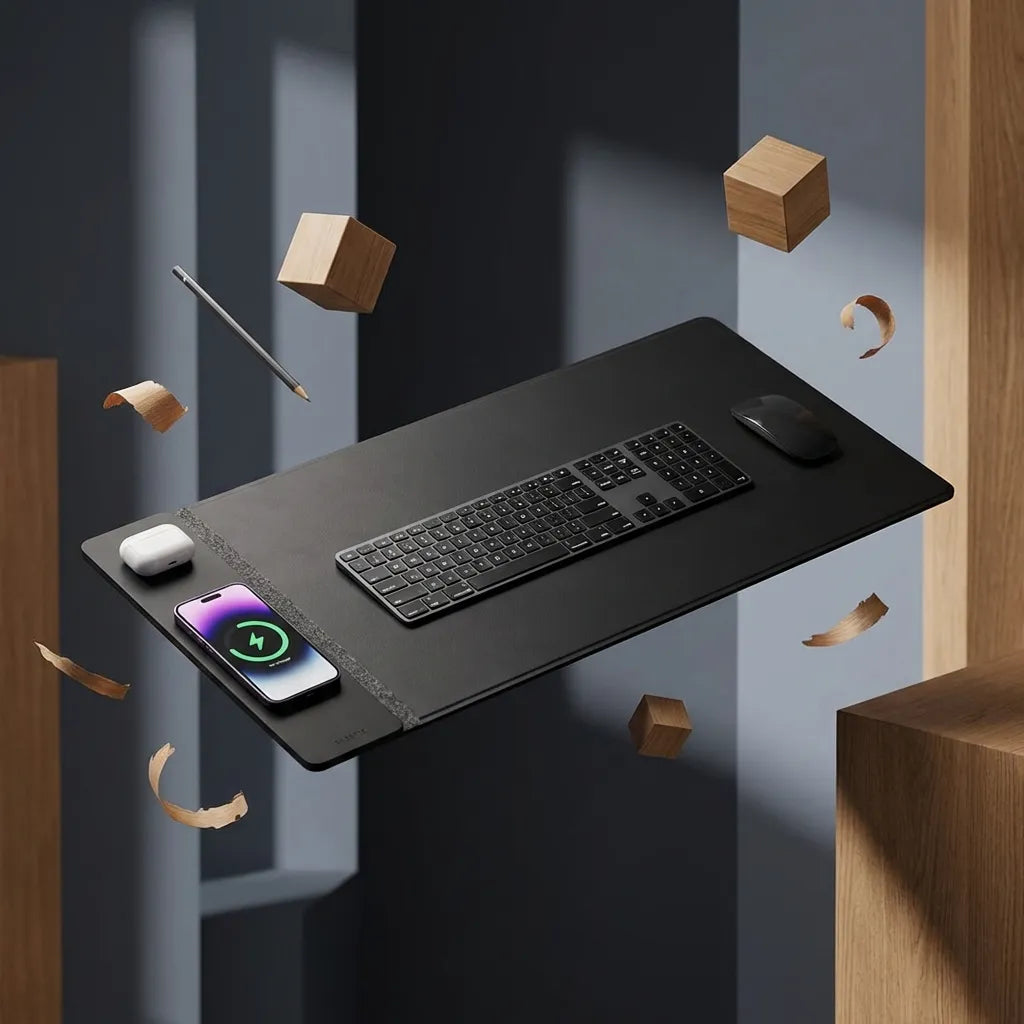
The Burotic Wireless Charging Desk Pad product page identifies the pad as a modular wireless charging surface for a smartphone and earbuds. Use the specifications and instructions supplied with the current product rather than assuming the behaviour of another charger.
5. Let heat and moisture clear
Phones and chargers can slow or pause charging when temperatures rise. Move the pad away from direct sun, heating vents and other heat-producing devices. Let both devices cool to normal room conditions before testing again. Do not cover the phone with papers or fabric while it charges.
Liquid and electricity do not mix. If the desk pad, connector or phone is wet, disconnect power and allow the items to dry fully according to their care instructions. Do not use heat guns, hair dryers or other aggressive heat. Our guide to cleaning a wireless charging desk pad covers routine care without saturating the charging area.
6. Look for movement during notifications
A phone can begin charging and then stop after vibration shifts it away from the coil. Apple notes that notifications can move a phone enough to interrupt charging on a mat. Place the device on a level surface, centre it carefully and verify that the pad does not flex or slide during use.
If movement is the cause, reduce vibration during the charging period, use a compatible case with better grip or reposition the module where the phone will remain flat. Do not tape the phone to the charger or add thick material between the surfaces.
7. Separate charger, cable and phone problems
Use controlled substitutions. Test the same phone on another known-compatible wireless charger. Test another compatible phone on the desk pad. If the module has a removable cable, test only a cable that meets the product instructions. These comparisons can show whether the issue follows the phone, the charging surface or the power connection.
- If no device charges, focus on the pad, cable and power source.
- If one device charges and another does not, check compatibility, cases and phone settings.
- If charging starts only in one exact position, mark the effective centre mentally and keep the surface flat.
- If charging begins and repeatedly stops, investigate movement, heat, power stability and nearby objects.
When a slow charge is not a failure
Wireless charging speed can vary with the phone, charging standard, power adapter, temperature and current device activity. Navigation, video calls and other demanding tasks can consume power while the battery is charging. A battery near full may also charge more slowly as the phone manages heat and battery condition.
Compare behaviour under similar conditions instead of expecting a fixed time. Close unnecessary high-load applications, centre the phone and leave it undisturbed for a short test. If the device reports charging and the battery percentage rises, the system is working even if the rate differs from a wired connection.
What not to do
- Do not open the charging module or alter internal wiring.
- Do not place metal objects or cards between the phone and pad.
- Do not continue using frayed cables or loose connectors.
- Do not charge on a wet surface.
- Do not stack multiple phones on one marked charging area.
- Do not use an unverified adapter simply because the plug fits.
When to stop troubleshooting
Disconnect the system if you see swelling, melting, smoke, a damaged battery, exposed conductors or persistent unusual heat. A phone with a damaged battery should be handled according to the device manufacturer’s safety guidance. If the pad remains unresponsive after power, alignment, case and compatibility checks, contact the seller or manufacturer with the product model, phone model and tests completed.
If you are still deciding whether this type of accessory suits your setup, review whether a wireless charging desk pad is worth adding and compare it with the simpler surface described in our desk pad versus mouse pad guide.
The practical answer
A wireless charging desk pad that will not charge is usually missing power, misaligned with the phone, blocked by a case or accessory, incompatible with the device, too warm or affected by a damaged connection. Work through those causes in order and change one variable at a time.
Keep the device flat, dry and centred, follow the current product instructions and stop if anything is damaged or abnormally hot. A methodical five-minute test is more useful than repeatedly moving the phone at random.
Previous article
Should Your Desk Face the Door? A Practical Home Office Guide
Next article
Should Your Desk Face the Door? A Practical Home Office Guide