

Should You Reposition Your Monitor When You Sit and Stand?
Yes, many people need a small monitor adjustment when moving between sitting and standing. Learn why, what to adjust first and how to save two repeatable workstation positions.

In this article
Yes. Many people benefit from a small monitor adjustment when they move between sitting and standing. Raising the desk preserves the relationship between the desktop, keyboard and screen, but it does not guarantee that the screen remains in the same place relative to your eyes. Seated and standing eye height do not always change by exactly the same amount as elbow height.
The practical solution is to set up and save two complete workstation positions: one for sitting and one for standing. Adjust the desk for the hands and elbows first, then adjust the monitor for the eyes and neck. A height-adjustable monitor arm makes this easier, but even a fixed stand can work if the compromise remains comfortable in both positions.
Why the screen may need to move
A sit-stand desk moves the keyboard, mouse and monitor together. Your body does not move as one rigid unit. When you stand, the vertical relationship between your elbows and eyes can change. Footwear, chair height, sitting posture and the way you distribute weight while standing also affect the final position.
A study indexed by PubMed found that monitor height changes relative to the work surface should be accommodated when using sit-to-stand workstations. Canadian guidance from the MSD Prevention Guideline for Ontario similarly notes that monitor location changes between sitting and standing and may need adjustment.
This does not mean everyone needs a large change. Some people need only a small upward or downward correction. The point is to assess the screen in each posture rather than assuming that one desktop preset solves every component.
Adjust the desk before the monitor
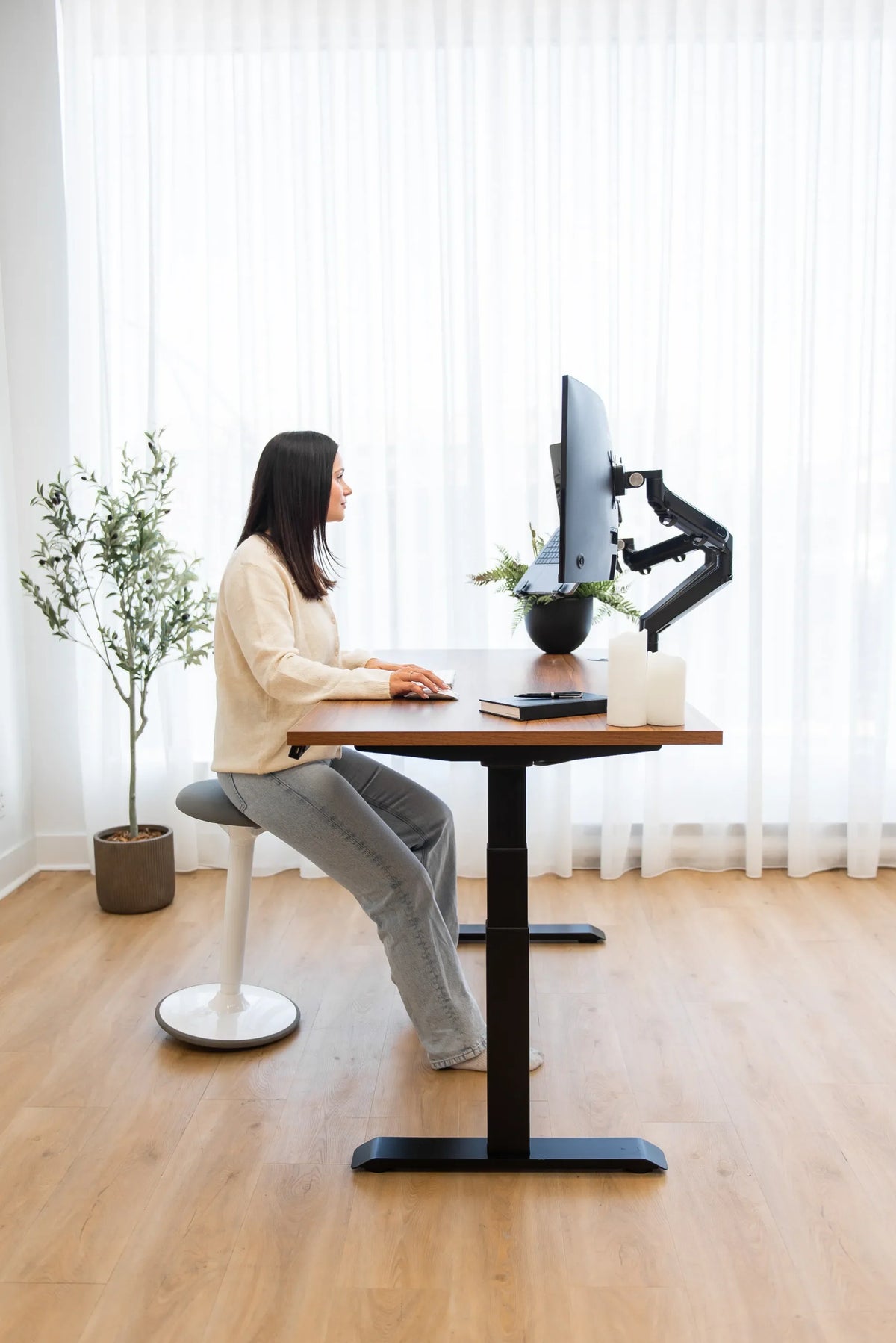
Begin with the keyboard and mouse. Whether seated or standing, keep the shoulders relaxed, the upper arms close to the body and the forearms roughly level. The desk should be near elbow height for the task, without forcing the shoulders upward or the wrists to bend sharply.
Once the input height feels neutral, leave the desktop there and evaluate the screen. Do not raise the entire desk just to lift the monitor if that makes the keyboard too high. This is a common reason people end up shrugging their shoulders while standing.
Set the seated position
- Adjust the chair so the feet are supported and the backrest supports the back.
- Move close enough that the keyboard and mouse can be used without reaching.
- Set the desk so the shoulders stay relaxed and the elbows remain close to the body.
- Place the monitor directly in front of the primary working position.
- Set the top of the viewing area at or slightly below eye level, then fine-tune for screen size, vision and corrective lenses.
If you want more detail on the visual reference point, see Should the Top of Your Monitor Be at Eye Level?
Set the standing position
- Stand in the footwear you normally wear and distribute your weight comfortably.
- Raise the desk until the keyboard and mouse again sit near relaxed elbow height.
- Face forward with the head balanced over the torso.
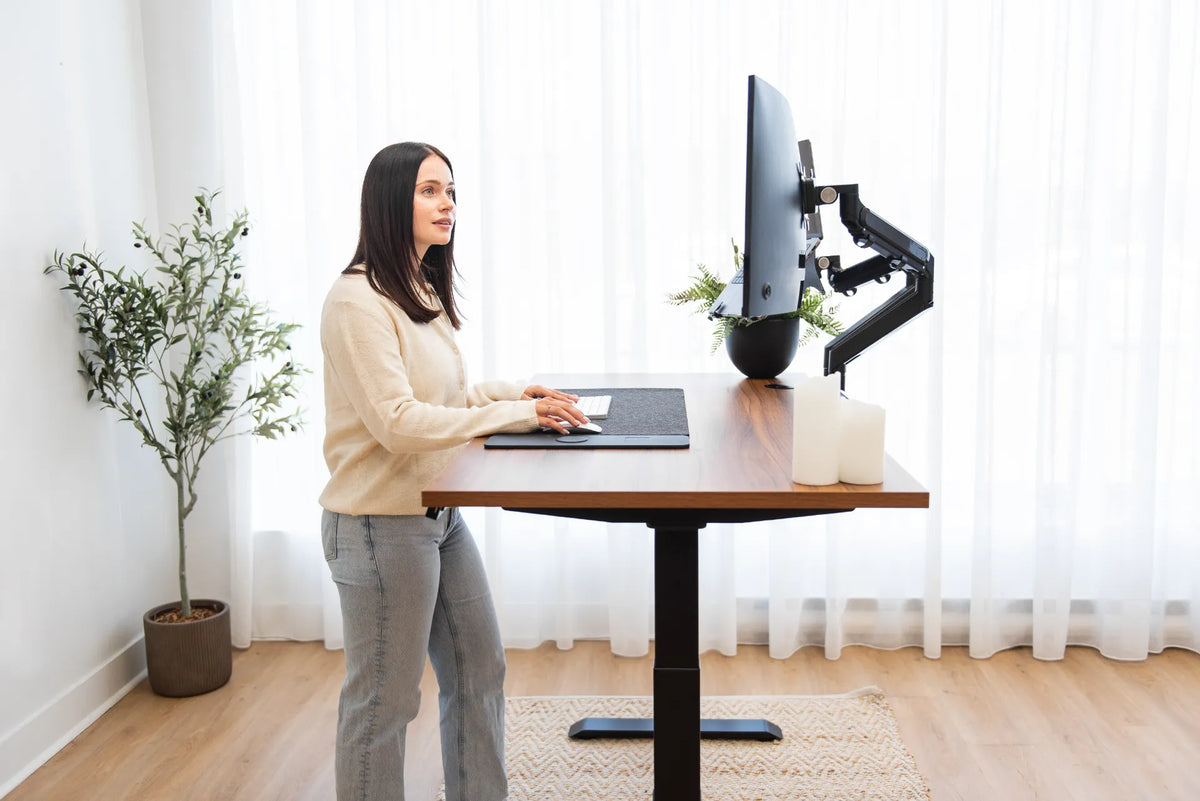
- Adjust the monitor height so the screen sits in a comfortable downward viewing zone.
- Recheck distance, because an articulated arm may move the screen closer as it rises.
CCOHS guidance for sit-stand desks recommends a neutral posture and a screen positioned between horizontal and about 35 degrees below the horizontal line of sight. The exact point should accommodate the individual, screen dimensions and visual needs.
How much should the monitor move?
There is no universal number. Research supports the need to assess the difference, but your required adjustment depends on body proportions and the workstation. Instead of chasing a fixed measurement, compare the two postures using the same checks:
- Can you read normal text without leaning toward the screen?
- Is your head level rather than tipped back?
- Can you see the main content without sustained downward neck bending?
- Are the shoulders relaxed while using the keyboard?
- Is the primary screen directly in front of you?
If the answers change when you stand, adjust the screen rather than adapting your body to it.
Recheck distance and tilt after every height change
Height is only one part of screen position. When an articulated arm travels upward, its joints may also bring the display forward or shift it sideways. Return the screen to a comfortable reading distance, usually starting near an arm's length, and keep the primary display centred on the body. A small tilt can help the screen face the eyes more directly and reduce reflections, but it should not be used to compensate for a screen that is much too high or low.
For multiple monitors, move the array as a system. Keep the most-used display in front and angle the others inward. If you change only one screen, compare their heights and distances again so the eyes are not repeatedly refocusing between noticeably different planes.
Monitor arms make two positions easier
A monitor arm can separate screen adjustment from desktop height. That lets you keep the keyboard at the right level while moving the display up, down, forward or back. Before choosing an arm, verify monitor weight, screen size, VESA pattern, desktop thickness and the clearance behind the desk.
The current Burotic Monitor Arm page lists the available product details. Pair compatibility checks with the advice in How High Should Your Monitor Be at a Standing Desk? Do not assume that every arm fits every screen or desk.
If you use a laptop as a second display, its screen may require a separate tray or stand. Keep the screen you use most directly in front of you. Avoid arranging the laptop so low or far to the side that every reference requires a neck bend and rotation.
Save two repeatable presets
Once both positions are comfortable, save the sitting and standing desk heights in separate memory buttons if your desk supports presets. The screen position may still need a small manual change. A piece of removable tape on the monitor arm, a measured reference on the pole or a simple note can help you return to the same positions without guessing.
Move slowly when changing the desk height. Watch cables, wall clearance and the monitor arm. Cables should have enough slack for the full movement range without hanging into the legs or pulling on connectors.
Signs the standing screen position needs correction
Common setup clues include leaning toward the screen, lifting the chin to see the top, bending the neck to read the centre, or raising the shoulders because the desk was used to correct monitor height. These clues identify a workstation adjustment to test, not a diagnosis.
Also check the content itself. Increasing text size, zoom and interface scaling can let the screen remain at a comfortable distance. Moving a monitor closer is not the only way to make details readable.
What if one fixed position is comfortable enough?
If your screen stays comfortable in both postures, there is no need to move it simply because an article says that adjustment is common. Reassess after changing footwear, chair height, monitor size or desk accessories. A configuration that works for one person may not work for another.
For a new setup, a height-adjustable desk with repeatable controls can make the transition easier. Review the current sizes and specifications of the Aspire Laminate Standing Desk and measure your screen, arm and room before deciding.
Sources
- CCOHS: Sit/Stand Desk
- CCOHS: Positioning the Monitor
- MSD Prevention Guideline for Ontario: Office Sit-Stand Workstations
- PubMed: Monitor Height Changes Between Sitting and Standing
This article offers general ergonomic information and is not a medical diagnosis. Persistent or significant discomfort should be discussed with a qualified health professional or ergonomist.

Previous article
How Should You Arrange Four Monitors on a Desk?
Next article
Why Does a Wireless Charger Get Warm? What to Check