





Can a Monitor Riser Hold Two Monitors? What to Check

In this article
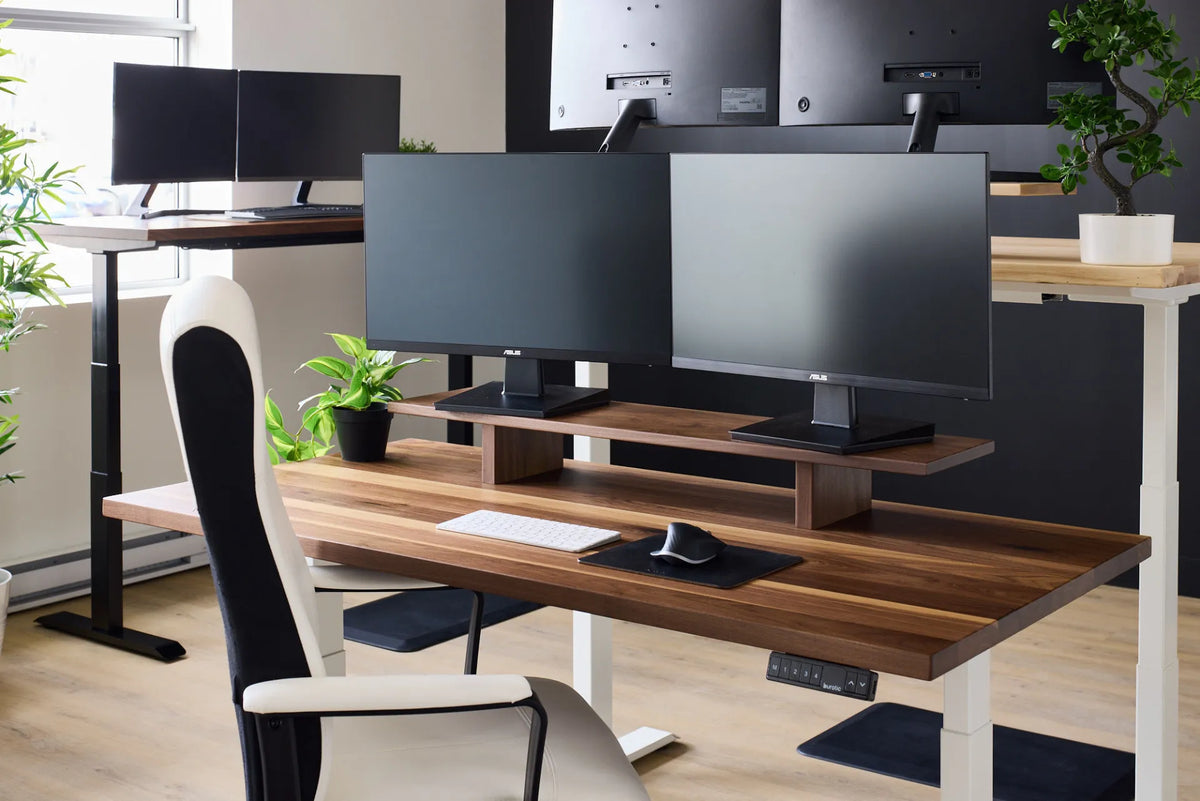
Yes, a monitor riser can hold two monitors, but only when the platform is wide enough for both bases, deep enough to support them fully, and rated for their combined weight. The screens also need to end up at a useful height and viewing angle. A riser that technically holds both monitors can still create a poor setup if the bases hang over the edge, the screens sit too high, or the pair is pushed so far forward that you lose comfortable viewing distance.
The right way to decide is to measure the actual monitor bases and compare those measurements with the usable surface of the riser. Screen size alone is not enough. Two 27-inch monitors can have very different stands, and a compact 32-inch display may use less surface area than a smaller screen with a wide V-shaped base.
Start with four measurements
Before moving any equipment, record the width and depth of each monitor base, the weight of each monitor with its original stand, and the riser's usable width and depth. Use the dimensions of the support surface, not the outside dimensions if raised edges, brackets or decorative details reduce the area where a base can sit flat.
1. Combined base width
Place the two monitor bases side by side on the desk and measure the total width they occupy in the position you expect to use. Leave a small practical gap so the bases do not rub and so you can adjust the screens independently. If the stands rotate, test the widest base position that occurs during normal adjustment.
The bases should remain completely supported. A foot or corner hanging beyond the riser can reduce stability even if most of the base is on the shelf. Do not assume the screen bezels tell you where the bases will land. Some stands are centred, while others sweep outward or extend far behind the display.
2. Base depth
Measure from the frontmost to the rearmost point of each base. Compare that with the riser's usable depth. The entire base should sit flat, with no rubber foot outside the support surface. Also check whether the monitor's upright or hinge projects behind the base and could touch a wall.
Depth matters twice: it determines whether the monitors are stable on the riser, and it affects how far the screens sit from your eyes. If a deep base forces the screen toward the front edge, the result may be too close even though the base fits.
3. Combined weight
Use each monitor's weight with its stand attached, because the original stand remains part of the load. Add the two values and include any accessory resting on the riser, such as a small speaker, webcam support or laptop. Compare that total with the riser manufacturer's stated capacity. Do not estimate capacity from the material or thickness alone.
Burotic's current Monitor Stand is described as suitable for two monitors and rated to support up to 120 lb. Its published surface is 42 by 10 inches. Those specifications apply to that product only. If you use another riser, check its own documentation rather than transferring the same limit.
4. Final screen height
A riser solves a height problem only if its fixed height suits the user and the monitors. The Canadian Centre for Occupational Health and Safety says monitor placement should help avoid awkward neck and upper-body positions. It recommends keeping screens around arm's length away and at the same height, with the top at eye level or slightly lower for many users.
Measure from the desk to the top of each screen before buying a fixed-height riser. Add the riser's height, then compare the result with your seated eye level. If the screens already adjust high enough on their own stands, an additional riser may place them too high. Our guide to whether the top of a monitor should be at eye level explains how to fine-tune the result.
How to arrange two monitors on one riser
Decide which screen you use most. If one is clearly primary, centre it in front of your body and angle the secondary screen inward beside it. If you use both equally, place their inner edges close together and centre the meeting point in front of you. A shallow inward angle can reduce eye travel and make the outer edges easier to see.
Keep the screens at the same vertical level when possible. Mismatched heights encourage repeated head movement, especially when you drag windows from one display to the other. If the monitors have different sizes, align the areas you look at most rather than forcing the physical tops or bottoms to match perfectly.
The CCOHS recommends arranging equally used monitors in front of the user with the edges touching and the screens forming a gentle semicircle. When one screen is used more, it should sit directly in front, with the secondary display angled to the side. These are starting points, not rigid rules. Text size, corrective lenses and the work being performed can justify small adjustments.
Check the desk beneath the riser
A dual-monitor riser transfers its full load to the desktop. Confirm that the desk surface is level, rigid and large enough to support the riser's full footprint. Do not place a riser across a seam, over an unsupported leaf, or on top of loose desk accessories. If the desk moves from sitting to standing, test stability at several heights after installation.
Viewing distance also depends on desk depth. If two stands occupy most of the riser and the riser sits at the front half of a shallow desk, you may not be able to move the screens far enough away. See our guide to desk depth for two monitors for a measurement process based on the complete setup.
Plan cables before final placement
Two monitors usually add at least four cables: two power leads and two video connections. Route them without pinching them between the monitor bases and the riser. Leave enough slack for tilt, rotation and any desk height movement. Keep power adapters ventilated and avoid stacking them under a low shelf where heat can build up.
If the riser offers storage beneath, reserve that space for items that do not push against the cables. A keyboard can fit under some risers, but only if the opening remains wide and tall enough for the keyboard and your hands. The article on storing a keyboard under a monitor riser covers that clearance in detail.
When a monitor arm is the better option
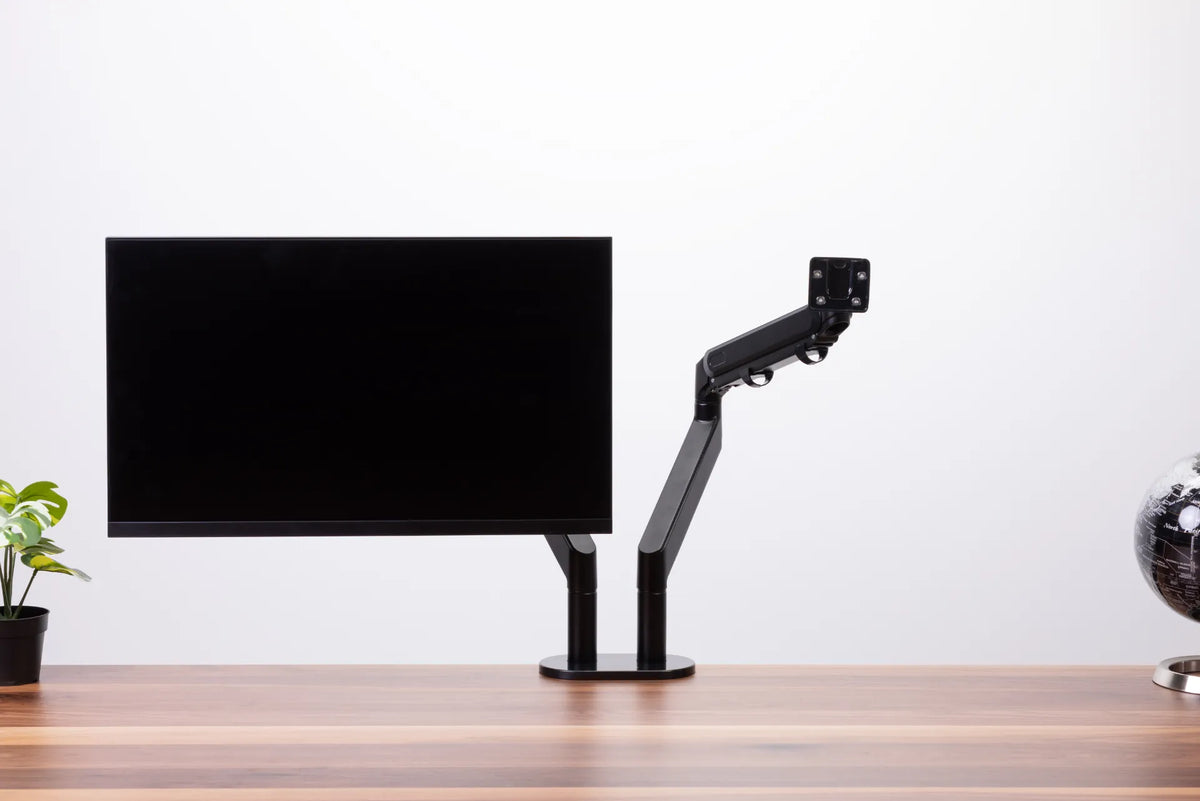
A fixed riser is a good fit when the monitor bases already provide useful tilt and height adjustment, the desk is deep enough, and you want simple storage beneath the screens. A monitor arm may be better when the original bases are unusually wide or deep, when you need independent height adjustment, or when viewing distance changes often.
An arm is not automatically more ergonomic. It still needs to match the monitor's VESA pattern, weight and desk attachment conditions. Our monitor stand versus monitor arm comparison explains the tradeoffs without assuming one solution works for everyone.
A quick fit test
- Measure both monitor bases at their widest and deepest points.
- Add the monitor weights with their stands and any accessories.
- Compare those figures with the riser's usable surface and rated load.
- Mock up the riser's height with stable books before buying, but do not use that temporary stack as a permanent support.
- Sit in your normal posture and check height, distance and the amount of head turning.
- Confirm that every base foot is supported and that all cables move freely.
The bottom line
A monitor riser can support two monitors when the complete bases fit flat, the combined load stays within the published rating, and the finished screen position suits the user. Measure the hardware you actually own rather than relying on diagonal screen size. If a fixed shelf produces the right height and preserves viewing distance, it can be a simple, stable way to organize a dual-monitor desk.

Previous article
Will a Clamp-On Power Bar Fit Your Desk? What to Measure
Next article
Can You Put a Desk Over a Baseboard Heater?