





How Thick Should a Desk Pad Be?

In this article
For most office work, a desk pad around 2 to 4 mm thick is a practical starting range. A thinner pad feels firmer and keeps the keyboard, mouse and writing surface close to the desktop. A thicker pad adds cushioning and can hide small surface irregularities, but it also creates a more noticeable edge and may let a mouse or keyboard sink slightly into soft material.
There is no single ergonomic standard for desk pad thickness. The best choice depends on the material, edge construction, how much pressure you place on the surface and whether you write, draw, type or use a precision mouse. Thickness should be treated as one specification among several, not as a promise of comfort.
What thickness changes in daily use
A difference of only a few millimetres can change how a desk pad behaves. Thickness affects firmness, compression, edge feel, sound and how well the pad covers minor texture in the desktop. It does not automatically determine quality. A dense 2 mm pad can feel more supportive than a loosely padded 4 mm model.
Official specifications for the Logitech Studio Series Desk Mat, for example, list a 2 mm thickness, showing that a low-profile mat can still be designed as a full keyboard-and-mouse surface. Other office and gaming mats commonly use 3 mm or more. The relevant question is what the construction does for your work.
Choose by thickness range
About 1 to 2 mm: low profile and firm
A thin pad is useful when you want minimal height change. It suits users who write frequently, prefer a firm mouse surface or dislike feeling a raised border under the forearm. Thin pads also make it easier to slide papers on and off the surface.
The tradeoff is that a thin pad provides little cushioning and may follow grooves or seams in an uneven desktop. It also needs an effective backing because low mass can make a poorly designed pad move.
About 3 to 4 mm: balanced everyday choice
This middle range is common because it can provide moderate cushioning without feeling unusually tall. It can soften keyboard sound, smooth over subtle desktop texture and provide a broad mouse surface. For many home offices, it is the easiest range to consider first.
Material density still matters. Felt, vegan leather, woven cloth and rubber-backed constructions compress differently even at the same nominal thickness. Compare the complete build rather than the number alone.
About 5 mm and above: more cushioning, more edge
A thicker pad may appeal to someone who wants a plush surface or needs to bridge minor gaps between desktop sections. It can also feel less stable for precise mousing if the foam compresses under pressure. A tall or raised stitched edge may contact the forearm and become distracting.
Do not assume a thicker pad is a substitute for a wrist rest. CCOHS advises keeping wrists straight and arranging the keyboard and mouse so the shoulders stay relaxed. A soft surface does not correct a keyboard that is too high or too far away.
Match thickness to the task
Typing and office navigation
For ordinary typing, spreadsheets and browser work, 2 to 4 mm is usually easy to accommodate. Check that the keyboard feet sit evenly and that the mat does not create a wobble. Keep the mouse close to the keyboard so the upper arm can remain near the body.
Handwriting and drawing
Writers often prefer a firmer, thinner surface because pen pressure is easier to control. A plush mat can allow paper to flex or a pen tip to press into the surface. If you alternate between writing and computer work, test a sheet of paper on the pad before committing to a thick model.
Precision mouse work
Designers, editors and other users who make fine pointer movements may prefer a dense, consistent base. Thickness alone does not decide glide. Surface weave, coating, mouse feet and cleanliness have a larger direct effect. A pad that compresses unevenly can change tracking feel.
Wireless charging pads
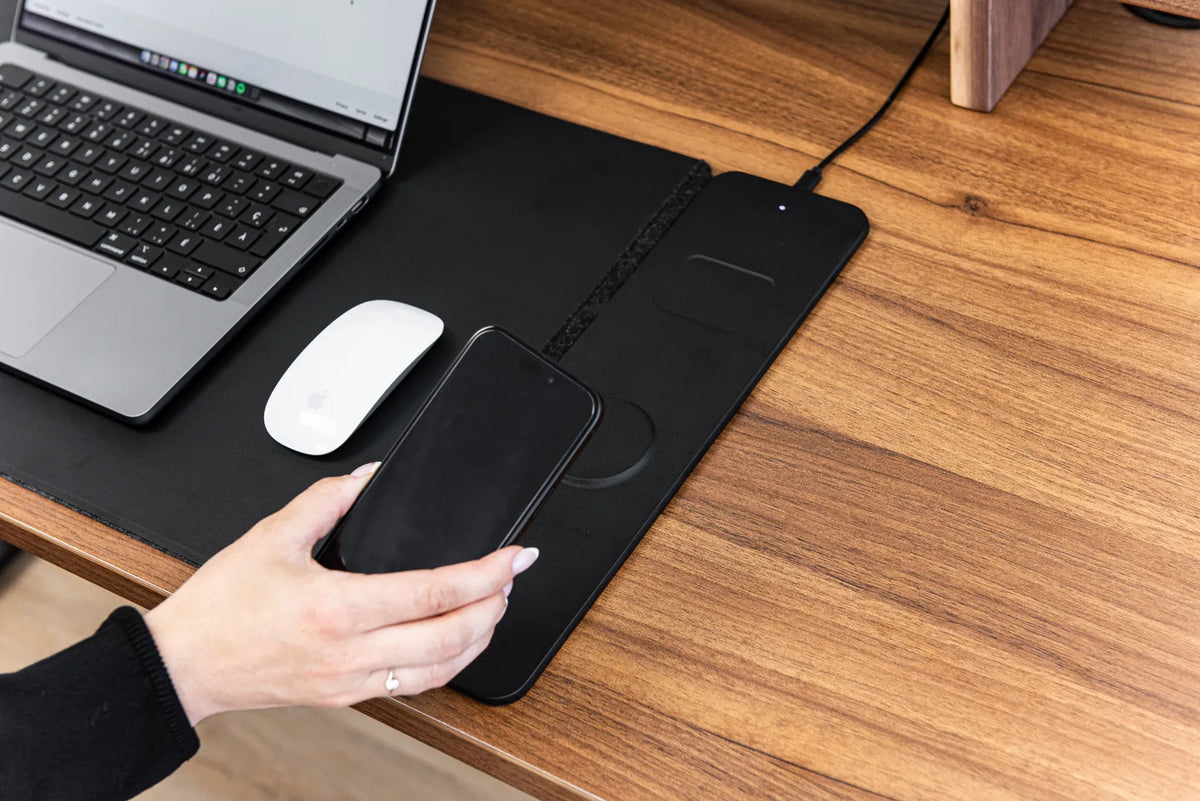
A desk pad with integrated charging is an electronic accessory, not just a textile. Use it only as directed, keep the charging zone clear of incompatible objects and connect the specified power source. Do not add another mat on top unless the manufacturer explicitly allows it. Burotic's Wireless Charging Desk Pad combines a work surface with dedicated charging areas, so its instructions and cable placement matter more than a generic thickness target.
Consider the front edge
The front edge is where thickness becomes most noticeable. If the pad ends under your forearms, a raised seam can create pressure or friction. Position the pad so your forearms do not stay planted on a hard edge, and avoid using the edge as a wrist rest while typing.
A low-profile, flush seam often feels smoother than a bulky stitched border. If durability is the priority, inspect whether the stitching sits above the surface and whether it catches sleeves. Rounded corners can also reduce lifting.
Protecting the desktop
Thickness can help absorb minor impacts, but the backing material determines how the pad interacts with the finish below. Dirt trapped under any pad can scratch a desktop. Moisture, heat and dyes can also affect some surfaces if the pad is left in place indefinitely.
Lift the pad regularly, remove grit and let both surfaces dry fully after cleaning. For a solid wood desk, follow the desk maker's care instructions. Read what a desk pad can and cannot protect before treating it as a complete barrier.
Size and thickness work together
A large, thick pad has more mass and may stay in place better, but it can also interfere with a monitor base, laptop stand or charging cable. Measure the clear area after placing permanent accessories. The Burotic desk pad size guide helps determine the required width and depth, while the comparison of a desk pad and mouse pad helps decide how much surface you actually need.
Check cable exits on electronic pads. A cable bent sharply against a wall or monitor stand can create more inconvenience than an extra millimetre of cushioning solves.
How to test a desk pad
- Place the keyboard and mouse in their normal positions.
- Type for several minutes without resting the wrists on the edge.
- Move the mouse slowly and quickly to check consistency.
- Write a short note on one sheet of paper.
- Check whether the pad slides, curls or creates keyboard wobble.
- Inspect the forearm contact point and cable route.
If a pad feels too soft, a thinner or denser construction may be better. If the desktop texture comes through or the surface feels harsh, a moderate increase in thickness may help.
Bottom line
Choose 2 mm when you want a firm, low-profile surface. Start around 3 to 4 mm when you want a balanced office pad with some cushioning. Consider 5 mm or more only when the softer feel serves a clear purpose and the raised edge does not interfere with your posture or mouse control.
Measure the space, compare materials and test the front edge. The right thickness is the one that keeps your tools stable and your work surface predictable.


Previous article
How High Should a Monitor Riser Be?
Next article
Should You Turn Off Your Office Power Bar at Night?