





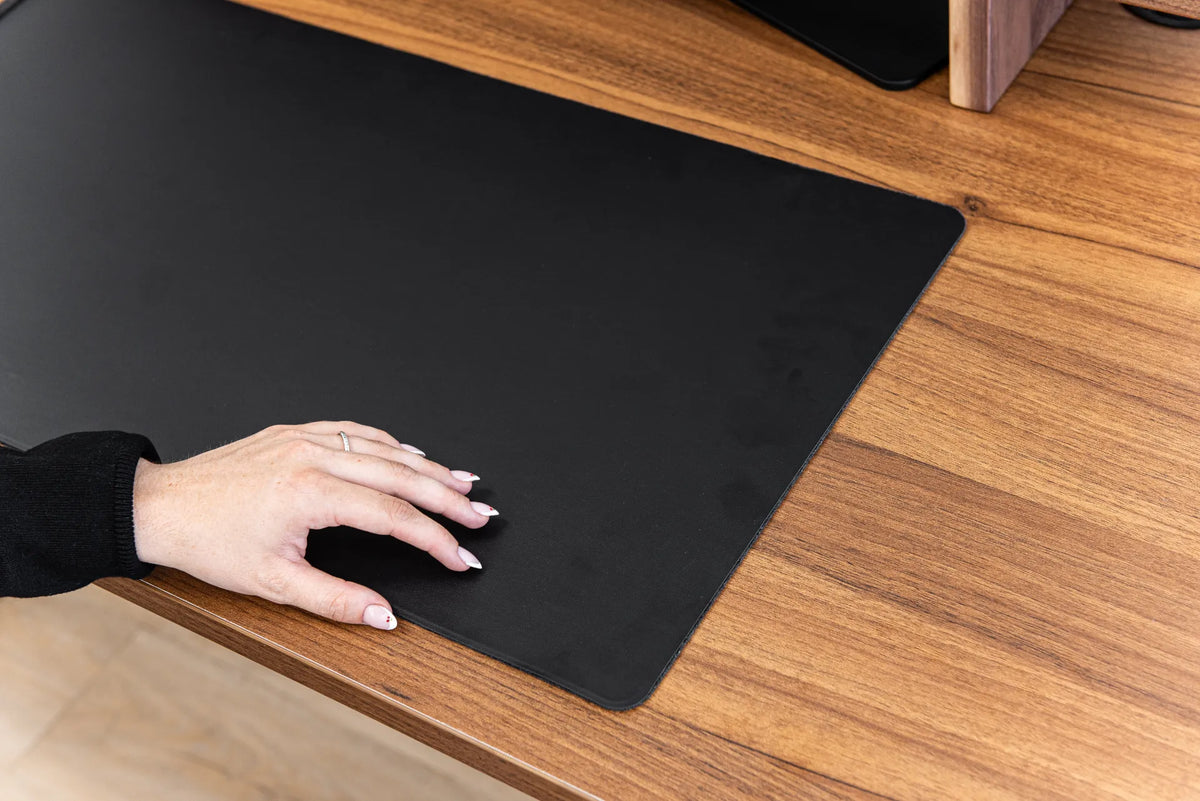
How Large Should a Desk Pad Be?
Choose a desk pad size by measuring your keyboard, mouse travel, writing space and usable desktop instead of relying on a one-size rule.

In this article
A desk pad should be large enough to hold the equipment you actually move, but small enough to leave the useful parts of your desktop accessible. For most computer work, that means fitting the keyboard and the full mouse path while preserving space for a notebook, controls and the front edge of the desk.
There is no single best desk pad size. A compact keyboard needs less width than a full-size model with a number pad. A low-sensitivity mouse user needs more travel than someone who moves the pointer with small motions. A deep standing desk gives you different options than a shallow writing desk. The right answer comes from measuring your setup, not copying a generic product photo.
This guide focuses specifically on size and fit. If you are still deciding between a large surface and a smaller mouse surface, read our desk pad versus mouse pad comparison. If your current pad will not lie flat, see our guide to flattening a rolled desk pad.
Start with the usable desktop, not the advertised dimensions
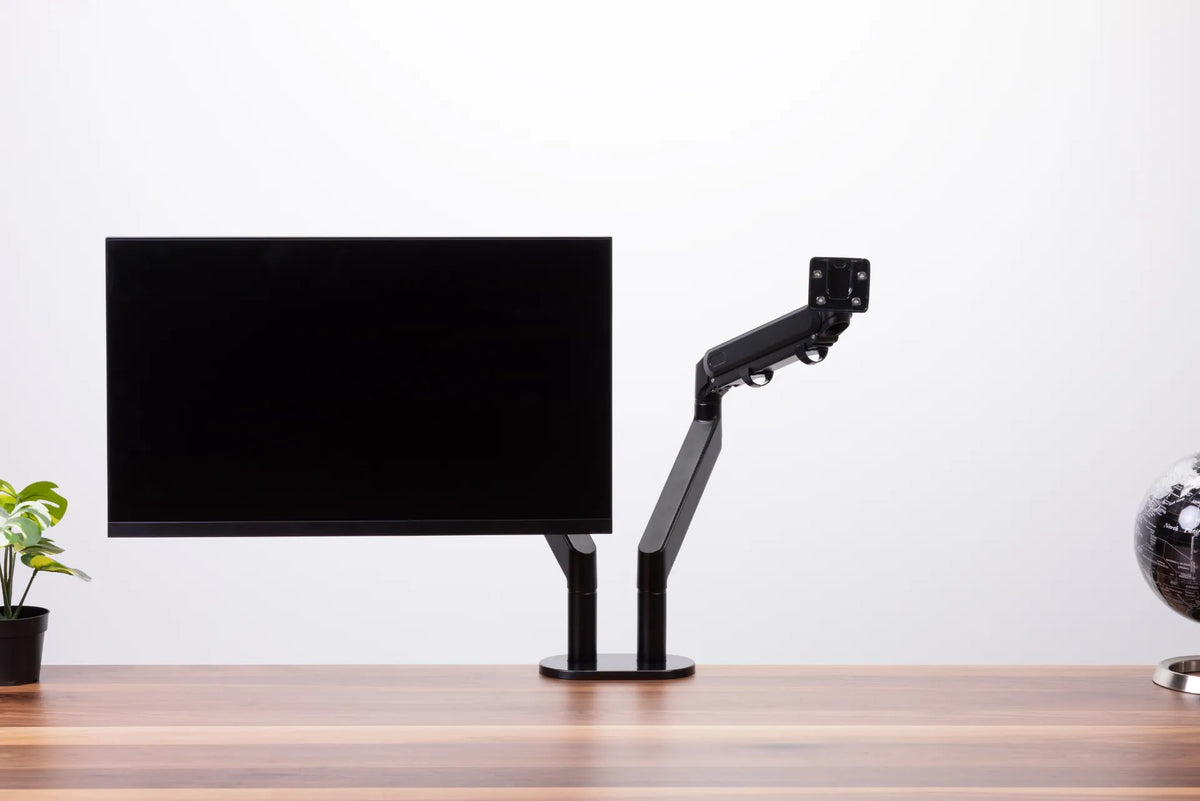
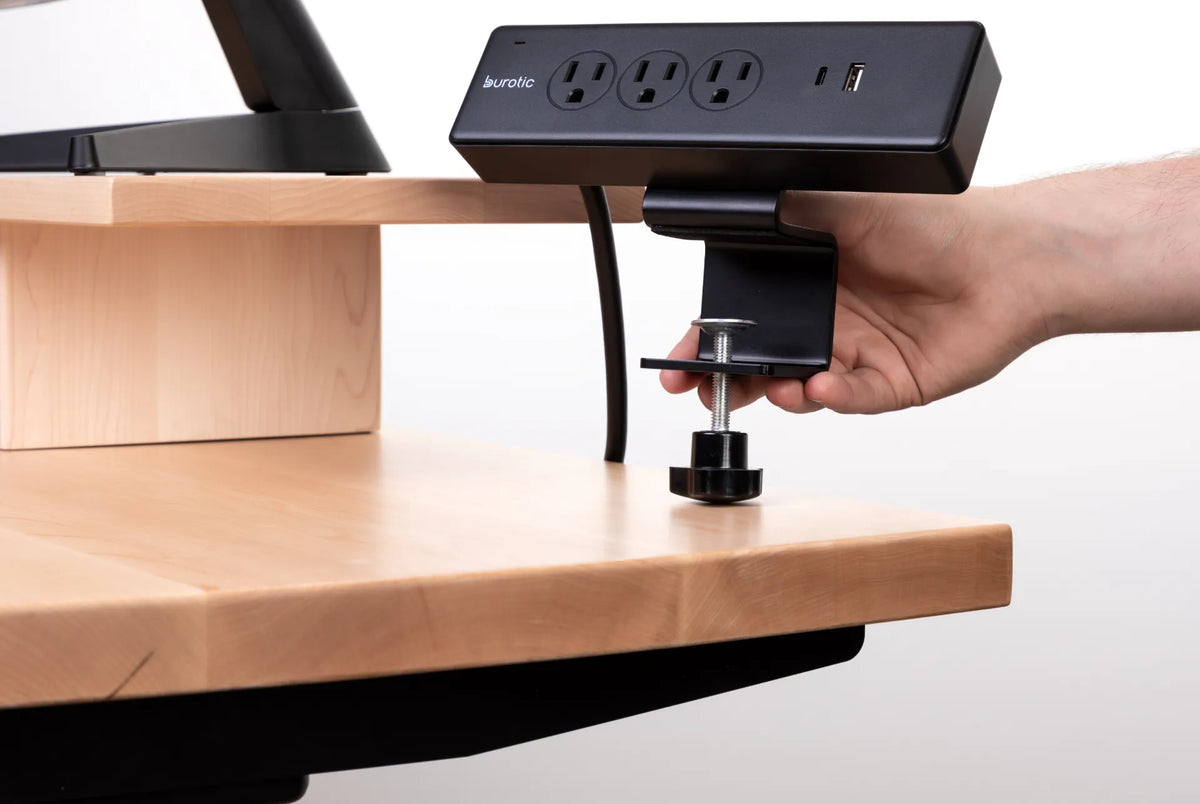
Measure the clear area where the pad could sit. Do not assume the full tabletop is usable. Monitor stands, a shelf, a laptop riser, a control handset, cable grommets, clamps and a desktop power bar can all reduce the available surface.
Record two measurements: usable width from left to right and usable depth from the front edge toward the monitor. If your desktop has rounded corners, measure the narrowest relevant section. On a height-adjustable desk, check that the pad will not cover the controller or interfere with cables when the desk moves.
Leave a little visible desktop around the pad. This makes it easier to lift the edge for cleaning and helps prevent the mat from hanging over a rounded or bevelled edge. The exact margin is a preference, not an ergonomic standard.
Measure the equipment footprint
Keyboard width
Measure the keyboard from its far left to far right, including any built-in number pad. A compact or tenkeyless keyboard can release meaningful mouse space. CCOHS notes that keyboard selection is part of the complete workstation and can provide more placement options for the mouse.
If you regularly use a separate number pad, stream deck or pointing device, include it in the working footprint. Equipment that sits partly off the pad can wobble or feel uneven.
Mouse travel
Do not measure only the mouse body. Move the pointer across your usual screens and observe how far your hand travels. Include the area needed for corrections and quick movements. Users with a lower pointer speed, large displays, design software or games may need substantially more space than the mouse itself suggests.
Keep the mouse close to the keyboard. The Government of Canada’s workstation guidance recommends placing the input device beside the keyboard at the same height and ensuring adequate space. An oversized pad does not help if the mouse is still positioned far to the side.
Writing and accessories
Decide whether the pad should also hold a notebook, phone, stylus or charging area. A pad that covers the keyboard and mouse only can preserve a clean writing zone on bare wood. A wider pad can unify the whole work area, but it may also make paper less stable or hide items you need to access.
A simple sizing method
- Measure the usable desktop width and depth.
- Place the keyboard where your shoulders feel relaxed and your elbows remain close to your sides.
- Measure from the keyboard’s far edge to the farthest comfortable mouse position.
- Add any accessory zone you genuinely want on the pad.
- Check that the proposed depth lets you keep the keyboard close without resting the wrists on a hard desk edge.
- Mark the outline with removable painter’s tape and work inside it for a day.
The tape test is valuable because a rectangle that looks generous on a product page can feel different beside your monitor base and notebooks. It also reveals whether you tend to shift the keyboard, move the mouse beyond the planned boundary or use more writing space than expected.
How deep should a desk pad be?
Depth affects both equipment placement and posture. The pad should reach far enough forward that the keyboard and mouse rest on the same surface. However, a very deep pad can push the keyboard away if its back edge collides with a monitor stand or shelf.
Set the keyboard in a position that allows relaxed shoulders and relatively neutral wrists. CCOHS recommends adjusting the keyboard, chair or desk so the wrist can remain in line rather than bent. Do not use the front edge of the pad as a rule for keyboard distance. Your posture and reach should decide the placement.
If the desktop is shallow, prioritize the input zone. A smaller depth that lets the keyboard stay close is better than a larger mat that forces everything forward. If the desk is deep, a pad can create a defined work zone while leaving room behind it for a monitor stand and cables.
Compact, standard and extended layouts
Compact setup
A compact pad works well when you use a laptop, small keyboard or limited mouse movement and want to preserve most of the desktop. It can also suit a shared space where the mat must be stored after work. Check that both input devices remain level and that the mouse does not repeatedly cross the pad’s edge.
Keyboard-and-mouse setup
This is the most versatile layout: the pad spans the keyboard and a comfortable mouse zone. It creates one continuous surface and reduces the chance that one device sits higher than the other. Size it from your actual hardware rather than relying on category labels.
Extended desktop setup
An extended pad can include accessories or a writing area and can visually organize a large desk. Before choosing it, confirm that it will not cover a cable opening, desk control or charging component you need. Also check whether the material tolerates the objects you plan to place on it.
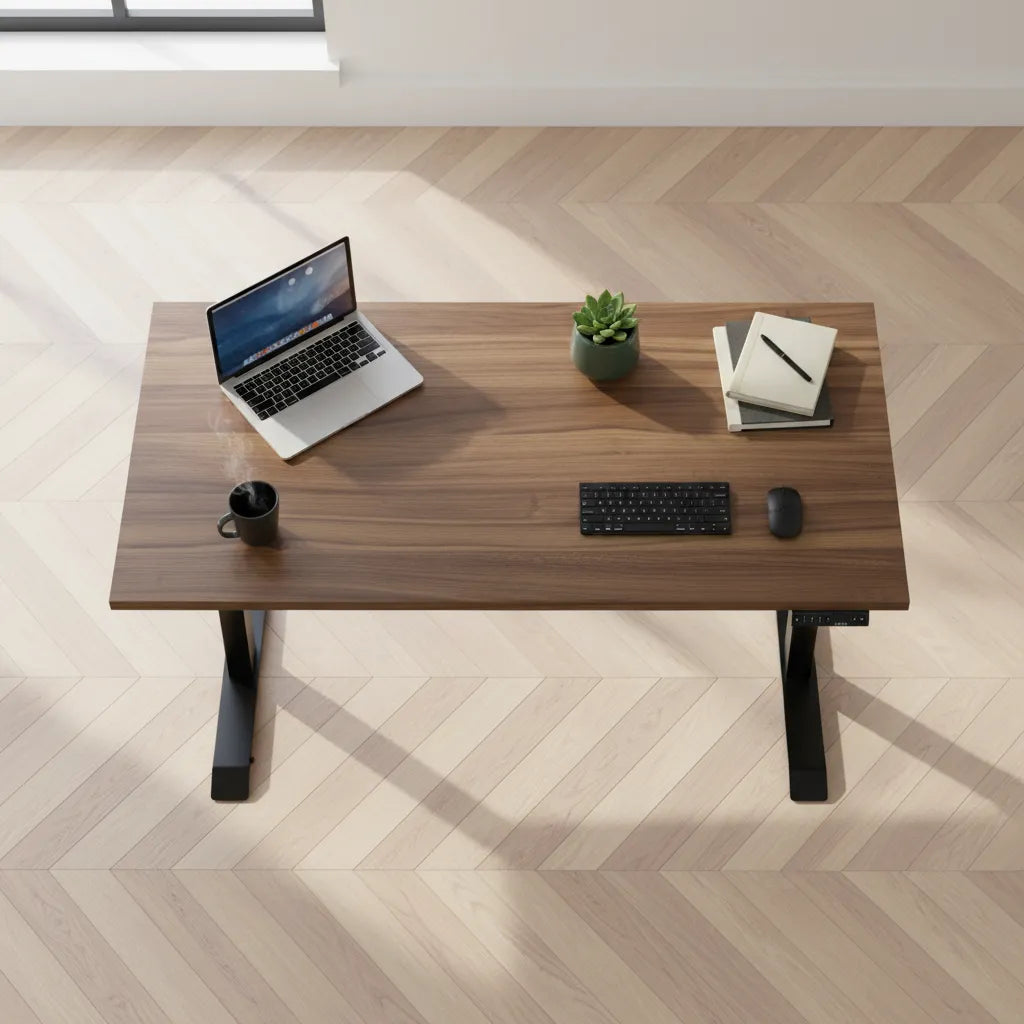
Desk pad sizing for a standing desk
The same basic measurements apply, but moving desks add cable and control considerations. Raise the desk to standing height and make sure the mouse cable, keyboard cable and any charging lead have enough slack. Nothing should tug the pad or pull a device when the desktop rises.
Look under the front edge for the control handset. A mat that overhangs can hide it or catch your clothing. If you alternate frequently, the pad should stay stable through height changes. Clean the desk before placing it and follow the manufacturer’s care directions for both the mat and tabletop.
Common sizing mistakes
- Buying by desk width alone while ignoring monitor bases, shelves and clamps.
- Measuring the mouse instead of its movement area.
- Forgetting the number pad or a separate input device.
- Choosing extra depth that pushes the keyboard too far away.
- Covering a desk controller, cable grommet or frequently used drawer.
- Assuming a larger pad automatically improves ergonomics.
- Ignoring material thickness where a notebook or device crosses the edge.
A desk pad is a surface-management tool, not a substitute for workstation adjustment. Chair height, desk height, keyboard placement and mouse reach still need to work together. Our guide to keyboard and hand placement can help you check that relationship.
What about a charging desk pad?
If the pad includes wireless charging, sizing is only one part of the decision. Confirm where the charging zone sits relative to your keyboard, mouse and phone. The device should be easy to place without occupying the mouse path. Follow the product instructions for compatible devices and avoid assuming that every phone, case or accessory will charge in the same way.
Burotic’s Wireless Charging Desk Pad is a current option to evaluate. Check its published dimensions against your taped outline and compare the charging-zone location with your preferred layout before choosing it.
How to make the final choice
Choose the smallest pad that comfortably contains your keyboard, full mouse movement and any intentional accessory zone. That approach leaves more of the desktop available while giving the primary input devices a continuous surface. If two sizes both fit, use your work habits to decide: frequent handwriting favours more exposed desktop, while broad pointer movement favours more mat area.
Measure once, tape the outline and test it during real work. A correctly sized desk pad should make the workspace feel simpler. You should not be steering around its edges, reaching farther for the mouse or relocating essential controls. It should support the layout you already know works for your body.
Previous article
Where Should an Office Chair Headrest Sit?
Next article
What Size Desk Do You Need for Three Monitors?