





Should You Turn Off Your Office Power Bar at Night?

In this article
Turning off an office power bar at night is usually a sensible way to stop standby power for equipment that does not need to remain on. It can also provide a clear end-of-day routine for monitors, speakers, chargers and other accessories. However, the switch is not a substitute for safe loading, undamaged cords or following each device's instructions.
Some equipment should stay powered, including devices needed for network access, backups, scheduled updates, security or accessibility. Other devices may lose clocks, settings or unsaved work when power is cut. The right answer is therefore to group devices by what can safely be shut down, rather than switching off everything automatically.
What switching off the power bar actually does
When a conventional switched power bar is turned off, it disconnects power to its controlled outlets. That stops connected devices from drawing standby electricity through those outlets. Natural Resources Canada identifies switched and advanced power bars as tools for reducing standby power, which can account for a meaningful share of household electricity use.
The switch does not repair an overloaded circuit, damaged cord or loose outlet. It also does not confirm that the product is a surge protector. A basic power bar distributes power; surge protection is a separate feature that should be verified on the product label and instructions.
Turning the bar off also does not reduce the rated load while it is operating. If several devices run together during the day, the bar, wall outlet and branch circuit still have to support that demand safely. Build the nightly routine on a setup that is already appropriate, rather than using the off position as reassurance for a questionable daytime arrangement.
Devices that are usually reasonable to turn off
After saving work and completing a proper shutdown, many home office accessories do not need overnight power:
- external monitors;
- desktop speakers;
- printer power supplies when no scheduled task is needed;
- phone and laptop chargers when they are not charging;
- task lights;
- USB hubs and decorative lighting that have no overnight function.
Turn devices off using their own controls first, then use the power bar switch. This avoids cutting power while a computer, external drive or printer is writing data.
Devices that may need to stay on
Do not switch off a device simply because it is connected to the same bar. Equipment that may require continuous power includes:
- a modem, router or network switch;
- network storage performing backups;
- a desktop computer scheduled for managed updates or remote access;
- medical, security or accessibility equipment;
- a cordless phone base or other communication device;
- equipment whose manufacturer requires a shutdown or cooling cycle.
If always-on devices share the same bar as accessories, use a separate suitable outlet or a power bar designed with controlled and always-on outlets. Never modify the product or defeat a safety feature.
Safety matters more than the nightly routine
Health Canada advises users to read product directions before connecting equipment to a power bar, confirm that cords are rated for the electrical load and inspect cords for fraying or damage. Those checks matter whether the bar is on for one hour or all night.
Check the total load
Add the electrical demand of connected devices and compare it with the rating printed on the power bar. Do not assume that an empty outlet means more capacity is available. A high-power heater, kettle or similar appliance should not be treated like ordinary computer equipment. Follow the appliance and power bar instructions.
The Burotic guide on how many devices to connect to a home office power bar explains how to read ratings without guessing.
Inspect the cord and plug
Replace a power bar that has a damaged cord, cracked housing, loose plug or signs of overheating. Stop using it if it smells burnt, makes unusual sounds or feels abnormally hot. Do not hide the cord where furniture can crush it or where chair casters repeatedly roll over it.
Keep it dry and ventilated
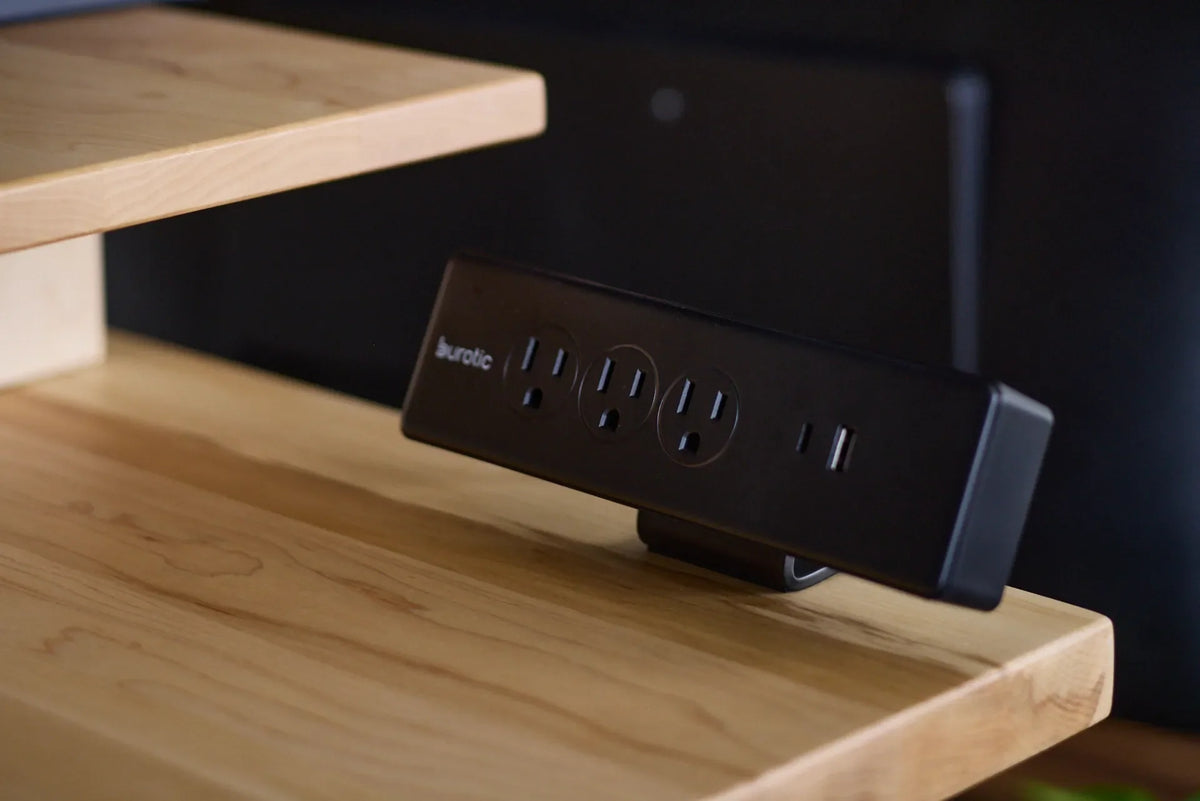
Keep power equipment away from water and excessive heat. Do not bury it under papers, fabric or dense cable bundles. A mounted Burotic Power Bar can keep connections accessible, but mounting does not change the electrical limits printed on the unit.
Should you unplug the bar too?
For an ordinary work night, switching off an appropriate, undamaged bar is often enough to stop standby draw from controlled outlets. Unplugging may make sense during an extended absence, when severe weather is expected or when the equipment instructions recommend it. Natural Resources Canada specifically suggests unplugging electronics when an office will be empty for an extended period.
Pull on the plug, not the cord, as Health Canada advises. If the outlet is difficult to reach, do not create a risky routine of tugging, stretching or moving heavy furniture each night.
What about surge protection?
A switched power bar is not automatically a surge protector. Check the label for surge protection and follow the maker's replacement guidance. Surge-protection components can wear over time or after significant events, and indicator lights vary by model.
If protecting sensitive electronics is the priority, compare the intended use, certification and ratings rather than relying on the number of outlets. The Burotic article on power bars, surge protectors and extension cords explains the functional differences.
Can a monitor and laptop share the bar?
Often they can when the total load remains within the bar's rating and every connection is in good condition, but verify the power requirements instead of assuming. Laptop adapters, monitors, docks and chargers can all draw power at the same time. The guide on connecting a monitor and laptop to one power bar provides a focused checklist.
A practical end-of-day sequence
- Save files and allow cloud sync or backups to finish.
- Shut down the computer or place it in the mode required by your organization.
- Turn off monitors, speakers, lamps and other accessories with their own controls.
- Confirm that no essential device on the bar needs overnight power.
- Switch off the power bar.
- Leave the switch and cord accessible, dry and unobstructed.
If you need some devices on and others off, label the plugs and separate the groups. A smart or timer-equipped bar can automate standby reduction, but it still must be appropriately rated and used according to its instructions.
Common mistakes to avoid
- Cutting power during updates or file transfers: shut equipment down correctly first.
- Daisy-chaining power bars: do not plug one power bar into another.
- Using the switch to ignore heat or damage: stop using suspect equipment and replace it appropriately.
- Connecting high-power appliances casually: follow the device instructions and ratings.
- Assuming every bar protects against surges: verify the specific product.
- Blocking the bar under clutter: keep it visible enough to inspect and operate.
Bottom line
Turn off your office power bar at night when the connected devices are fully shut down and none needs continuous power. The main benefit is reducing standby consumption and simplifying the end of the workday. For longer absences, unplugging suitable electronics may reduce unnecessary energy use further.
Before making this a habit, confirm load ratings, inspect cords and separate essential equipment. If a plug, outlet or power bar shows heat, damage or unusual behaviour, stop using it and seek qualified electrical advice rather than troubleshooting live electrical equipment yourself.

Previous article
How Thick Should a Desk Pad Be?
Next article
Office Chair Casters: Hard vs. Soft Wheels for Carpet and Hard Floors