

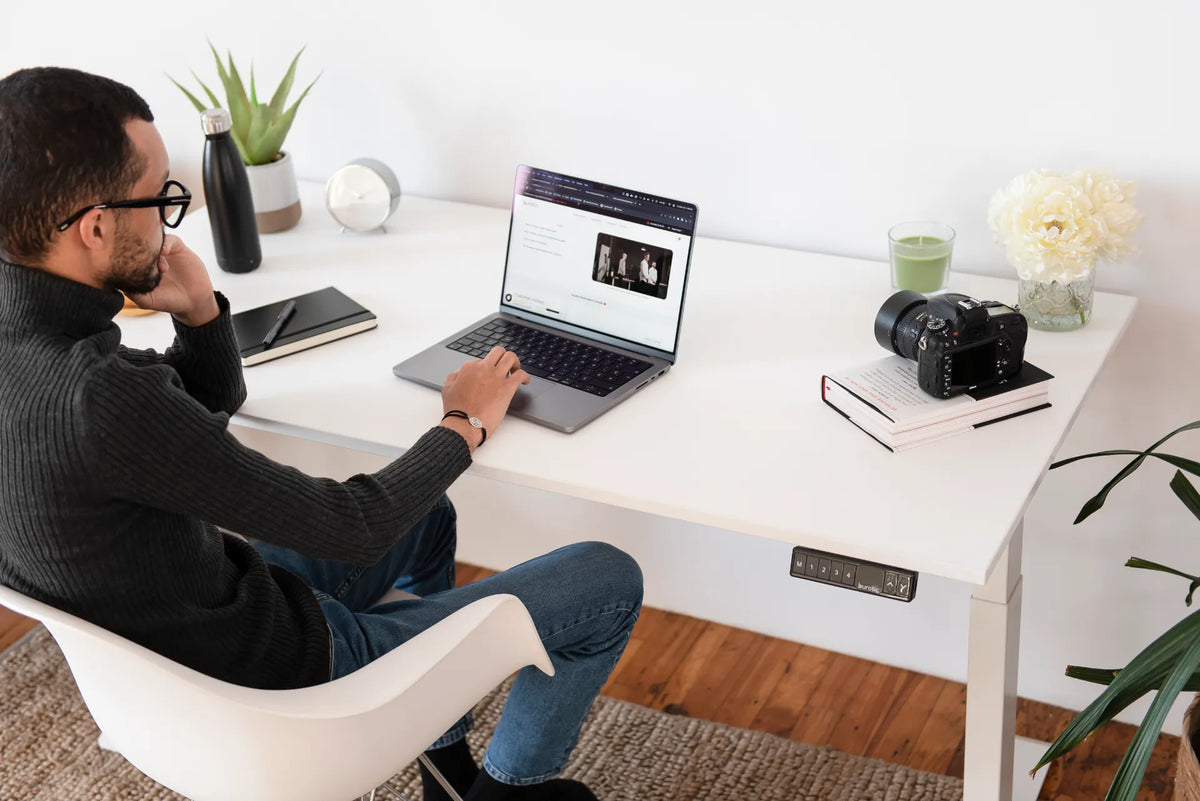
Laptop-Only Desk Setup: How to Work Comfortably Without a Monitor

In this article
A laptop-only desk setup is compact, portable and often all a hybrid worker needs. It also creates an unavoidable compromise: the screen and keyboard are joined. Raising the screen improves the viewing angle but lifts the keyboard; lowering the keyboard makes the screen harder to view without bending the neck. The goal is therefore not a mythical perfect posture. It is to reduce the biggest compromises, match the setup to the length of the task and change position regularly.
This guide is for people who use one laptop without an external monitor. It covers a quick setup using only the computer, a stronger setup with a few peripherals and the point at which a larger screen may become useful. General ergonomic guidance cannot diagnose or treat pain. Persistent or significant symptoms deserve advice from a qualified health professional.
Start by deciding how long the session will last
A brief email at a kitchen counter and a full day of concentrated work are different problems. For a short session, the most useful changes are usually a stable surface, a supported seat and frequent breaks. For regular desk work, the Government of Canada's computer-workstation checklist specifically suggests an appropriately sized external keyboard when a laptop is used regularly at a desk. That one addition lets you raise the screen while keeping the hands lower.
Make three practical categories: quick tasks under about 20 minutes, focused sessions of one or two hours, and repeated full workdays. The longer and more frequent the use, the more valuable independent control of the screen, keyboard and mouse becomes.
The best setup with no extra equipment
Choose a stable surface at a workable height
Place the laptop on a desk or table that does not rock during typing. Sit close enough that your elbows remain near your sides and your shoulders stay relaxed. If the surface is too high, raising the chair may help only when your feet remain supported. If it is too low, avoid leaning your whole torso forward. A height-adjustable desk can bring the work surface to you in both sitting and standing positions.
Keep the laptop directly in front of the body. Angling it to one side for long periods encourages repeated neck and trunk rotation. Move the whole computer when the task changes instead of twisting toward it.
Tilt and distance matter more than a fixed number
Open the screen far enough that the image can be viewed without folding the neck sharply. Move the laptop back until text is clear, then increase the operating system's text size or browser zoom before pulling the screen uncomfortably close. CCOHS monitor guidance describes about an arm's length as a useful starting estimate for a separate monitor, with individual adjustment. A laptop screen is smaller, so readability must guide the final distance.
Reduce reflections by turning the desk or changing the screen angle. Avoid placing a bright bare window directly behind the display or in the user's direct line of sight. A task light should illuminate notes without shining into the eyes or reflecting on the screen.
Use the chair and desk together
Sit back so the chair supports you, then bring the laptop closer rather than leaning toward it. Keep the front edge of the desk from pressing into the forearms. The hands should float over the keyboard while typing; any palm support is better reserved for pauses. If the chair must be raised to meet a fixed desk, use stable foot support rather than leaving the feet hanging.
The three upgrades that change the setup most
1. An external keyboard
An external keyboard breaks the connection between screen height and hand height. Put the laptop on a stable riser, then place the keyboard near the front of the desk. A compact keyboard can leave more room for a mouse and reduce sideways reach, but choose a layout that still supports your actual work. Review Burotic's keyboard and hand placement guide before finalizing the position.
2. An external mouse or trackpad
A separate pointing device can sit beside the keyboard at the same level. Keep it close enough that the upper arm remains near the torso. High pointer sensitivity can reduce large repeated movements, but it should still allow accurate control. Left-handed or alternating use may help some people vary the task, provided the device and shortcuts are set up intentionally.
3. A stable laptop riser
Use a riser only with an external keyboard and pointing device for sustained work. Confirm that it supports the computer's size and weight, does not block ventilation and cannot slide when the screen is adjusted. Raise the display gradually. The top of the visible content does not have to be exactly at eye level for every person, especially for users of progressive lenses. CCOHS recommends adjusting the viewing angle to the user and notes that a screen that is slightly low is generally preferable to one that forces upward viewing.
How to use a standing desk with one laptop
At standing height, bring the keyboard area close to standing elbow height so the shoulders can remain relaxed. If the laptop stays flat on the surface, the screen will be low. Treat that as a short-session arrangement and change position before the neck becomes tired. For longer standing blocks, use a riser with an external keyboard and mouse.
CCOHS guidance for sit-stand workstations advises alternating positions rather than standing for a rigid prescribed interval. It also recommends supportive footwear and, where appropriate, an anti-fatigue mat. The Burotic Anti-Fatigue Mat is one option to consider for a hard floor, but it does not replace movement or a suitable desk height.
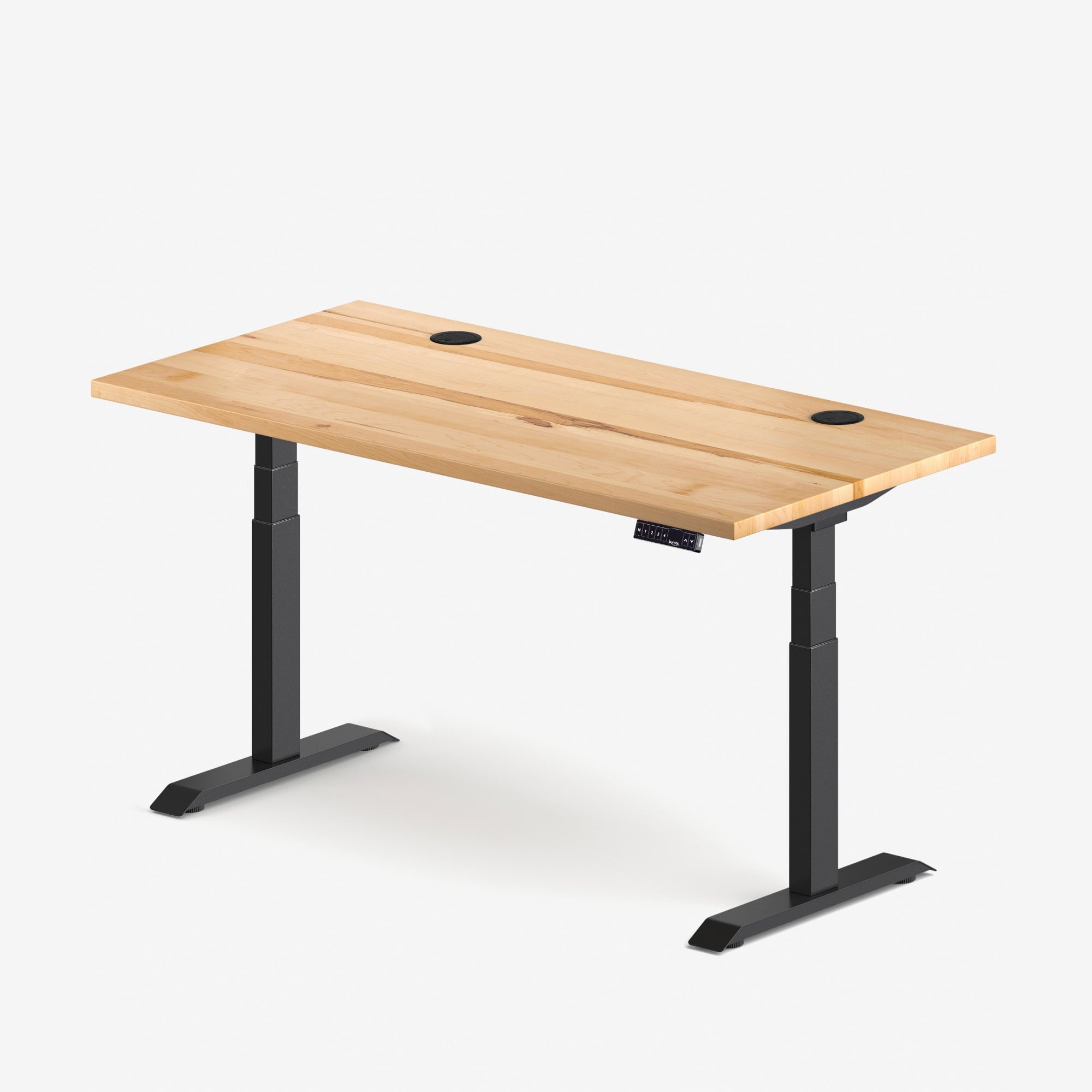
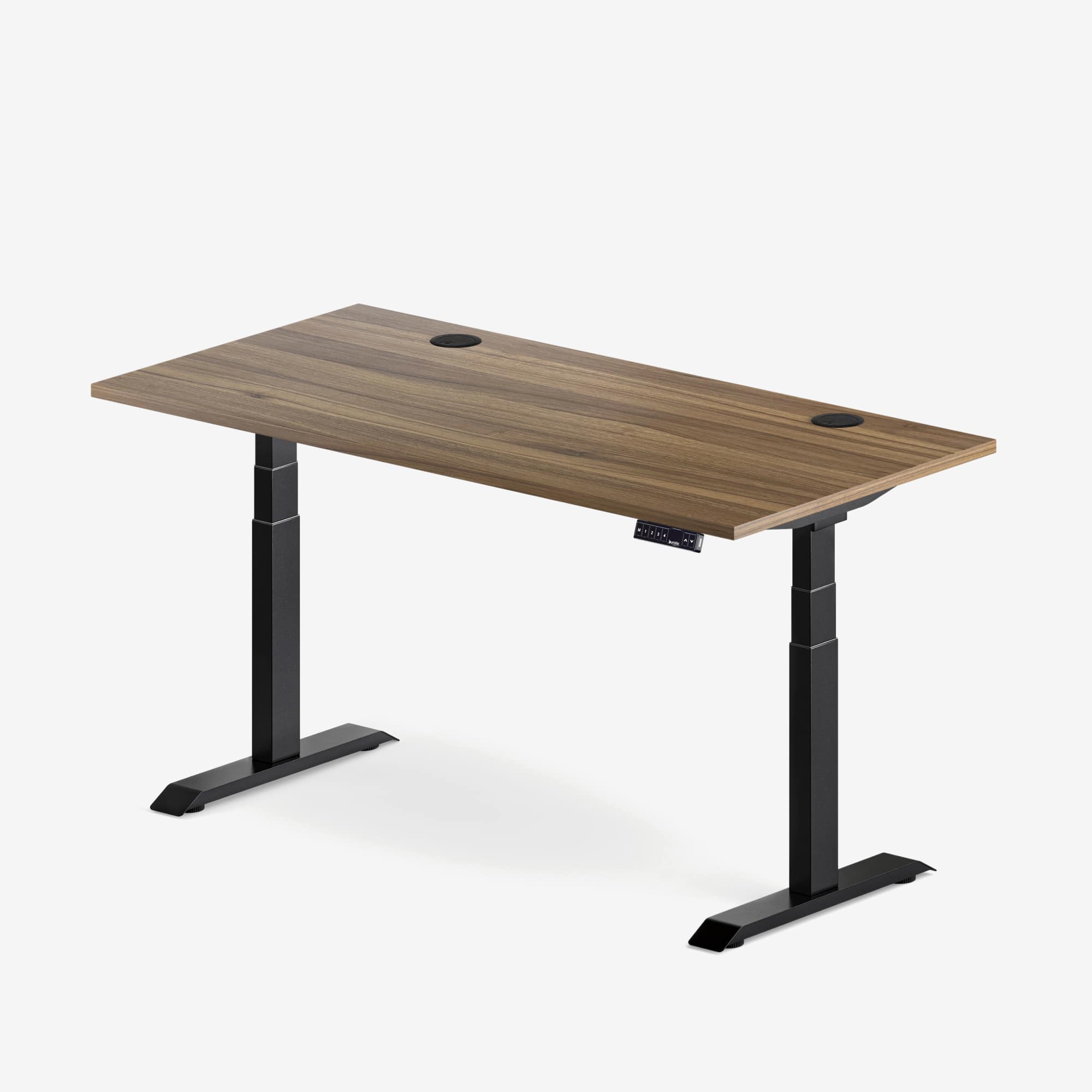
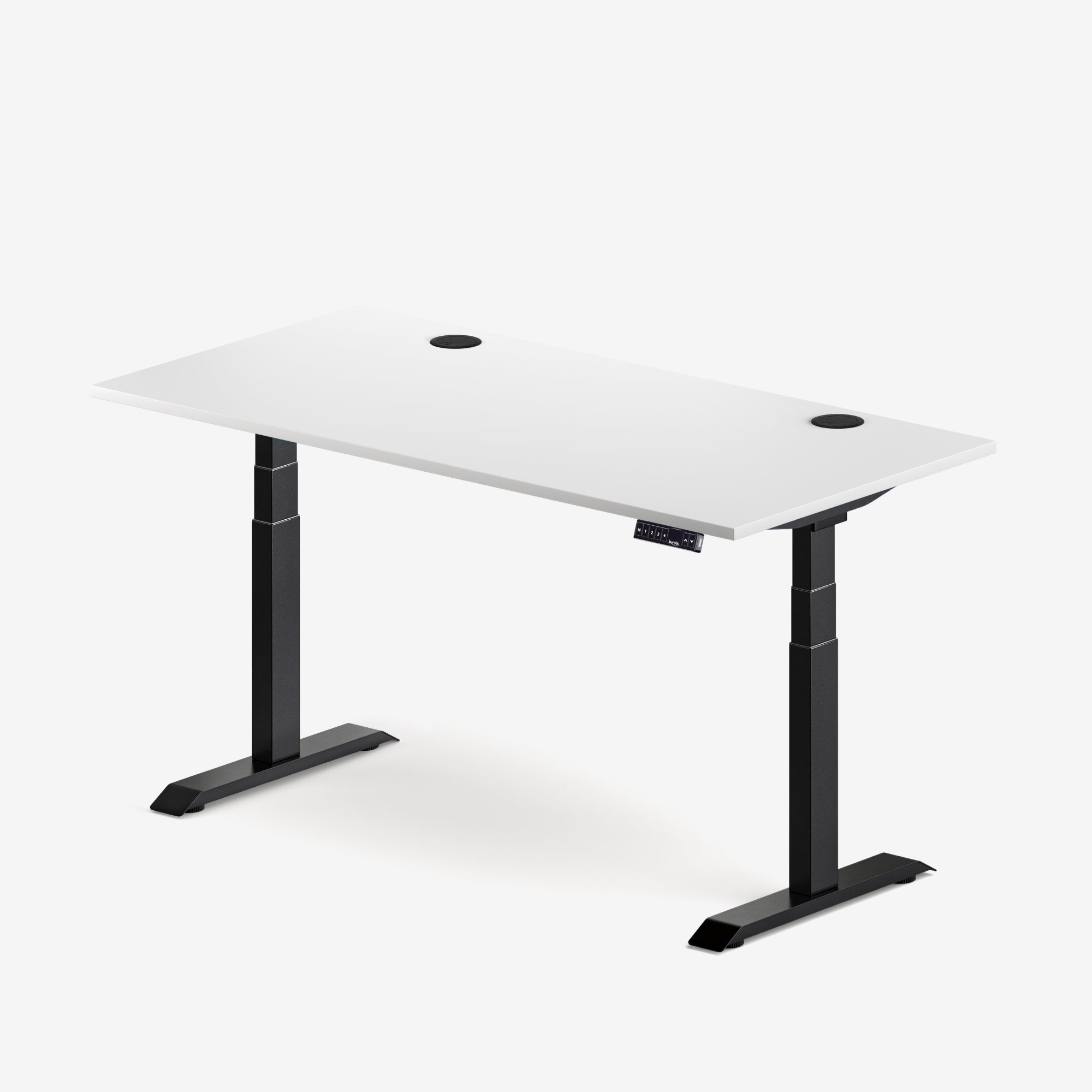
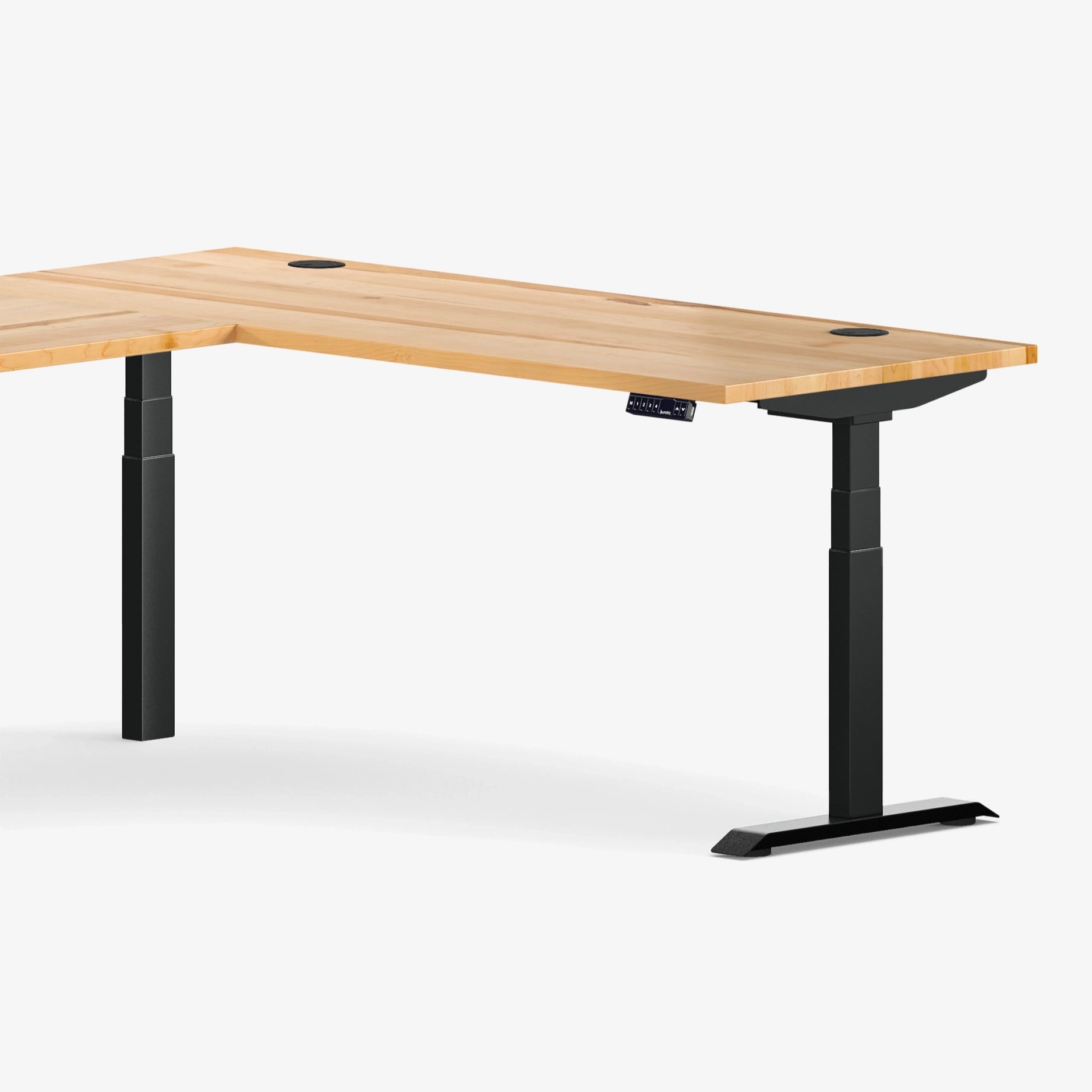
If your current surface cannot meet seated and standing elbow height, compare it with the live specifications of the Aspire Custom Solid Wood Standing Desk. Measure your own required range before choosing any adjustable desk.
Organize a small laptop-only surface
Reserve the centre for the computer and the area directly in front for the keyboard when one is used. Put a notebook on the non-mouse side so writing does not require clearing the entire desk. Keep a drink beyond the computer's cable path and away from the edge. Place chargers so their cords have slack but cannot fall into the chair path.
A laptop-only workstation benefits from restraint. Add an item only when it solves a repeated problem. A large desk shelf, dock and multiple charging devices can consume the compactness that made the arrangement attractive. Burotic's desk depth guide can help if you are deciding how much front-to-back space the computer and peripherals require.
Build a routine around the laptop's limitations
Change the task before discomfort forces the change. Stand for a call, read a paper document away from the screen or take a brief walk. Look at a distant object periodically to interrupt continuous close focusing. These habits matter because no accessory turns a static position into an ideal all-day posture.
For hybrid work, save a simple packing checklist: laptop, charger, keyboard, pointing device and one compact riser if the destination does not provide equipment. Photograph a comfortable setup and record the desk or chair height where possible. Rebuilding the same relationships is faster than starting from memory each day.
When an external monitor becomes worthwhile
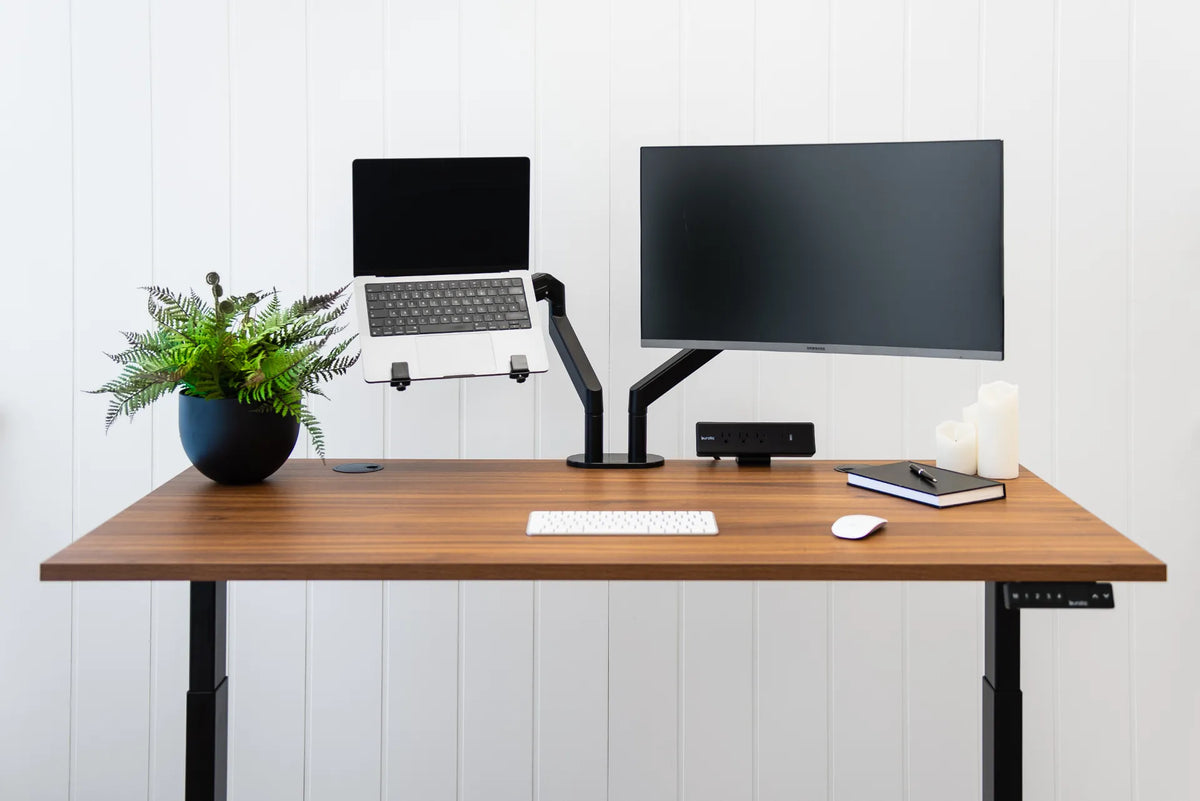
Consider a separate display when you regularly compare documents, edit detailed visual work, need larger text or spend most of the day at one location. A monitor is not automatically ergonomic; it still needs suitable height, distance and alignment. If you add one later, use Burotic's laptop and monitor setup guide to choose the primary screen and avoid creating a new twisting problem.
A final laptop-only check
- The computer is stable and centred in front of you.
- Text is readable without leaning toward the screen.
- Your shoulders remain relaxed and elbows stay near the body.
- Your feet are supported when seated.
- An external keyboard and mouse are used for regular desk sessions when practical.
- Lighting does not create strong glare or reflections.
- Cables stay clear of the chair and the desk's movement.
- You change position and look away from the screen regularly.
A good laptop-only desk setup is deliberately simple. Fix the screen-and-keyboard compromise first, organize the small surface around the work you actually do and let an adjustable desk support position changes. Add a monitor only when the workflow, not the appearance of the setup, makes it useful.
Previous article
Can You Put a Standing Desk on Carpet? Stability and Setup Guide
Next article
Can You Put a Standing Desk on Carpet? Stability and Setup Guide