

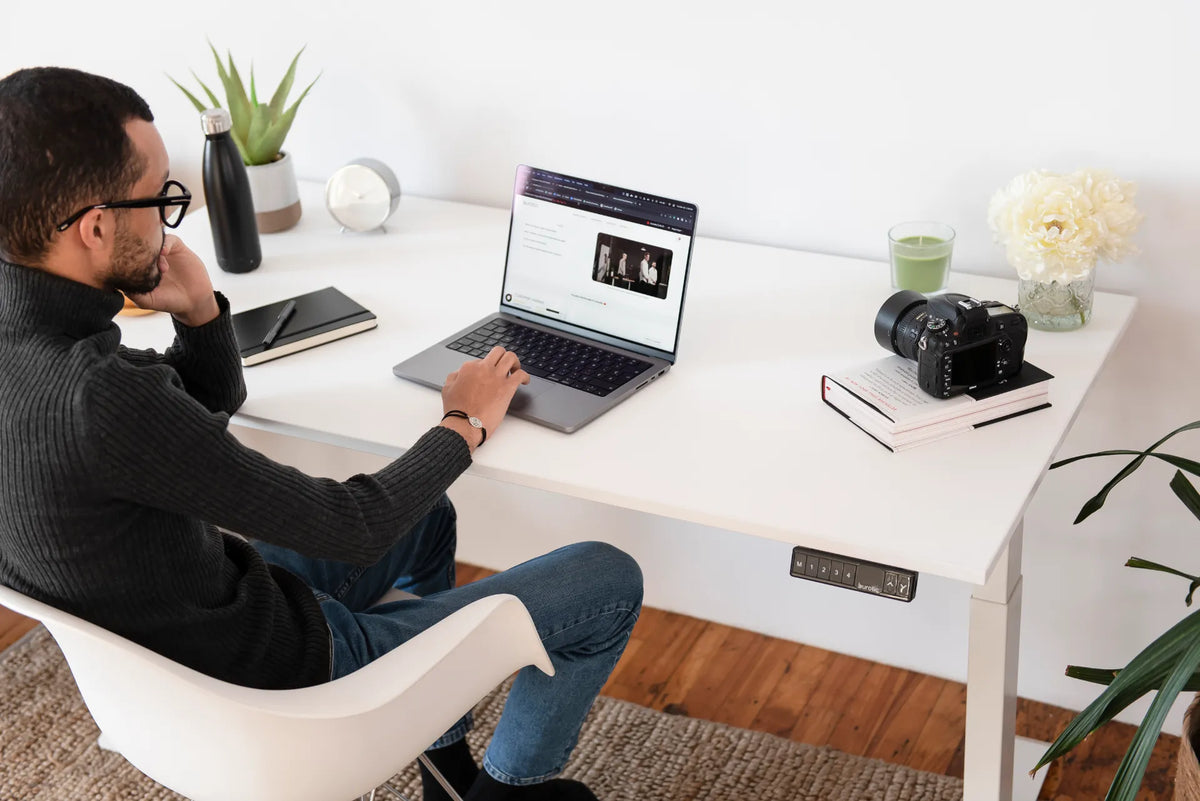
How Far Should You Sit From a Laptop Screen?

In this article
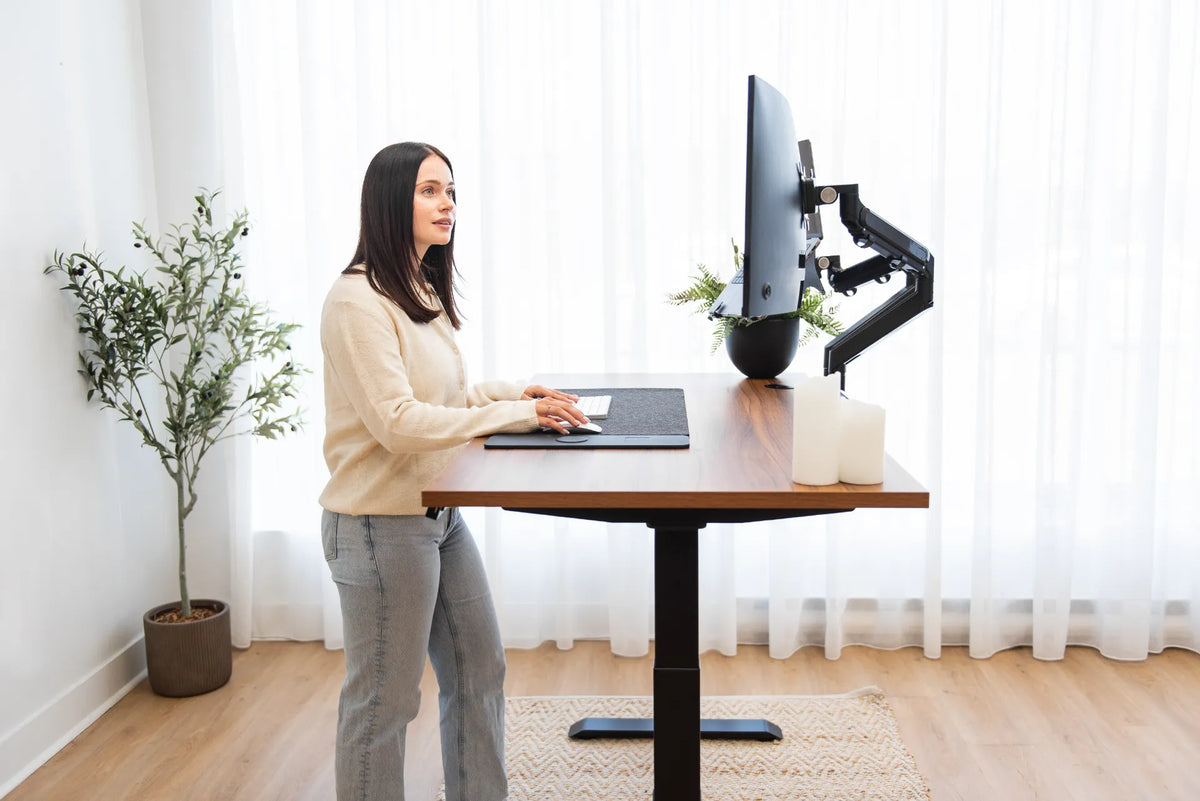
A laptop screen should normally sit about an arm's length from your eyes, but the best distance is the farthest position at which you can read comfortably without leaning forward. For many adults, that means roughly 40 to 75 cm. The exact number depends on screen size, text size, vision, and the task on screen.
Distance is only one part of a comfortable setup. A laptop combines the screen and keyboard, so moving the screen to improve your view also moves the keyboard. That built-in compromise is why a setup that feels acceptable for a short email can become uncomfortable during a full workday.
Start with an arm's length, then adjust
The Canadian Centre for Occupational Health and Safety, or CCOHS, describes viewing distance as the space between your eyes and the screen. Its monitor guidance illustrates a range of about 40 to 74 cm and notes that an arm's length is a useful starting estimate. It also stresses that viewing recommendations are guidelines, not fixed rules for every person.
Use this simple test:
- Sit back in the chair with your head balanced over your shoulders.
- Extend one arm toward the laptop screen.
- Move the laptop until the screen is near your fingertips.
- Read normal body text for a minute without moving your head forward.
- If the text is too small, increase the browser zoom or system text size before pulling the laptop closer.
The goal is not to hit a precise measurement. It is to make the screen readable while keeping your neck and upper body quiet. If you repeatedly lean toward the display, the setup is asking your body to compensate.
Why a very close laptop screen can feel tiring
Focusing on a nearby object requires more accommodation and convergence from the eyes. CCOHS notes that shorter viewing distances increase this effort. A close screen can also encourage a forward head position, especially when small text, glare, or a low display makes the content hard to see.
A greater distance is not automatically better. Move the laptop too far away and fine text may become difficult to resolve. You may squint, round your shoulders, or slide toward the front of the chair. The useful distance is therefore a balance between easy reading and relaxed posture.
Use text size instead of leaning forward
Before moving the screen closer, try increasing page zoom to 110 or 125 percent, enlarging interface text, or using a larger default font. These changes preserve a comfortable viewing distance and often make spreadsheets, dashboards, and long documents easier to scan.
If increasing text size does not help, check whether glare, low contrast, or an outdated vision prescription is contributing. General ergonomic guidance is not a diagnosis. Persistent headaches, blurred vision, double vision, or eye discomfort warrant advice from a qualified health professional.
Set screen height after distance
Once the laptop is at a readable distance, look at height. CCOHS explains that looking slightly downward is generally more comfortable than looking upward. With a laptop directly on a desk, the screen is often low enough to make the user bend the neck.
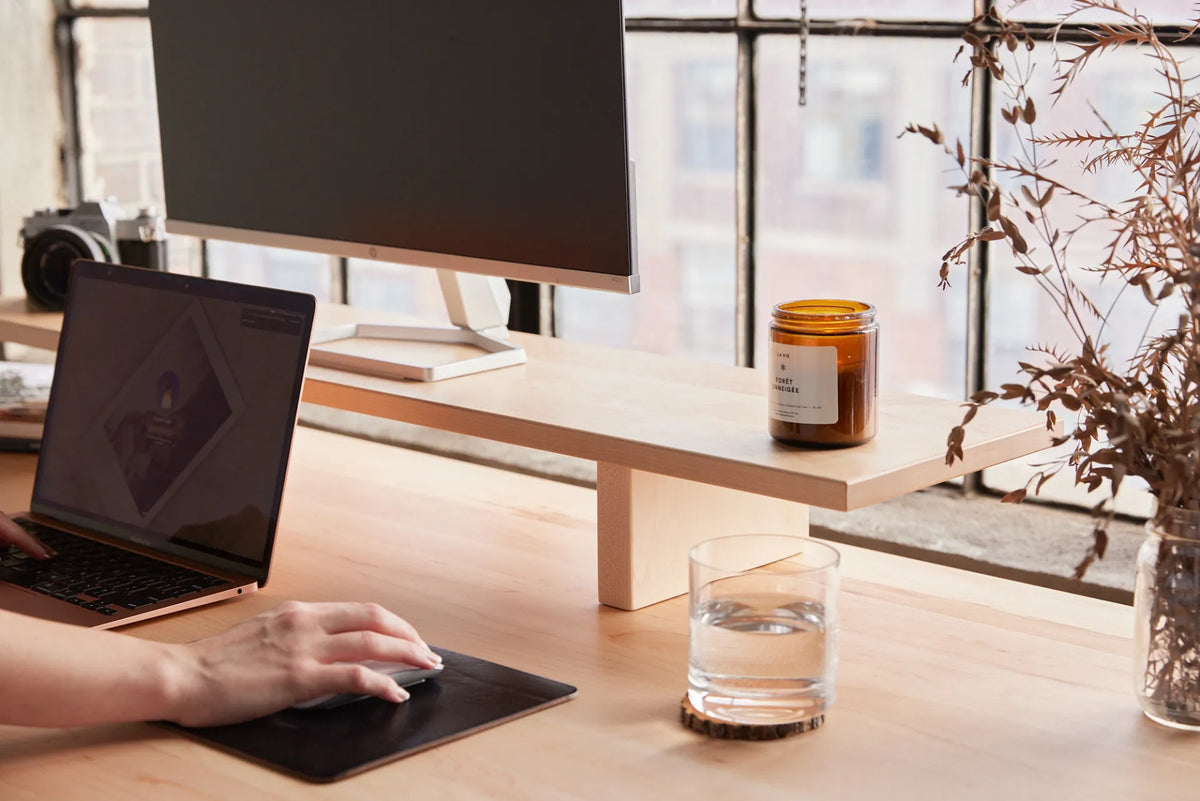
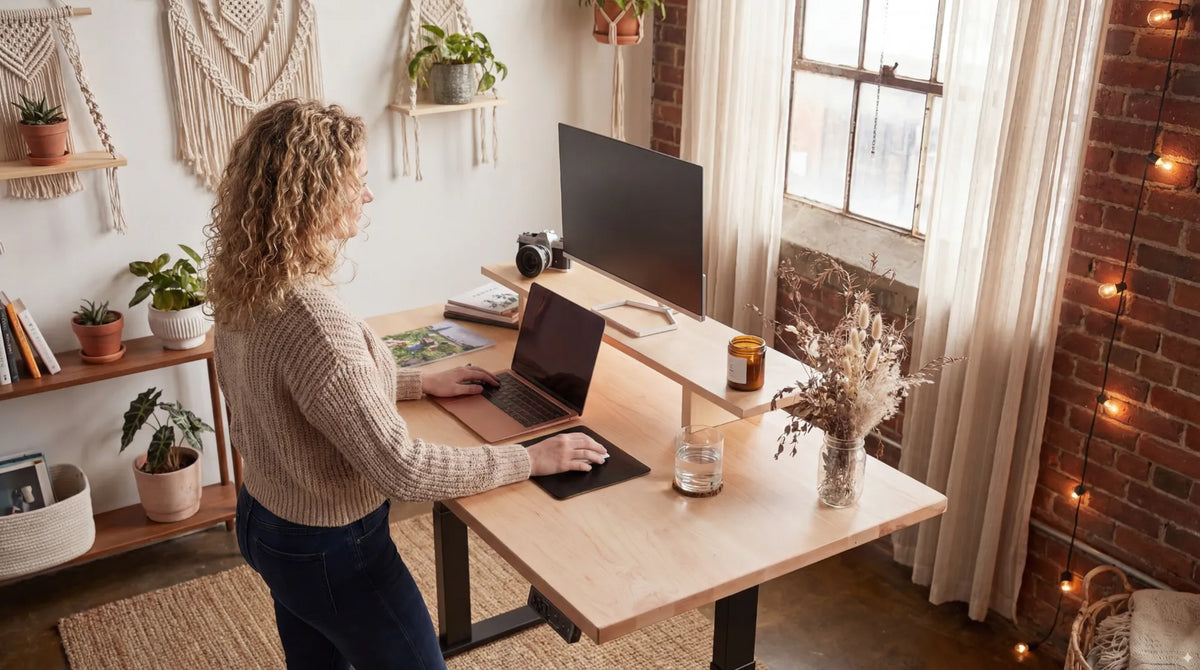
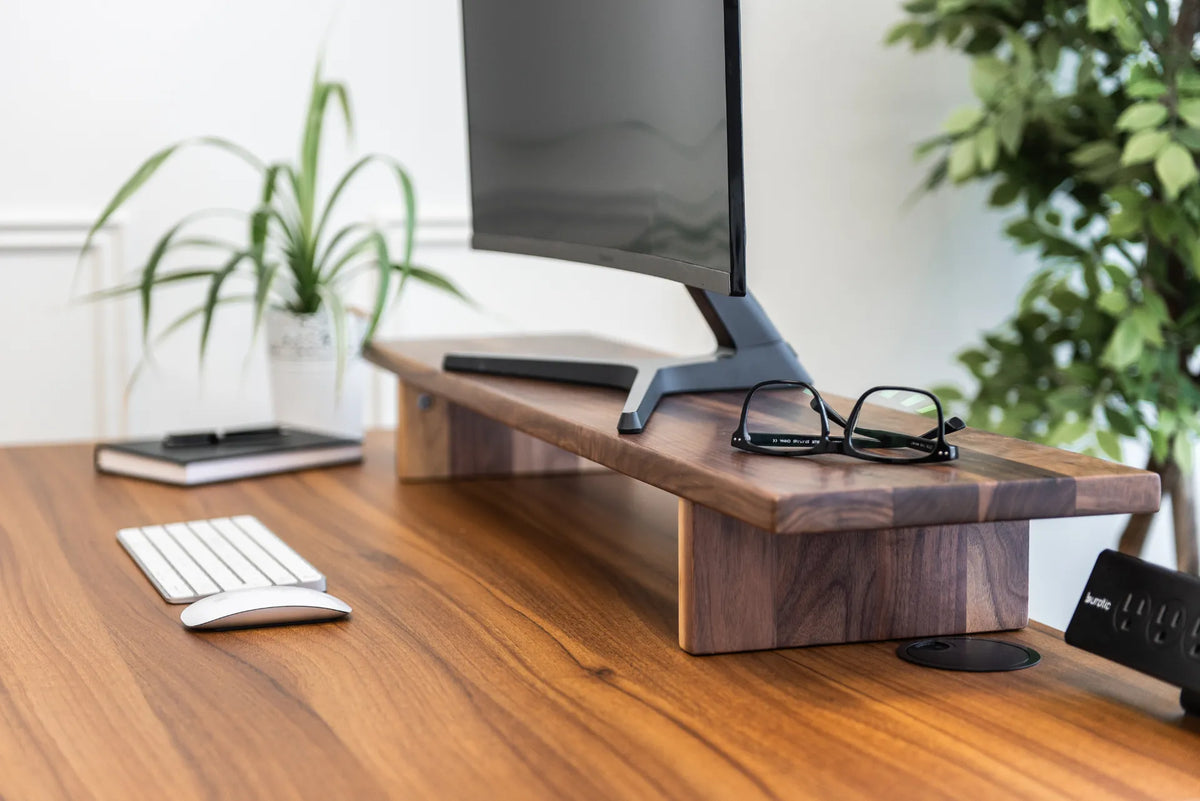
For short tasks, you can reduce the compromise by opening the screen far enough to face you squarely and keeping the laptop close enough to type without reaching. For longer sessions, raise the laptop on a stable stand and use a separate keyboard and mouse. Our guide to laptop screen height explains how to set the display without forcing the chin upward.
When an external keyboard becomes important
If the laptop is raised so the top of the screen is near eye level, the built-in keyboard is usually too high and too far away for relaxed typing. A separate keyboard and mouse let you keep the screen at a useful distance while placing your hands near elbow height. See our article on external keyboards and mice for laptop work for a practical decision guide.
Adjust for screen size and work type
Small laptops can be comfortable at arm's length when text is enlarged, but a compact screen may feel crowded for detailed work. A larger laptop can sit slightly farther away while keeping text legible. Resolution matters too: a high-resolution display can show very small interface elements unless scaling is adjusted.
Your task changes the ideal position:
- Reading and writing: prioritize clear text and a steady, centred screen.
- Photo or design work: use a distance that lets you see the whole canvas while still inspecting detail without leaning.
- Video calls: keep the camera near eye level, but do not move the screen so close that your face fills the frame.
- Occasional travel use: accept a temporary compromise, then change position frequently.
If a laptop is your primary computer for several hours a day, an external monitor or monitor arm with a compatible laptop tray can create more adjustment range. Burotic's monitor arm includes configurations that can support a laptop stand, subject to the selected option and device fit.
Check the whole sitting position
Screen distance works only when the rest of the workstation supports it. Sit close enough to the desk that your elbows remain near your sides and your forearms reach the keyboard without stretching. Keep both shoulders relaxed. If the desk is too high, lowering the chair without foot support may create a new problem at the legs.
Run this quick check after ten minutes of work:
- Your back is supported rather than hovering forward.
- Your chin is not jutting toward the screen.
- Your shoulders are not rising toward your ears.
- Your wrists are not bent sharply upward on the laptop edge.
- You can read the interface without squinting.
If one item fails, change one variable at a time. Start with text size, then distance, then screen height, and finally keyboard position. Small controlled changes make it easier to identify what actually helps.
Remember that the best posture still changes
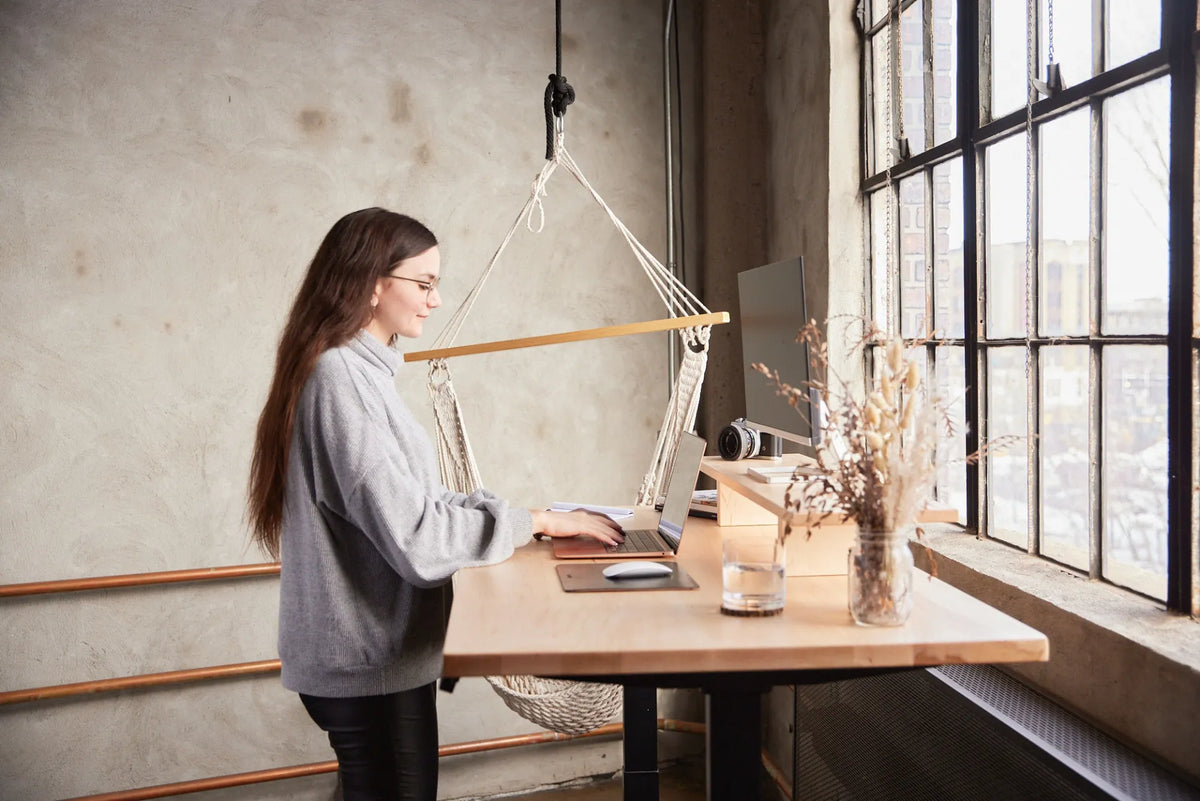
No single distance or posture should be held for an entire day. Alternate tasks, look at farther objects regularly, blink, and take brief movement breaks. A height-adjustable desk can also let you change between sitting and standing, but the screen distance should be rechecked in both positions.
For a complete two-screen arrangement, use our ergonomic laptop and monitor setup guide. It covers alignment, primary-screen placement, and the relationship between screen height and input devices.
Recheck the setup when conditions change
A distance that works in the morning may feel different after daylight changes, a long reading session, or a switch to a detailed application. Recheck the screen after moving the chair, changing browser zoom, or plugging into another desk. If someone else uses the same workstation, let each person reset the screen rather than treating one position as universal. A small tape mark can preserve a useful starting point, but comfort and clear vision remain the final test.
Bottom line
Begin with the laptop screen around an arm's length away, usually about 40 to 75 cm. Then move it to the farthest distance that still lets you read easily with your head over your shoulders. Increase text size before leaning in, and use a stand plus external keyboard for longer sessions.
A comfortable setup should make the screen easy to see without making your body chase it. If your current desk cannot provide enough depth or adjustment, explore Burotic's standing desks and accessories as practical building blocks rather than as substitutes for personal ergonomic assessment.
Sources
- CCOHS: Office Ergonomics - Positioning the Monitor, fact sheet confirmed current July 21, 2025.
- CCOHS: Office Ergonomics - Eye Discomfort in the Office.
Previous article
Where Should You Place a Lamp to Reduce Screen Glare?
Next article
Where Should You Place a Lamp to Reduce Screen Glare?