

How High Should a Laptop Screen Be?

In this article
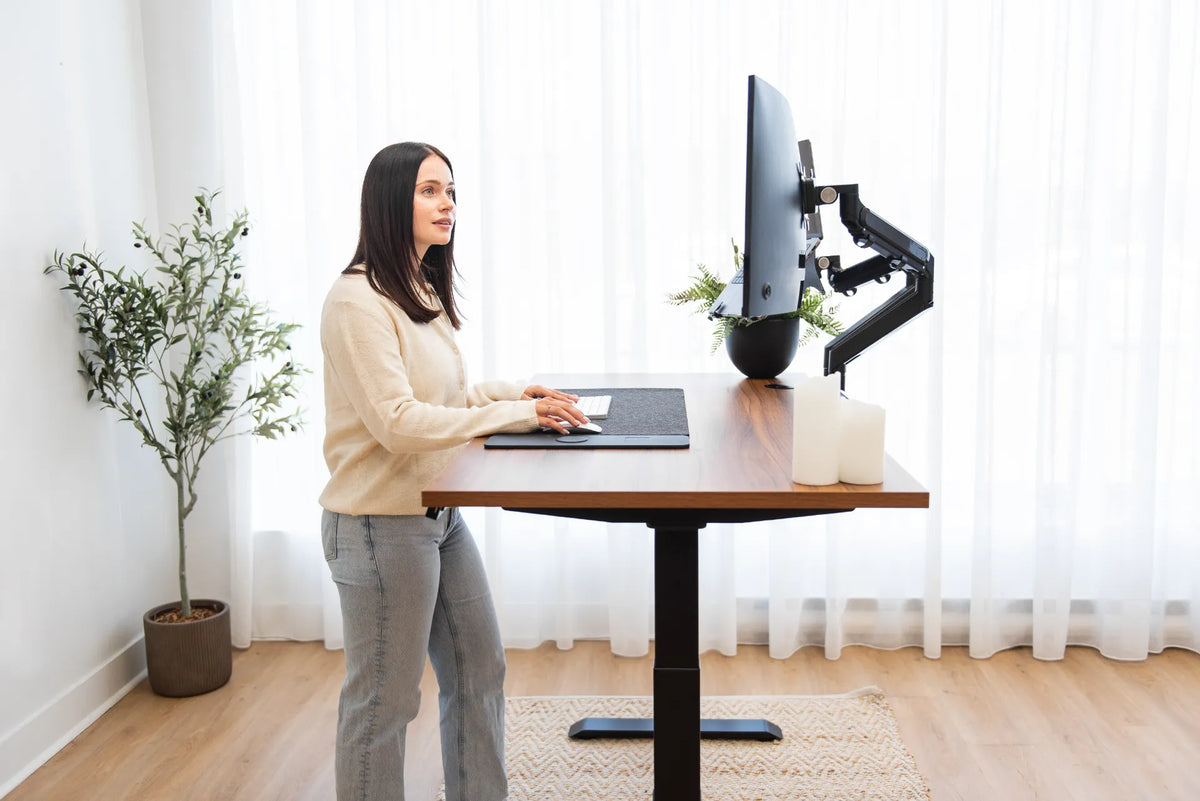
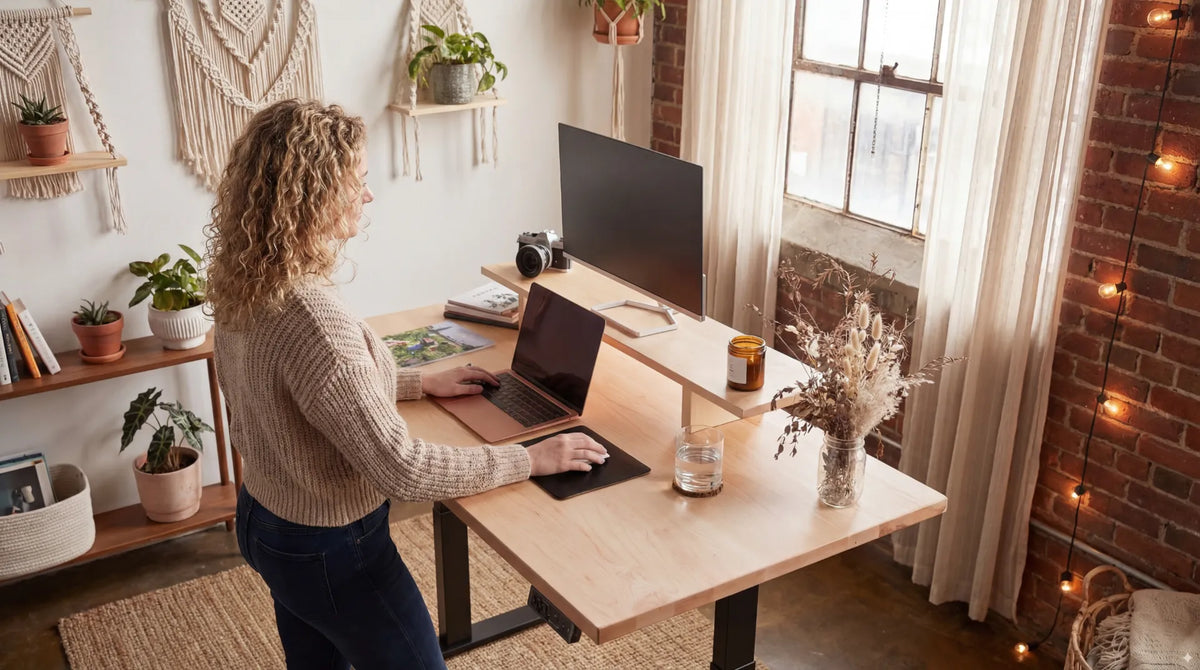
A laptop screen should usually sit high enough that you can view it with your head balanced over your shoulders, rather than tipped forward for long periods. A practical starting point is to place the top of the visible screen near eye level or slightly below it, then adjust the angle and distance until the centre of the display falls comfortably below your horizontal line of sight.
The important catch is that a laptop joins the screen and keyboard together. Raising the screen also raises the keyboard. That is why the best screen position and the best typing position cannot normally be achieved at the same time with a laptop alone. For longer work sessions, the most effective setup is often a raised laptop with an external keyboard and mouse, or an external monitor paired with the laptop.
What height should a laptop screen be?
Start with the top edge of the active display at about eye level or a little lower. The Canadian Centre for Occupational Health and Safety explains that looking upward at a screen is generally more tiring than looking slightly downward. Its guidance places comfortable viewing below the horizontal line of sight and emphasizes both viewing angle and distance.
This is a starting point, not a rigid measurement. Screen size, vision correction, chair height, desk height and the way you use the laptop all matter. People who wear bifocals or progressive lenses may prefer the screen lower so they can see through the appropriate part of the lens without lifting the chin.
Use the centre of the screen as a second check
When your head is upright and your eyes look naturally forward, the centre of the laptop display should be below that horizontal line. You should be able to scan the screen without repeatedly bending your neck. If the display is very small, raising it too high can force your eyes upward even when the top edge appears to match eye level. Treat the top-edge rule and the viewing-angle check as a pair.
Keep a comfortable viewing distance
CCOHS gives a general monitor viewing range of 40 to 74 cm and notes that about an arm's length is a useful estimate. A laptop screen may need to sit somewhat closer because text and interface elements are smaller. If you keep pulling the laptop toward you, try increasing text size before accepting a hunched posture. The goal is to see clearly while keeping the head and torso relaxed.
Why laptop height is different from monitor height
With a separate monitor, you can position the screen independently from the keyboard. With a laptop, opening the hinge changes the screen angle, while moving the computer also moves the keyboard and trackpad. This design is excellent for portability but creates a compromise at a fixed workstation.
If the laptop stays flat on the desk, the keyboard may be at a reasonable height while the screen is low. If you raise the whole computer until the screen reaches eye level, the built-in keyboard becomes too high for comfortable typing. The longer you work, the more important it becomes to separate these two functions.
How to set the height in five steps
1. Set your chair or standing desk first
Begin with the input devices, not the screen. Position the keyboard and mouse near elbow height, with shoulders relaxed and elbows close to the body. At a sit-stand desk, save separate sitting and standing heights after you have found neutral arm positions. The screen can then be adjusted around that foundation.
2. Sit or stand as you normally work
Do not stretch tall for the measurement. Settle into a repeatable posture with your head over your shoulders. Look straight ahead, then let your eyes drop slightly. That natural gaze should meet the upper portion of the display, not the desk surface and not a point above the screen.
3. Raise the laptop gradually
Use a stable laptop stand or another purpose-built support. Raise the computer in small increments and test each position for several minutes. Make sure the base is fully supported, ventilation openings remain clear and the screen does not wobble when you type or adjust it.
4. Adjust the hinge angle and distance
Tilt the display so it faces you without reflections obscuring the image. Move the laptop far enough away that you can take in the screen comfortably, but not so far that you lean forward to read. If daylight creates glare, change the desk or screen angle before increasing brightness unnecessarily.
5. Recheck the keyboard and mouse
Once the screen is raised, stop using the built-in keyboard for extended sessions. Place an external keyboard and mouse on the desk, close enough that your elbows stay beside your torso. Our guide to using an external keyboard and mouse with a laptop explains when this change makes the biggest difference.
Three practical laptop setups
Laptop only for short tasks
For email, a quick meeting or travel, keep the laptop on a firm surface and angle the screen toward your eyes. Bring the computer close enough to avoid leaning forward, but keep your forearms supported lightly. Change position often. A laptop-only setup is a compromise, so duration matters.
Raised laptop with external input devices
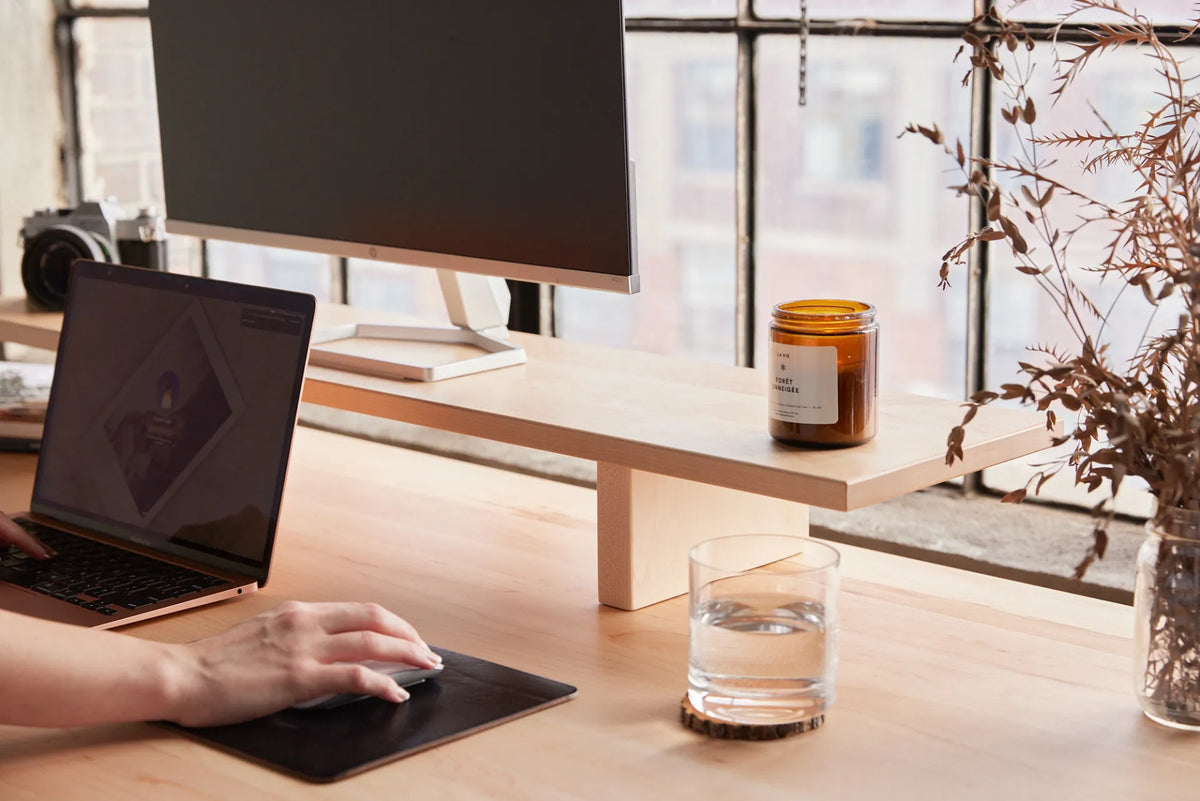
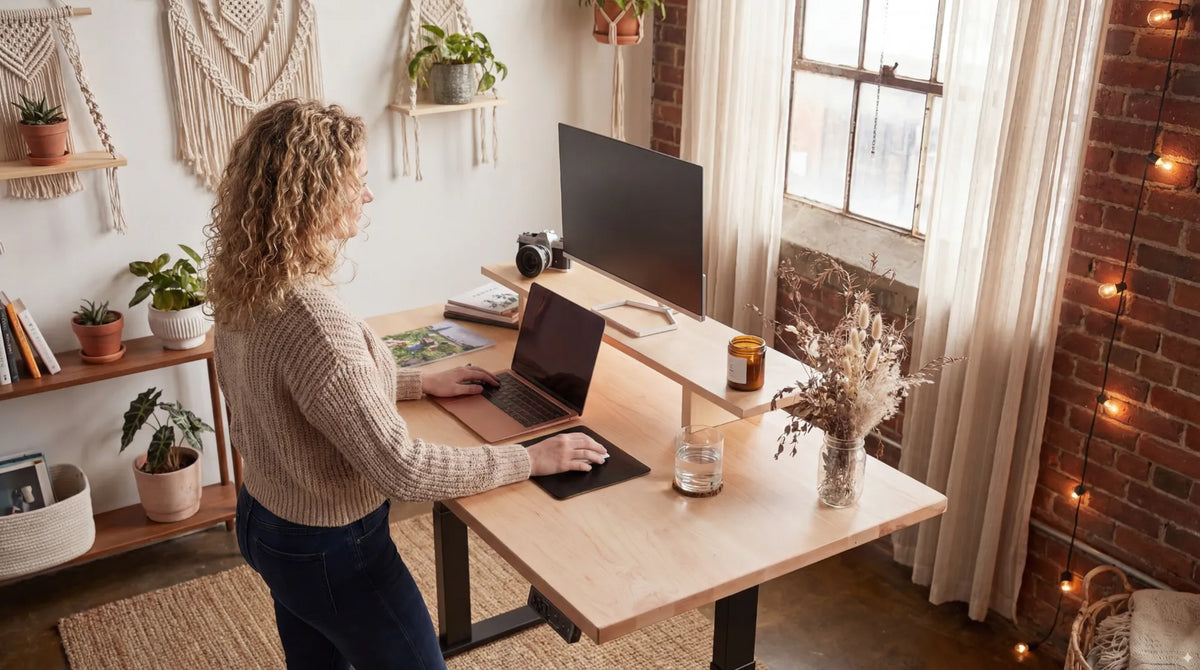
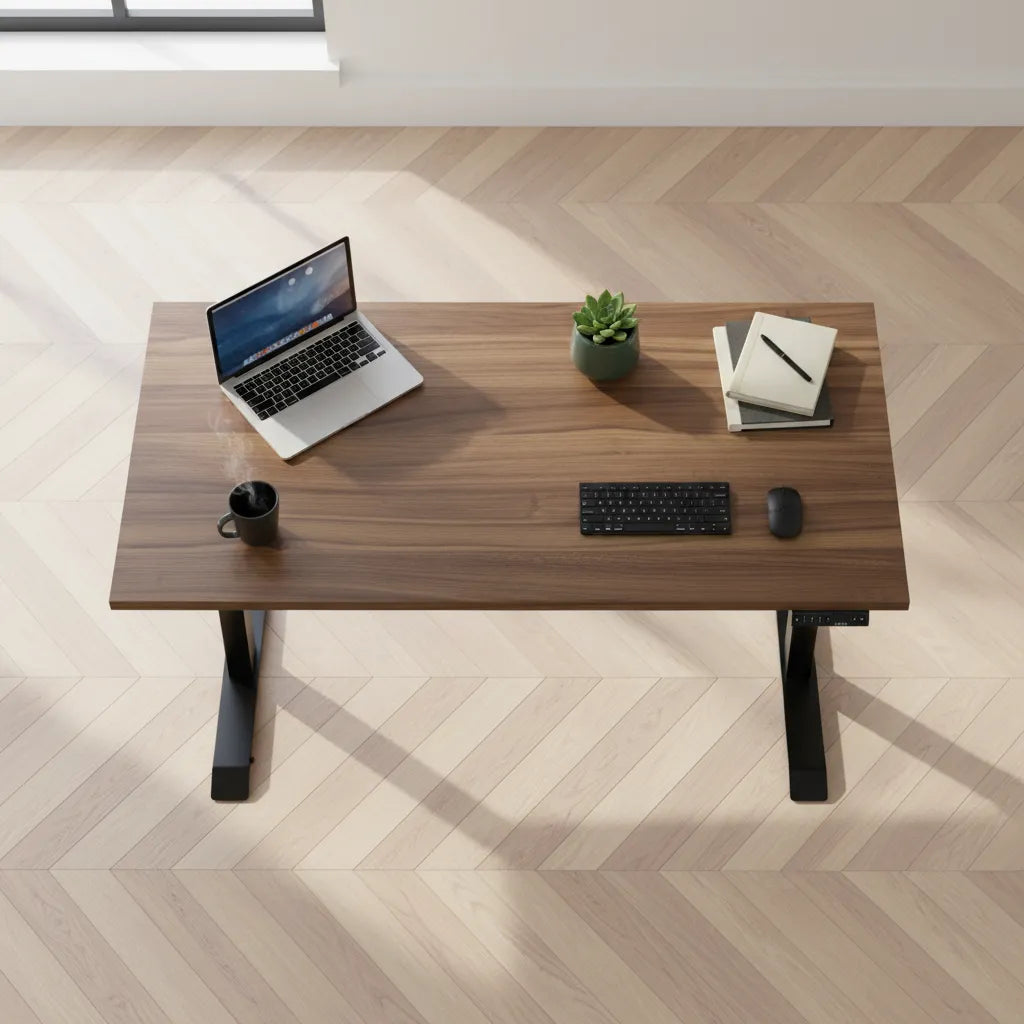
This is the simplest way to improve a laptop-centred workstation. A stable stand lifts the display, while a separate keyboard and mouse stay at elbow height. It also makes it easier to centre the laptop with your body. If you are choosing a surface, our desk-depth guide for laptop users helps you plan viewing distance and input space.
Laptop with an external monitor
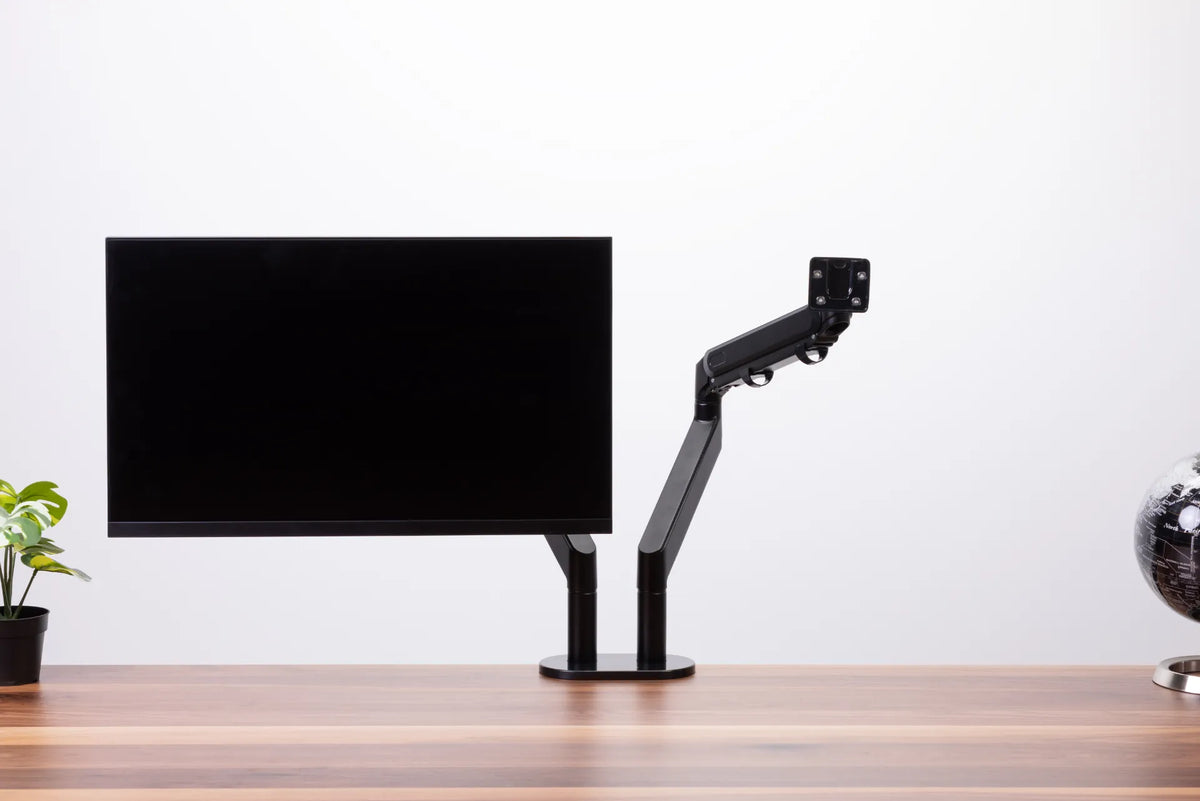
If the external monitor is your primary screen, centre it in front of you and place the laptop to the side as a secondary display. A monitor arm can help control monitor height and depth while preserving desk space. If the laptop is the primary screen, centre the laptop instead. Avoid spending hours with your head rotated toward a secondary display.
Common height mistakes
- Raising the laptop but continuing to type on it: this can trade neck flexion for elevated shoulders and bent wrists.
- Putting the screen above eye level: higher is not automatically more ergonomic. Upward viewing can be tiring.
- Ignoring text size: a correctly positioned screen still fails if the content is too small to read without leaning.
- Using an unstable stack: books can demonstrate a height, but a stable support is safer for a permanent workstation.
- Copying someone else's measurement: body dimensions, lenses and task demands differ.
How to tell whether the height works
After 20 to 30 minutes, notice whether you are drifting toward the screen, lifting your chin or rounding your upper back. Check whether your shoulders remain relaxed while typing. A good setup should make a neutral position easy, not require constant correction.
General ergonomic guidance is not a diagnosis. Persistent pain, numbness, headaches or visual symptoms deserve advice from an appropriate health professional. For routine workstation refinement, change one variable at a time and keep the setting that reduces unnecessary effort.
The practical answer
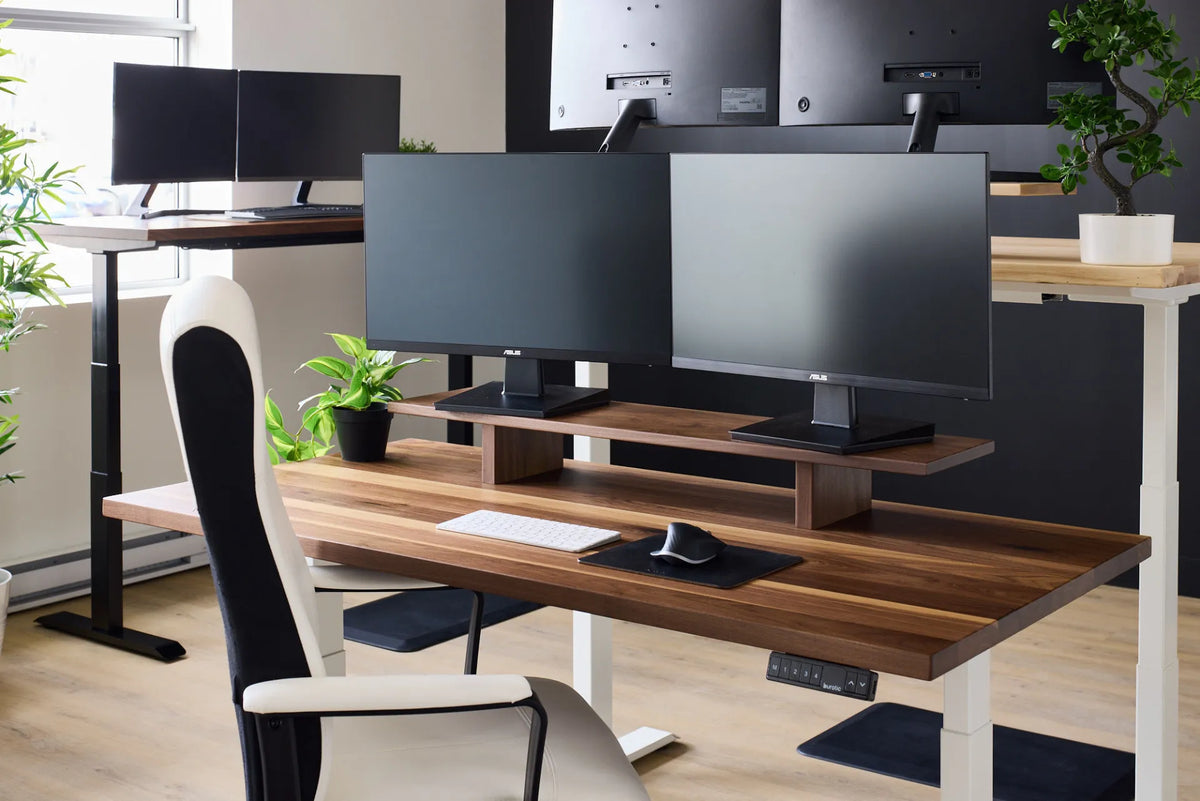
Place the top of the laptop screen near eye level or slightly below, with the centre of the display below your horizontal gaze and the screen roughly an arm's length away. Then separate the screen from the keyboard for longer sessions. A height-adjustable desk, stable support and external input devices make that arrangement easier to maintain in both sitting and standing positions. Explore Burotic's standing desks when you need a surface that can preserve the same viewing and typing relationships across position changes.
Previous article
Why Is Your Standing Desk USB Port Charging Slowly?
Next article
What Desk Width Do You Need for a Laptop?