


Do You Need an External Keyboard and Mouse With a Laptop?

In this article
You can use a laptop without an external keyboard and mouse, especially for short tasks or travel. For longer work sessions, however, separate input devices solve an important design conflict: the laptop screen and keyboard are attached. Keeping the built-in keyboard at a comfortable hand height usually leaves the screen too low, while raising the screen usually puts the keys too high and too far away.
An external keyboard and mouse let you position the screen and your hands independently. That flexibility matters more than the accessories themselves. It can help you keep the screen closer to a useful viewing height while placing the keyboard and pointing device near elbow level and within easy reach.
The short answer
You probably need an external keyboard and mouse if a laptop is your main computer for several hours a day, particularly when it sits on a stand or beside a separate monitor. You may not need them for brief email checks, meetings, travel or tasks that involve little typing. Duration, task intensity and adjustability are better decision factors than a fixed rule.
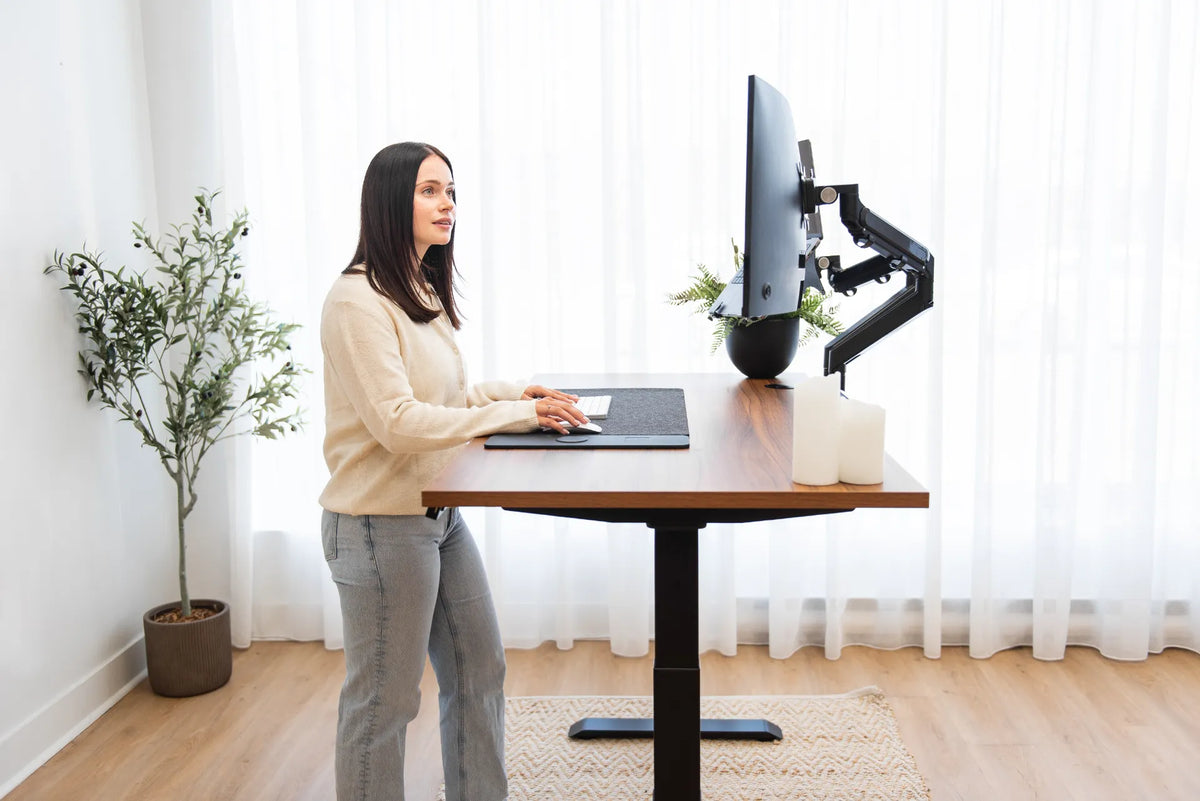
Natural Resources Canada recommends an external keyboard and mouse in its home-office ergonomics guidance. Government of Canada workstation guidance also emphasizes keeping the keyboard and mouse just below elbow height with relaxed shoulders and neutral wrists. Separate devices make those positions much easier to achieve while raising the laptop display.
Why a laptop creates an ergonomic tradeoff
On a desktop computer, the monitor can move without changing the keyboard. A laptop combines them with a hinge and a short distance between the screen and keys. If the laptop stays flat on the desk, the hands may be comfortable but the screen may sit well below your natural line of sight. If you place the laptop on books or a stand, the display improves but the keyboard becomes difficult to reach.
No accessory guarantees comfort, and posture should change through the day. Still, decoupling the screen from the input devices gives you more ways to fit the workstation to your body. That is the central reason to add peripherals.
When external devices are most useful
You work on the laptop for most of the day
Long typing sessions magnify small reach and height problems. A separate keyboard can sit close to the front of the desk while the laptop moves back and up. A mouse prevents repeated reliance on a compact trackpad when your task requires frequent pointing, dragging or precision.
The laptop is raised
A raised laptop should almost always be paired with separate input devices for sustained work. Typing directly on an elevated keyboard can lift the shoulders and bend the wrists. Keep the raised computer stable, then bring the external keyboard and mouse to you.
You use a laptop with an external monitor
When the larger display is primary, the laptop may sit to the side as a second screen. An external keyboard centred with the primary monitor keeps your torso from rotating toward the laptop keys. A mouse on the same surface and close to the keyboard completes the arrangement. See the ergonomic laptop and monitor setup guide for screen alignment options.
You share or change workstations
Portable peripherals can make a hoteling desk or kitchen-table setup more adjustable. Compact models are easier to carry, but the smallest device is not automatically the best. Choose a layout that lets your hands work without crowding and that matches the keys and shortcuts you actually use.
When the built-in keyboard and trackpad may be enough
For a short session, the simplest setup is often reasonable. Place the laptop close enough that your elbows remain near your sides. Tilt the screen for visibility, enlarge text if needed and change posture frequently. The built-in devices can also be practical for video calls, reviewing a document, light browsing or moving between rooms.
The threshold is personal. A 20-minute task and a six-hour spreadsheet session create different demands. If you notice repeated neck bending, shoulder elevation, reaching or wrist extension, the setup is telling you that more separation would help.
How to position an external keyboard
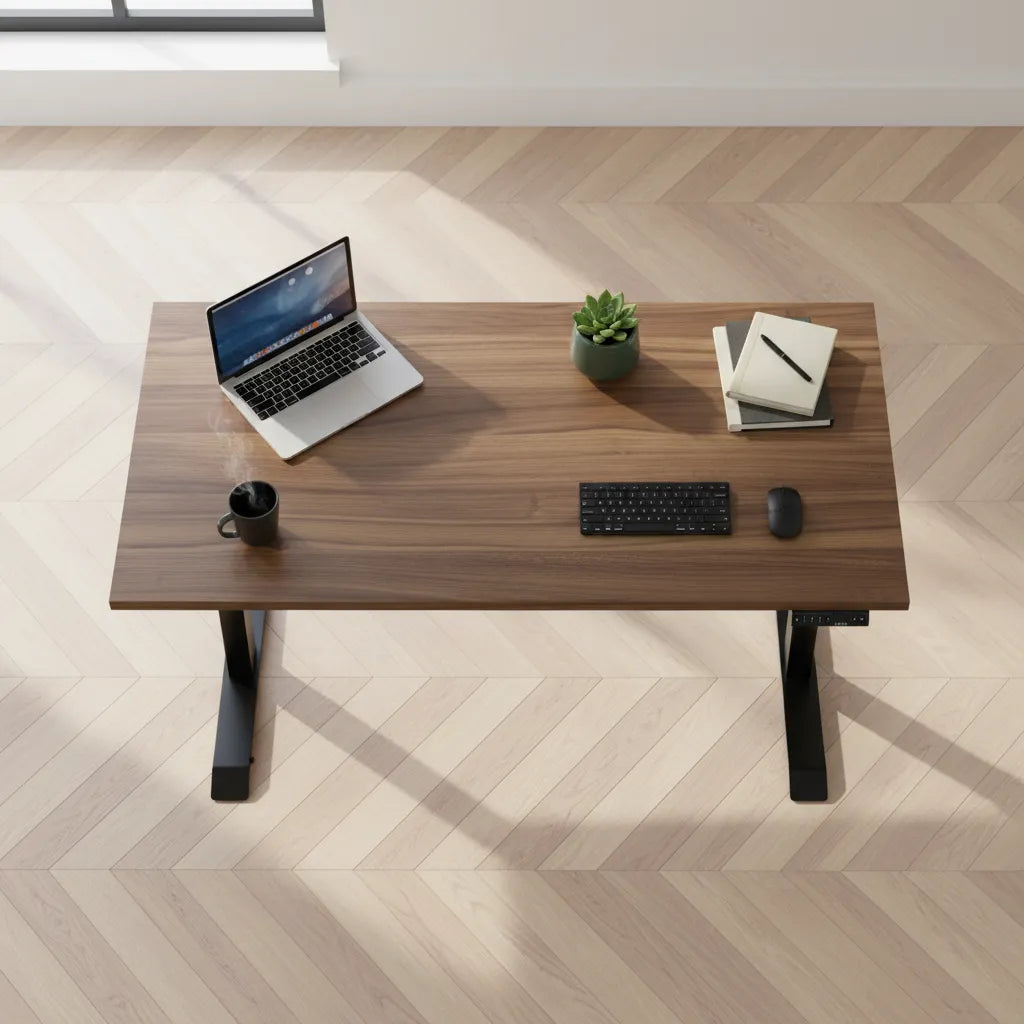
Place the keyboard directly in front of the work you use most. The letter keys, not necessarily the full keyboard casing, should align with your body. Keep it close enough that the upper arms remain relaxed and the elbows stay near the torso. The working surface should allow the forearms and hands to remain close to level without pressing the wrists into a sharp desk edge.
Retract the keyboard feet unless a slight positive tilt is genuinely comfortable. Raising the back of the keyboard can extend the wrists. A low-profile or compact keyboard may free space for the mouse, but consider whether losing a number pad or navigation keys would disrupt your work. Our guide to proper keyboard and hand placement explains alignment in more detail.
How to position the mouse
Keep the mouse on the same level as the keyboard and as close as practical. Reaching around a wide keyboard can load the shoulder even when the mouse itself is comfortable. Increase pointer speed if large movements are forcing the arm across the desk, but keep control precise enough for your work.
Use the whole arm for larger movements rather than anchoring the wrist and twisting repeatedly. Maintain a light grip. A different mouse shape can help some users, but placement and reach should be corrected before buying a specialized device. If symptoms persist, seek an individual assessment rather than treating one accessory as a medical solution.
Where to put the laptop
If the laptop is your only screen, centre it behind the keyboard. Raise it until the upper part of the display approaches a comfortable viewing level, then adjust distance so text remains readable without leaning. A stable stand is enough for a fixed setup. A laptop tray attached to a monitor arm can add height and depth adjustment when the desk serves multiple users or alternates between sitting and standing.
If the laptop is secondary, place it beside the main monitor and decide how often you look at it. For occasional reference, a side position is fine. For equal use, bring the displays together and angle them inward. Avoid placing the laptop so far to the side that you rotate your torso for extended work.
Wired or wireless?
Both can work. Wired peripherals avoid charging and pairing concerns, while wireless devices reduce cable clutter and are easier to reposition. Check compatibility with your computer, available ports, workplace security requirements and the way the devices recharge. A wireless setup still needs a plan for receivers and charging cables.
Bluetooth can free a port, but some managed workplace computers restrict personal peripherals. Follow your employer's information-security rules. At a permanent desk, reliability may matter more than a minimal appearance. For a mobile kit, size, battery life and connection speed may deserve more weight.
A practical setup sequence
- Adjust the chair or standing desk so the working surface supports relaxed shoulders.
- Place the external keyboard close and centred.
- Put the mouse beside it on the same surface.
- Raise and centre the laptop screen.
- Set viewing distance and text size.
- Test with a real task for 20 to 30 minutes.
- Change one variable at a time if you lean, reach or lift the shoulders.
If you cannot add peripherals today, use the compromises in our laptop-only desk setup guide. Even a temporary arrangement benefits from larger text, shorter work blocks and regular posture changes.
Common buying mistakes
- Choosing the smallest keyboard without checking the key layout.
- Buying a laptop stand but continuing to type on the raised computer.
- Placing the mouse far to the side of a full-width keyboard.
- Assuming an “ergonomic” label guarantees a good fit.
- Ignoring port compatibility, workplace restrictions or charging needs.
- Focusing on devices while leaving the desk and chair at unsuitable heights.
Bottom line
An external keyboard and mouse are not mandatory every time you open a laptop. They are a practical upgrade when the laptop is your main workstation, when the screen is elevated or when you use a separate monitor. Their main benefit is independent positioning: the screen can support a more neutral head position while the hands stay close and around elbow height.
Start with the devices you already own, arrange them carefully and observe how you work. If the setup lets you keep your head balanced, shoulders relaxed and wrists near neutral while changing posture regularly, it is doing its job.
Previous article
Should the Top of Your Monitor Be at Eye Level?
Next article
How to Install a Clamp-On Power Bar Without Damaging Your Desk