

How Deep Should a Desk Be for a Laptop?

In this article
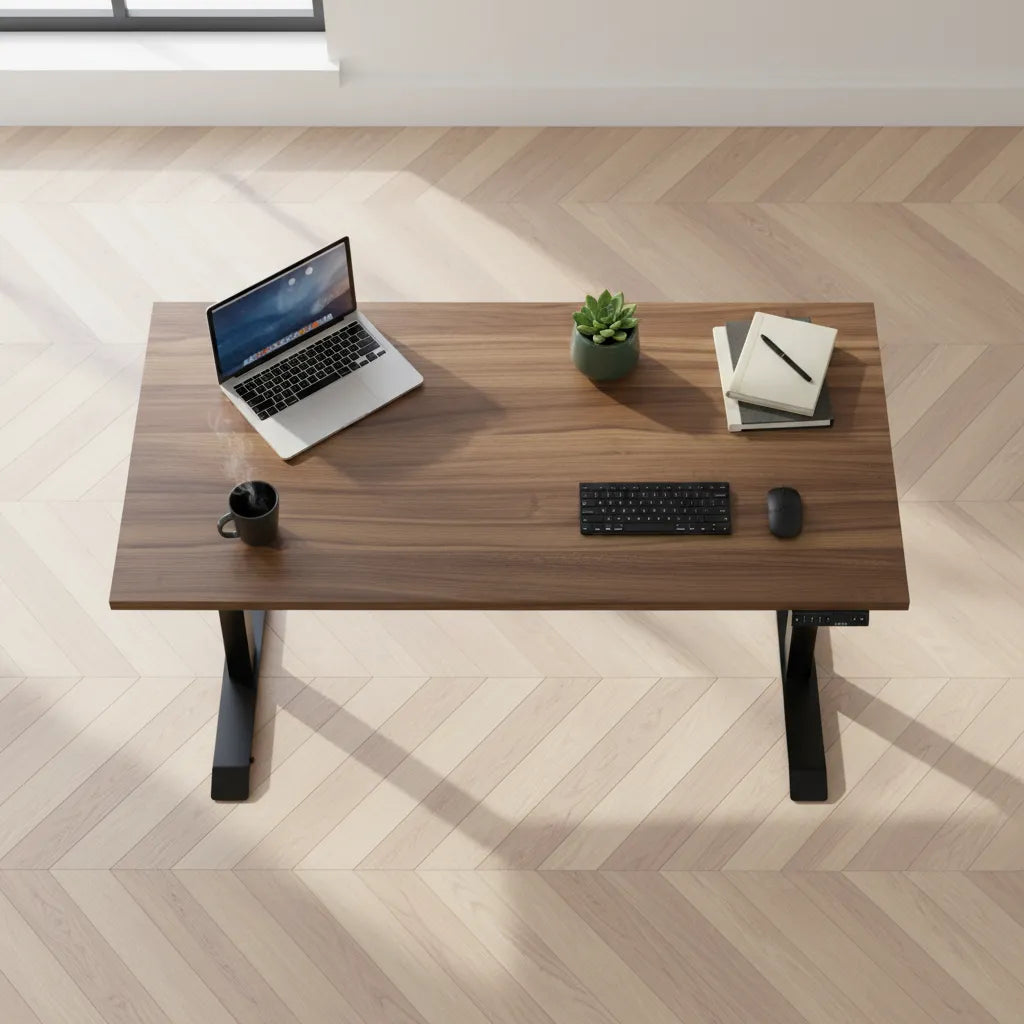
For most laptop setups, a desk depth of 24 inches can be practical. A 30-inch-deep surface is more forgiving when you raise the laptop, add an external keyboard and mouse, or need room for notes in front of the computer. The best choice depends on the way you work, the screen size and your available room.
Depth is the front-to-back measurement of the desktop. It is different from width, which determines how much equipment can sit beside the laptop. A desk can be wide but too shallow for comfortable screen distance, or deep but too narrow for a notebook and mouse.
Quick answer: 24 inches or 30 inches?
Use these ranges as a starting point:
- About 24 inches deep: suitable for a laptop-only station, a compact room or a simple external keyboard and mouse setup.
- About 30 inches deep: better when the laptop is raised, the keyboard sits fully in front, paper is used regularly, or the surface may later support a monitor.
- Less than 24 inches: possible for short sessions or very compact equipment, but measure carefully for screen distance, wrist position and cable clearance.
These are planning ranges, not medical rules. Your body dimensions, vision, laptop hinge, text scaling and tasks all affect the final position.
Why laptop use changes the depth you need
The built-in screen and keyboard are connected
A laptop creates a compromise: moving the screen farther away also moves the keyboard farther away. If you push the computer back to improve viewing distance, you may start reaching for the keys. If you pull it forward to type comfortably, the screen may be too close or too low.
For prolonged work, a raised laptop with an external keyboard and mouse usually gives you more freedom. Natural Resources Canada recommends using an external keyboard and mouse in its home-office ergonomics guidance. Once the input devices are separate, you can position the screen for viewing and the keyboard for reach.
Screen distance takes physical space
The Canadian Centre for Occupational Health and Safety discusses a general viewing-distance range of 40 to 74 centimetres and emphasizes that monitor guidance should be tailored to the user. A desk does not need to be exactly that deep because your eyes sit in front of the desk edge and the screen has its own thickness. Still, the guideline shows why an extremely shallow surface can be restrictive.
If the laptop is open near the back edge of a 24-inch desk, many users can obtain a workable distance. A 30-inch surface makes it easier to move a raised screen back while keeping the external keyboard close to the body.
Writing and reference material add another zone
People who review documents, sketch, calculate or take handwritten notes need a clear area in front of or beside the keyboard. On a shallow desk, paper often covers the touchpad, pushes the keyboard away or forces the user to twist. Extra depth can create a temporary writing zone without rebuilding the entire workstation.
When a 24-inch desk is enough
A 24-inch depth is often a good fit when:
- The laptop is the only screen.
- The workspace is in a bedroom, alcove or compact apartment.
- The keyboard is compact and the mouse stays close to it.
- Most tasks are digital and paper use is occasional.
- The laptop can sit near the back without touching the wall or bending cables sharply.
A smaller desk should still let the shoulders relax and the elbows remain close to the body. The Government of Canada's ergonomics guidance recommends keeping the mouse within easy reach on the same surface as the keyboard. If a full-size keyboard pushes the mouse far to the side, changing keyboard size may be more useful than adding desk depth.
When 30 inches is the better choice
Choose more depth when you want flexibility. A 30-inch desktop can provide room to:
- Raise the laptop and place an external keyboard in front.
- Increase screen distance without reaching for the input devices.
- Open a notebook or document between you and the keyboard.
- Add a monitor, desk shelf or arm later.
- Move cables behind the laptop without pressing them against a wall.
The trade-off is floor space. An extra six inches of desk depth also changes chair clearance and walking space. Measure the room with the chair pulled out, not just with the desk pushed against the wall.
How to measure the desk depth you actually need
1. Build the setup on a table
Place the laptop, keyboard, mouse and notebook on an existing surface. Arrange them in the position you would use for at least an hour. If the laptop will be raised, use the intended stand or a stable temporary support for measuring only.
2. Set the input devices first
Sit back in the chair with the shoulders relaxed. Put the keyboard close enough that the upper arms can remain near the torso. Place the mouse directly beside it at the same height. This front working zone should not require a forward lean.
3. Move the screen for clear viewing
Place the laptop screen at a distance that allows clear text without leaning forward or enlarging it beyond practical use. Adjust text scaling before deciding the desk must be shallower. If you wear bifocals or progressive lenses, the screen may need a different height and angle. General guidance is not a diagnosis, so consult an eye-care professional if visual discomfort persists.
4. Add clearance behind and beside the computer
Include space for the power connector, dock, video cable and ventilation openings. Do not force a connector against the wall. If the desk rises and lowers, cables need enough controlled slack throughout the full travel.
5. Measure the occupied depth
Measure from the front edge of the working surface to the farthest point needed behind the laptop or stand. Add a modest buffer so the layout is not dependent on millimetre-perfect placement. Then confirm the larger footprint still leaves enough room for the chair and circulation.
Desk depth by common laptop setup
| Setup | Likely starting depth | Main reason |
|---|---|---|
| Laptop only | About 24 inches | Keeps a compact footprint while allowing basic screen and hand positioning |
| Raised laptop with keyboard and mouse | 24 to 30 inches | Separates the screen zone from the input zone |
| Laptop plus regular handwriting | Closer to 30 inches | Creates a usable paper area without pushing the keyboard away |
| Laptop plus external monitor | Often 30 inches | Allows more screen-distance and mounting flexibility |
The table is a planning guide. Confirm every product's actual dimensions and your room before ordering.
Do not solve a width problem with extra depth
If your mouse falls off the side, documents overlap the laptop, or accessories crowd the keyboard, you may need more width rather than more depth. A 48-inch-wide desk can suit a compact laptop setup, while wider surfaces offer more horizontal zones. The correct combination depends on whether you work mostly in front of the computer or spread materials beside it.
A practical choice for a home office
Choose 24 inches when floor space is the tighter constraint and your setup is simple. Choose 30 inches when you value screen-distance flexibility, paper space or future expansion. If both fit the room, mock up the extra six inches with painter's tape on the floor and on your current table. The difference becomes much easier to judge.
For related planning, compare 24- and 30-inch desk depths for monitor setups, review the laptop-only workstation guide, and check keyboard and hand placement. Burotic's Aspire Premium Laminate Standing Desk is available in verified 24- and 30-inch depth configurations, so the selection can follow the way the workstation is actually used.
Sources
- Natural Resources Canada: Ergonomic Office at Home
- Canadian Centre for Occupational Health and Safety: Positioning the Monitor
- Government of Canada: Guide to Address Ergonomics-Related Hazards
The best laptop desk is deep enough to separate viewing from typing without consuming space you need elsewhere. Measure the real equipment, preserve an easy reach to the keyboard and mouse, and choose the smallest depth that still supports those conditions.

Previous article
Why Does My Monitor Arm Sag or Drop? How to Fix It Safely
Next article
Face-to-Face vs. Side-by-Side Desks: Which Office Layout Works Better?