




Should You Rest Your Forearms on the Desk While Typing?

In this article
You can rest part of your forearms lightly on the desk while typing if the surface is at the right height, the edge does not create pressure, and the support does not force your wrists to bend. The support should help your shoulders stay relaxed. It should not become a hard anchor under the wrists or elbows.
There is no single correct contact point for every person and task. Some people work comfortably with the forearms lightly supported by the desk or a broad forearm support. Others rely more on well-adjusted chair armrests and let the hands float over the keyboard. The best arrangement keeps the upper arms near the torso, elbows around a comfortable open angle, wrists in line with the forearms, and shoulders neither lifted nor pulled forward.
Quick answer: support the forearms, not the wrists
During typing, avoid pressing the wrists into the desk edge or a wrist rest. The hands should be free to move across the keyboard. If you use the desktop for support, place the fleshy portion of the forearms on a broad, smooth area and keep contact light. Move closer to the keyboard rather than reaching across a deep section of desk.
A palm or wrist rest can be useful during pauses, but it should not hold the wrists down while the fingers travel. The Occupational Safety and Health Administration advises keeping the hands, wrists and forearms straight, in line and roughly parallel to the floor, with relaxed shoulders. That relationship matters more than whether the forearms touch a particular surface.
What good forearm support feels like
- The shoulders feel relaxed rather than shrugged.
- The elbows stay close to the sides instead of reaching forward or outward.
- The wrists remain neutral, without bending upward, downward or sideways.
- The keyboard and mouse are easy to reach without leaning the torso.
- The desk edge does not create a sharp pressure line.
- You can change position without feeling pinned to one support point.
Support should distribute some arm weight over a comfortable area. A narrow edge under the wrist or elbow concentrates pressure. A broad desk pad may soften contact, but it does not correct a desk that is too high or a keyboard that is too far away.
Where should your elbows be?
Keep the elbows near the torso and let them open slightly beyond a right angle if that feels natural. A rigid 90-degree rule is less useful than a relaxed posture that lets the forearms approach the keyboard without lifting the shoulders. The elbows can sit just beside the body or a little forward, but they should not be held far in front for sustained typing.
If your elbows are much lower than the desktop, you may lift the shoulders or bend the wrists upward. If they are far above it, you may lean forward or bend the wrists downward. Adjust the chair and work surface until the keyboard sits near relaxed elbow height.
Desk support versus chair armrests
Using the desk
Desktop support works best when you can sit close, the keyboard is shallow enough to leave a small support area, and the front edge is smooth. Keep the mouse at the same level and close to the keyboard. A large gap between your body and the input devices makes the forearms slide forward and can pull the shoulders away from the backrest.
Using chair armrests
Armrests can support the forearms between keystrokes and during mouse work. They should sit just below the relaxed elbows and allow the chair to approach the desk. If they are too high, the shoulders rise. If too low, you may lean to one side. If too wide, the elbows move away from the body. Use the guide to office chair armrest height to fine-tune them.
Combining both
A practical setup can use armrests for the area near the elbows and the desktop for light support closer to the hands. The surfaces should be close in height so the forearms do not bridge a large step. If the armrests hit the desk first, lower or retract them if possible rather than working too far away.
How far should the keyboard be from the desk edge?
Place the keyboard close enough that the elbows remain near the body, while leaving only the amount of front space needed for comfortable light support. Too much space invites reaching. Too little can leave the wrists on a sharp edge.
The correct distance depends on forearm length, keyboard depth and whether the desk or armrests provide support. Start with a modest gap, then test whether you can reach the home row without moving the shoulders forward. Burotic's guide to keyboard distance from the desk edge gives a step-by-step measurement method.
Keep the wrists neutral while typing
Neutral wrists follow the line of the forearms. If the keyboard feet raise the back sharply, the wrists may extend upward. Try the keyboard flat or at a slight negative tilt if the equipment supports it. Avoid placing the keyboard so high that the hands must climb over the front edge.
Keep the mouse beside the keyboard, not far forward or out to the side. A compact keyboard can reduce the reach to the mouse because it removes unused width. The article on mouse position at a desk explains how reach, height and grip work together.
How to adjust a seated workstation
- Place both feet on the floor or on a stable footrest.
- Set the chair height so the shoulders can relax while the elbows approach keyboard height.
- Move the chair close enough that the upper arms remain near the torso.
- Bring the keyboard and mouse into easy reach and keep them on the same level.
- Adjust armrests below the relaxed elbows or move them out of the way.
- Use light forearm support and check that no edge presses into the wrists.
- Type for several minutes, then correct the height before changing smaller details.
If raising the chair solves upper-body alignment but leaves your feet unsupported, add a footrest. Do not lower the chair solely to reach the floor if that makes the work surface too high for your arms.
How to adjust a standing workstation
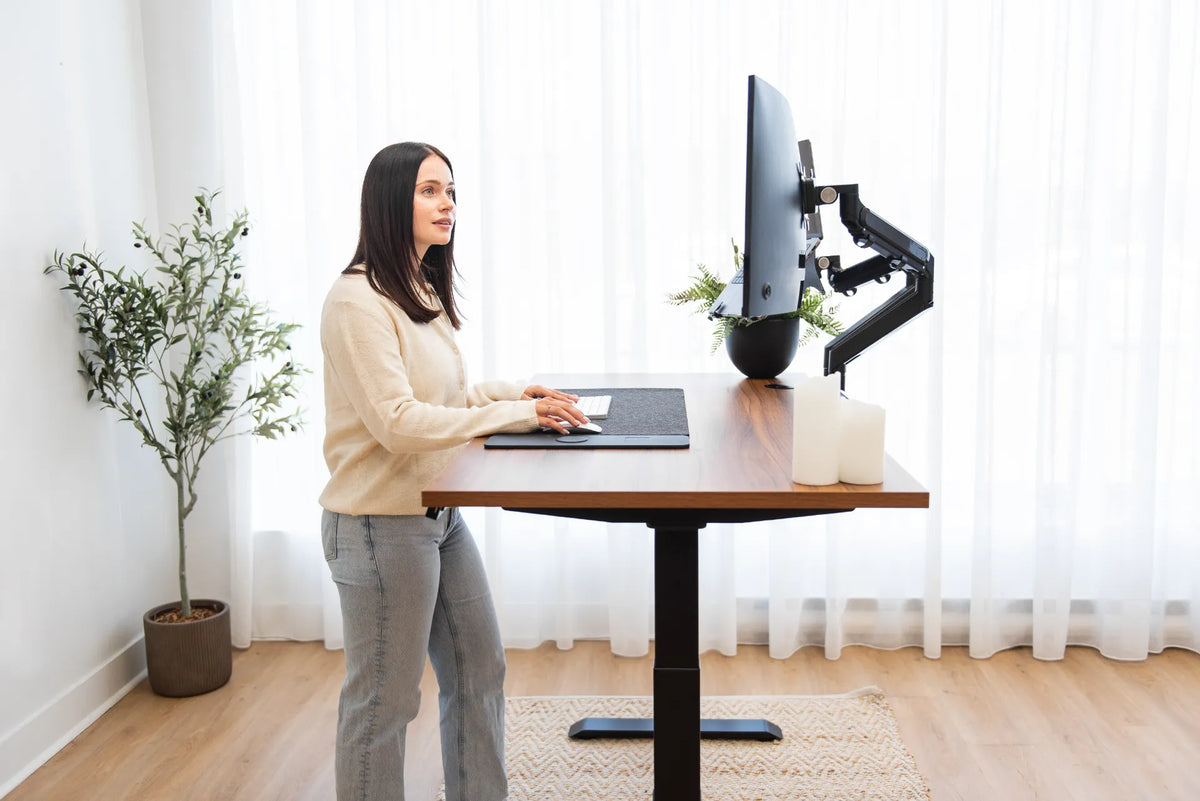
Set the surface near relaxed elbow height, then place the keyboard and mouse close to the front. Stand without locking the knees and keep body weight balanced. Light forearm contact can be useful, but avoid leaning heavily onto the desk because that shifts the torso forward.
An adjustable desk makes it easier to match the surface to both sitting and standing elbow height. When evaluating an adjustable standing desk, plan around the complete keyboard, mouse and monitor setup rather than a memorized height alone.
Signs the support is not working
- Red marks or tingling where the desk edge contacts the arms.
- Shoulders that rise toward the ears.
- Wrists bent upward or sideways for most keystrokes.
- Elbows held far from the torso.
- Leaning forward because the keyboard is out of reach.
- One forearm supported while the other repeatedly reaches for the mouse.
These observations help identify a setup issue, but they are not a diagnosis. Persistent pain, numbness, weakness or other symptoms should be discussed with a qualified health professional.
Movement still matters
Even an excellent posture becomes tiring when held for too long. Change hand and arm position between tasks, release contact pressure, stand or walk briefly, and alternate keyboard work with reading or calls when possible. Support should make movement easier, not lock you into one pose.
Bottom line
It is reasonable to rest the forearms lightly on the desk while typing when the surface supports a neutral wrist position and relaxed shoulders. Avoid bearing weight on the wrists, elbows or a sharp edge. Keep the keyboard and mouse close, align the desk with relaxed elbow height, and use chair armrests only when they fit without blocking access. Judge the arrangement by the whole posture and by your ability to move, not by a rule that the forearms must always touch or always float.


Previous article
What Should You Keep on Your Desk? A Practical Home Office Checklist
Next article
Why Won't My Office Chair Backrest Lock? Safe Troubleshooting Steps