





Monitor Stand vs. Monitor Arm: Which Is Better for Your Desk?

In this article
A monitor stand and a monitor arm can both raise a screen, but they solve different workspace problems. A stand creates a stable platform and useful storage underneath. An arm provides more freedom to change height, depth and angle while clearing the area below the display. The better choice depends on your screen, desk, body, tasks and how often the setup needs to change.
This guide compares the two options without assuming that more adjustment is always better. Start with the position your body needs, then consider compatibility, available space and how you work from day to day.
Monitor stand vs. monitor arm at a glance
Choose a monitor stand when you want a simple, solid and visually integrated way to raise one or more screens. It is especially practical when the required height is predictable, the desk has enough depth and you want a shelf for a keyboard, notebook or small accessories.
Choose a monitor arm when you need frequent repositioning, want to move a screen closer or farther away, share the workstation, rotate a display or free more of the desktop. An arm can be valuable on a sit-stand desk because screen position may need a small correction when you change posture.
- Best for simple elevation: monitor stand.
- Best for fine adjustment: monitor arm.
- Best for storage under the screen: monitor stand.
- Best for clearing the desktop: monitor arm.
- Best for frequent users or changing tasks: usually a monitor arm.
- Best for a fixed, design-focused setup: often a monitor stand.
Start with ergonomic screen position
The support is only useful if it puts the display in a comfortable viewing zone. The Canadian Centre for Occupational Health and Safety explains that viewing angle and viewing distance both matter. The screen should generally be directly in front of the user, with the viewing area at or below eye level rather than forcing the head upward. Exact placement varies with screen size, vision, corrective lenses and task.
Sit or stand in a neutral working posture before adjusting the screen. Relax your shoulders, keep your head balanced over your torso and place the keyboard and mouse where you can reach them without leaning. Then move the display until text is comfortable to read. If you have to crane your neck, squint or lean forward, changing the support alone is not enough. Text size, lighting and desk depth may also need attention.
When a monitor stand provides enough height
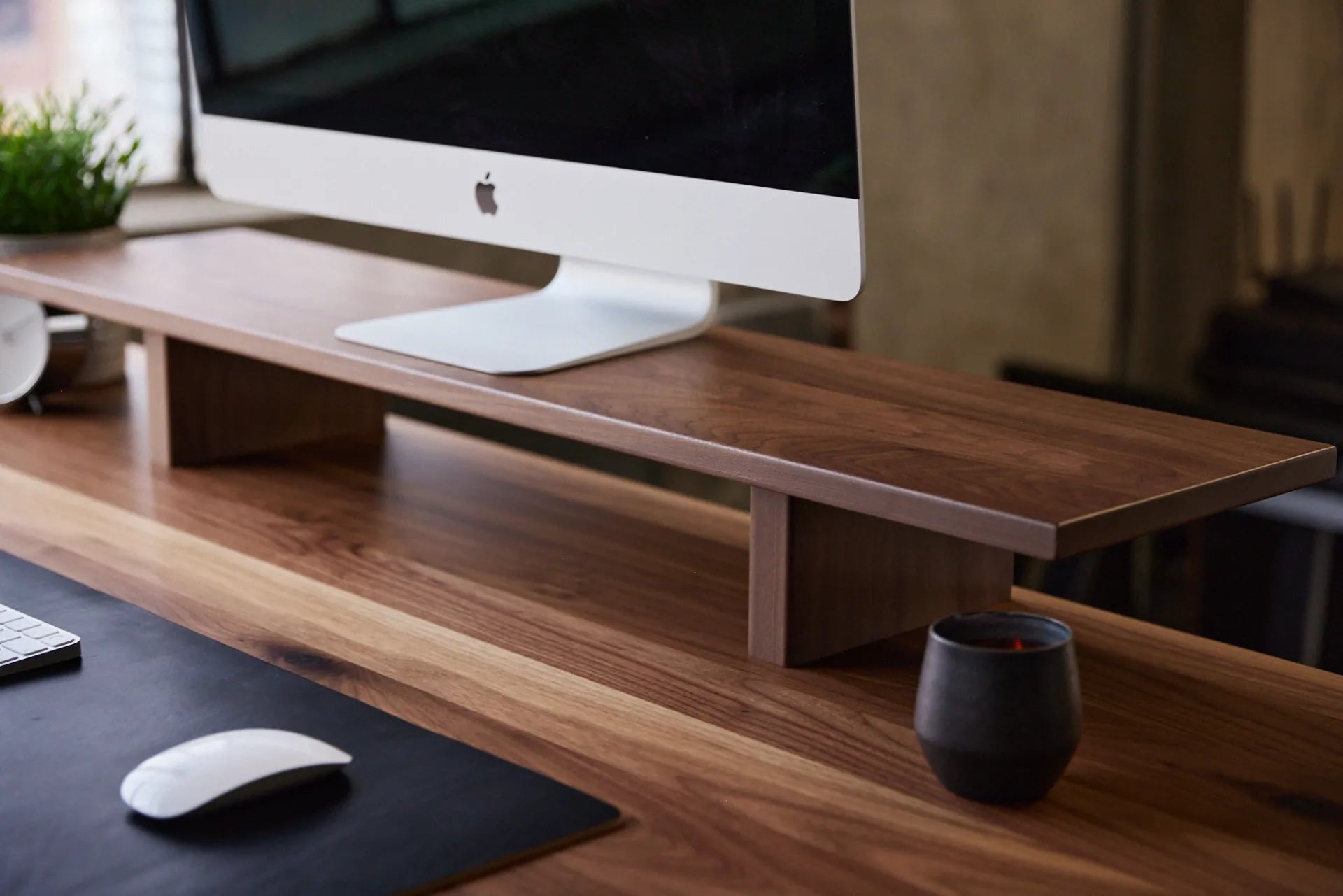
A stand works well when one fixed lift places the display correctly. Measure the distance from the desktop to the bottom of the screen in your preferred position. Compare that with the height of the stand and the adjustment already built into the monitor. A stand can also support two displays if its width, load capacity and surface are suitable, but both screens will usually remain at the same shelf height.
The Burotic Monitor Stand is an active product offered in several materials and finishes. Its broad shelf format is intended to elevate monitors while creating space below. Confirm the current dimensions and the combined weight of everything placed on it before choosing a configuration.
When an arm adds useful control
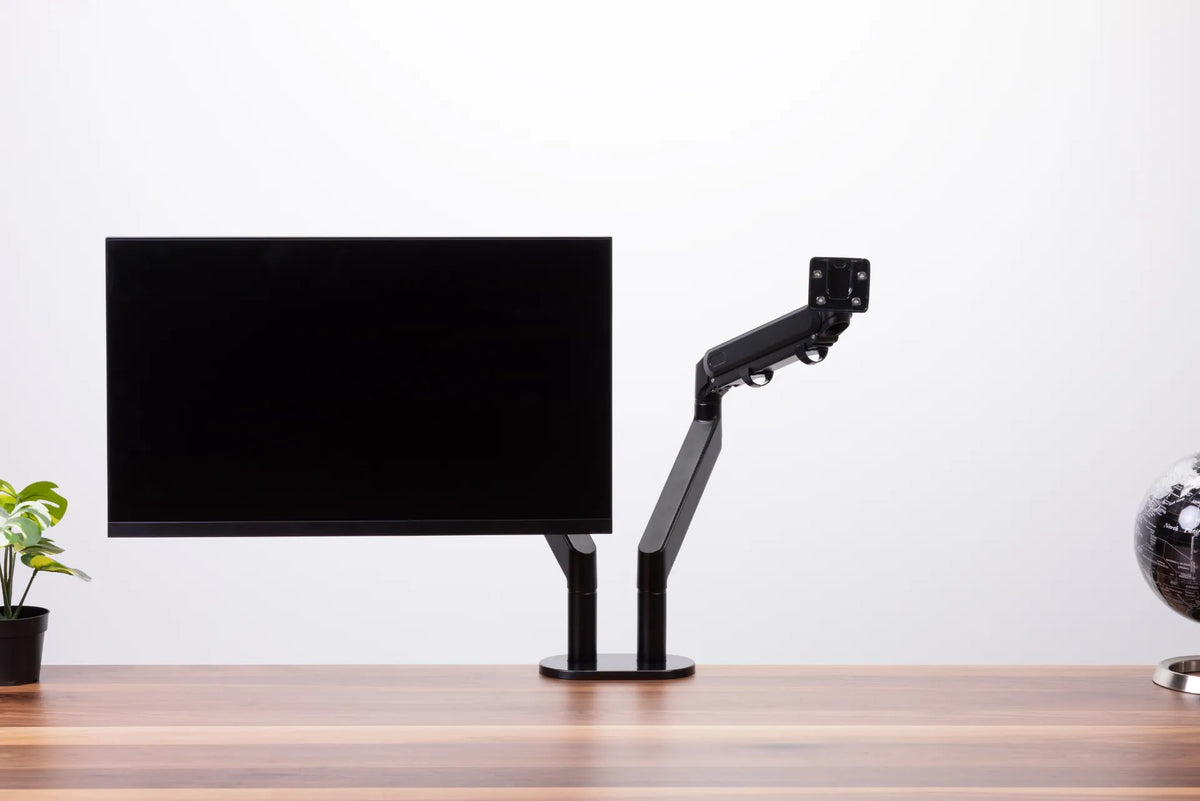
An arm is helpful when the screen must move in more than one direction. Height adjustment is only part of the benefit. Depth adjustment can matter just as much, especially on shallow desks or with large displays. Rotation may support portrait work, while side-to-side movement can help with collaboration or a secondary task zone.
The active Burotic Monitor Arm is available in single and dual configurations. Compatibility still needs to be checked for the exact monitor, mounting pattern, screen weight and desktop. Do not assume that every display or desk edge can accept any arm.
Compare desk space and storage
A stand uses surface area but creates a shelf
A monitor stand occupies a defined footprint. That can be a benefit when it organizes the workstation. The area below can hold a keyboard at the end of the day, while the top keeps a display and a few lightweight items together. The stand can visually anchor a setup and complement a wood desktop.
The tradeoff is depth. A deep stand may move the screen closer than intended on a compact desk. Cables also need a clear path behind or below it. Before buying, mark the proposed footprint with removable tape and place your keyboard and mouse in their normal positions. This quick test shows whether the remaining work area is practical.
An arm frees the surface but uses an attachment point
A clamped or grommet-mounted arm removes the original screen base from the desktop. That can create room for writing, a laptop or documents. It also allows the display to float above the surface. However, the arm still occupies space behind the monitor, and its joints may need clearance from a wall.
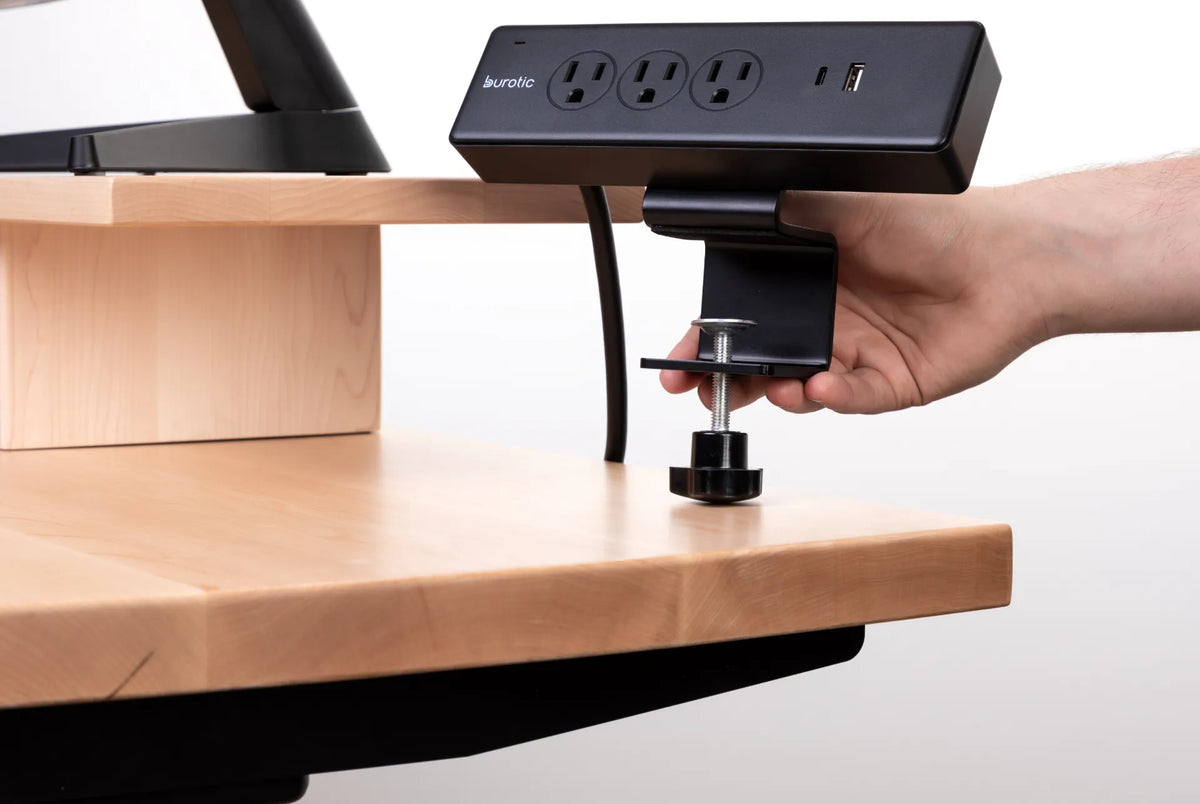
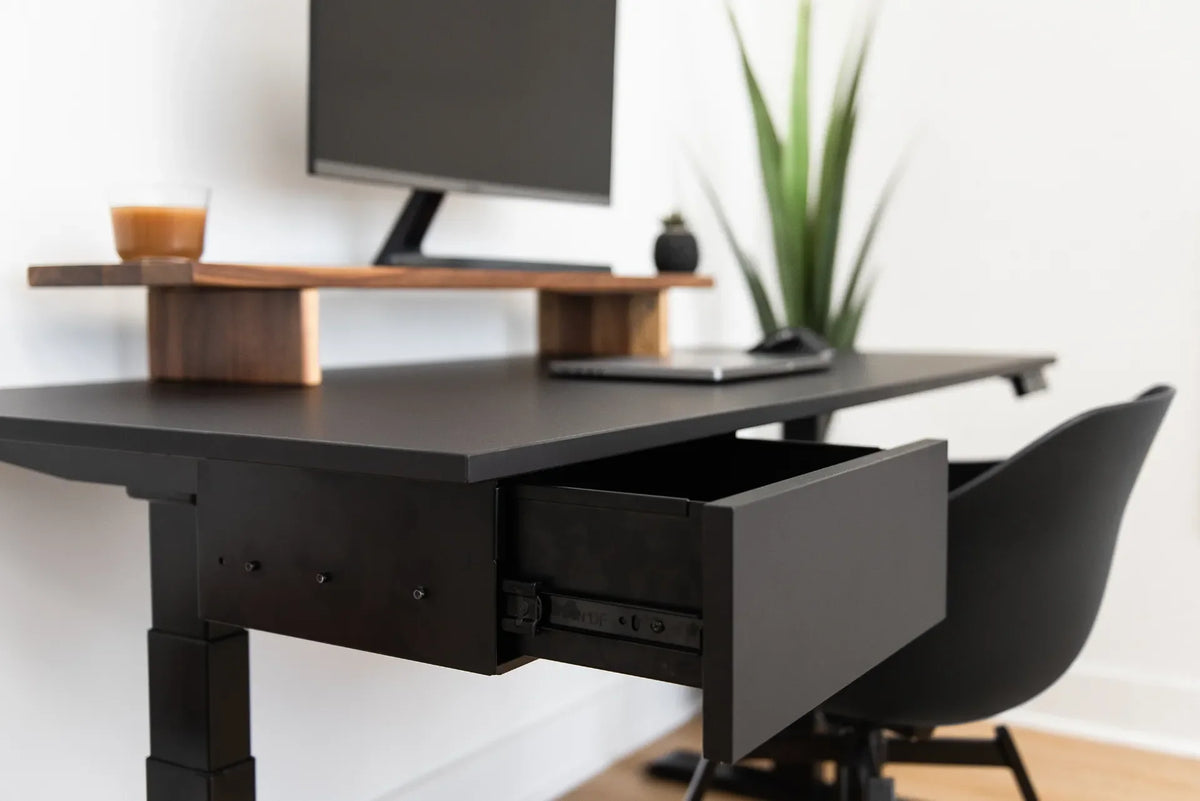
Check the desktop edge, thickness, underside structure and any cable tray or frame components before choosing the mounting location. A live edge, bevel, drawer or reinforcement bar can affect where a clamp sits. Protect the surface and follow the manufacturer's installation instructions.
Installation and compatibility questions
A monitor stand is usually the simpler option. Place it on a level, stable surface and keep the total load within its stated capacity. Make sure feet or contact points sit fully on the desktop. A stand does not require the screen to have a mounting interface because the monitor can remain on its original base.
A monitor arm requires more checks:
- Does the monitor have a compatible mounting pattern?
- Is the screen weight within the arm's supported range?
- Can the desk accept the clamp or grommet hardware?
- Is there room for the arm to move without hitting a wall?
- Will the cables remain long enough at every position?
- Can the arm hold the screen without drifting after adjustment?
For a fuller checklist, see Burotic's guide on choosing a monitor arm for a standing desk. It is worth checking compatibility before ordering rather than trying to correct a poor fit after installation.
Which option suits different work styles?
Focused work at one screen
If one person uses one screen in the same position every day, a stand may be all that is needed. It offers predictable placement, simple setup and storage. This is a strong choice when the desktop is deep enough and the monitor's own stand already provides tilt or height adjustment.
Shared or hot-desking workstations
An arm is usually more adaptable when several people use the same desk. Each user can reposition the display after adjusting the chair and desk. Memory marks or a simple setup note can help users return the screen to a comfortable zone.
Creative, coding and document work
Tasks that switch between landscape and portrait orientation, screen sharing and detailed reference work benefit from movement. An arm can bring a display forward for close review and move it back afterward. A stand may still be preferable when the workstation uses physical tools and the shelf serves as a consistent boundary between screen and work surface.
Two-monitor setups
With two monitors, decide which display is primary. Put the primary screen directly in front of you. A wide stand can align both screens at a common height, while a dual arm can adjust each display separately. A dual arm also requires careful weight, size and mounting checks. Burotic's guide to ideal monitor distance can help establish the viewing position before selecting hardware.
Monitor stand or arm on a sit-stand desk?
Both can work on an adjustable desk. The key is that the display, keyboard and mouse move together and remain stable. The CCOHS sit-stand desk guidance recommends maintaining an appropriate viewing line and keeping input devices aligned in standing as well as sitting.
An arm offers quick screen corrections between positions, but a long or heavy assembly can amplify movement if poorly adjusted. A stand is mechanically simple and moves with the desktop, but its fixed height must work in both postures. Test both your seated and standing positions before finalizing the setup.
A practical decision checklist
- Set your chair and desk height first.
- Measure the screen height and comfortable viewing distance.
- Check the monitor weight, mounting pattern and original stand adjustment.
- Measure usable desktop depth and wall clearance.
- Inspect the desk edge and underside for mounting obstacles.
- Decide how often the screen needs to move.
- Plan cable length for every seated and standing position.
- Choose the simplest support that achieves the required position.
Final recommendation
A monitor stand is the better choice for a stable, straightforward setup with useful shelf storage. A monitor arm is better when you need precise positioning, frequent movement or more open desktop space. Neither is automatically more ergonomic. The winning option is the one that places your screen comfortably, fits the hardware and stays stable through your real workday.
Compare the Burotic monitor stand and monitor arm using your measurements, screen specifications and daily tasks. If discomfort continues after adjustment, consult a qualified ergonomics or health professional for advice specific to your situation.
Previous article
Desk Pad vs. Mouse Pad: Which One Should You Use?
Next article
How to Set Up a Desk for Computer Work and Handwriting