

Where Should You Put Your Phone on Your Desk?

In this article
The best place for your phone depends on whether it is a work tool, a source of interruptions or both. For focused work, place it outside your direct line of sight and beyond automatic reach, while keeping urgent calls available through selected alerts. For tasks that require authentication, calls or reference apps, use a dedicated side zone that does not crowd the keyboard, mouse or paper path.
There is no universal distance. The practical goal is to make access deliberate, keep charging controlled and prevent the phone from becoming a physical or visual obstacle. Your dominant hand, desk size, privacy needs and notification habits should determine the exact spot.
Quick answer: create one dedicated phone zone
Choose a flat location on one side of the desk, beyond the main mouse arc and away from drinks. If the phone is not needed for the current task, turn the screen down or move it to a drawer, shelf or bag. If it is needed, use a stable stand or charging area where you can see it without placing it directly between you and the monitor.
A defined zone prevents the phone from migrating next to the keyboard, under papers or onto the edge of a moving desk. It also gives the charging cable a predictable route.
Decide what role the phone has during work
Essential work device
If you use the phone for multifactor authentication, customer calls, testing or time-sensitive messages, keep it reachable but not in the input area. A position beside the monitor base or at the rear side of the desktop can work when the screen is still legible and the device cannot slide.
Occasional reference tool
If you check a calendar, timer or reference app only a few times per hour, place the phone one deliberate reach away. That small amount of friction can separate purposeful use from habitual checking while keeping the device convenient.
Potential distraction
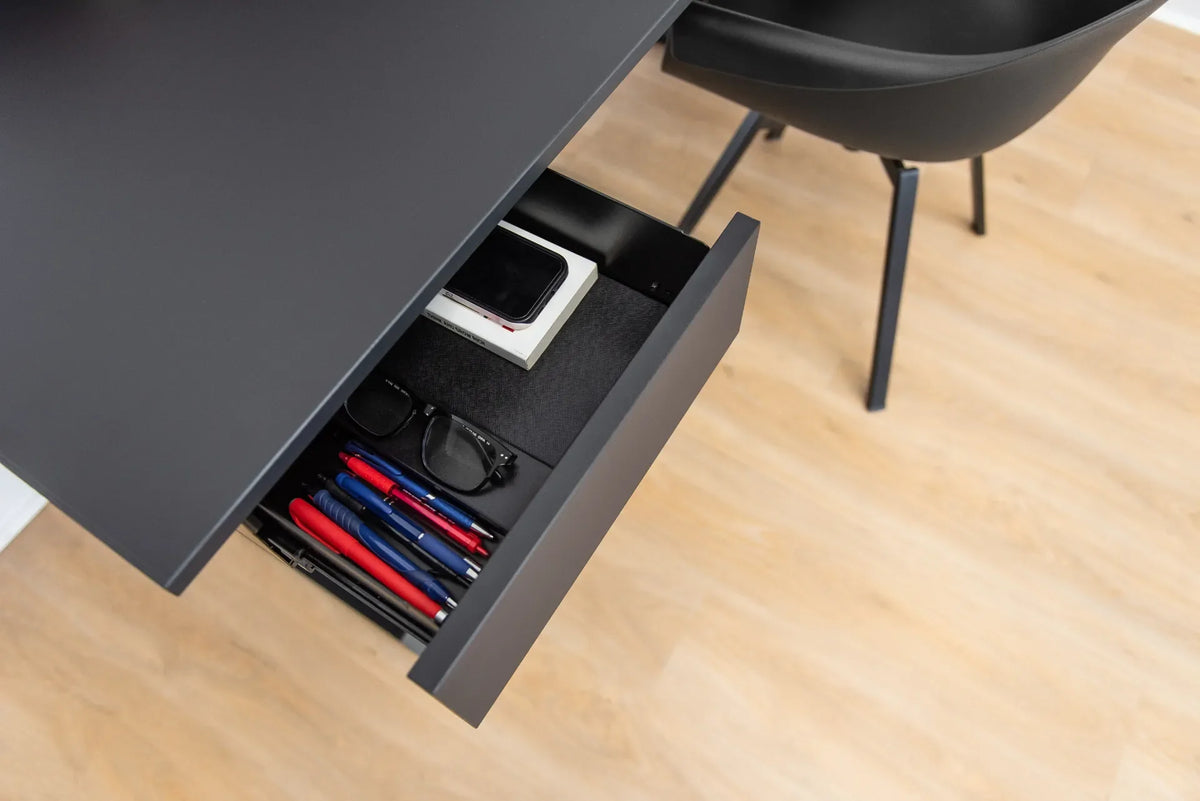
If the phone repeatedly interrupts focus, the best desk location may be off the desk. Use a drawer, shelf or bag, and allow only the alerts that truly require an immediate response. The solution should match your work responsibilities rather than assume every notification can be ignored.
What research says about phone presence
Research is mixed on whether the mere presence of a silent phone always impairs performance. One published study found no cognitive cost in its tested memory tasks, while other studies have reported lower attention or available cognitive capacity when a phone is visible. The evidence is more consistent that notifications can interrupt attention, even when the person does not answer immediately.
This means desk placement should be treated as a practical experiment, not a medical or universal productivity rule. Try one week with the phone visible but silenced and another with it out of sight. Compare completed work, unplanned checks and whether important communications were missed.
Keep the phone outside your hand paths
Map the arc of the mouse, the route used to move papers and the place where your non-mouse hand rests. The phone should not occupy any of these zones. A device beside the mouse is easy to hit, while a phone in front of the keyboard can encourage the wrists to work around it.
The guide to a minimalist desk setup explains how to reserve the central area for the current task. Apply the same rule here: the phone earns a place in the active zone only when the task actually needs it.
Choose the correct side
Many people place the phone on the non-mouse side because it receives less rapid movement. That is a useful starting point, not a rule. A left-handed phone user may still prefer the left side, and a frequently opened notebook or document tray can make that area busier.
Watch the workstation during a real task. Choose the side with the fewest crossing movements. Keep enough space to lift the phone without brushing a cup, cable or external drive.
Plan charging without adding cable clutter
For wired charging, route the cable along the rear or side of the desk and secure enough slack for the full height range. Avoid a loose loop in the keyboard area or a cable that can pull the phone toward the edge when the desk moves.
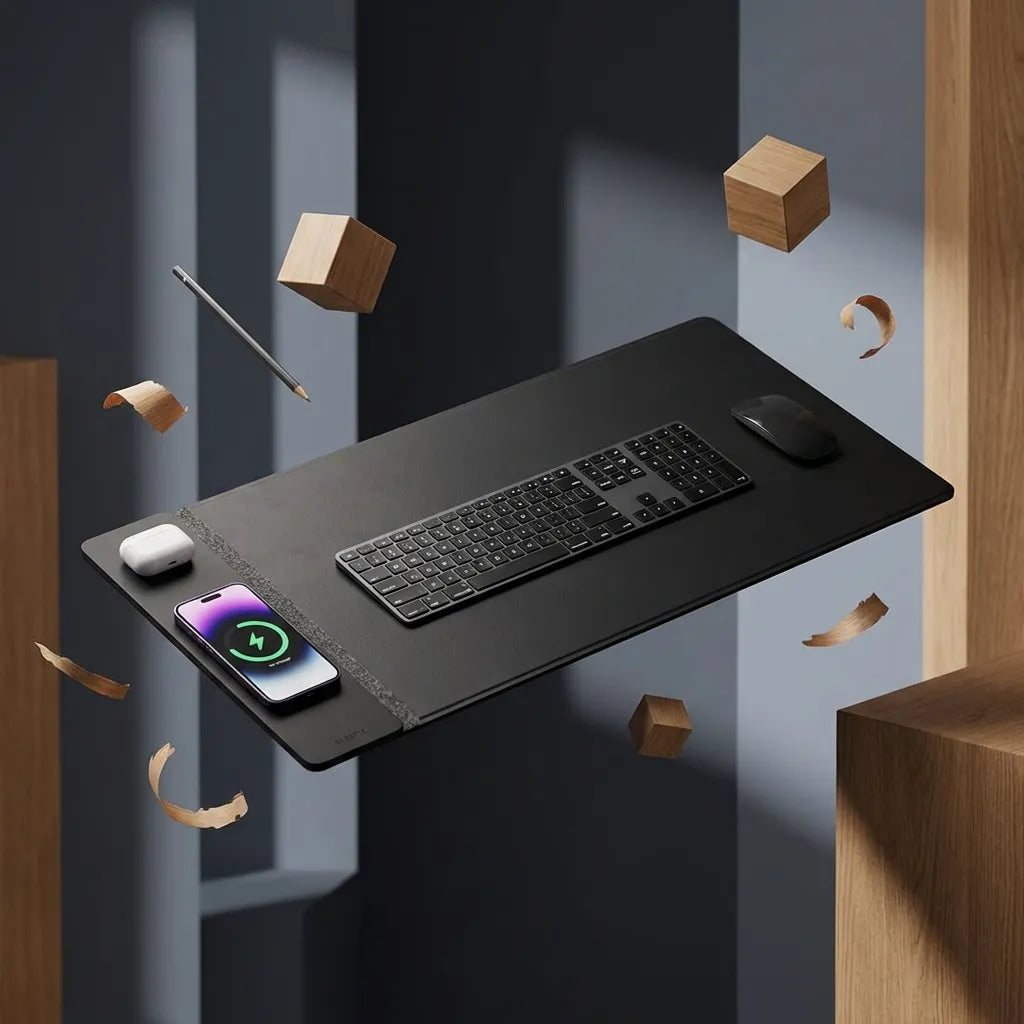
For wireless charging, place the device fully within the charger's intended zone and follow the manufacturer instructions for cases, alignment and power. A combined Burotic Wireless Charging Desk Pad can create a defined surface for the phone and input devices, but the phone still needs separation from fast mouse movements and liquids.
Protect the phone from spills and falls
Keep the phone away from the beverage zone and do not place it between a drink and the desk edge. A wet charging connector or accessory should not be used until it has been handled according to the manufacturer's instructions. The spill-safe drink placement guide helps separate liquids from electronics.
Use a stable, flat surface. Avoid balancing the phone on books, a narrow monitor stand or the moving edge of the desktop. If you use a stand, confirm that it does not tip when the phone vibrates or when you tap the screen.
Consider privacy and camera direction
A lock-screen preview can expose message content to visitors or colleagues. Turn off sensitive previews, angle the screen away from shared traffic and avoid leaving the phone facing a camera used for video meetings. In a public or shared workplace, store the device when you leave the workstation.
Do not let the phone camera point continuously at confidential documents or another person's workspace when this can be avoided. Good placement considers what the device can display and what its camera can see.
Set notification rules before moving the phone
Physical distance helps only when alert settings support the same goal. Create work modes that allow selected people or applications while silencing routine promotions and social notifications. Use vibration carefully on a hard desktop because it can still interrupt attention and make the device move.
For deep work, schedule a check at a natural break rather than keeping the phone in your peripheral vision. For on-call work, use distinctive alerts and keep the device accessible. The correct system is the one that protects focus without hiding genuinely urgent communication.
Test the location on a standing desk
Raise and lower the desk with the phone removed first. Check cable slack, nearby shelves and the risk of the device sliding. At standing height, the phone may become easier to see and reach, so reassess whether it is distracting or too close to the edge.
If a wireless pad or stand travels with the desktop, secure its power route through the full range. The guide to cleaning a wireless charging desk pad covers routine care around its electrical section.
Three useful phone zones
- Focus zone outside sight: drawer, bag or shelf for work that does not require the phone.
- Reference zone at the side: one deliberate reach away for authentication, timers and occasional checks.
- Communication zone in view: stable stand near, but not in front of, the monitor for calls and active messaging duties.
Choose one zone at the start of a task. Moving the phone intentionally is more effective than letting it drift around the surface.
Common mistakes
Putting the phone beside the mouse
This area receives frequent movement and makes accidental contact more likely.
Charging across the keyboard path
A crossing cable creates clutter and can pull the phone from the desk.
Relying only on screen-down placement
Vibration and sound can still interrupt. Adjust notification settings too.
Using the desk edge
A phone near the edge is vulnerable to sleeves, cables and desk movement.
Ignoring privacy
Lock-screen previews and camera direction matter in shared spaces.
Final recommendation
Give your phone one location that matches the current task. Keep it off the central keyboard and mouse path, route charging safely and separate it from liquids. When concentration matters more than immediate access, move it out of sight and rely on selected alerts.
Review the arrangement after a week. The best phone position is the one that supports the communications you actually need while reducing unplanned checks, clutter and physical risk.
Sources: Hartmann et al., smartphone presence and memory tasks; Thornton et al., smartphone presence and attentional performance; Stothart et al., attentional cost of phone notifications.

Previous article
How to Clean and Maintain a Laminate Desk Top
Next article
How to Clean and Maintain a Laminate Desk Top