




Why Does My Standing Desk Stop Before Reaching Full Height?

In this article
A standing desk that rises normally and then stops before reaching full height is giving you a useful clue: power is reaching the system, but something is interrupting or limiting upward travel. The cause can be as simple as a cable becoming taut, an object entering the desk's path or a stored upper limit. It can also involve an uneven load, a reset requirement or a component that needs professional attention.
Do not keep holding the up button or repeatedly cycle the desk if the frame strains, tilts, makes an unusual sound or stops at the same point. Start with a visual inspection, remove avoidable resistance and follow the instructions for your exact desk model. The steps below are general troubleshooting guidance, not a substitute for the manufacturer's manual or qualified service.
Quick answer: check the travel path before resetting anything
Begin by clearing the space above and below the desktop. Look behind the desk, under the work surface and around both legs. Confirm that cables have enough slack to reach the intended standing height. Remove excess weight and distribute the remaining equipment evenly. If the desk still stops, check whether the controller shows an error, whether an upper-height limit was saved and whether the frame appears level.
A reset may help after these checks, but only use the procedure specified for your model. Burotic owners can follow the model-specific guidance in How to Reset an Aspire Standing Desk Base. A reset should not be used to force a desk past a physical obstruction or a suspected mechanical fault.
1. Look for an obstruction along the full upward path
A desk can clear an object at seated height and meet it only as it rises. Common contact points include a windowsill, shelf, wall-mounted item, cabinet, monitor arm, acoustic panel or the underside of a sloped ceiling. The desktop can also catch a loose cable tray, clamp or accessory that changes position during travel.
Inspect from several angles
Stand to the side and raise the desk only until it approaches the stopping point. Keep hands, clothing and other objects away from moving parts. Watch both rear corners, the legs and every clamped accessory. A small contact can activate a collision response before the obstruction looks dramatic.
If the desk is close to a wall, remember that some cables and accessories project beyond the desktop. Leave enough clearance for the complete moving workstation, not just the top. The Canadian Centre for Occupational Health and Safety recommends arranging a sit-stand workstation so cables, storage and layout do not obstruct height adjustment.
2. Check cable slack at the problem height
Cables that appear relaxed while seated can become tight near standing height. A power cord, monitor cable, laptop charger, network cable or cable-management sleeve may pull against the desktop, controller, monitor arm or wall outlet. Tension can stop the desk indirectly by shifting an accessory or triggering collision detection.
Test without creating a new hazard
Turn off and unplug equipment before reorganizing electrical cables. Do not disconnect motor or controller wiring unless the manual tells you to do so. Route device cables with a controlled service loop that remains relaxed at both the lowest and highest intended positions. Keep loops away from moving columns and pinch points.
For a more complete cable audit, see Why Do Standing Desk Cables Pull When the Desk Moves?. A cable management solution can help keep routing predictable, provided the installation preserves travel and follows the product instructions.
3. Reduce and rebalance the load
A desktop can be within its overall capacity and still behave poorly if weight is concentrated far to one side or if an accessory binds during travel. Temporarily remove non-essential items such as books, printers, storage bins and heavy decorative objects. Centre the equipment that remains, then test the desk through a short, controlled movement.
Do not guess at the desk's rated capacity or treat the frame as a lifting device. Check the documentation for the exact model. If the desk stops only when a particular item is installed, inspect that item's mounting position and cable routing rather than assuming the motor is defective.
4. Determine whether an upper-height limit is active
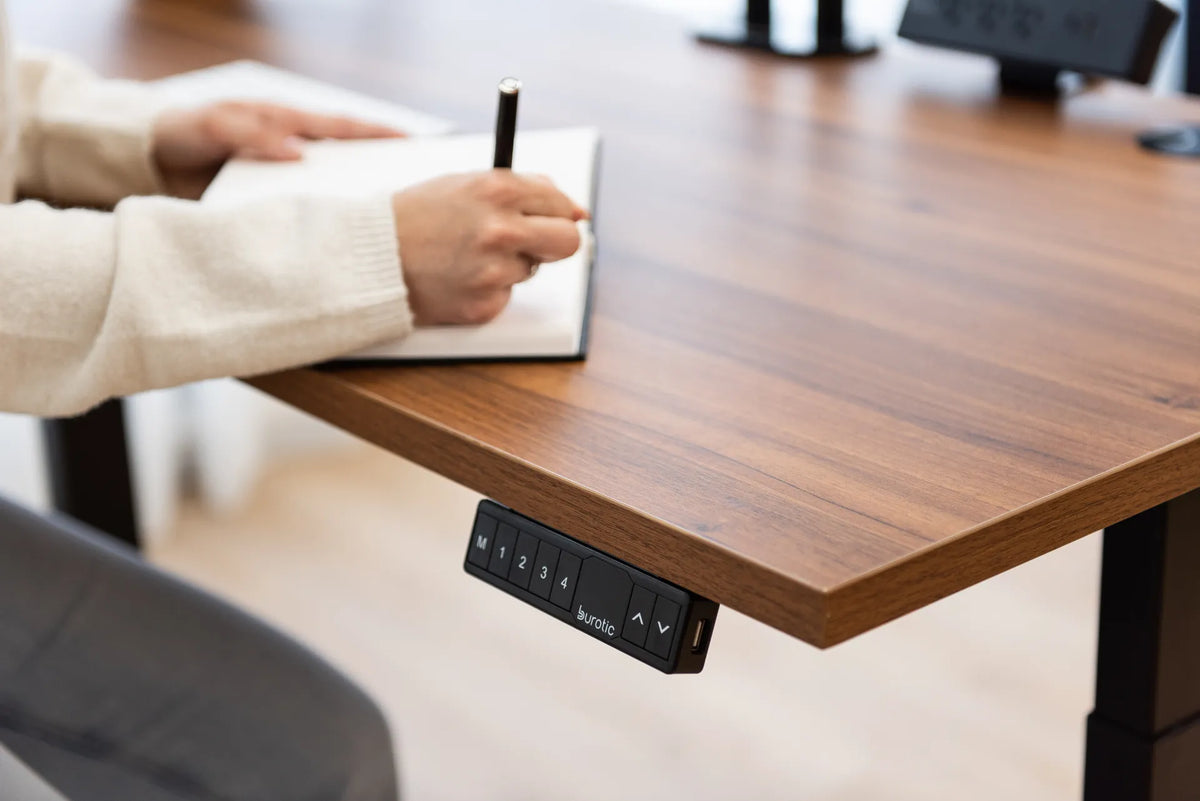
Some controllers allow a user or installer to save a maximum height. That can be useful beneath shelves or in shared spaces, but it can also look like a fault when the limit is forgotten. A desk that stops smoothly at exactly the same displayed height, without noise or visible contact, may have a programmed limit.
Consult the controller instructions before changing settings. Button combinations vary, and generic sequences can alter memory positions or other parameters. If you use an Aspire standing desk frame, rely on the Aspire instructions or Burotic support for the correct controller procedure.
5. Read the controller display and note the pattern
An error code, flashing display or changed controller behaviour can narrow the problem. Record the displayed code and the height at which the desk stops. Note whether both legs stop together, whether the desk reverses slightly, whether it stops only while rising and whether the issue remains after the desk has cooled.
If the desk does not move at all, use the separate checklist in Why Won't My Standing Desk Move?. That article focuses on power, connections and a completely unresponsive desk. A desk that travels partway needs more attention to path, limits, load and repeatable stopping height.
6. Reset only after physical checks pass
A control system can lose its reference position after a power interruption, a move or an interrupted adjustment. A model-approved reset may recalibrate the lowest reference point. It does not repair damaged hardware, remove an obstruction or correct a cable that is pulling tight.
Before resetting, clear the area under the desk and confirm that nothing will be trapped as the desktop moves toward its lowest position. Follow the exact sequence for your controller. Stop if the legs move unevenly, the frame binds, the sound changes sharply or the reset does not complete as described.
When to stop troubleshooting and contact support
Contact the manufacturer or Burotic support when the desk is visibly uneven, one leg moves while the other does not, a connector or cable appears damaged, the frame makes grinding or repeated clicking sounds, an error returns immediately after the approved reset, or the desk stops with the workspace cleared and lightly loaded.
Do not open motor housings, control boxes or lifting columns. Photograph the overall setup, controller display, cable routing and any visible damage. Provide the desk model, controller type, stopping height, error code and a concise description of what you already tested. That information makes support more efficient.
A safe order of operations
- Stop repeated movement and remove people and objects from the travel zone.
- Inspect above, below, behind and beside the desk.
- Check device-cable slack at seated and intended standing heights.
- Remove non-essential weight and centre the remaining equipment.
- Check for a saved upper limit and record any display message.
- Use only the reset procedure for the exact model.
- Request support if movement is uneven, noisy or still limited.
A desk that stops before full height is often protecting the workstation from a condition it detects. Treat the stop as information. A careful inspection usually separates a layout issue from a setting or service issue without forcing the mechanism.

Previous article
Should Both Feet Be Flat on the Floor at a Desk?
Next article
Can You Use a Monitor Riser on a Standing Desk?