





Can You Use a Monitor Riser on a Standing Desk?

In this article
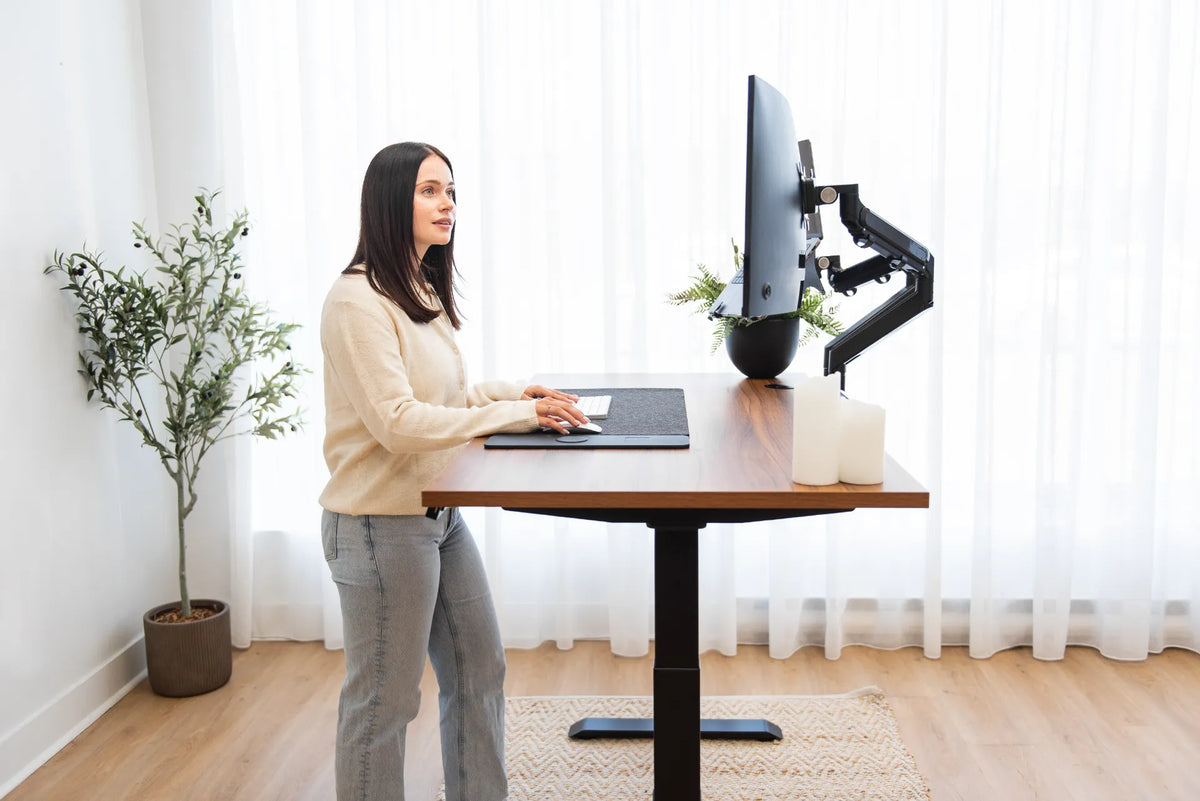
Yes, you can use a monitor riser on a standing desk. The combination is simple, stable and visually tidy when the riser puts the screen in a comfortable position without consuming too much usable depth. The important question is not whether a riser is compatible with a height-adjustable desk in principle. It is whether one fixed riser height works for your body, screen and tasks in both sitting and standing positions.
A standing desk changes keyboard and desktop height, but the distance between the desktop and a fixed riser does not change. If the screen is well positioned while seated but too low or high while standing, the desk alone cannot correct that relationship. Test the full workstation in both postures before deciding that the setup is complete.
Quick answer: a riser works when one fixed screen offset fits both postures
A monitor riser is a good match when the screen has its own tilt or height adjustment, the riser is stable, the desk has enough depth, and your eye-to-screen relationship remains comfortable after the desk moves. It is especially practical for a single monitor and a straightforward sit-stand routine.
A monitor stand can also create useful space below the screen for a keyboard, notebook or small accessories. However, storage convenience should not push the display too high or too far away.
Start with screen height, not the riser's advertised height
The Canadian Centre for Occupational Health and Safety recommends positioning the monitor so the top of the screen is at or slightly below eye level for many users, while recognizing that vision, screen size, task and eyewear can change the best position. The goal is a relaxed head and neck, not a universal measurement.
Test sitting and standing separately
Set the chair and desk for comfortable seated keyboard work first. Place the monitor on the riser and check whether you can see the main work area without tilting your head back. Then raise the desk until the keyboard is near elbow height and reassess the display. Do not raise the entire desk merely to fix a low monitor if that makes the keyboard too high.
If the monitor needs a different vertical offset in each posture, choose a screen with suitable height adjustment or consider a monitor arm. The related guide Should You Reposition Your Monitor When You Sit and Stand? explains why the ideal relationship can change between postures.
Check whether the riser leaves enough desk depth
A riser has a footprint. On a shallow desk, its feet can occupy the same zone needed for a keyboard, notebook or comfortable viewing distance. The monitor may also sit forward on the riser rather than at the rear edge, further reducing distance from your eyes.
Measure usable depth, not nominal desktop depth
Measure from the front edge to the nearest obstruction created by the riser, monitor base, cable pass-through or wall. Then sit and stand in your normal positions. The CCOHS discusses a general viewing-distance range and emphasizes individual adjustment; the correct distance also depends on screen size, resolution and visual needs.
Keep the keyboard and mouse close enough that your elbows remain near your sides. If you must push the input devices forward to make room for the riser, the arrangement is working against you. A deeper work surface or a monitor arm may free more of the primary work zone.
Confirm that the riser is stable during desk movement
A standing desk accelerates and decelerates at the start and end of travel. A riser that feels stable on a fixed surface can reveal wobble if its feet are narrow, the monitor base overhangs, or the desk is moved while cables pull sideways.
- Place every riser foot fully on the desktop.
- Keep the monitor base fully supported by the top surface.
- Follow the riser's stated load and size limits.
- Centre the monitor rather than loading one edge.
- Route cables so they remain slack through the full travel range.
- Move the desk only when the area is clear and accessories are secure.
Do not use loose books, boxes or improvised platforms as permanent risers. A purpose-built product should still be inspected for fit, but it provides a more predictable surface and structure.
Consider the screen's built-in stand
A monitor riser raises the entire original stand. If that stand already places the screen high above the desktop, adding a riser can overshoot the useful range. Conversely, a low, non-adjustable stand may benefit substantially from a modest platform.
Measure from the desktop to the visible top and centre of the screen after assembly. Do not choose a riser from monitor diagonal alone. Two monitors with the same diagonal can have different bezels, stands and mounting positions.
One monitor, two monitors and laptops
Single monitor
A single monitor is the simplest case. You can centre it with the keyboard, maintain a symmetrical posture and choose a riser only slightly wider than the base. The Burotic guide How High Should Your Monitor Be at a Standing Desk? provides a posture-first adjustment sequence.
Two monitors
Two monitors require a wider and more stable platform. The combined bases must fit completely, and the screens should be arranged according to how often each is used. If both displays are used equally, centre the seam. If one is primary, place it directly ahead and angle the secondary display toward you. Before using one long platform, confirm that its dimensions and stated load suit both monitor bases.
Laptop plus monitor
A laptop used as a second screen often needs a different elevation from the monitor. Raising both on one flat riser may not align the screens. An independent laptop stand or an arm with a laptop tray can offer more control. If the laptop is the only computer, use an external keyboard and mouse when the screen is raised so the display and input heights can be adjusted separately.
Monitor riser or monitor arm?
A riser is appealing when you want a simple setup, a solid surface, no clamp and some storage below the screen. It is easy to understand and can complement a natural wood desktop. Its limitation is fixed geometry: height and depth change only if you move or replace the riser.
A monitor arm can free desk space and provide more flexible height, depth and angle adjustment. It requires compatible mounting, adequate desk-edge clearance and careful cable routing. It can also transmit or reveal movement if the desk, clamp or arm is not sufficiently stable. The comparison in Monitor Stand vs. Monitor Arm can help you choose based on adjustment needs rather than appearance alone.
A five-minute fit test
- Set the desk and chair for seated typing.
- Place the monitor on the riser and check screen height, tilt and distance.
- Raise the desk until keyboard height suits standing work.
- Recheck the screen without changing keyboard height.
- Run the desk through its intended travel while watching stability and cable slack.
If the screen remains comfortable, the input devices stay close and the riser is secure, the combination is viable. If you must compromise keyboard height, crane your neck or repeatedly reposition the whole platform, an adjustable arm or monitor stand is likely the better fit.


Previous article
Why Does My Standing Desk Stop Before Reaching Full Height?
Next article
How Deep Should a Desk Be for Writing by Hand?